I’m trying to free up storage on my iPhone and wanted to sort videos by file size in the Photos app, but that option seems to be missing. I’m not sure if it was removed, moved to another menu, or if I need to change a setting. I need help finding the sort by size feature or another way to see the largest videos first.
I ran into the same mess again last week. My photo library looked fine until storage dropped into the red, and then I remembered Apple still does not give us a plain sort-by-size view in Photos. You get slow-mo, cinematic mode, all kinds of camera stuff. Then you try to find the 4.8 GB video eating your storage and the app turns into a scavenger hunt.
If you want to do this inside Photos itself, the answer is still no. You can swipe up on one video at a time and check the info panel for file size. I tried doing this across a big library once. Never agian. It falls apart fast once you have hundreds of clips.
Way 1: Check iPhone Storage
This is the closest thing iOS gives you out of the box. It is uneven, and it misses stuff, but it does surface some big files. I mostly use it when I suspect old message attachments or random large videos are clogging things up.
Open Settings, then General, then iPhone Storage.
Wait a bit. The storage breakdown takes a moment to populate.
Look for recommendations such as Review Large Videos.
Open those sections and check what iOS flagged.
Swipe left on an item if you want to delete it on the spot.
It helps, but it is not a full library view. More like Apple showing you a few things and saying good luck.
Way 2: Use a cleaner app if you want an ordered list
I used to avoid these apps because a lot of them are junky or stuffed with nags. Still, after enough time wasted inside Photos, I gave in. If your goal is simple, show me the biggest videos first, a dedicated app does the job faster.
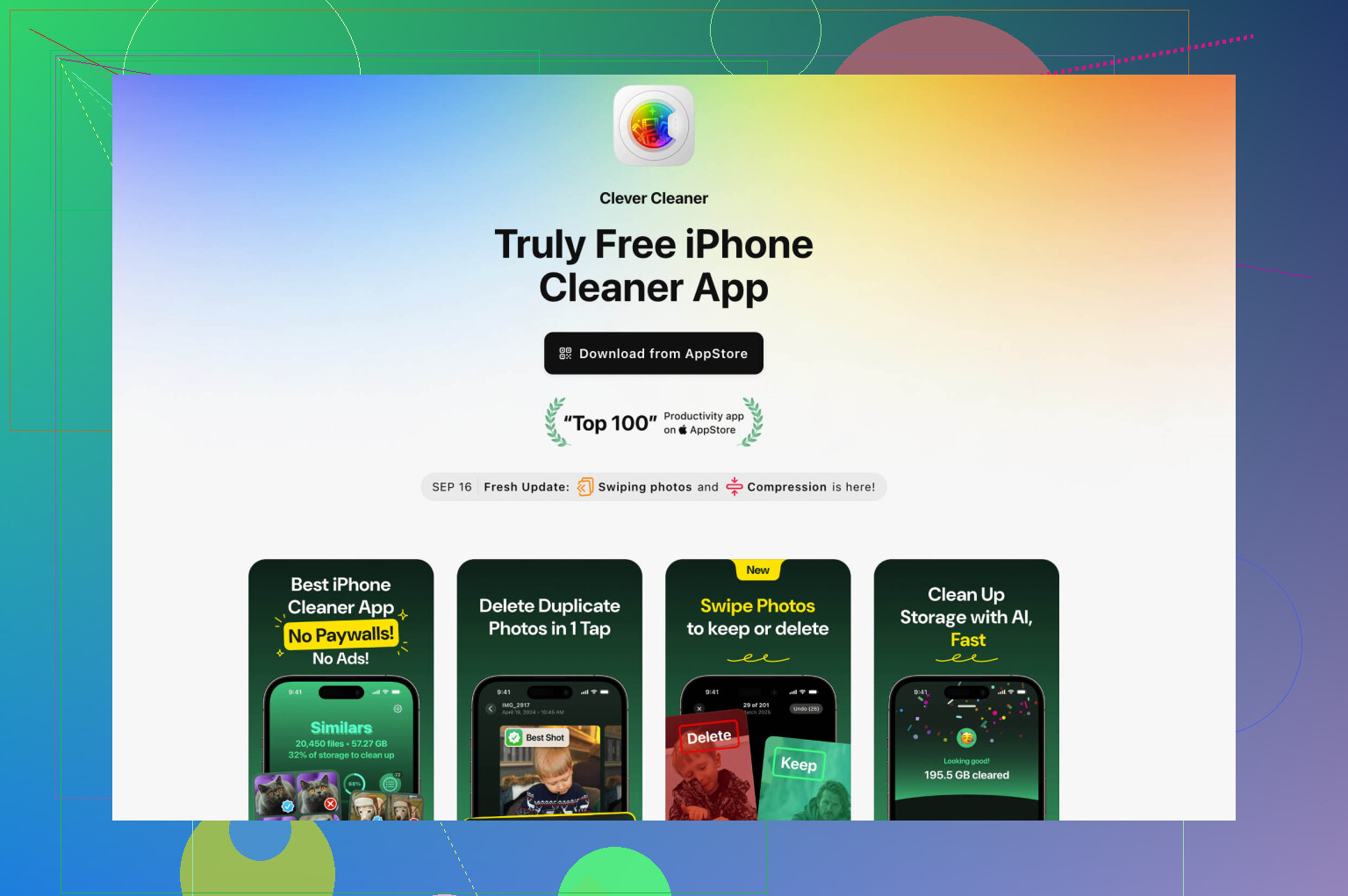
The one I had the least friction with was Clever Cleaner. It is from CleverFiles, and what stood out to me was the free access. No weird detour, no guessing which clip is huge.
Install Clever Cleaner and allow Photos access.
Let it scan your library.
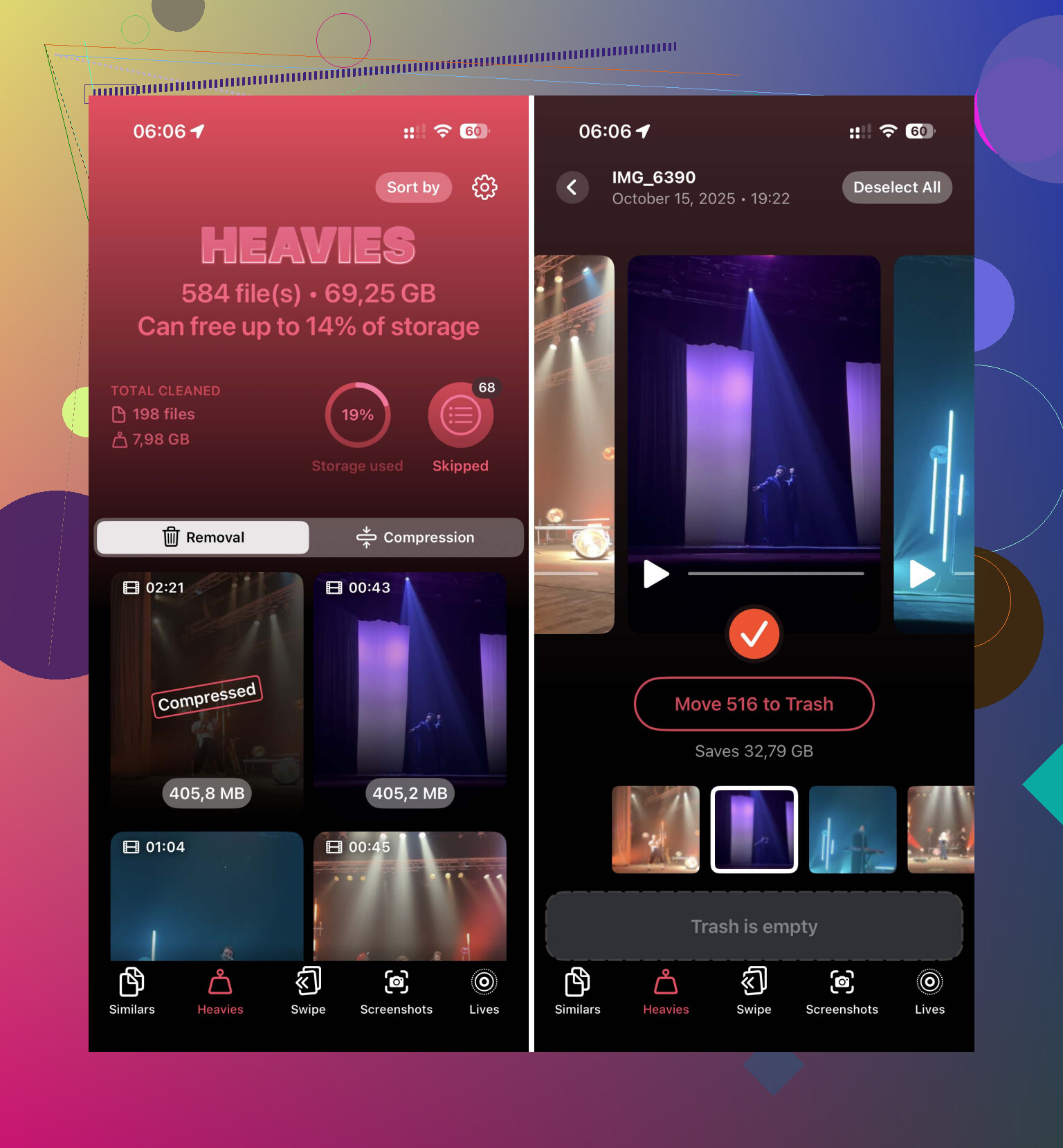
Open the Heavies tab at the bottom.
You will get your videos listed from largest to smallest.
Each item shows the file size in MB or GB, so you know what hurts most.
Pick what you do not want and tap Move to Trash.
The part I ended up liking most was the compress option in Heavies. I had one long family video I did not want to delete, but I also did not want it sitting there at full size forever. Compressing it cut the storage hit a lot, and on the phone screen the difference was small enough I stopped caring.
Way 3: Sort inside Files for non-Photos videos
This part is easy, and weirdly, Apple already solved it in Files. So if the clips are downloads, app exports, or work videos saved outside Photos, you can sort them by size natively.
Open the Files app.
Go to On My iPhone or iCloud Drive.
Open Downloads, or whatever folder holds your videos.
Tap the three-dot menu in the top right.
Choose Size.
Now the biggest files float up and the problem is obvious fast.
One more thing, and this tripped me up the first time. Deleting videos does not clear the space right away if they land in Recently Deleted. If you need room now, like you are trying to record another video today, open Recently Deleted in Photos and wipe it manually.
If I were doing this from scratch, I’d start with the Heavies section in Clever Cleaner. It gives the fastest read on what is taking up space, and for me it was the least annoying way to sort videos by size on an iPhone.
4 Likes
It was not removed. It was never there in Photos on iPhone.
Apple lets you sort by things like date, album, people, media type. File size is missing. Weird choice, but tha’ts how it is. So if you were hunting for a setting, you did nothing wrong.
One angle I think @mikeappsreviewer skipped a bit is Photos Search and smart albums. Search terms like screen recordings, slo-mo, 4K, ProRes, cinematic, or the month of a trip. This does not sort by size, but it narrows the list fast. ProRes and long 4K clips are often the worst offenders. A single minute of ProRes can eat gigabytes, so targeting format works better than scrolling blind.
Also check Settings, Camera, Record Video. If your phone is set to 4K at 60 fps, storage goes fast. Apple’s own estimates are around 440 MB per minute for 4K/60, versus about 65 MB per minute at 1080p/30. Changing this stops the problem from coming back agian.
If you want a cleaner view for large videos, Clever Cleaner is one of the few options people keep mentioning without a pile of complaints. This post gives a decent quick look at it for iPhone storage cleanup and large video finding: see how Clever Cleaner helps find big videos and free iPhone storage.
One more thing. If iCloud Photos is on with Optimize iPhone Storage, the “size” issue gets fuzzy. Your phone may hold smaller local versions while the full files sit in iCloud. So the space used on device is not always the same as the original video size. Tha’ts one reason Apple’s Photos app feels inconsistent here.
Nope, you are not missing a hidden switch. Photos on iPhone simply does not have a native sort-by-file-size option for videos. Apple never really added it, which is kind of ridiculous for a device that shoots giant 4K and ProRes files.
I mostly agree with @mikeappsreviewer and @cazadordeestrellas, but I’d push back on one thing: relying on iPhone Storage recommendations is hit-or-miss. Sometimes it surfaces huge clips, sometimes it acts like your storage is being eaten by magic. Useful, sure, but not something I’d call reliable.
What is worth checking inside Apple’s own apps is this:
- Photos > Media Types > Videos
- Photos > Search
- try:
4K,ProRes,Cinematic,Screen Recording,Slo-mo
- try:
- Albums > Recently Deleted
- because deleted videos still sit there taking space for a while
If you use iCloud Photos + Optimize iPhone Storage, that also explains some of the confusion. The phone may not be storing the full original locally, so “size” becomes messy. Apple probably avoids showing a neat size sort because the actual on-device footprint can vary. Annoying, but thats likely part of it.
If your main goal is to find the biggest videos fast, a dedicated iPhone storage cleaner is honestly the more practical route. Clever Cleaner is one of the better options for this since it actually surfaces large videos in a usable way instead of making you tap into each file one by one. For people comparing tools, this roundup on the best iPhone storage cleaner apps to free up space fast is a decent starting point too.
Also, prevention matters more than cleanup half the time:
Settings > Camera > Record Video
If you’re shooting at 4K/60, storage disappears crazy fast. Dropping to 1080p/30 can save a ton going foward.
So short version:
- missing option = normal
- not removed = never existed
- Apple Photos still can’t sort videos by size
- use search/filter tricks, or use something like Clever Cleaner if you want an actual biggest-first view
It is not “missing” so much as Apple never built that view into Photos on iPhone. @cazadordeestrellas and @espritlibre are right on that part. I slightly disagree with @mikeappsreviewer on one point though: third party tools are useful, but I would not jump there first if your real problem is local storage versus iCloud placeholders.
A better sanity check is this: open a few suspect videos, swipe up, and compare their size info with what Settings > General > iPhone Storage says overall for Photos. If those numbers feel weirdly disconnected, you are probably seeing the effect of Optimize iPhone Storage. In that setup, “largest original file” and “largest thing currently occupying your phone” are not always the same thing. That is likely why Apple avoids a simple size sort in Photos.
Another angle nobody really stressed: connect the iPhone to a Mac. In Image Capture or the Photos app on macOS, it is often easier to inspect media in bulk, export, archive, and then delete with less guesswork. If you are doing a serious cleanup, desktop is usually faster than pecking through the phone.
About Clever Cleaner since it keeps coming up:
Pros
- surfaces big videos quickly
- easier overview than Apple Photos
- helpful if you want a “what is huge?” pass
Cons
- still needs full photo library permission
- app results can be less meaningful if iCloud optimization is heavily involved
- another app in the chain when Apple should just do this natively
So yes, Clever Cleaner is practical if you want a largest-first list. Just keep in mind it is solving Apple’s missing interface, not magically changing how iCloud-managed storage works.