My iPhone still says storage is full even after I deleted all my photos and cleared Recently Deleted. I need help figuring out what’s taking up space and how to free up iPhone storage without losing important data.
Yeah, this is maddening. You delete a bunch of photos, remove apps you barely use, then Settings still acts like you did absolutely nothing. It makes the phone feel broken, even when it usually isn’t.
I had the same thing happen a few months back. My iPhone was packed, apps were opening slowly, the camera would freeze right when I needed it, and the “Storage Almost Full” alert kept popping up over and over. When cleanup doesn’t seem to free anything, it’s often because iOS is holding onto data longer than you expect, or the storage screen just hasn’t updated properly yet.
Start with Recently Deleted. It sounds too simple, but it’s a huge one. When you delete photos, they don’t disappear right away. They sit in Recently Deleted for 30 days, and they still count against your storage until you remove them from there too.
Go to Photos, open Albums, scroll down to Utilities, then open Recently Deleted and choose Delete All. If you deleted files or documents, check the Files app too, because the same kind of thing can happen there.
After that, restart the phone. Not just close apps, actually power it off and turn it back on. Sometimes the storage breakdown is stale and iOS doesn’t recalculate it right away. I’ve had space suddenly show up after a reboot because the phone finally rescanned everything.
Also check whether you’re using iCloud Photos with “Optimize iPhone Storage.” If that’s turned on, your phone may only be storing smaller local versions while the full-size photos live in iCloud. So deleting a ton of photos can feel like a big cleanup, but on the phone itself you might only be removing small thumbnails. The bigger savings may be happening in iCloud, not on the device.
If the phone still says it’s full, look at System Data. That used to be called “Other,” and it’s basically where iOS dumps caches, leftover app data, Safari junk, streaming app files, failed updates, and other random stuff. If System Data is sitting above 20GB, something is probably stuck. I tried clearing cache manually and offloading apps, but it felt like fixing one thing while another filled right back up.
The thing that actually helped me clear out the weird leftover junk was a third-party cleaner. I’m usually suspicious of those apps because a lot of them are full of ads or fake trial traps, but Clever Cleaner worked well for me. It’s free, with no ads, no paywall, and no sketchy three-day trial setup.
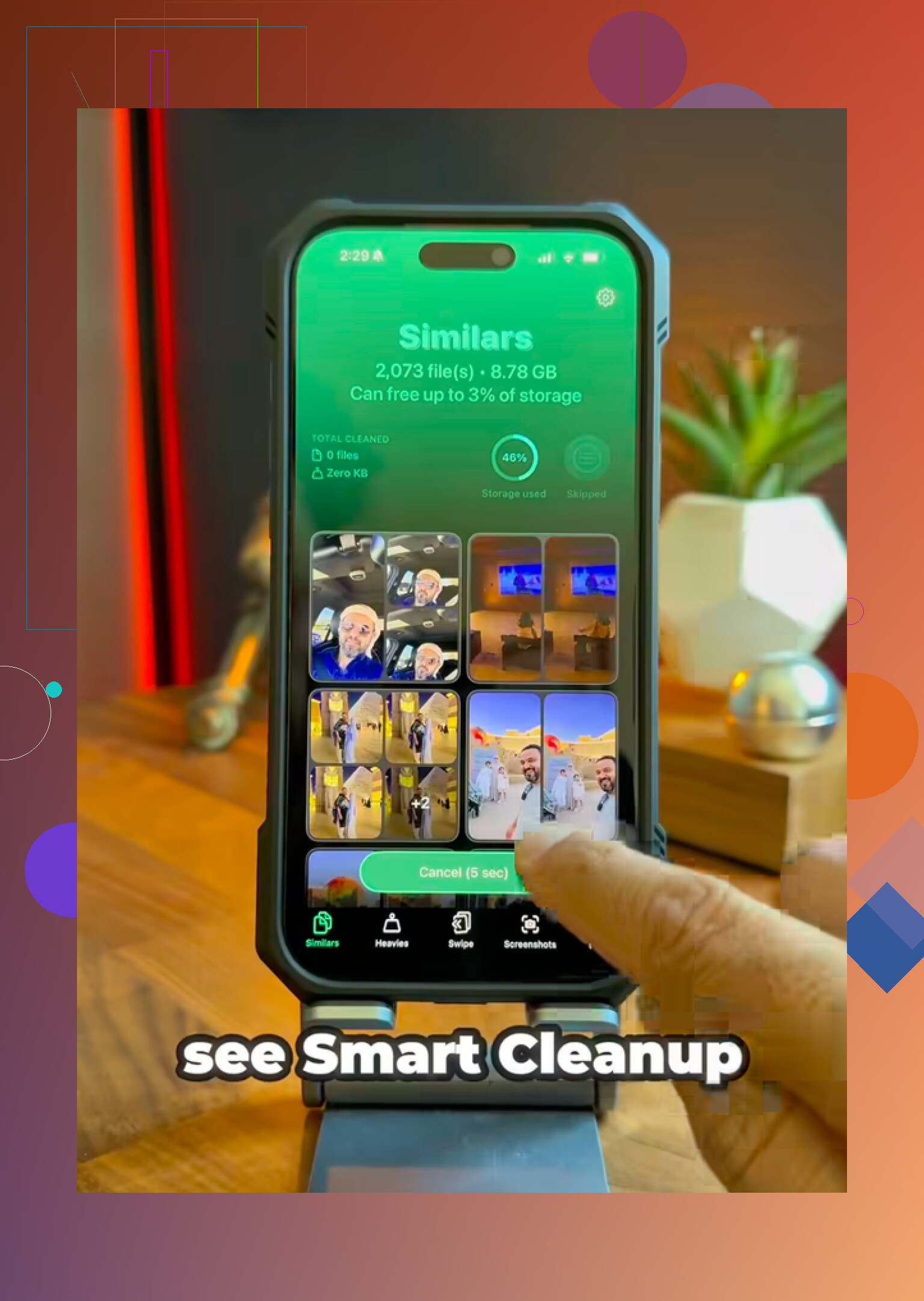
What made it useful was that it found stuff I wouldn’t have cleaned up one by one in Photos. The Similars tab finds near-duplicate shots, like when you take ten versions of the same photo and only need one. It picks what it thinks is the best one, then lets you delete the rest quickly. The Heavies tab sorts your media by file size, which is great for finding huge 4K videos. The Screenshots section was the eye-opener for me because it showed the file size of every screenshot, and I realized I had around 3GB of random memes and junk saved. It also runs on the device, so your photos aren’t being sent off to some random server. After clearing that stuff, my phone finally stopped dragging so badly.
There’s also a weird Date and Time trick if photos seem deleted but storage still won’t come back. Go to Settings > General > Date & Time, turn off “Set Automatically,” then move the year back by about two years. After that, check Recently Deleted again. Sometimes old “ghost” photos show back up there and you can delete them permanently. Just make sure you turn the date and time back on afterward, because apps can start acting broken if the phone’s clock is wrong.
If none of that works, the last resort is a factory reset. Back up the phone to a computer first. If the storage database or System Data is really corrupted, a fresh iOS install may be the only clean way to wipe it out.
I’d start with Recently Deleted, then restart, then check for similar photos and huge videos. Most of the time it’s one of those. And yeah, when that storage bar finally moves, it feels way better than it should.
2 Likes
Don’t wipe the phone yet, and don’t delete your iCloud backups thinking that will clear local storage. Mike’s System Data point is real, but I’d check Settings > General > iPhone Storage for Messages, Safari, Spotify/Netflix/YouTube downloads, and big chat attachments first, because those can eat space even when Photos is empty.
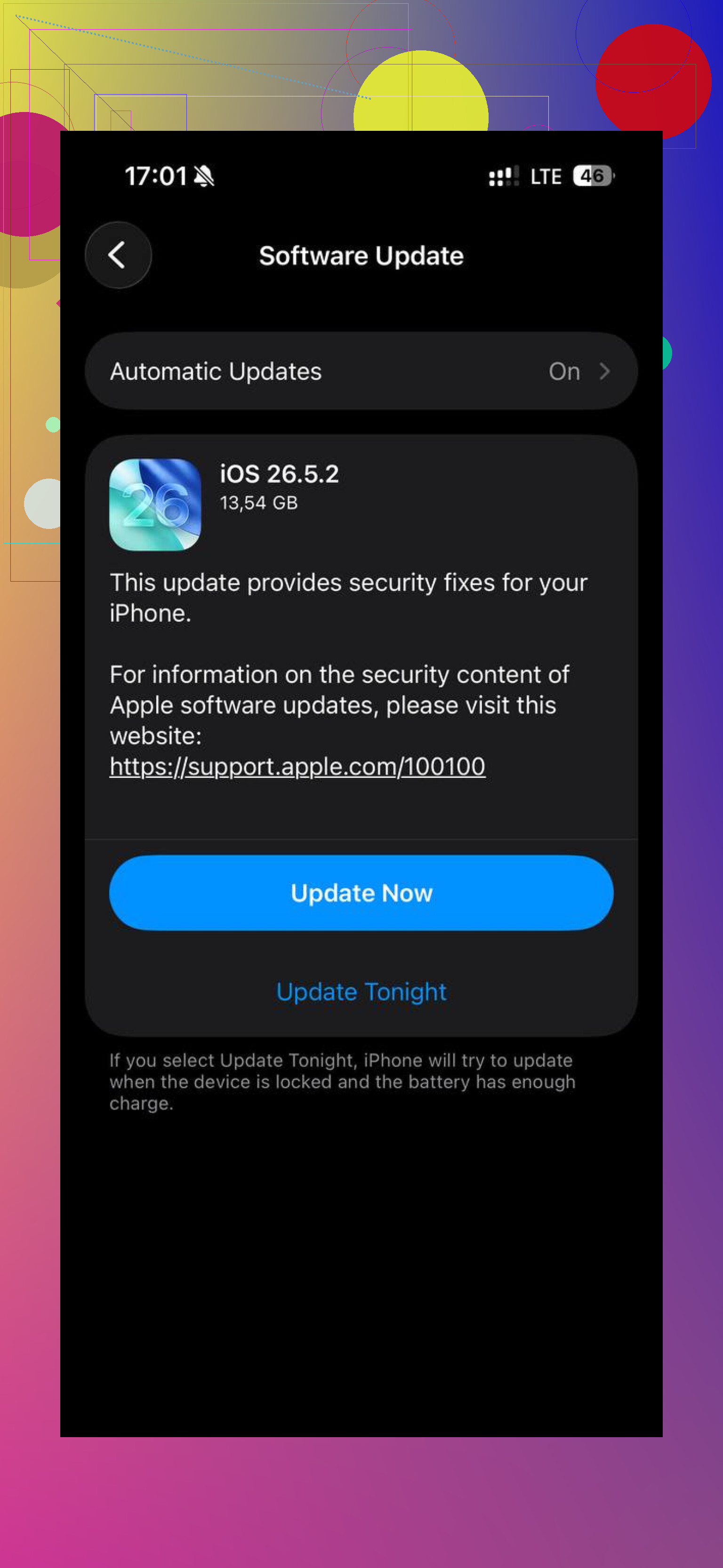
A phone that is full because photos are still hanging around is different from a phone that is full because iOS downloaded an update package and has nowhere to install it. I’d check Settings > General > iPhone Storage and look near the top for an iOS update, then delete the update if it’s sitting there, restart, and try again with more free space. This gets missed because it doesn’t look like “your” data, but it can take several GB and keep the storage warning alive. I agree with checking Messages and app downloads too, but I’d be careful with cleaner apps or factory resets until you know whether the space is being held by an update, Files “On My iPhone,” or a big app’s Documents & Data.
Do not let it sit with literally 0 bytes free for long, because iPhones can start failing at boring stuff like saving settings, finishing backups, receiving texts, or even completing an iOS update. Before doing anything aggressive, try to create a tiny bit of breathing room first. Delete one large app you can easily reinstall later, like a game, TikTok, Instagram, Netflix, or Spotify. Pick “Delete App,” not “Offload App,” because offloading keeps the app’s data and may not free as much as you expect.
The thing people miss is that deleting photos only helps if Photos was actually the thing using the storage. Go to Settings > General > iPhone Storage and wait on that screen for a minute. The bar at the top is useful, but the app list below it is more important. Tap the biggest apps and look at “App Size” versus “Documents & Data.” If an app has 300 MB for the app and 12 GB of documents, the problem is inside that app, not your camera roll.
For apps like Messages, WhatsApp, Telegram, Discord, Mail, Podcasts, Books, GarageBand, Files, and streaming apps, the space can be attachments, downloaded episodes, cached media, old conversations, or files saved locally. Offloading those apps will not clear that pile, because iOS intentionally keeps the documents. You either delete the downloads/attachments inside the app, or delete the whole app and reinstall it after confirming anything important is backed up.
I’d be a little cautious about the “System Data is huge so reset everything” path. System Data can shrink after a restart, after an update finishes, or after the phone has had enough free space to clean itself up. If you only have a few hundred MB free, iOS sometimes can’t do the cleanup it wants to do. That’s why deleting one reinstallable app first can make the other storage numbers finally move.
Clever Cleaner or similar tools can be useful if you still have lots of media hiding in Photos, especially large videos, screenshots, or duplicates. But if you truly have no photos left, a photo cleaner is not going to fix Messages attachments, Spotify downloads, Files saved “On My iPhone,” or an app with bloated Documents & Data. The storage screen is the map here. Start with the top three apps in that list and you’ll usually find the real culprit faster than guessing.