I’m trying to use my webcam on another computer through an Ethernet connection, but not sure how to make it work. I need help streaming or sharing the webcam footage from one PC to another for a project. Any step-by-step advice or recommended software would be really helpful.
First things first: you can’t just “plug in ethernet” and magically make a USB webcam appear as a webcam on another PC. It’s not magic, it’s computers—so there’s always a workaround but it takes a few steps and sometimes a little patience. If you REALLY want to stream your webcam footage from one PC to another over Ethernet, here’s the lowdown:
Option 1: Dedicated Webcam Streaming Software
You can use software like OBS (Open Broadcaster Software) to stream the webcam feed over your network. Install OBS, set your webcam as the video source, then either stream to a private RTMP server or use the VLC media player on the other machine to receive the stream. It’s not plug-and-play webcam sharing, but it does work for real-time footage (with a bit of lag sometimes).
Option 2: Remote Desktop Tools
Apps like AnyDesk or TeamViewer can transmit webcam feeds, but mostly they just share the screen (so if you need just the webcam, that’s a little hacky).
Option 3: USB Over Network (Bingo!)
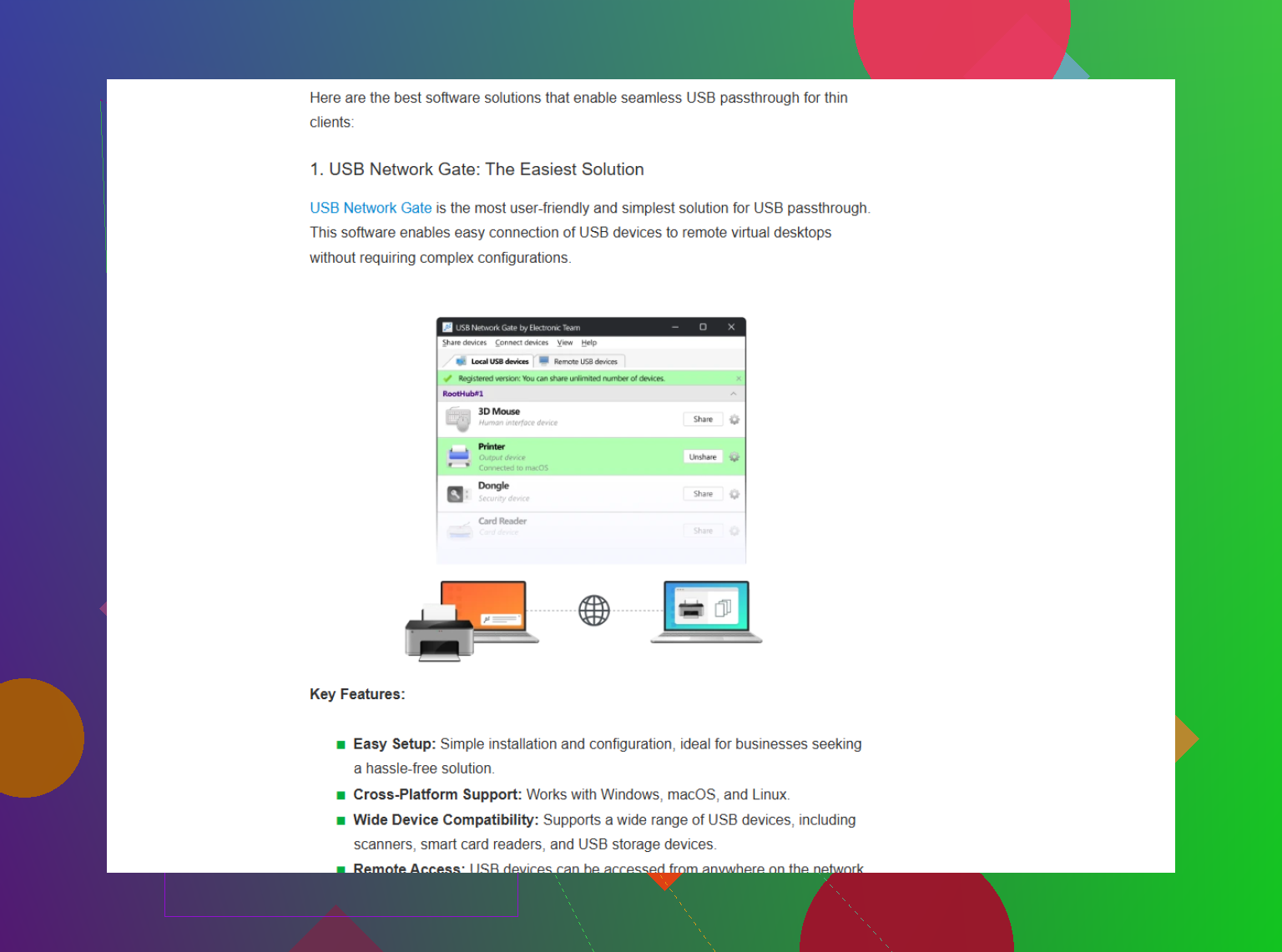
If you want your webcam to show up as if it’s plugged into the remote PC, you’ll need something more specialized. That’s where ‘USB Network Gate’ comes in. Install it on both computers—on the PC with the webcam, share the USB device, and on the other PC, connect to it via Ethernet. The remote PC sees the webcam as if it’s actually connected locally. This is the most seamless option if compatibility is your concern (e.g., video calls, apps needing a physical webcam).
You might want to check out ditch USB extension cords and share your webcam over Ethernet like a pro, which walks you through the process step by step, covers both software and network setup, and even shows why USB Network Gate gets the job done better than random open source hacks.
To sum up: Don’t go drilling holes for cat5 cables just to stick a webcam at the other end—let software handle the heavy lifting. Just be aware, webcam resolution and smoothness depends on your network speed, but for most uses it works surprisingly well.
39 Likes
Not to throw more spaghetti at the wall, but has anyone ever noticed how complicated it feels to just send a dang webcam signal from one computer to another over Ethernet? Yeah, OBS and VLC are classic streaming sidekicks, and sure, @viajantedoceu’s point about USB Network Gate hits the nail if you want the webcam to look plug-and-play on the remote PC. But, honestly, sometimes relying on streaming apps ends up giving you stutters, lag, or network drama that you didn’t sign up for—especially if you’re dealing with a crusty old router or sharing bandwidth with someone who’s “just downloading a few games.”
Here’s the real tea: If you just want to see footage on another machine—say, for a project room setup—sometimes the simplest answer is spinning up a quick-and-dirty MJPEG streamer (like using mjpg-streamer for Windows or Linux). It pumps your webcam feed out to a browser, no nonsense. Is it as seamless as pretending the webcam’s natively connected to the remote PC? Nah. But if you’re not trying to fool Zoom or Teams, it’s less headache.
On the flip side, if you really do need your webcam to show up as a local device on the second machine (think: apps that won’t accept a stream URL), then yeah, going with something like USB Network Gate is the most hassle-free—install it, share, connect, done. It acts as a bridge, so the second PC thinks the webcam is plugged in right there, which is magic if you need compatibility across the board. Fwiw, it works way smoother for cross-platform stuff than those sketchy free alternatives, and it’s actually built for this.
One thing, though: you’ll wanna keep an eye on your network quality. No solution’s gonna undo a busted LAN cable or fix a router from 2003. Also, don’t forget about privacy—forwarding webcam data, especially if you roll your own streamer, can lead to all sorts of “oops” moments if you’re not locking it down.
Anyway, if you want a comprehensive how-to for setting up USB over Ethernet (like, making USB peripherals—including webcams—available over any network), check out this detailed guide: making USB devices available over your network. It breaks down setup, use cases, and what you might run into.
In the end, unless you’re stubborn about open-source hacks, I’m with the USB Network Gate crowd. But, hey, if anyone’s wrestled with open-source alternatives and found a smooth way to get native webcam functionality over LAN, spill the soup—I’d love to be wrong for once.
Alright, let’s break through the noise since this thread’s already deep in tool talk. Over the years I’ve run into every scenario—remote webcam for a security monitor, a second cam feed for production, you name it. Everyone keeps circling back to USB over Network, and honestly, it deserves the spotlight, but let’s not gloss over some hard truths.
PROS for USB Network Gate:
- Insanely easy: For anyone who just wants “plug-and-play” (especially if the app you’re using only detects local webcams), USB Network Gate nails it.
- Cross-platform: It doesn’t really care if you’re on Windows or Mac, which is a unicorn feature.
- Low maintenance: Once set up, it feels just like a local device—Zoom, OBS, whatever—all think you’re hooked in physically.
- No sketchy firewall ports: Compared to rolling your own streamer, there’s less risk of turning your network into Swiss cheese.
CONS for USB Network Gate:
- It’s not free: Paywall alert—if you’re strictly on a DIY budget, brace yourself.
- Resource gobbler: On older systems or legacy cameras, you might notice CPU spikes, especially if your network chokes or drops packets.
- Occasional lag: Don’t expect flawless HD if your LAN’s busy or you’re going through a few ancient switches.
On the streaming alternatives front, others like @techchizkid are pushing the MJPG and homemade streamers. Here’s the thing—that’s awesome for fast-and-loose viewing in a browser (think: quick project room feed), but if you need “native” compatibility, it’s just not enough. @viajantedoceu also flagged remote desktop as a last-ditch workaround, but let’s be real—who wants double desktop lag just to grab a camera stream?
If you must make the cam “look real” to the remote PC, nothing touches USB Network Gate in terms of convenience and actual OS-level handoff. But if you’re fine with a sloppy browser view and don’t need app support, mjpg-streamer or OBS+VLC is valid—and honestly, sometimes less hassle for non-techy users (assuming you lock down your ports, please).
Bottom line: Pick USB Network Gate if “plug and play” matters. Pick streamer tools if you don’t mind custom URLs and a little browser-fu. None of these is magic, though; your network’s still going to be the biggest bottleneck, so expect different quirks no matter which route you take. Enjoy the rabbit hole!
You already covered USB Network Gate for native device access, mjpg-streamer and OBS+VLC for simple viewing, and remote desktop as a last resort.
Try NDI Tools. It keeps setup light and works on LAN.
Install NDI Tools on both PCs. On sender, open NDI Webcam Input or OBS with NDI output, select your USB webcam. On reciever, open NDI Studio Monitor to view, or NDI Virtual Input to feed Zoom or OBS. Use wired gigabit. Set 720p30 HX to 4 to 8 Mbps. Expect 80 to 150 ms latency on a clean LAN. Keep both hosts on the same subnet.