My iPhone storage keeps filling up even after I delete apps, photos, and videos. I’m trying to figure out what’s using so much space, like system data, messages, or hidden files, because it’s stopping me from updating apps and using my phone normally. What should I check to free up iPhone storage and keep it from happening again?
I had this happen on my iPhone a while ago. Storage kept shrinking on days when I barely touched the thing. I thought iOS was bugging out. It wasn’t one neat cause. It was a pile of small stuff building up in the background, then all of it hit the wall at once.
Check the biggest category first
Don’t start deleting random apps. Go to Settings > General > iPhone Storage and wait a bit for the chart to finish loading. I skipped the wait once and got the wrong idea about what was eating space.
That screen tells you where the storage went, Photos, Apps, Messages, iOS, System Data. Once I saw the biggest block, the cleanup got easier. Before that, I was guessing.
Photos usually eat the most
On most phones I’ve checked, photos and videos were the main problem.
It’s rarely one obvious folder. It’s more like this:
- five tries of the same pic
- old screenshots you meant to delete later
- Live Photos
- burst shots
- big video files sitting there for months
A lot of people open the Duplicates album, merge a few items, and think the job is done. I did too. Didn’t help much. Exact duplicates were only a small part of it. The bigger storage leak was near-duplicates, stuff like 12 shots of the same dog, same couch, same lighting, one eye slightly more open.
If Photos is the top category, this is where I’d start
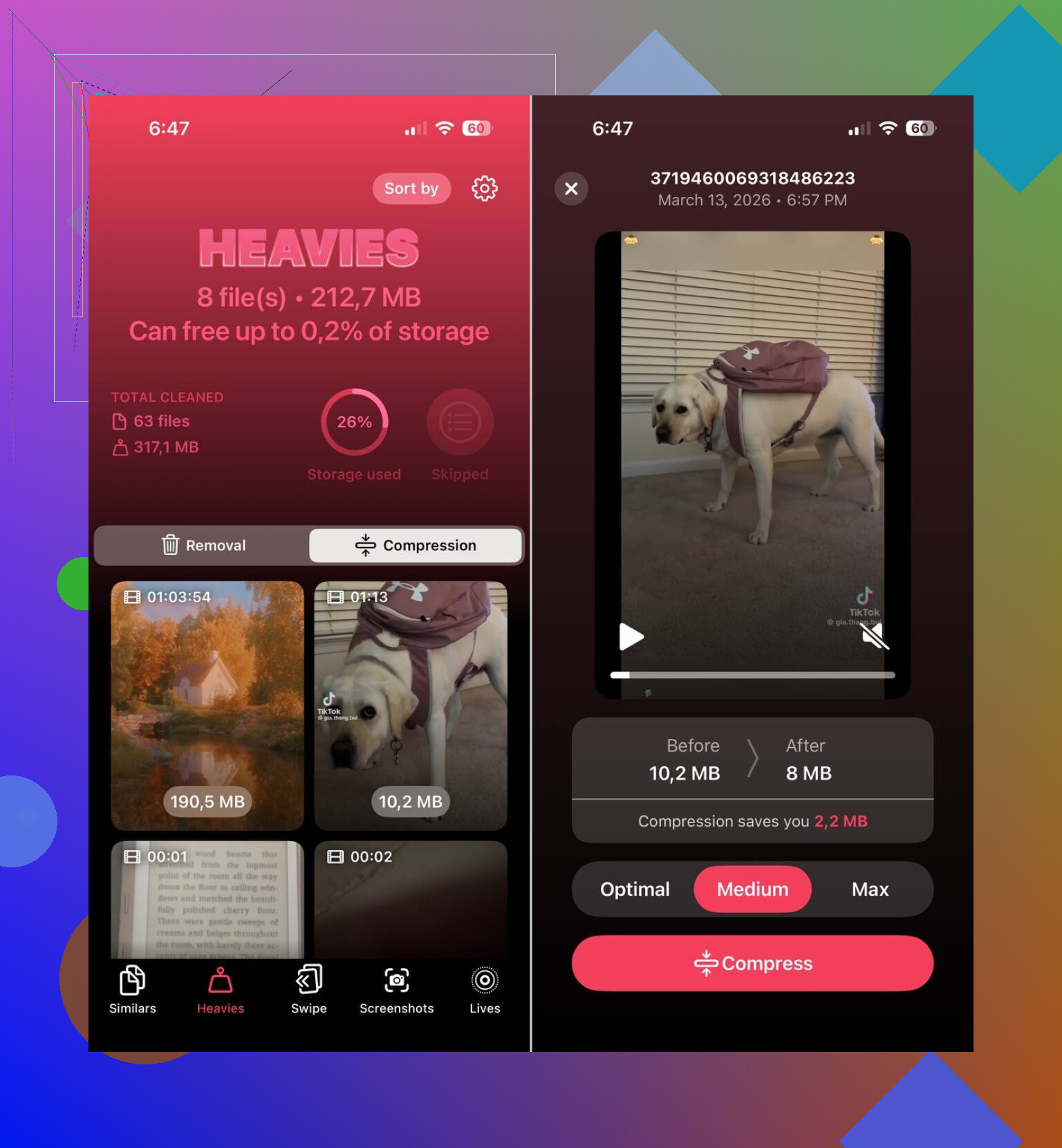
If your photo library is the main storage hog, I’d start with Clever Cleaner before trying to sort thousands of images by hand.
What made it useful for me was the boring stuff it targets, which is also the stuff taking up space:
- similar photos
- duplicate photos
- screenshots
- Live Photos
- large media files
The similar-photo part did most of the work for me. Apple’s own cleanup options catch exact copies, but they don’t do much when you’ve got six near-identical shots from one moment. This app grouped those together and picked a best shot suggestion. I still checked them myself, but it saved me a lot of scrolling.
Also, it doesn’t wipe things without asking. I liked that. You review the list first, keep what matters, dump what doesn’t. Safer than going on autopilot and nuking something you wanted.
Live Photos were another sneaky one. They look like normal pictures until you remember each one carries a short video clip too. I converted a bunch of older Live Photos into regular still images and got back more space than I expected. Kinda annoyed me, tbh, because I’d been ignoring them for years.
Apps get bloated fast
Photos get blamed first, but apps were second place on my phone by a mile.
Streaming apps, social apps, chat apps, they pile up downloads, cached media, and old temp files. An app listed as small at install time can swell into gigabytes later. I saw it with Instagram, YouTube, and messaging apps. Same phone, same habits, more junk every month.
Open the storage list and look at the largest apps first. If you barely use some of them, I’d do one of these:
- offload the app
- delete it
- reinstall it to flush old stored data
The built-in Offload Unused Apps option helped a bit on mine. It removes the app itself but keeps your documents and settings around.
Messages gets ignored way too often
I missed this one for a long time. Messages had years of attachments sitting in old threads.
Photos, videos, GIFs, voice notes, all of it hangs around unless you clear it. If you’ve had the same iPhone line for years, old group chats alone might be hiding a few gigabytes. Mine were. I went through large attachments and got space back fast.
System Data is messy and not fully in your control
If Photos and Apps don’t look huge but the phone still says storage is almost full, check System Data.
This category is annoying. It includes logs, cache, temp files, and other iOS leftovers. Sometimes it swells up more than it should. There isn’t much direct control over it, which is why people get stuck here.
I’ve seen it drop after normal cleanup and a restart, but not always. So if your numbers look weird, it isn’t always something you did wrong.
The order I’d follow
This is the sequence I’d use:
- open iPhone Storage and identify the biggest category
- if Photos is on top, clean it up with Clever Cleaner
- remove big videos and old screenshots
- check the largest apps
- clear heavy message attachments
- restart the phone and check storage again
From what I saw, the phone wasn’t filling itself for no reason overnight. It was months of buildup, photo clutter, app cache, message junk, and background system files, all stacked together until the warning showed up.
9 Likes
If storage keeps filling after you delete stuff, I’d check sync and trash first. People skip those.
Photos deleted from the library still sit in Recently Deleted for 30 days. Same for Files app, Notes attachments, Voice Memos, and some third party apps. Empty those. Then restart. iOS does not always recalculate free space fast.
I also disagree a bit with @mikeappsreviewer on one point. Reinstalling big apps helps, but Safari data and offline downloads are often the sneakier hogs. Check these:
- Safari, Settings > Safari > Clear History and Website Data
- Music, TV, Podcasts, Spotify, Netflix, YouTube for offline downloads
- Files app, On My iPhone folder
- Mail, huge attachments and account cache
- Notes, scans and embedded PDFs
- Voice Memos, old recordings
- Deleted items in Photos and Files
If Messages looks normal, open one thread, tap the contact, then see all photos and attachments. Old group chats eat space fast.
For Photos cleanup, Clever Cleaner is worth a look if your library is messy. It’s useful for similar shots, screenshots, Live Photos, and large files. This is a decent example of how to free up iPhone storage with a cleanup app.
If System Data stays huge after all this, do a backup, then erase and restore. Annoying, yep. But it fixes weird storage bugs more often then people want to admit.
One thing I’d check that @mikeappsreviewer and @sonhadordobosque only kinda touched on is whether your storage is being “given back” to iOS yet. Deleting stuff does not always mean instant free space. iPhone can lag hard on recalculating it.
A few less obvious culprits:
- iCloud Photos set to Download and Keep Originals. That can refill storage after you clean up.
- Shared Albums. Small previews add up.
- Podcasts app. It hoards old downloads way more than people realize.
- GarageBand, iMovie, CapCut, Lightroom, etc. Project files can be massive.
- WhatsApp and Telegram. Their in-app storage managers often show more than iPhone Storage does.
- Apple Books PDFs and downloaded audiobooks.
- Failed iOS update files. Sometimes old update packages just sit there.
I slightly disagree with the “erase and restore” advice as an early fix. That’s the nuclear option. I’d first check Settings > Apple ID > iCloud > Photos, then app-specific downloads, then reboot and wait a few mins.
If photo clutter is still a mess, Clever Cleaner is honestly a practical way to sort similar pics, screenshots, and large media without manually suffering through 20,000 camera roll mistakes lol.
Also worth bookmarking: best ways to free up iPhone storage fast.
If System Data is the thing growing by itself, that’s when iOS is probly being weird, not you.