My iPad storage is almost full, and I noticed I have a lot of duplicate photos from syncing, screenshots, and backups. I’m looking for a safe duplicate photo remover for iPad that can find duplicates without deleting anything important. What apps or methods have worked well for you?
A lot of “duplicate photo” cleanup on iPad comes down to the difference between true duplicates and photos that just look almost the same. Apple’s built-in tool is mostly for exact matches. If your problem is five selfies in a row, three shots of the same beach, or edited/saved versions from Messages, Apple may not catch much of that.
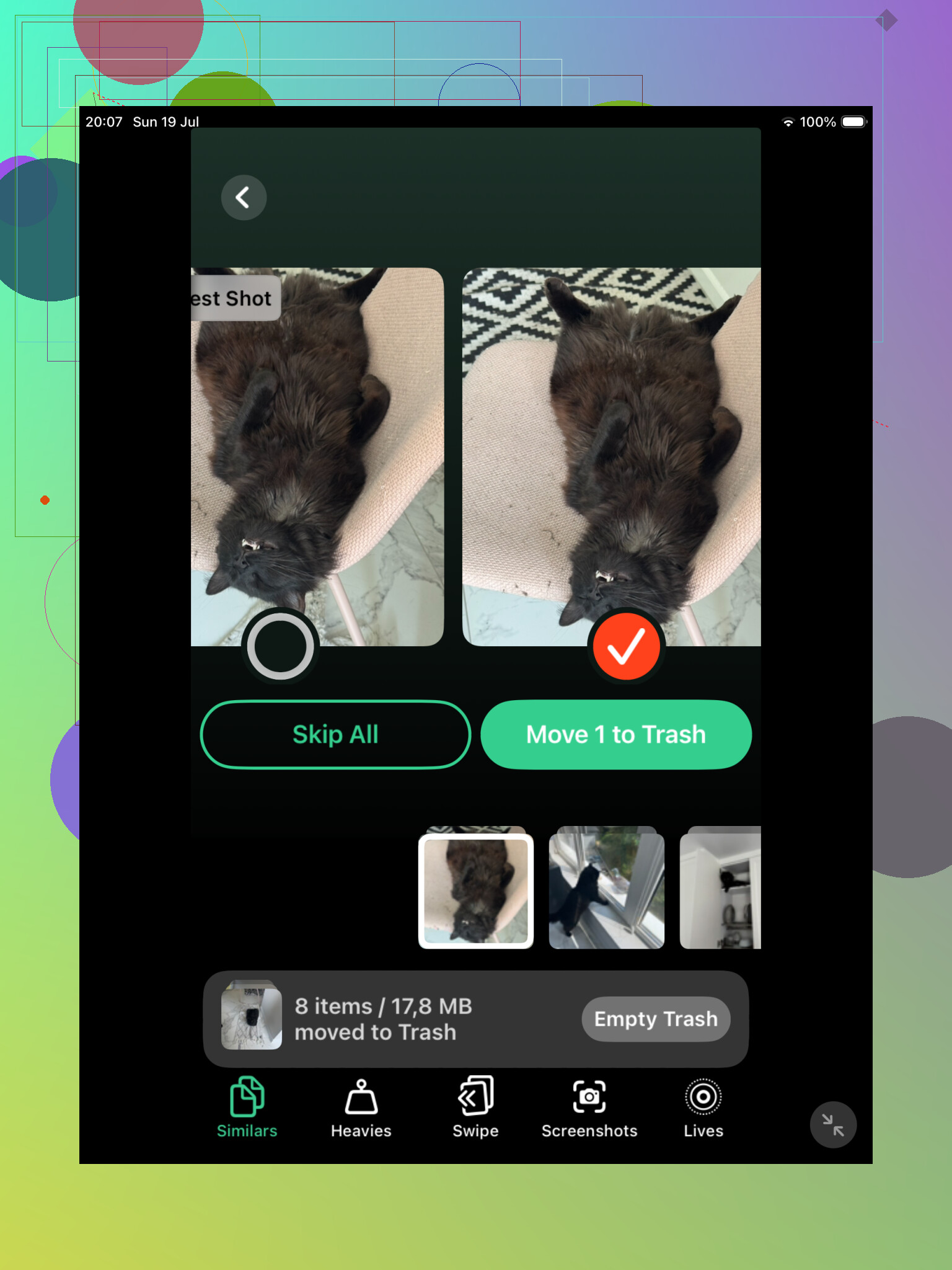
For a bigger photo library, I’d probably start with Clever Cleaner. Its Similars section is useful because it groups photos that are visually close, even if the files are not technically identical. That’s usually where most of the clutter is.
It also picks a Best Shot from each group, but you’re not locked into that choice. You can open the group, compare the images, and decide what to keep yourself. That’s a lot less painful than flipping through the Photos app one image at a time, especially if you have years of stuff saved.
Clever Cleaner can find exact duplicates too, so it works as a decent first pass when you don’t really know what’s taking up all the space. The big reason to use it is that it catches both duplicates and near-duplicates instead of only matching identical files.
Still check Apple’s Duplicates album afterward
If your iPad is on iPadOS 16 or newer, go to Photos, scroll to Utilities, then open Duplicates. Apple will show groups of matching photos with a Merge option. When you merge them, it keeps the version with the best quality and useful metadata, and the extras go to Recently Deleted.
That feature works, but it’s pretty strict. If one photo was cropped, compressed, edited, saved through another app, or taken a second later, it may not count as a duplicate. So it’s normal to see only a handful of results there even when your library feels full of repeats.
If you don’t see the Duplicates album at all, the iPad may still be scanning your library. That can happen after a big iCloud sync, a large import, or an iPadOS update. Leave it plugged in and locked for a while. With a large library, it can take a day or two. Also, the feature is not available on iPadOS 15 or older.
For a small library, Apple’s tool might be all you need. If you just copied the same photos a few times, there’s probably no reason to install another app. But if you have thousands of photos and lots of repeated shots, Clever Cleaner will usually surface more.
You can also do it manually from the Photos app. Search for things like “screenshots,” “dog,” “beach,” or a city name. Browsing by Months or Years helps too, especially for trips, events, and places where you probably took several versions of the same thing. It’s slower, but it works if you don’t want to use another app.
One thing people forget: merged or deleted photos still sit in Recently Deleted for up to 30 days, and they keep using storage until they’re removed from there. Check that album before emptying it.
And if you use iCloud Photos, deleting photos on the iPad deletes them across your other Apple devices too, like your iPhone or Mac. Make sure that’s what you want before you permanently clear anything out.
6 Likes
If iCloud Photos is set to Optimize iPad Storage, deleting duplicates may not free as much space as you expect right away because a lot of the library may already be thumbnails. I’d check Settings > Photos first, then use Clever Cleaner or Apple’s Duplicates album mainly for obvious junk, and empty Recently Deleted only after you’re sure it didn’t remove anything you wanted.
How the photos got onto the iPad matters more than which cleaner you pick.
If these are photos synced from a Mac or PC through Finder/iTunes, a cleaner app may not be the real fix. Those albums can behave differently from normal camera roll photos, and deleting them from the iPad may be limited or they may just come back the next time you sync. In that case, you need to change what albums are being synced on the computer side, then sync again. Otherwise you’re just trimming weeds while the sprinkler is still on.
For normal Photos library stuff, I’d use a two-pass approach:
- Check Photos > Utilities > Duplicates first
- Then use an app like Clever Cleaner for near-duplicates and junky repeated shots
- Review before deleting, especially for edited photos
- Empty Recently Deleted only after you’re sure
- Wait a bit before judging the storage number, because iPadOS can lag on recalculating it
I’m a little more cautious than some people with “best shot” features. They’re useful, but they don’t know why you kept a picture. The blurry one might have the better expression, the screenshot might have something important in the corner, and the edited copy might be the version you actually use. I’d let the app group things, but I would not hit a giant delete button without looking at the groups.
Clever Cleaner makes sense if your mess is mostly burst-like photos, screenshots, saved memes, similar selfies, or repeated downloads. That’s where Apple’s Duplicates album can feel too strict. Apple is good when the files are truly duplicates. It’s less helpful when they’re “basically the same photo” but technically different.
The other boring thing that matters: check Settings > General > iPad Storage before spending too much time on this. Sometimes Photos is not the main problem. Messages attachments, downloaded videos, Procreate files, Netflix/Disney downloads, or app caches can be the real storage hogs. If Photos is only taking 8 GB and the iPad is full, duplicate cleanup won’t magically fix it.
If you use iCloud Photos, be extra careful with the word “delete.” That usually means delete everywhere, not just this iPad. If your goal is only to free local space, Optimize iPad Storage is the safer lever. If your goal is to reduce the whole library, then deleting duplicates is fine, but assume it affects your iPhone, Mac, and iCloud too.
So my answer would be: use Apple’s tool for true duplicates, use Clever Cleaner if you want help finding similar shots, but first figure out whether the photos are synced albums, iCloud Photos, or local imports. That detail changes the whole cleanup plan.
Whether you have a real backup outside iCloud matters here. Before letting Apple’s Duplicates album or Clever Cleaner remove anything, I’d copy the library/photos you care about to a Mac, PC, or external drive, because iCloud Photos will happily sync your mistakes everywhere.