My TV remote suddenly stopped working and replacing it with the original brand model is either out of stock or way too expensive. I’m hoping there are reliable alternatives I can use to control my TV, like universal remotes, apps, or other devices. What are the best and most cost-effective options, and what should I check on my TV to make sure they’ll work?
Had the same thing happen with my Samsung remote a few months ago. Brand one was either out of stock or priced like it was made of gold. Here’s what worked for me and what tends to work for most people.
-
Check for simple stuff first
• Replace batteries with a fresh pair, even if they “seem” fine.
• Clean the battery contacts with a dry cloth.
• If it is an IR remote, point it at your phone camera. If you see a flashing light on the phone screen when you press buttons, the IR LED still works. If not, it is probably done. -
Use a cheap universal remote
• Look for basic IR universal remotes from brands like GE, RCA, or One For All.
• Price is usually 10 to 20 dollars.
• Works best with common brands like Samsung, LG, Sony, TCL, Vizio, Hisense.
• You enter a 3 or 4 digit code from the manual and it maps power, volume, input, and usually menu.
• If your TV uses Bluetooth for advanced stuff, the cheap remotes might only handle simple functions, but that still beats nothing. -
Try a smart remote app
Two main types.a) IR blaster phones
• Some Android phones have an IR blaster.
• Install a universal remote app, point phone at TV, done.
• Newer phones dropped IR, so this only helps if you have an older Xiaomi, Huawei, some LG or older Samsung models.b) Wi Fi remote apps
• Works if your TV is a smart TV and is on the same Wi Fi network as your phone.
• Often you need to approve app control once using the original remote, but many TVs let you pair an app from a PIN on screen.
• For iPhone users, take a look at this universal remote option:
TVRem universal TV remote for iOS
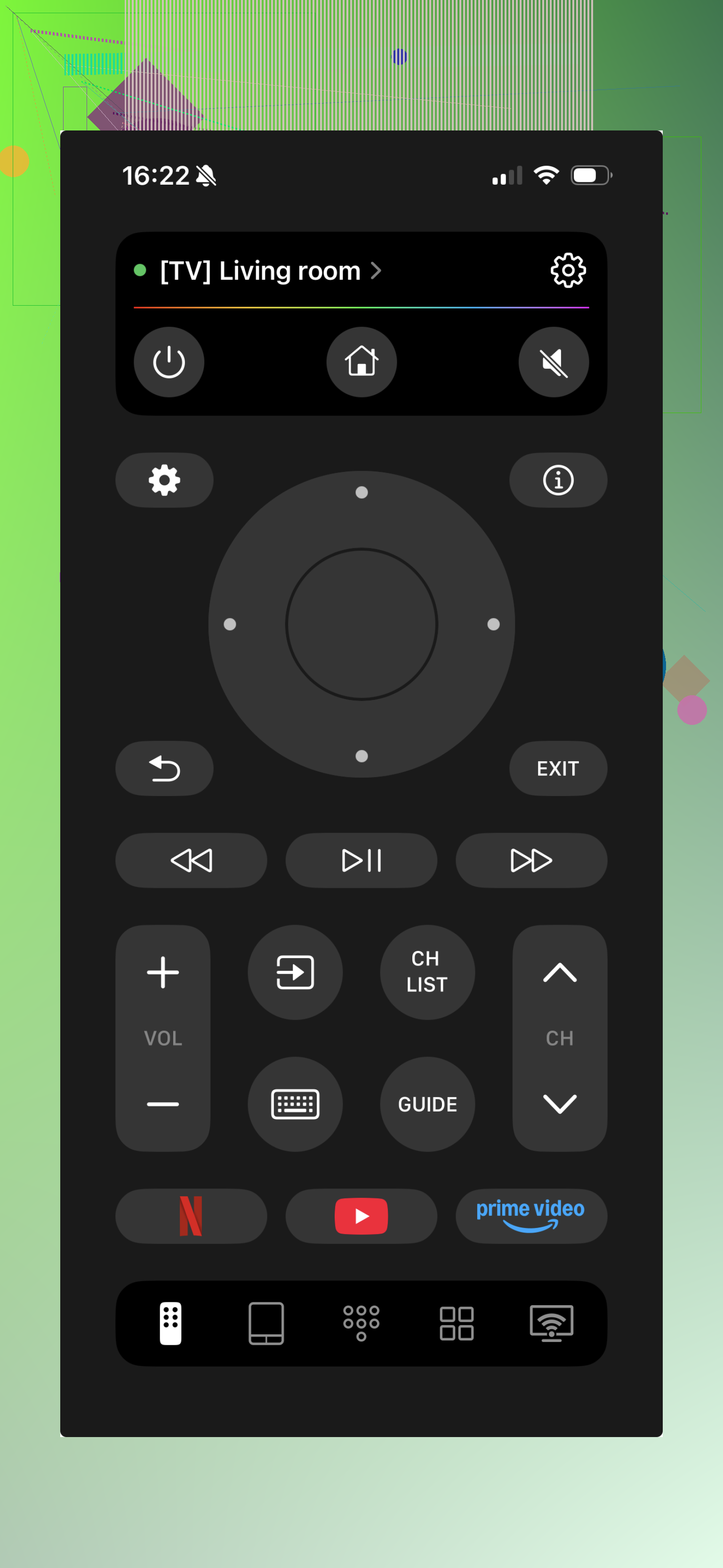
Here you can watch a video instruction about the TVRem remote and how to use it:
It controls multiple TV brands over Wi Fi. Good if your original brand app is buggy or missing.
• Data point from my use: Wi Fi apps usually have a tiny delay, like 100 to 300 ms, but for channel surfing and volume it is fine.
-
Use your TV brand’s own app
• Search “[Your TV Brand] remote app” in the app store.
• LG: LG ThinQ.
• Samsung: SmartThings.
• Sony: Google TV app or branded remote app.
• TCL / Roku TV: Roku app.
• These apps often give you a full remote layout, plus keyboard input for search. -
HDMI device remote as a backup
• If you use Roku, Fire TV, Apple TV, or similar, those remotes often control TV power and volume with HDMI CEC.
• Example: My Fire TV remote turns my TV on and off and controls volume. I only need the TV remote for settings.
• Turn on CEC in the TV settings if it is off. Names vary: Anynet+ (Samsung), Simplink (LG), Bravia Sync (Sony), etc. -
Physical buttons on the TV
• Every TV has at least power and volume on the body.
• This helps you get into settings, Wi Fi, or input long enough to pair a phone app or set CEC.
• Some newer sets hide the buttons under the bezel or under the logo area, so you might need to feel around a bit. -
If you still want a remote but cheaper
• Search by TV model number on Amazon or eBay.
• Look for “replacement” or “compatible” remote, not “original”. These are usually 8 to 15 dollars.
• Many are plug and play, no pairing needed for IR models.
If you want something fast and low effort, I would try in this order:
Phone app on Wi Fi, then cheap universal IR remote, then a clone replacement remote online.
That usually covers most TVs without paying the brand tax.
Honestly, @codecrafter already hit most of the “normal human” options. I’ll throw in a few more routes and a couple places where I’d actually do things differently.
- Skip the ultra‑cheap “mystery” universals
Those 4-dollar no‑name remotes on random sites are tempting, but half of them use ancient code lists. If your TV is from the last 5–7 years, there’s a fair chance it either won’t map all buttons or some stuff like input/source just refuses to work. I’d rather spend a tiny bit more on:
- A model-specific clone remote (search your exact TV model + “remote control” and pick a “compatible” one)
- Or a known brand universal with clear return policy
I’ve had more success with direct clones than generic universals, tbh.
- Use a streaming box remote as your main remote
People treat this like a backup, but it can basically replace your TV remote for 95% of daily use.
If you have or can get:
- Roku
- Fire TV
- Apple TV
- Google TV / Chromecast with Google TV
They usually do:
- Power on/off TV
- Volume up/down & mute
- Input switching on some models
Turn on HDMI CEC in your TV settings (weird brand names, but dig through them once) and you basically live inside the streaming box UI and ignore the TV remote forever except for rare picture or network settings.
Unlike @codecrafter, I’d actually put this near the top of the list if you watch mostly through apps and not cable/satellite.
- Use USB devices to dodge the on-screen keyboard nightmare
Even if your TV remote is dead, you can often plug in:
- A USB keyboard
- Sometimes a USB mouse or touchpad
What this helps with:
- Navigating settings menus on some brands
- Typing Wi Fi passwords or app logins
- Getting far enough to pair a phone app or enable HDMI CEC
It’s surprisingly handy on Android/Google TV sets and some LG/Samsung models.
- If your TV supports Bluetooth input
Not talking about a Bluetooth TV remote here, but:
- Some TVs let you pair a Bluetooth keyboard or even certain Bluetooth game controllers
- With a keyboard, you can usually use arrow keys, Enter, Esc, etc. for basic navigation
Check the “External devices”, “Bluetooth” or “Accessories” section in settings. If you can still reach settings using physical buttons on the TV, this can basically act as a “remote with too many keys”.
- Smart plugs as a fake power button
You obviously will not get volume/input/menu with this, but if your biggest headache is just turning the thing on/off:
- Plug TV into a Wi Fi smart plug
- Leave TV set so it powers on automatically when it gets power (most older and many cheaper TVs do this; some have a setting like “Power on after power loss”)
- Then you control power with your phone or voice assistant
It’s kind of a caveman hack, but it works better than it should, especially on dumb/non‑smart sets in bedrooms.
- “Hybrid” control: phone + TV buttons
Instead of hunting a perfect remote substitute, you can mix it up:
- Use physical buttons on the TV for rare stuff like picture mode, factory reset, or initial Wi Fi setup
- Use a Wi Fi remote app or IR phone app (if your phone has an IR blaster) for day to day stuff
Once the TV is on Wi Fi and you have an app paired, the missing remote becomes almost a non-issue. The only time I really miss a physical remote is when I need to change internal inputs or deep settings quickly.
- If you’re on iPhone and want an app that covers multiple brands
Lots of brand apps are clunky, laggy, or abandonware. For iOS, there are multi-brand remote apps that can replace a drawer full of remotes if your TVs and devices are on the same network. One solid option for iPhone users who want to control different TV models from a single place is described here:
turn your iPhone into a versatile TV controller
That’s especially nice if you’ve got, say, a living room LG, a bedroom Samsung, and a random hotel TV you want to boss around.
TL;DR alternate order I’d try in your shoes:
- Check for a model-specific compatible remote online (not official brand, just same layout & IR codes).
- If you use streaming apps a lot, grab a Roku / Fire TV / Apple TV and let that remote handle almost everything.
- Use brand app or universal Wi Fi app on your phone as a daily driver.
- Keep TV buttons + maybe a USB keyboard as the “break glass in emergency” combo.
Universal remotes work, but they’re not the only or even always the best path, especially with modern smart TVs.
21 Likes
@codecrafter and the follow‑up already covered the sane stuff like universals, streaming remotes, and phone apps, so here are a few different angles plus where I disagree a bit.
1. Lean harder on your TV’s own hardware
People underrate the TV’s built‑in controls. On lots of sets you can:
- Long press the central button to open a mini menu
- Short presses or tilts to move through inputs, volume, basic settings
If you combine that with a USB keyboard, you can usually reach every critical setting, pair network apps, and never actually need a full remote again. I’d try to fully map what each physical button / joystick does before buying anything.
2. Skip the “just any compatible remote” trap
I actually don’t love random model‑compatible clones as much as others do. Problems I see a lot:
- No support for brand‑specific smart features
- Flaky buttons after a few months
- Input button sometimes cycles instead of direct input selection
If you go this route, look for:
- Clear written support for your exact TV series, not just “compatible with most”
- Real pictures of the key layout, especially for Smart / Home / Input buttons
A blank generic without a proper Smart key is painful on modern TVs.
3. Use HDMI devices as de facto “input routers”
You can route around your TV’s input menu almost entirely:
- Plug everything into an HDMI switch with its own remote
- Leave TV permanently on one HDMI input
- Use the switch’s remote to change between console, streaming stick, PC, etc.
So even if your TV’s input button is buried or dead, you still get simple source switching.
4. Old laptop or mini PC as a universal front end
If the TV lets you stick to one HDMI port, an old laptop or cheap mini PC can do the rest:
- Connect via HDMI
- Control everything with a wireless keyboard / touchpad combo
- Run streaming apps, local files, even browser‑based live TV
That turns the TV into a “dumb monitor” and completely sidesteps the missing TV remote for day‑to‑day use.
5. IR repeaters and placement hacks
If your TV’s IR receiver is fussy or behind glass, a decent universal can seem “broken” even when it isn’t. An inexpensive IR repeater or simply repositioning the TV so the sensor has a clear line of sight can suddenly make marginal remotes feel reliable again. Not glamorous, but cheaper than hunting 3 different remotes.
6. On the phone‑app side
I partially disagree with relying on a single brand app if you have a mixed‑brand setup. Multi‑brand remote apps are less polished sometimes, but:
- One interface for several TVs = less mental overhead
- Works well in shared households where everyone just wants “the TV app”
Pros of that kind of universal phone remote approach:
- Consolidates control for multiple sets
- Good if you travel and often need to control unfamiliar TVs
- No batteries, instant updates
Cons:
- Needs Wi Fi and device discovery working
- Can feel laggy compared to IR
- Not ideal for guests or kids with no app access
7. When to actually buy a universal physical remote
I’d buy a real universal when:
- You have at least 2 devices you want in one remote
- Your TV is older and doesn’t have good app / CEC support
- You still use cable or antenna and need channel keys
Then prioritize a model with:
- Backlit keys
- Macro support (one button that turns on TV + input + soundbar)
- Online code database so it stays usable with newer gear
Compared to @codecrafter’s approach, I’d flip the priority a bit:
- Fully exploit TV buttons + USB keyboard / mouse.
- Decide if you can live “HDMI 1 forever” and add a switch or streaming box.
- Only then pick up a carefully chosen compatible or universal remote if you still feel limitations.
That way you avoid buying three different remotes you barely touch.