I noticed my iPhone storage is being eaten up by temporary files, and somehow they’re taking more space than the actual apps I use. I’ve already checked storage settings and deleted a few things, but the space issue keeps coming back. I need help figuring out what these temp files are, why they’re so large, and how to safely clear them without messing up my phone.
I stared at the iPhone storage screen for a while because “System Data” was eating more space than all my apps put together. It looks wrong. Apple does not explain it well, and the fix is less clean than people expect.
Why temp files end up bigger than the app
I noticed this with Instagram, TikTok, Spotify, and a couple shopping apps. The app download size looked small, then months later the storage use was absurd. What fills it up is cached stuff, short video chunks, image previews, audio pieces, site data, logs. Apps save this on your phone so feeds load faster and music starts quicker. iOS does remove some of it on its own, but usually only when free space gets low enough to force the issue. So a 60MB app turning into 2GB of storage use is not unusual. Annoying, yep. Rare, no.
Why cleanup often feels useless
I cleared cache a few times and got space back, then watched it creep right back within a day or two. That part is normal. Once you open the apps again, they start filling their cache again.
The bigger problem is this, app cache often is not the main thing taking your storage. Photos usually are. Same shot taken six times. Random screenshots. 4K clips you forgot to trim or delete. Browser cleanup helps a bit, but it does nothing for a camera roll full of junk.
Safe ways to clear temp files
I’d start with the low-risk stuff first.
- Restart the phone. I do this about once a week. It clears some temporary logs and leftover system junk without touching your settings or personal data.
- Clear Safari data. Go to Settings > Apps > Safari > Clear History and Website Data. This removes cached web files, but you’ll get signed out of a lot of sites.
- If you use Chrome, open Chrome and clear cache from Settings > Privacy and Security.
- For apps like Instagram, Facebook, and TikTok, there usually is no real cache-clear button on iPhone. The only method I’ve found which fully works is deleting the app and installing it again. Your account stays fine, but downloaded junk tied to the app gets wiped.
Why it keeps coming back
This is how the apps work. Nothing is broken. Every time you scroll, watch, stream, or browse, new temporary files get saved again. You are not stopping the cycle. You are trimming it before it gets out of hand.
From what I saw, the phone starts feeling rough once free storage gets down into the last 10 to 15 percent. Then you get slow camera launches, weird pauses, app reloads, and some crashes. It feels like the phone got old overnight, but often it’s storage pressure.
What helped most without using a computer
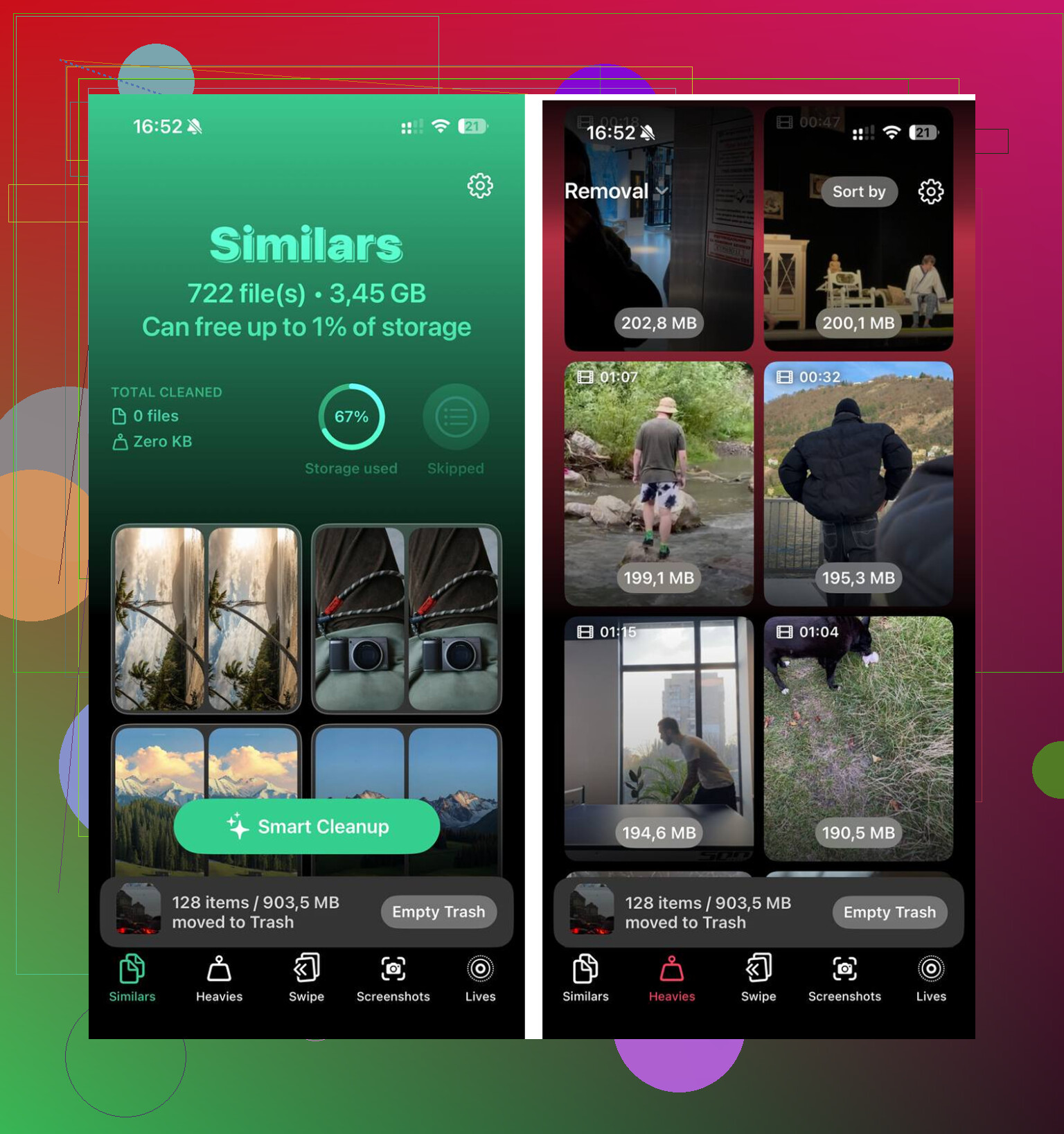
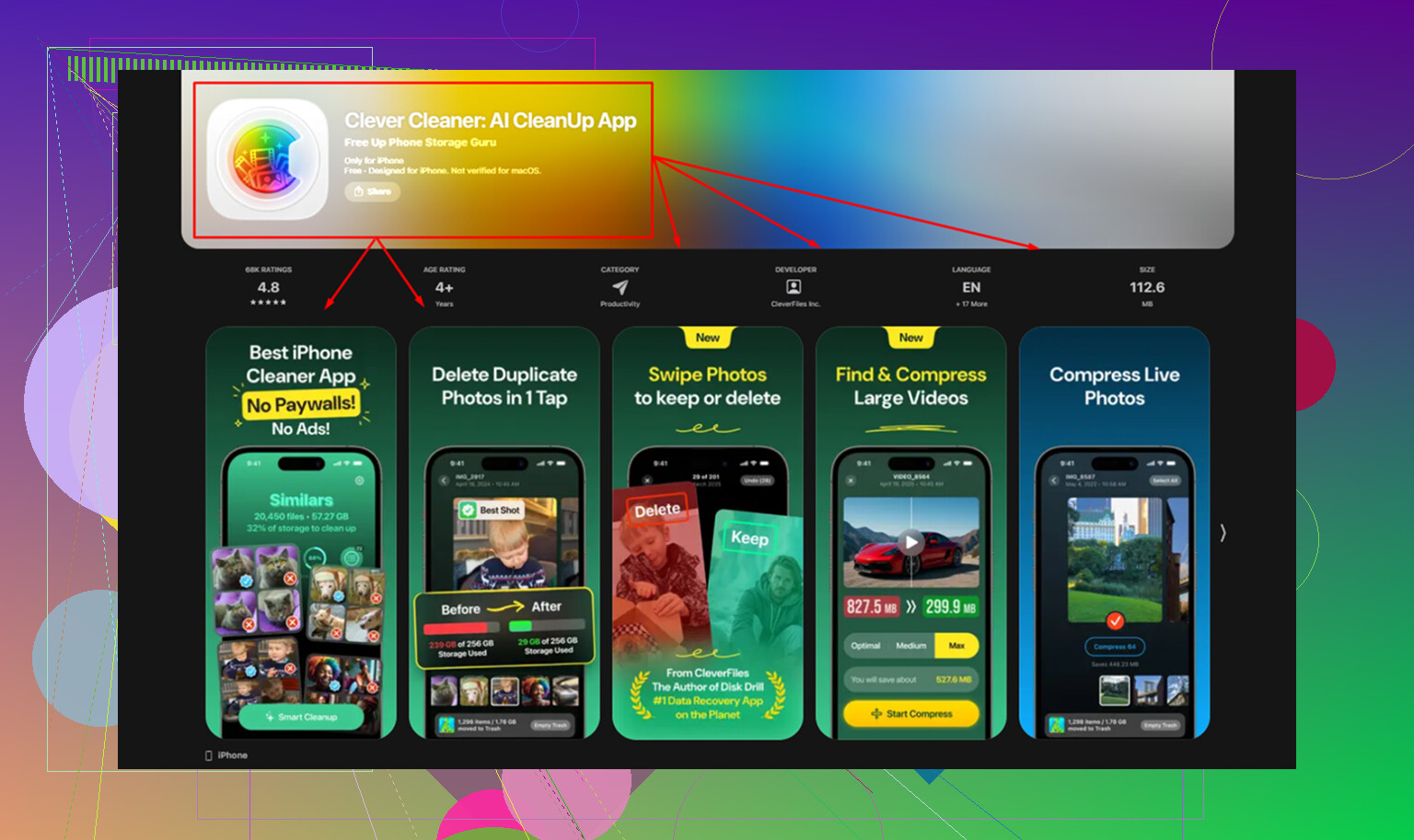
The manual cleanup steps are fine for browser data and bloated app caches. They do not fix the photo library, which for me was the bigger mess by far. I used Clever Cleaner because I wanted something simple on-device and free.
The useful part for me was the sorting. In the Heavies tab, it puts the biggest files first with file sizes shown, so huge videos and screen recordings stop hiding in a sea of random pictures. In Similars, it grouped near-duplicate photos, not only exact duplicates. Burst shots, three blurry tries at the same receipt, five photos of the dog looking almost identical, all in one place. It runs on the phone, so nothing gets uploaded somewhere else.
After I cleared about 20GB between duplicate photos, oversized videos, and the usual cache cleanup, the phone stopped lagging. System Data still existed, sure, but it stopped being the thing wrecking daily use. More free space fixed more than cache wiping ever did on its own.
12 Likes
What trips people up is the label. iPhone lumps a lot of junk into System Data and app Documents & Data, so it looks bigger than the app itself. It often is. Offline maps, message attachments, failed iOS update files, podcast buffers, Siri voices, and old iCloud restore leftovers all sit there.
I’ll disagree a bit with @mikeappsreviewer on one point. Reinstalling apps helps, but if Messages is huge or an iOS update got stuck, deleting Instagram won’t move the needle much.
What I’d check next:
- Settings, General, iPhone Storage, Messages. Review large attachments.
- Files app, On My iPhone, Downloads. Delete old ZIPs, PDFs, videos.
- Settings, Accessibility, Live Speech or downloaded voices. Remove unused voices.
- Podcasts and Music. Remove downloads, not the app.
- If you recently updated iOS, restart, then check storage again after a few hrs.
If photos are still the main hog, Clever Cleaner is worth a look for duplicate pics and big videos.
Also, this quick iPhone storage cleanup video shows the issue fast. It helped me spot what I missed the firts time.
What usually makes this look so broken is APFS snapshots and indexing, not just “temp files.” That’s the part I think @mikeappsreviewer and @chasseurdetoiles kinda underplayed. iPhone can hold onto space for system housekeeping, rollback snapshots after updates, photo analysis, mail indexing, and streaming cache that does not show up in a very intuitive way.
A few things to check that are a bit diff from the usual delete-and-reinstall loop:
- Make sure iOS is fully updated. Some storage bugs got patched quietly.
- Turn Sync this iPhone off then back on for stuff like Photos or Messages in iCloud if one category looks stuck.
- Check Mail app accounts. Big attachments and offline mail can balloon fast.
- If you use Apple TV/Netflix/Prime, remove offline downloads there too.
- Leave the phone charging on Wi-Fi overnight once or twice. iOS sometimes finishes cleanup/indexing only when idle.
If your Photos library is the real monster, that’s where something like Clever Cleaner helps more than poking random menus. Their Clever Cleaner review for freeing up iPhone storage fast gives a decent breakdown. Not magic, but way less annoying than hunting giant videos one by one.
If storage still looks fake after all that, backup, erase, restore. Annoying, yes. But sometimes it’s the only fix that actaully resets System Data.
One thing I’d push back on a bit: people blame “temporary files” too fast. Sometimes the storage graph is just delayed or misreporting until iOS finishes recalculating. I’ve seen System Data look insane, then drop several GB after doing basically nothing except waiting overnight on charger + Wi-Fi.
So beyond what @chasseurdetoiles, @shizuka, and @mikeappsreviewer already covered, I’d check these less-obvious culprits:
- Voice memos. Long recordings hide there.
- GarageBand, iMovie, CapCut projects. Draft files get huge.
- Books app PDFs and audiobook downloads.
- WhatsApp/Telegram media inside the app, not always obvious in iPhone Storage.
- Files app trash folder. People forget it has its own Recently Deleted.
Also, if a single app shows huge “Documents & Data,” offloading is weaker than deleting. Offload keeps that data. Full delete removes it.
My unpopular take: factory reset is not always the “last resort.” If storage accounting is clearly broken and you already backed up, it can be faster than spending 3 hours hunting mystery junk.
If photos/videos are the real issue, Clever Cleaner is actually useful.
Pros: easy duplicate detection, finds large videos fast, simple UI.
Cons: photo-focused, won’t fix true iOS System Data bugs, still needs review before deleting.
So yes, temp files can exceed app size. That part is normal. What’s not normal is when the number never drops after cleanup, reboot, and a day of idle charging. That usually points to stuck indexing, failed cleanup, or a restore-worthy bug.