My old iPhone has gotten really slow after recent iOS updates and everyday use. Apps lag, typing freezes, and storage cleanup hasn’t helped much. I’m trying to improve iPhone performance without wiping everything if possible. Is a factory reset actually the best option, or are there other fixes worth trying first?
If an older iPhone feels slow, a restart usually isn’t the real fix. A factory reset can help in some cases, but it also misses the stuff that usually causes day-to-day lag: battery throttling, extra visual effects, background activity, and low storage.
Check the battery before changing anything else
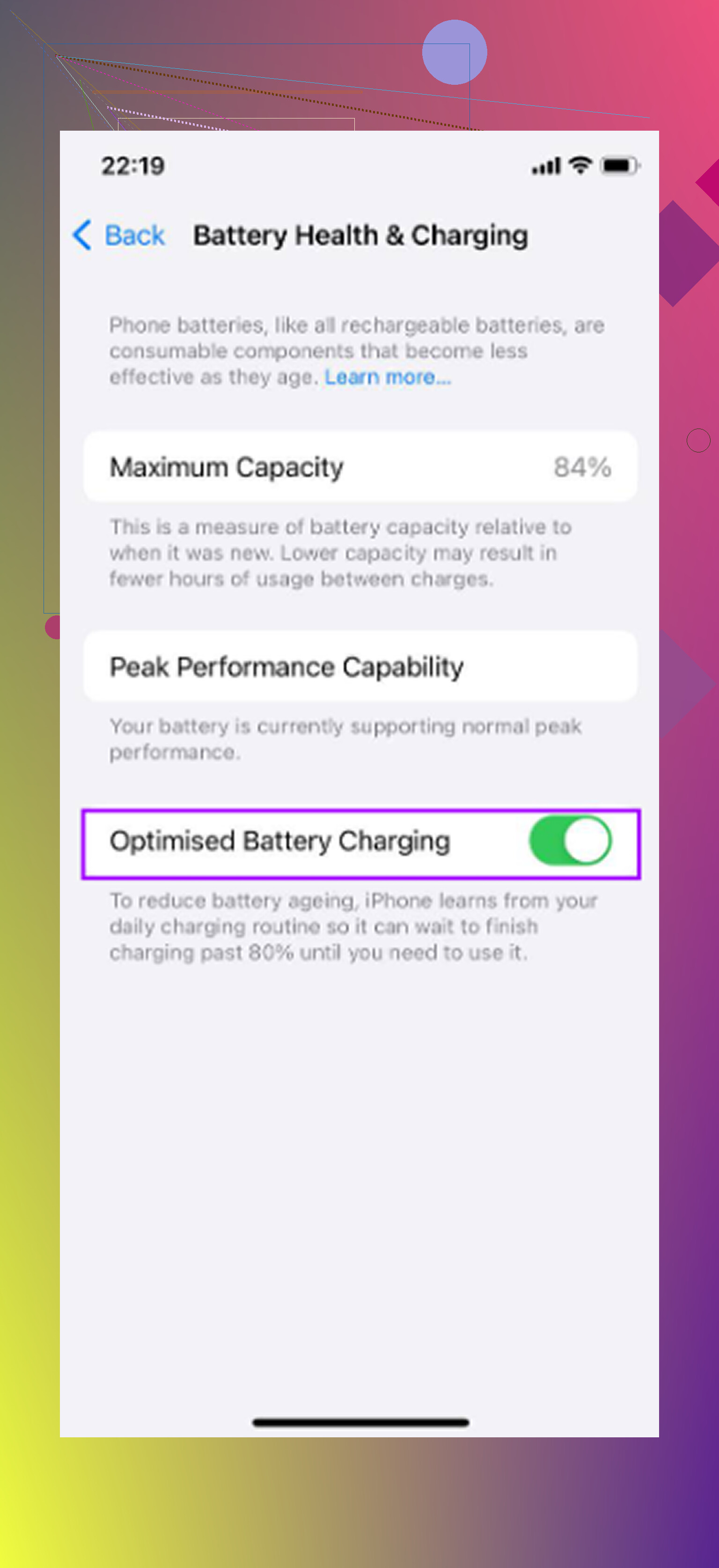
Go to Settings > Battery > Battery Health and Charging. If maximum capacity is under 80 percent, that is probably the main issue. iOS can slow the CPU on a worn battery so the phone does not randomly shut down.
At that point, tweaking settings or deleting a few apps is secondary. A battery replacement is much cheaper than replacing the phone, and it usually does more for performance than any cleanup trick.
If battery health is still above 80 percent, then it makes sense to look at the other causes.
Turn on Reduce Motion
Go to Settings > Accessibility > Motion and enable Reduce Motion.
This gets rid of the zoom-style animations when apps open and close and swaps them for simpler crossfades. On older iPhones, those animations are not free. The phone has to render them constantly, and that adds up. This is one of the changes you can actually feel right away because the interface stops spending as much effort on visual effects.
Turn off Background App Refresh
Go to Settings > General > Background App Refresh and turn it off completely.
Apps with this enabled can keep checking for updates, syncing content, and using CPU time even when you are not actively using them. Newer iPhones handle that pretty easily. Older chips do not have as much room to spare, so background activity can make the app you are actually using feel slower.
Reduce Transparency, but do not leave Low Power Mode on all the time
Go to Settings > Accessibility > Display and Text Size and enable Reduce Transparency.
iOS uses blur and glass-style effects in a lot of places. They look nice, but they still require GPU work. Turning them down makes the interface lighter for older hardware.
Also, if Low Power Mode is always on, turn it off when you care more about speed than battery life. It limits performance on purpose to save power, so keeping it on permanently can make the phone feel slower than it needs to.
Storage can be the thing that keeps bringing the lag back
This is the part that gets ignored a lot. iOS needs free space for cache, indexing, temporary files, and normal system work. Once storage is sitting around 85 percent full or higher, older iPhones can start feeling rough.
You will notice it in small ways first. Apps take longer to open. The camera hesitates. Typing feels slightly behind. It usually creeps in slowly, which makes it feel like the phone is just aging instead of running out of working space.
Accessibility settings can help, but if the storage is nearly full, the slowdown is going to come back.
The cleanup that actually frees up space
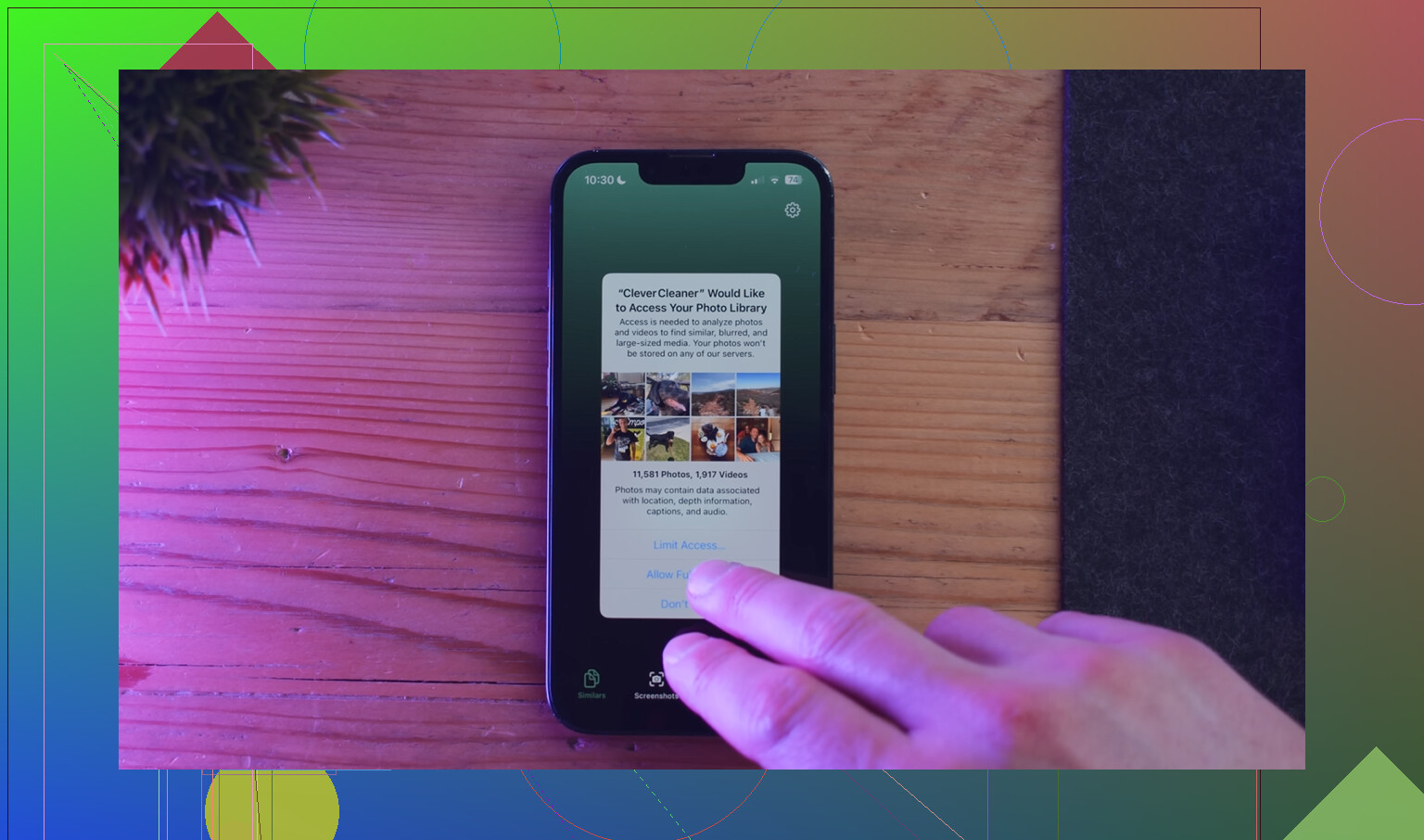
Manually digging through years of photos and videos is a pain, especially if you have thousands of them. Clever Cleaner makes that part a lot less annoying. It is free, with no ads and no subscription.
The most useful way to go through it:
- Start with the Heavies tab. It sorts files from largest to smallest and shows the exact size. Old screen recordings and 4K videos usually jump right to the top. Deleting a few of those can free more space than removing hundreds of normal photos.
- Then check Similars. It finds photos that are almost the same and marks the sharpest one in each group. This is good for bursts, repeated shots, and all those “same photo but slightly different angle” situations.
- Look at Screenshots too. Each one shows its size before you delete anything, which makes it easier to clear out the junk without guessing.
- Everything runs on the device, so the photos are not uploaded somewhere else.
The order matters
Do it in this order: battery health first, settings changes second, storage cleanup third.
After deleting photos or videos, open Photos and empty Recently Deleted. Otherwise the storage number will not really change yet.
Each step fixes a different problem. A bad battery causes throttling. Extra effects and background refresh add unnecessary load. Full storage leaves iOS with no room to work. Fixing all three can make an older iPhone feel much closer to normal again without wiping it or starting over.
10 Likes
A factory reset that gets restored from the same backup is a very different thing from a factory reset where you set the phone up as new. The first one often feels like a lot of hassle for a small gain, because a bunch of settings, app data, background permissions, and old clutter come right back. The second one can help more, but it is also the annoying version because you have to rebuild the phone manually.
Before wiping it, I’d try Reset All Settings. That is not the same as Erase All Content and Settings. It keeps your apps, photos, messages, and accounts, but clears things like network settings, privacy permissions, keyboard dictionary, Home Screen layout, and system preferences. The path is Settings > General > Transfer or Reset iPhone > Reset > Reset All Settings. It can fix weird lag caused by years of carried-over settings without turning the phone into a blank slate.
I agree with the battery point from @mikeappsreviewer, but I’d be a little skeptical of cleanup alone if typing is freezing across multiple apps. That can be battery throttling, a bad app running wild, or iOS struggling after an update. If Reset All Settings, battery health, and storage space all check out, then a clean setup may be the last real software test. Just don’t expect “erase and restore backup” to be magic. If you go that route, make a backup first, then consider setting up as new and only reinstalling the apps you actually use.
Don’t wipe the phone while you’re still guessing whether the problem is iOS itself or one messy app. A factory reset is a big hammer, and if the lag is mostly coming from Messages with years of attachments, a giant photo library re-indexing, Safari with a million tabs, or one social app with a bloated cache, you can spend an afternoon rebuilding the phone and end up in the same place.
I agree with @stellacadente that “erase and restore backup” is often overrated. Before doing that, I’d check which parts are actually slow. If typing freezes everywhere, that points more toward battery, storage, keyboard settings, or system load. If it only happens in certain apps, delete and reinstall those apps first. Not offload, actually delete, because offloading can leave some data behind. For Messages, check Settings > General > iPhone Storage > Messages and look at large attachments. That area can get ridiculous without showing up as an obvious “app” problem.
If you updated recently, give it some plugged-in idle time too. After iOS updates, older phones can feel awful while Photos, search, and app data settle down in the background. Leave it charging on Wi-Fi overnight before judging it. If it is still freezing after battery health is okay, storage has real breathing room, bad apps have been reinstalled, and Reset All Settings did nothing, then yes, setting it up as new is probably the last useful software test. But I would treat that as a diagnostic step, not a guaranteed cure. Sometimes the honest answer is that the hardware is just at the edge of what the current iOS version wants.
A reset will not make an old iPhone feel like it did on the iOS version it shipped with. If you do wipe it, test it for a bit before restoring every app and account, because if it only slows down after the restore, you’ve found a software/data problem instead of “old phone bad.”
Reset All Settings sounds harmless until you realize it dumps every saved Wi-Fi password, VPN config, and Bluetooth pairing you have. @stellacadente is right that it beats a full wipe, but go in knowing you’ll be re-typing network passwords and re-pairing your car, earbuds, whatever. Not a dealbreaker, just don’t do it five minutes before you need the phone working.
The thing nobody’s flagged yet: check what’s actually eating CPU before you change anything. Settings > Battery, scroll down, look at the per-app breakdown over the last 24 hours and 10 days. If one app is showing background activity way out of proportion to how much you use it, that’s your culprit, and no amount of Reduce Motion or cleanup fixes a misbehaving app. @viajantedoceu’s point about deleting and reinstalling the offender is the right call there, but you have to find it first instead of guessing.
On the cleanup angle, freeing storage genuinely helps once you’re past that 85 percent mark, and something like Clever Cleaner saves you scrubbing through the photo library by hand. Just don’t expect it to touch lag that comes from a worn battery or a broken app. It solves the storage problem and only the storage problem. If typing still stutters after you’ve got real free space, the issue was never the photos.