My SD card suddenly stopped showing some important photos and video files on my Mac, and I’m not sure what to try first without making things worse. I need help with safe SD card file recovery on Mac, including the best first steps, whether Disk Utility or recovery software is worth trying, and how to avoid losing the data for good.
I ran into this with a Sony SD card on my Mac. First thing, don’t treat deleted files like they’re dead. A lot of card deletions are only logical. The file list gets removed, but the data often sits there until new photos write over it.
So yeah, recovery still has a shot.
If you want the simple route on Mac, I’d start with Disk Drill. I’ve also used UFS Explorer and R-Studio, and those are solid, but they feel heavier. Disk Drill was easier to get moving with, and it still handled RAW files fine when I tested it. Setup took a couple minutes. The scan view made sense. Previews loaded without much fuss.
The preview part matters more than people think. I usually check a handful of files before restoring anything big. If a photo previews cleanly, there’s a decent shot the recovered version opens fine too. It saved me from restoring a pile of junk once.
A few things I learned the hard way:
Stop using the card now. Don’t shoot more photos. Don’t format it again. Don’t run random repair apps because some blog said so. Every extra write lowers your odds.
Also, plug the SD card into your Mac with a proper card reader. Don’t leave it in the camera and connect over USB if you can avoid it. And skip flaky hubs. I had one cheap hub drop connection mid-scan, which was a dumb way to lose time. Large cards take a while, so keep your Mac awake until the scan finishes.
And don’t recover files back onto the same SD card. Put them on your Mac’s SSD or another external drive.
If the card got formatted, I still wouldn’t panic yet. A quick format usually wipes the index, not the photo data itself. That’s still recoverable in a lot of cases.
What I’d do, step by step:
- Stop using the SD card.
- Put it in a card reader.
- Connect it straight to the Mac.
- Install and open Disk Drill.
- Run a full scan on the card.
- Wait for the scan to finish. Don’t cut it short.
- Preview the files you care about.
- Recover them to a different drive.
If you want a free option, PhotoRec is the one I’d look at first on Mac. It works, but it feels rough. Keyboard-driven, less friendly, and recovered files often come back with scrambled names and no folder structure. Fine if you’re patient. Annoying if you’re sorting a few thousand images.
One more thing before you spend half the night scanning. Check your backups. I’ve seen people swear the SD card held the only copy, then they log into iCloud Photos, Lightroom, Google Photos, or Dropbox and the files were already there. Worth five minutes. Saved me hours once.
4 Likes
First thing I’d try is not a recovery scan. I know @mikeappsreviewer already covered the scan route well, and I slightly disagree on one part. If files “stopped showing” instead of being deleted, check whether Finder is lying to you before you throw recovery tools at the card.
Do this first on your Mac.
- Open Disk Utility.
- See if the SD card mounts.
- If it mounts, copy anything still visible off it right away.
- Check the card size and free space. If used space still looks high, your files might still be there but the file system index is damaged.
- Run First Aid once, only if the card is readable and you already copied whatever is visible.
I would not keep rerunning First Aid. One pass, then stop.
After that, make a byte-for-byte image of the SD card if the data matters a lot. This is the safer move most people skip. You work from the image, not the card. On Mac, that reduces risk if the card is unstable or starts disconnecting. If the card drops out, gets hot, or reads slow as hell, image it first. No debate.
If you want the easiest Mac app after that, Disk Drill is still a solid pick for SD card file recovery on Mac. I’d use it on the disk image, not the original card if possble. That gives you another shot if the first scan misses stuff.
If Finder still sees folders but files are missing, also check this:
https://www.instagram.com/reel/DXM59yjD4Ij/ rel=‘dofollow’ target=‘_blank’>SD card recovery steps for Mac and missing photos
One more thing people miss. Test the SD card after recovery. Fake or failing cards often show this pattern first, missing files, bad previews, random folders. If it’s an older microSD with an adapter, the adapter itself is sometimes the problem. I’ve had that happen twice. Annoying, but true.
Short version:
Check mount status.
Copy visible files.
Run First Aid once.
Image the card.
Then scan with Disk Drill.
Recover to another drive.
Replace the card if it acts weird agian.

I’d actually do one thing before most recovery attempts: check whether the files are just hidden or the card directory is being read weirdly by macOS.
If the SD card still shows the old used space, that’s a clue the data may still be there and Finder is just not presenting it right. In Terminal, you can try a non-destructive directory listing first:
ls -la /Volumes/YourCardName
Sometimes stuff is sitting there with hidden flags or busted names. Not super common, but common enough that I wouldn’t skip it.
I also slightly disagree with the “run repair early” camp. @jeff already gave the safer version of First Aid, and I’m even more cautious than that. If these are truly important videos, I’d avoid any write-capable repair step until I had either an image or at least tried a read-only recovery pass. File system repair can help, sure, but it can also “clean up” the exact mess you needed for recovery. That part gets glossed over a lot.
Another thing people miss: test on another Mac or even a Windows PC if available. Not for recovery, just to confirm whether this is a Mac mount/indexing issue versus actual card corruption. I’ve seen cards look empty on one machine and normal on another. super annoying, but it happens.
If the card is readable enough, my order would be:
- check visible/hidden files
- copy anything accessible
- make an image if possible
- then scan the image with Disk Drill
Disk Drill makes the Mac side pretty painless, especially for photo and video recovery, and the preview check is probly the most useful part. If previews fail across lots of files, that usually tells you the damage is deeper than a missing file listing.
Also, after recovery, don’t trust that SD card again just because it starts working. Missing files is often the warning shot before total failure.
If you want a cleaner overview, this Disk Drill review for Mac data recovery is easy to skim.
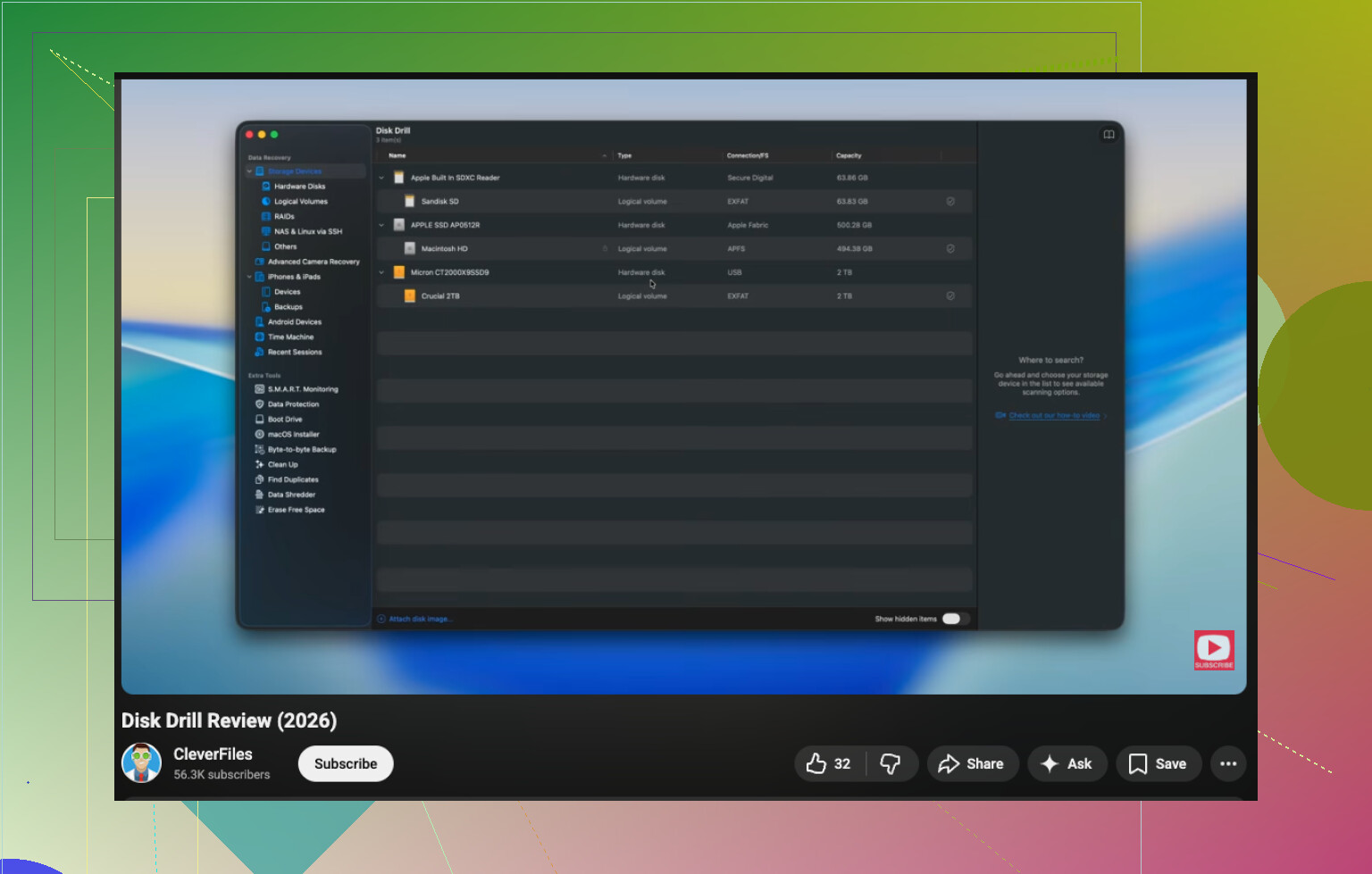
I’d add one thing the others only touched lightly: check whether the problem is the reader/adapter path, not the SD card itself. I’ve seen macOS “lose” files because the cheap USB reader was erroring out, while the same card read fine in a different reader. So before doing anything invasive, try:
- a different SD reader
- a different USB port
- no hub
- if it’s microSD, a different adapter
That’s not recovery, but it can save you from chasing a fake corruption problem.
I’m also a little more conservative than @jeff on First Aid for media cards. If the photos/videos are irreplaceable, I’d rather skip repair entirely until I’ve confirmed the card reads consistently. Repairs can help, but they can also rewrite metadata in ways that make later carving worse. @sternenwanderer’s “read-only first” mindset is closer to how I’d handle it.
My order would be:
- Test another reader/adapter/port.
- Check if files appear in Image Capture or Preview, not just Finder.
- If anything opens, copy it off immediately.
- If the card is unstable, stop and image it.
- Then use Disk Drill on the image or card.
Why Image Capture? Sometimes Finder acts weird with directory listings, while Image Capture still sees importable photos. That’s worth a 30-second check.
Disk Drill pros
- very Mac-friendly
- good preview support for photos/video
- simple enough if you don’t want a forensic tool
- works well for SD card file recovery on Mac
Disk Drill cons
- deep scans can take a while
- not the cheapest option
- heavy corruption cases may still push you toward more advanced tools
So I’d combine @mikeappsreviewer’s practical scan advice with @jeff’s caution, but I’d test the hardware path first. Weirdly often, that’s the whole problem.