My hard drive suddenly stopped showing up, and I’m trying to recover important files like family photos, work documents, and old backups. I’m not sure if it’s a hardware failure or file system problem, and I really need advice on the safest hard drive data recovery steps before I make things worse.
I’ve been through this once, and the first mistake I made was keeping the drive online too long. If your files disappeared or the HDD started making odd noises, stop using it now. No copying, no installs, no poking around folders for ten minutes hoping stuff reappears. Every write puts old data at more risk. If it’s your boot drive, shut it down and hook it up to another machine as a secondary disk if you have the option.
Before you throw recovery apps at it, figure out what kind of failure you’re dealing with. Deleted files, a bad format, or a busted partition is one lane. Mechanical damage is a different mess. I’d check S.M.A.R.T. first so you have at least some clue what the drive is reporting. CrystalDiskInfo on Windows and DriveDx on macOS are easy places to start.
What made me back off fast were signs like these:
- Repeated clicking or ticking
- Grinding, scraping, or ugly spin-up noise
- The drive drops out while the computer is running
- The whole system hangs when you try to open the disk
- It spins, but the system does not detect it
If you’re hearing any of that, don’t keep hammering it with rescans. I did this years ago on an old 1 TB drive and it got worse by the hour. A failing mechanical drive does not enjoy being stressed. If the files matter, a lab like DriveSavers or Ontrack starts making more sense at this stage.
If the drive sounds normal and stays connected, try the boring checks first. I know, obvious stuff. Still worth doing.
- Check Recycle Bin or Trash
- Look at File History or Previous Versions on Windows
- Check Time Machine on Mac
- Right-click the folder in Windows and try Restore previous versions
- Open cloud trash folders in OneDrive, Google Drive, Dropbox, and iCloud
- Search old email attachments in inbox and sent mail
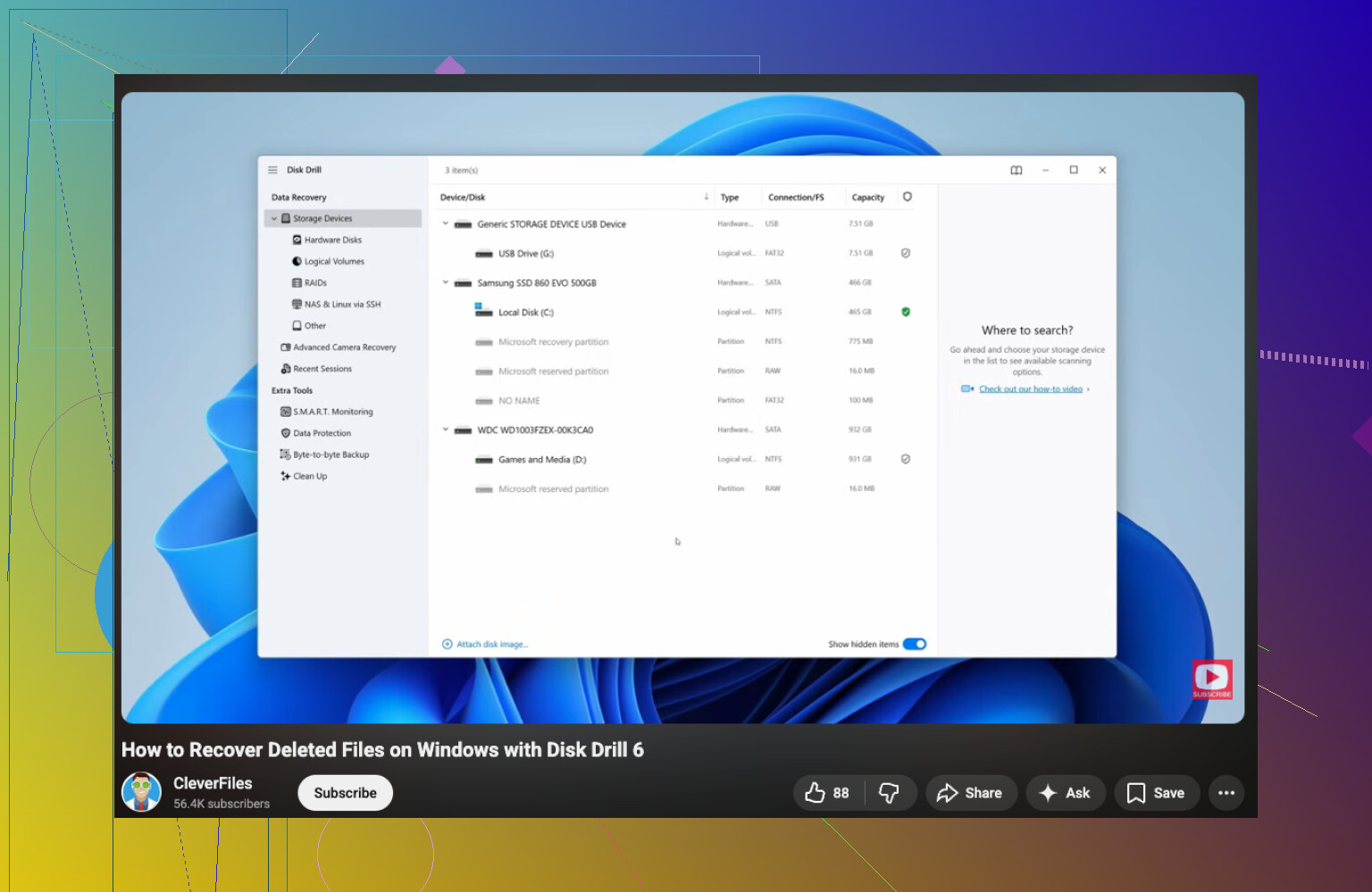
If all of that comes up empty, move to recovery software. A common first pick is Disk Drill. It’s decent for deleted files, formatted disks, RAW volumes, and damaged partitions. The file preview helps, which matters, because a list of filenames means nothing if the files open as junk.
The order matters more than people think:
- Install the recovery app on another drive
- Attach the bad HDD as a secondary drive if possible
- Run a quick scan first
- Only use deep scan if the quick pass misses your files
- Preview files before recovery
- Save recovered data to a different disk, never back onto the same HDD
- Open the recovered files and check them before calling it done
If S.M.A.R.T. shows bad sectors, I’d image the drive first if you have the tools and enough space. Sector-by-sector imaging gave me a safer copy to work from once, and I was glad I did it. Scanning the image is safer than chewing through a weak disk over and over.
There’s also a point where software stops being the right tool. Loud clicking, no spin, no detection, or zero useful results from recovery apps despite partial access, those are the cases where a recovery lab tends to be the next step. Price is rough, often around $300 to $1500 or more, depending on how bad things are. Still, if the data is family photos, tax docs, business files, or something else you can’t replace, it changes the math fast.
I’d start with the S.M.A.R.T. check, then decide from there. If the drive is stable, work carefully. If it sounds sick, stop early. That choice matters more than people think.
7 Likes
If the drive is not showing up at all, I’d split this into 2 checks first.
- Does BIOS or Disk Management see it.
- Does the drive spin up cleanly and stay connected.
I agree with parts of what @mikeappsreviewer said, but I’m less sold on leaning hard on S.M.A.R.T. as the first checkpoint. I’ve seen drives pass S.M.A.R.T. and still drop off the bus or throw read errors all over the place. Detection status matters more at the start.
Do this in order.
If it’s an external HDD:
- swap the USB cable
- try a diff port
- avoid hubs
- if it has a power brick, swap or reseat it
- try another PC
If it’s internal:
- change SATA cable
- change SATA power lead
- move to another SATA port
- check BIOS
Then open Disk Management in Windows. If you see:
- No drive at all, think hardware, adapter, PCB, power, or drive failure
- Unallocated space, partition table damage
- RAW file system, file system corruption
- Correct partition but no letter, assign a drive letter first
One thing people skip is checking the USB-SATA bridge on external drives. I’ve had 2 externals “die” when the enclosure board was the only bad part. Pulled the disk, connected it direct to SATA, files were there. Worth trying if warrenty is not a concern.
If the disk shows up with the right size, stop trying random fixes like chkdsk. Bad move on a weak drive. Read first, repair later. For file recovery, Disk Drill is a solid pick because it handles lost partitions and RAW volumes well, and the preview saves time. Recover to another drive, not back to the same one. Yep, people still do taht.
If the drive keeps disconnecting, image it first with ddrescue on Linux if you know your way around it. Work from the image, not the original. That gives you one stable source for repeated scans.
Also, this short video guide for HDD recovery software and file recovery steps is easier to follow than a wall of text.
If you post these 3 details, people here will narrow it down fast:
- internal or external
- shows in BIOS yes or no
- shows in Disk Management yes or no
I’d add one thing neither @mikeappsreviewer nor @nachtschatten really leaned on enough: check Event Viewer before you do much else on Windows. Sounds boring, but if Windows was still seeing the device recently, you can sometimes spot disk, ntfs, or storahci errors that tell you whether this is connection trouble, controller trouble, or a dying drive. Look under Windows Logs > System and filter for Disk, Ntfs, storahci, and Kernel-PnP. If you see I/O errors or reset-to-device spam, that points more toward hardware than a simple file system issue.
Also, I slightly disagree with the idea that “if it spins and shows size, you’re mostly in software territory.” Not always. I’ve had drives identify with the correct capacity and still be half-dead internally, especially with unreadable heads or weak sectors. So don’t let a detected size give false hope.
A couple practical things:
- If the drive disappears after warming up for 5 to 10 mins, that’s a failure pattern in itself
- If Explorer freezes but Disk Management loads, don’t keep double-clicking the drive like a maniac
- If this is an old backup drive, check whether the enclosure is using weird hardware encryption before removing it from the case
For recovery, I would clone first if the drive is unstable, then scan the clone. If the disk is stable enough to read, Disk Drill is fine for pulling family photos, docs, and old backups from damaged or missing partitions. Just don’t recover back onto the same disk. People do that, and then wonder why things got worse. becuase of course they do.
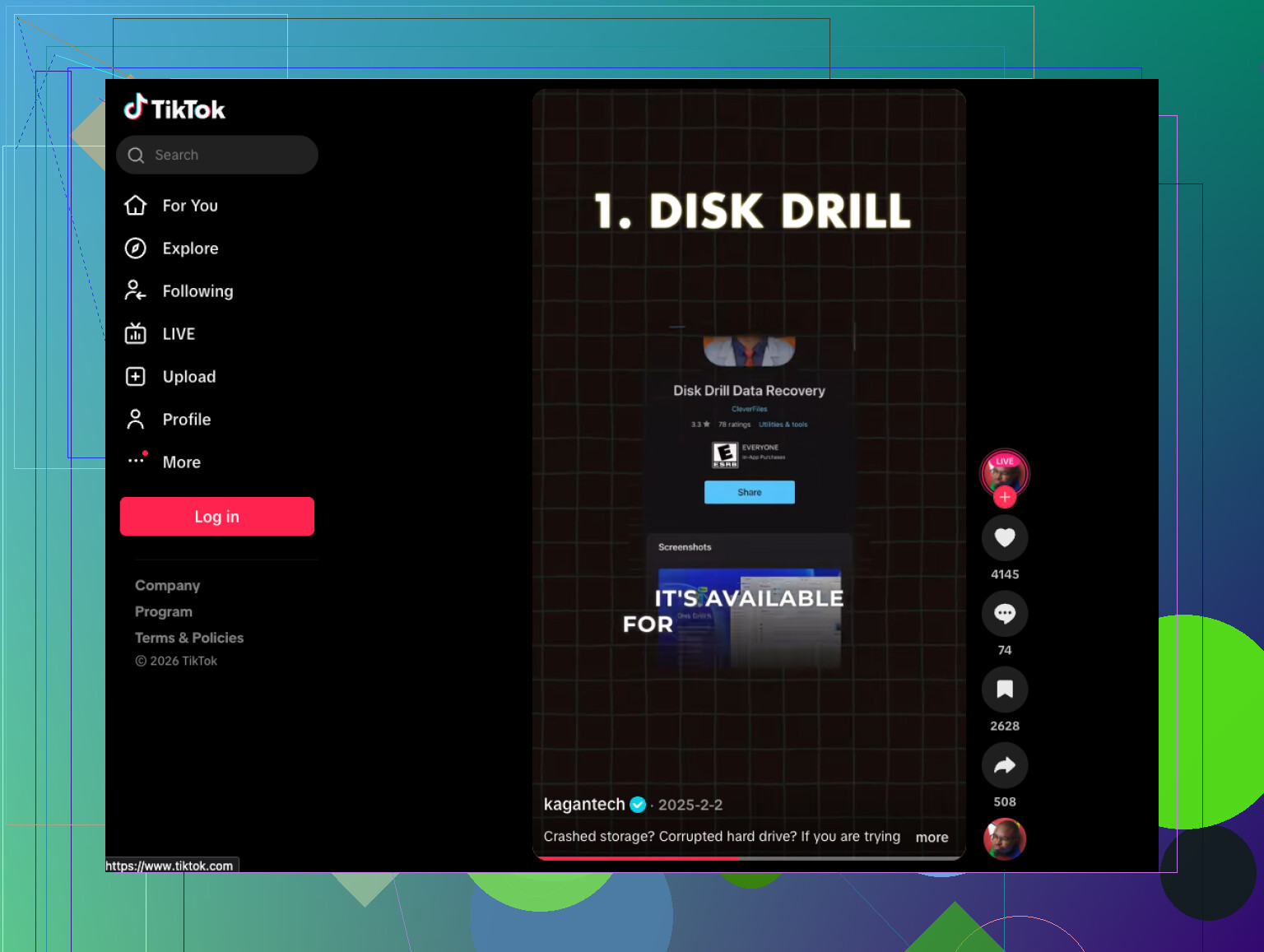
If you want a simple step-by-step Windows file recovery walkthrough, this is actually decent:
easy Windows file recovery tutorial for missing hard drive data
Big dividing line for me:
- detected + readable errors = software/image/recovery path
- not detected consistently + noises + disconnects = stop messing with it and consider a lab
Post whether it’s HDD or SSD too. That changes the advice a lot.