I’m trying to connect a guest OS to a serial device using VirtualBox COM ports, but I’m confused about the correct settings (host pipe vs host device, port mode, and paths). The guest either doesn’t see the port at all or can’t communicate through it. What exact steps and configuration should I use to reliably work with COM ports in VirtualBox, and how can I test that the connection is really working?
If you really want to hook a serial device into a VirtualBox VM, yeah, you can do it with the built‑in settings, but it is a bit fiddly and not very intuitive the first time around.
VirtualBox has native serial port options in the VM settings, but you end up juggling things like:
- Picking the right port mode
- Figuring out host pipes vs host devices
- Making sure nothing else on the host is already grabbing that COM port
- Testing, rebooting, tweaking, repeat…
It works, but it feels like wiring an old radio by hand when you just wanted to listen to some music.
If you do not feel like wrestling all that every time, there is also dedicated software that simplifies the whole ‘serial over virtual machine’ problem by virtualizing the ports and handling the connection logic for you:
That tool basically sits in the middle and makes VirtualBox talk to serial ports in a more straightforward way, so you are not stuck digging through every advanced setting just to get a simple serial link going.
16 Likes
If the guest doesn’t even see the serial port, 90% of the time it’s just the wrong VirtualBox mode or a host conflict. The built‑in config is finicky, but it does work once it’s dialed in.
Quick breakdown, skipping what @mikeappsreviewer already said:
1. Clarify what you actually have on the host
- Real hardware port (COM1, /dev/ttyS0, /dev/ttyUSB0, etc.)
- USB‑to‑serial adapter
- Some other program already using it (PuTTY, minicom, Arduino IDE, etc.)
If anything else is opened on that port, VirtualBox will quietly fail and the guest will never see it.
2. When to use “Host Device” vs “Host Pipe”
This is where most people get lost.
Use “Host Device” when:
- You have a physical serial port or USB‑to‑serial adapter on the host
- You want the guest to talk to it directly
Examples:
-
On Windows host:
- Port Mode:
Host Device - Port:
COM1orCOM3(whatever shows in Device Manager)
- Port Mode:
-
On Linux host:
- Port Mode:
Host Device - Port:
/dev/ttyS0,/dev/ttyUSB0, or/dev/ttyACM0
- Port Mode:
Do not put weird paths like \\.\COM1 in the GUI. Just COMx is enough on Windows.
Use “Host Pipe” when:
- You want to connect the VM to another program or a network bridge, not a raw hardware port
- You are doing “serial over network,” debugging, or connecting VM ↔ VM
On Windows, the named pipe looks like:
\\.\pipe\myserialpipe
On Linux, it’s usually a unix socket or FIFO like /tmp/vbox-serial.
If you only want the guest to talk to a real serial device, skip pipes completely. That’s where I slightly disagree with the “it’s all fiddly” angle from @mikeappsreviewer: for plain hardware passthrough, host device mode is actually pretty straightforward once you know the right name and close other apps.
3. Basic VirtualBox serial config that usually works
In VM settings:
- Enable Serial Port 1
- Port Number:
COM1(orCOM2etc.) - Port Mode:
Host Deviceif you have a physical port
- Port/File Path:
- Windows:
COM3(example, match Device Manager) - Linux:
/dev/ttyUSB0
- Windows:
Then inside the guest OS:
- Windows guest: should show up as COM1 (or 2/3 etc.) in Device Manager
- Linux guest:
/dev/ttyS0for COM1,/dev/ttyS1for COM2, etc.
Ports map like this by default:
- VirtualBox COM1 → guest
/dev/ttyS0or COM1 - VirtualBox COM2 → guest
/dev/ttyS1or COM2
So if you configure “Serial Port 1 → COM1”, use /dev/ttyS0 or COM1 in the guest app.
4. Check for the usual “why it doesn’t show up” traps
- The host still has the device open (close PuTTY, screen, minicom, etc.)
- Wrong port name in the VM settings
- USB‑to‑serial adapter moved to a new port, got a new COM number
- On Linux, user launching VirtualBox has no permission on
/dev/ttyUSB0- Fix with
sudo usermod -aG dialout youruserthen log out/in
- Fix with
5. When VirtualBox’s serial handling gets too annoying
If you need to share that serial device across multiple VMs, across network, or avoid the constant “is COM3 busy again?” dance, native VirtualBox gets old fast.
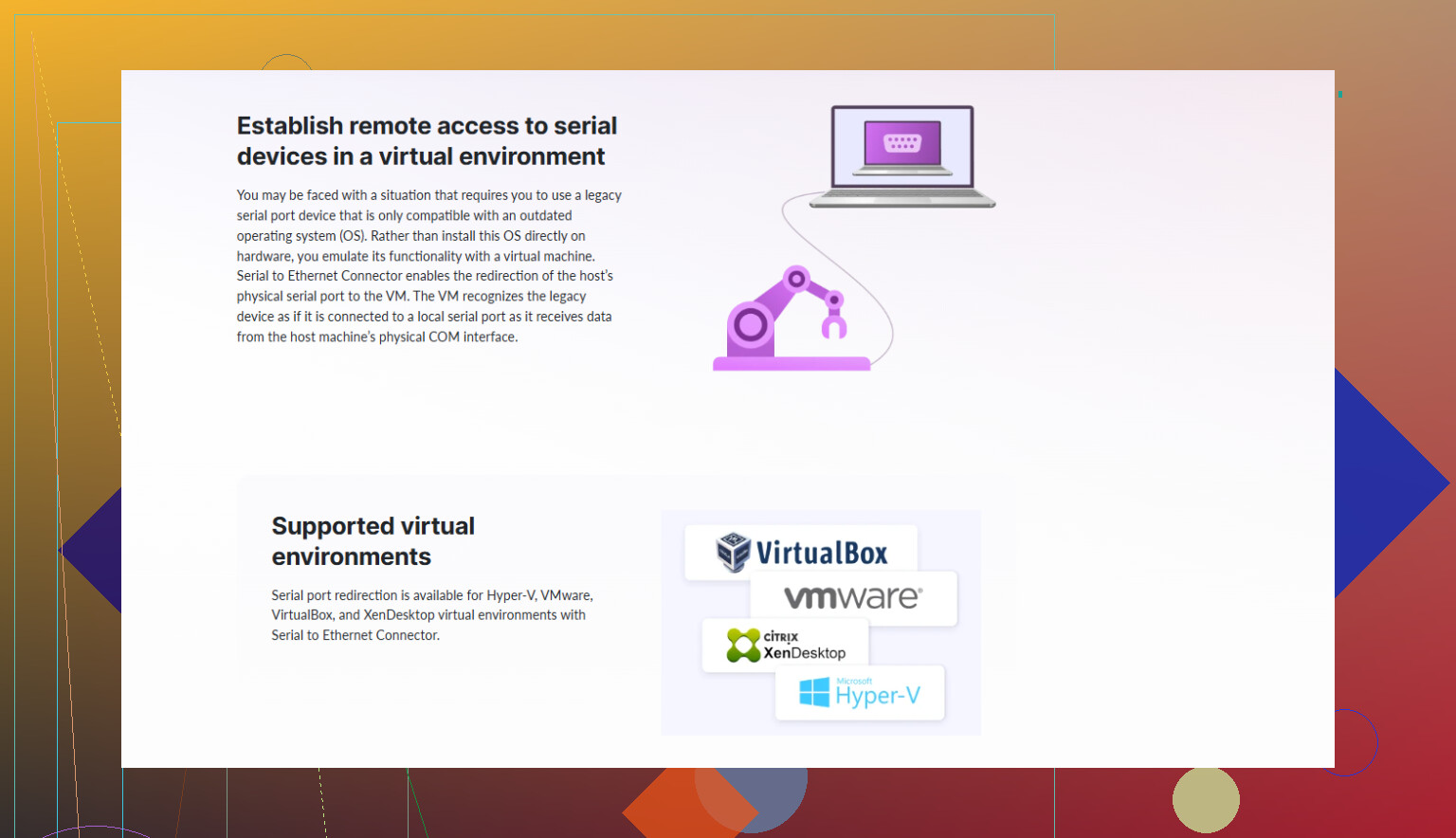
In that scenario, something like Serial to Ethernet Connector is worth looking at. It creates virtual serial ports and forwards them over TCP/IP, so the VM just connects to a network endpoint while the host (or another machine) holds the real device. It usually beats fighting with host pipes every time.
There is also a more focused integration for VirtualBox itself:
make VirtualBox talk to serial ports more reliably
It abstracts a lot of the “pipe vs device” mess and lets you treat serial hardware more like a network resource.
6. Simple test flow
- Connect the device to host, confirm it works on the host with a terminal program.
- Close that program.
- Configure VirtualBox Serial Port 1 as Host Device to that same port name.
- Boot guest, open COM1 (or
/dev/ttyS0) at the same baud. - If nothing appears, double‑check mapping and host conflicts before changing 20 other settings.
Once you get that first clean passthrough working, the rest is just variations on the same pattern.
If the guest can’t see the serial port at all, you’re usually fighting one of three things: wrong mapping inside the guest, VirtualBox silently failing to grab the port, or the fact that the built‑in serial emulation is… let’s say “fragile.”
@kakeru and @mikeappsreviewer already covered the “here’s how it should work” side. Let me poke at a few angles they didn’t really dig into and push back a bit on the idea that VirtualBox is always “fine once it’s dialed in.” It works, but it’s pretty easy to end up in a half‑broken state.
1. Verify what the guest actually sees
People often stare at VirtualBox settings forever and never check inside the VM properly.
On a Linux guest:
Run:
dmesg | grep -i tty
ls -l /dev/ttyS*
You should see /dev/ttyS0 if you enabled COM1 in VirtualBox. If nothing new appears when you boot with the serial port enabled, VBox probably didn’t attach it at all, even if the GUI claims it did.
Also try:
setserial -g /dev/ttyS0
and see if it reports a real UART. If it says “unknown” or similar, your mapping is off.
On a Windows guest:
- Open Device Manager
- View → Show hidden devices
- Expand “Ports (COM & LPT)”
If COM1 is missing or has a yellow mark, this isn’t a simple “wrong baud” problem, it’s a passthrough or config problem.
A lot of users assume “I set VirtualBox to COM1, therefore the guest has COM1,” which is not always true when VBox fails to grab the host side.
2. Host Device vs Host Pipe: practical difference
I slightly disagree with the idea that “just use Host Device” is always straightforward. On some setups, Host Device is exactly where things go weird:
- Windows “phantom” COM ports that exist but do nothing
- USB‑serial adapters that change COM number constantly
- Permissions and SELinux/AppArmor on Linux
In those cases, using a Host Pipe plus a small helper on the host can actually be more predictable.
Typical pattern:
- On the host, you have
/dev/ttyUSB0orCOM4that you know works. - You run a tiny bridge app that connects that real device to a TCP socket or named pipe.
- VirtualBox is configured to use a Host Pipe (or TCP) to that bridge, instead of grabbing hardware directly.
This offloads the flakiness to a simpler tool and keeps VBox from fighting over the port.
3. One thing almost nobody checks: BIOS / firmware of the guest
If your guest is something like old DOS, some BSD, or a picky embedded Linux image, remember:
- COM1 is usually I/O
0x3F8, IRQ 4 - COM2 is usually I/O
0x2F8, IRQ 3
In VirtualBox, advanced settings for the serial port let you change IRQ and I/O base. If these have ever been tweaked, the guest might be probing the wrong place and never find the UART. Resetting them to standard values has “magically” fixed more than one “guest sees nothing” case.
4. When you’re sick of VirtualBox grabbing the port directly
If your goal is “plug serial device into host and use it in a VM without constant config whack‑a‑mole,” then honestly, tying yourself to the raw VirtualBox serial options is optional.
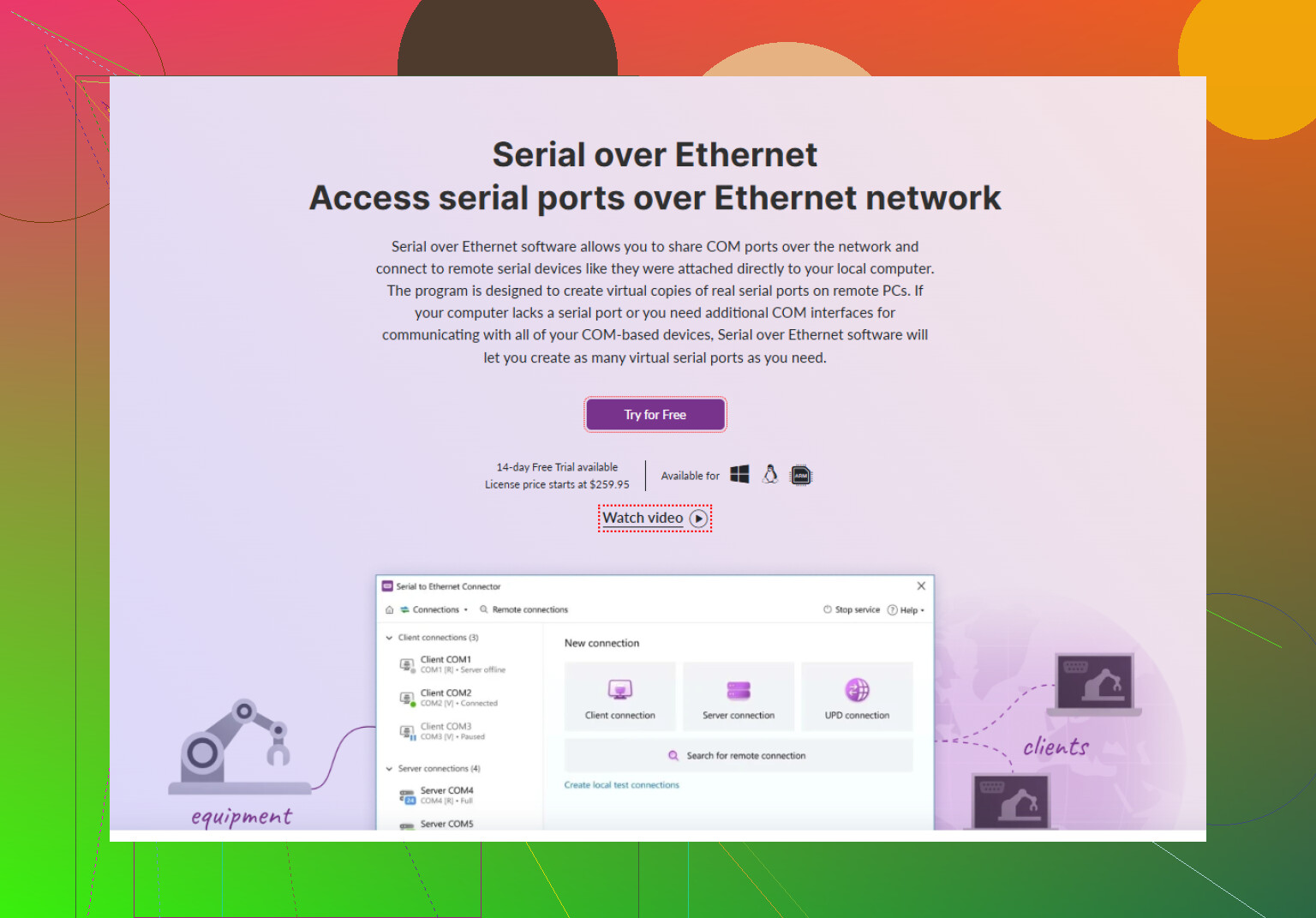
This is where something like Serial to Ethernet Connector can be a lot less painful:
- It runs on the host, connects to your real serial port (COM or
/dev/ttyUSBx), and exposes it over TCP/IP. - In the VM, you either:
- Use virtual COM ports created by the same tool, or
- Connect a serial‑aware app directly to the TCP endpoint.
Main advantages over pure VirtualBox serial:
- The host keeps stable control of the device.
- Multiple VMs can access the same serial stream scenario.
- No more “which VBox instance has COM4 open and why is it locked again?”
It’s particularly useful if your hardware is temperamental or you are testing multiple VMs with the same device.
If you want to get that up and running quickly, you can grab the installer from here:
get the latest Serial to Ethernet Connector setup
That route is a lot closer to “it just works” than babysitting VirtualBox’s host device mode every reboot.
5. Quick sanity checks that often get missed
Some stuff that bites people repeatedly:
- Same port open twice on host
Even having a terminal window previously use the port can leave it busy. Fully exit PuTTY/minicom/etc. - USB‑serial re‑enumeration
You unplug / replug, Windows changes COM4 → COM5 silently. VirtualBox is still pointing at COM4, so from its perspective there is “no device” but no obvious error. - Linux permissions
If VirtualBox is not running with enough permissions to open/dev/ttyUSB0, it will just fail and pretend nothing happened. Checkls -l /dev/ttyUSB0and group memberships. - Conflicting VirtualBox serial configs
Enabling multiple serial ports in VBox pointing at bogus targets can influence what the guest thinks it has. Keep it to a single, clean COM1 until it works.
In short:
- Confirm what the guest actually sees, not just what VBox claims.
- If Host Device keeps being flaky, don’t be afraid to use a Host Pipe plus a helper, or go with a dedicated bridge like Serial to Ethernet Connector.
- Double check IRQ/base I/O and the USB‑serial COM number every time you replug stuff.
Once you get a single simple path that works (host terminal → host OK, VBox COM1 → guest /dev/ttyS0 or COM1 OK), then you can get fancy. Until then, changing 14 VBox settings at once just makes it harder to see what actually broke.
The others already covered VBox’s knobs pretty well, so let me come at it from the “how do I make this maintainable” angle rather than just “how do I make it work once.”
1. Decide what you actually want the guest to see
VirtualBox can emulate either:
- A classic hardware UART (guest sees COM1 / /dev/ttyS0, IRQ 4, 0x3F8)
- Or a virtual pipe that acts like a UART only because something on the host is translating for it
If your guest is old DOS, BIOS tools, or bare‑metal stuff, then I agree with @kakeru: stick to the classic COM1 mapping and keep I/O and IRQ at defaults. For modern Linux/Windows guests, I often prefer not to tie myself to “real” COM semantics and instead push the complexity to the host.
2. Do not constantly flip VBox between host device and host pipe
Where I disagree slightly with the “just tweak VBox until it works” approach from @mike34 and @mikeappsreviewer: once you have to unplug / replug USB serial, switch between multiple adapters, or share the device between tools, VirtualBox’s Host Device mode becomes a recurring headache. It is fine for a lab demo, not so nice for daily use.
A more robust pattern:
- Host owns real serial port permanently.
- VirtualBox talks through a stable abstraction that does not change when USB enumeration or Windows COM numbers change.
That is exactly what “bridge” software gives you.
3. Using Serial to Ethernet Connector as the stable middle layer
If you go that route, Serial to Ethernet Connector is basically the middleman:
- Host side:
- Opens the real COM port or /dev/ttyUSBX.
- Exposes it as a TCP endpoint or virtual port.
- Guest side:
- Either sees a virtual COM port created by the same tool inside the VM.
- Or your application inside the VM connects directly to a TCP socket.
Pros of Serial to Ethernet Connector
- Keeps the host in charge of the physical device, so VirtualBox is not fighting over it.
- Survives USB re‑enumeration more gracefully; you rebind it in one place instead of per VM.
- Can be shared between multiple VMs or even remote machines, which VirtualBox’s own serial passthrough simply does not do well.
- Lets you test the serial link outside the VM first; once it works on host, the VM just attaches to an already known‑good endpoint.
Cons of Serial to Ethernet Connector
- Extra moving part: one more process/service to install and configure.
- Not ideal if you are doing super‑low‑latency or timing‑critical serial work; TCP and virtualization add jitter.
- Overkill if you only ever use a single VM + single built‑in hardware COM port that never changes.
- Commercial tool, so if you are on a strict “no additional software” policy, it might be a non‑starter.
Compared to the pure VBox route that @kakeru and @mike34 focused on, this is less “tune the VM exactly right” and more “make the VM talk to something that is always right.”
4. Practical pattern that avoids the usual traps
What usually works most reliably in messy real setups:
- On host, get the serial line rock solid:
- Test with minicom / PuTTY.
- Make sure you know which device is actually valid.
- Run Serial to Ethernet Connector and bind it to that device.
- Inside the VM, attach to the virtual port or TCP endpoint it exposes, and only after that worry about baud and protocol.
At that point, if your guest does not see data, you debug just like a network connection rather than diving back into “did VBox grab /dev/ttyUSB1 or is it locked again.”
In short, if your problem is “VBox COM feels fragile and inconsistent,” you are not doing anything wrong; it is fragile. Keeping VirtualBox out of direct contact with the hardware and letting something like Serial to Ethernet Connector own the actual serial device usually turns this into a much more boring, repeatable setup, which is exactly what you want.