I accidentally formatted a drive that had important photos and work files on it, and now I’m trying to figure out the best way to recover the lost data. Has anyone had success with formatted drive data recovery, and are there any safe tools or steps I should try first?
I’ve nuked the wrong drive before, and yeah, the stomach drop hits fast. The first thing I learned was simple. Stop writing to it right away.
If it’s an external disk, unplug it. If it’s your main system drive, don’t install apps, don’t copy files onto it, don’t keep using it like nothing happened. Every write lowers your odds because old data gets replaced sector by sector.
Check backups before you do anything fancy
I’d start here because it saves time, money, and a lot of pointless scanning. Plenty of people already have cloud sync running and forget about it until something breaks.
Look in these spots first:
- OneDrive, Google Drive, or iCloud trash and recently deleted areas
- Time Machine on Mac
- File History on Windows
If your files are sitting in a backup, you’re done in minutes instead of spending hours digging through recovery results.
Recovery software is usually the next move
If no backup turns up, I’d go straight to a scan tool. For formatted drives, Disk Drill has worked better for me than most of the stuff I tested. It runs on Windows and Mac, and it deals with common file systems without much setup.
The safe way to do it:
- Install Disk Drill on a different drive, never on the formatted one
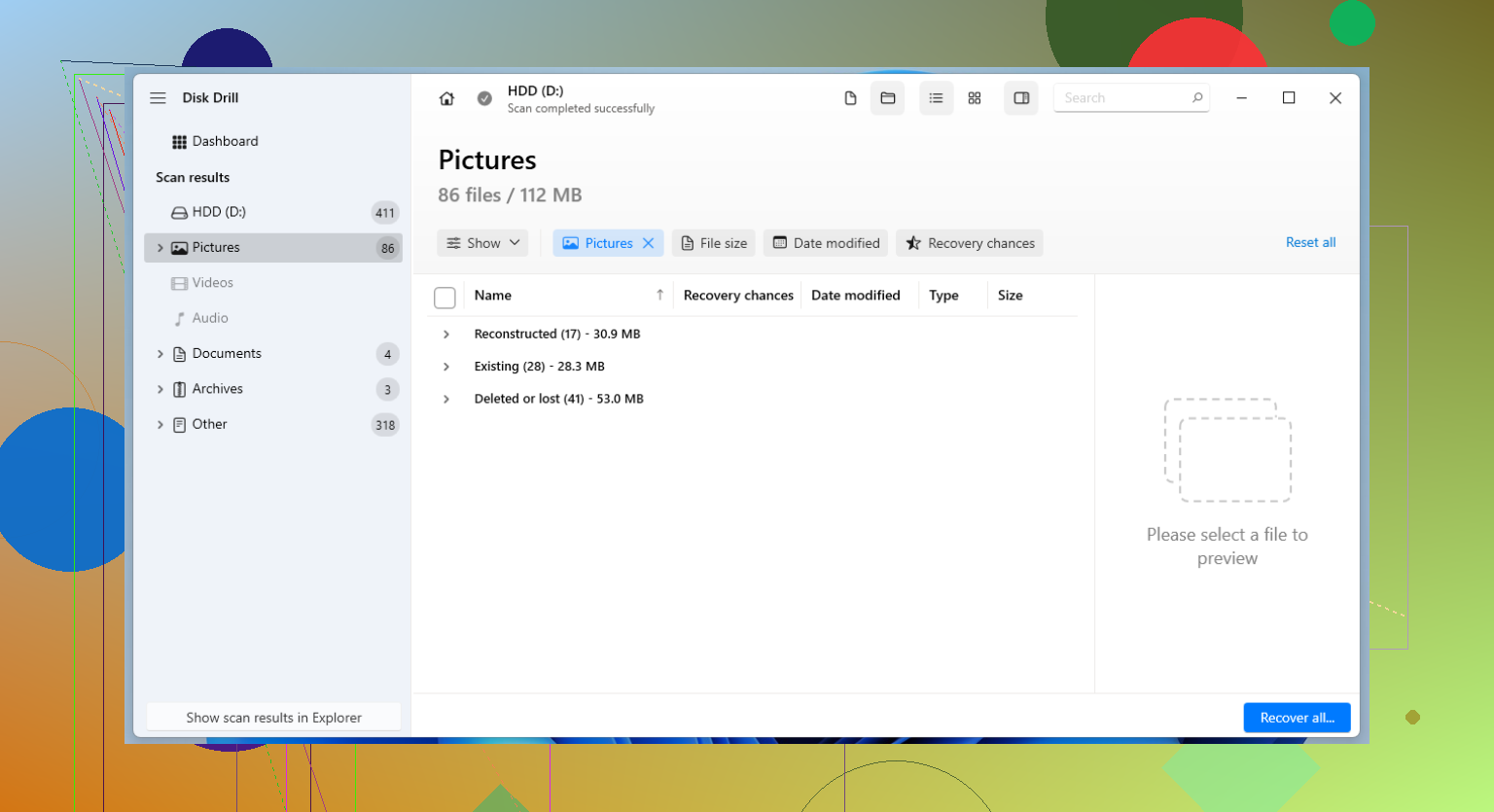
- Run a scan on the formatted disk and sort through what it finds
- Save recovered files onto another drive
I also tried free options. PhotoRec digs up a lot, though it feels rough and filenames often come back mangled or missing. Recuva is easier if you’re on Windows, but I’ve seen it fall apart when the partition got hit harder than a light format.
When software fails, labs are the last shot
If the files matter enough, family photos, tax records, client work, stuff you can’t recreate, a recovery lab is the next step. It costs more, sometimes a lot more, but they have tools regular users don’t.
One thing people miss is the type of format. This part matters more than the app you pick.
- Quick Format usually wipes the file system map, so the operating system stops knowing where files live, but the raw data often still sits there for a while
- Full Format is worse. On current Windows systems, it writes zeros across the drive and checks for errors. Once sectors are overwritten, consumer recovery tools won’t pull the old files back
So yeah, move fast. Stop using the drive. Check backups. If no backup exists, scan it with a tool like Disk Drill before anything else touches the disk. Timing matters a lot here, and waiting makes the job harder.
7 Likes
Formatted does not always mean gone. The big split is what kind of drive and what kind of format.
If this was an HDD and you did a quick format, recovery rates are often decent if you stopped using it fast. If this was an SSD, your odds drop hard because TRIM wipes blocks in the background. That part gets skipped a lot. I slightly disagree with @mikeappsreviewer on urgency alone being the whole story. Drive type matters as much as timing.
What I’d do:
- Check SMART health first with CrystalDiskInfo or DriveDx. If health looks bad, clone the drive before scanning.
- Make a sector image, not a file copy. Use ddrescue on Linux or R-Studio imaging tools.
- Scan the image, not the original disk. Safer. Faster to retry.
- Test more than one scanner. Disk Drill is solid for photos and common docs. R-Studio tends to do better on damaged partitions and mixed file systems.
- Recover to a different disk. Never back onto the source.
One more thing. If you reformatted from one file system to another, like NTFS to exFAT, filenames and folders often get messy. Photo recovery is still decent, office docs are mixed.
If you want a plain walkthrough, this Disk Drill review and recovery features explained is worth a look.
If you post HDD or SSD, quick or full format, and Windows or Mac, people here can give less guessy advice.
I’d add one thing neither @mikeappsreviewer nor @sonhadordobosque leaned on enough: if the files are truly irreplaceable, don’t start with five different recovery apps just because they’re easy to download. Every extra mount, scan, reconnect, and “let me try one more thing” moment increases the chance of making the situation worse, esp if the drive has underlying hardware issues.
What matters most is this:
- Was it a quick format or full format
- Is it an HDD, SSD, SD card, or USB flash drive
- Did you keep using it after formatting
- Is the drive acting normal, or clicking / disconnecting / freezing
If it’s a healthy HDD or USB and it was a quick format, you still have a pretty real shot. If it’s an SSD, I’d be a lot less optimistic than some people here because TRIM can make recovery go south fast even when you did everythng “right.”
My take is slightly different from the usual “scan immediately” advice. If the data is high value, image first, then experiment on the image. That gives you one clean source to work from. After that, sure, try Disk Drill since it’s one of the more user-friendly options and usually does fine with photos, docs, and common formatted drive recovery cases. But I would not judge the result from one pass only. Different scanners find different leftovers.
Also, check whether the “format” was done by a camera, Windows, macOS, or another device. Camera formats sometimes leave recoverable photo structures in a way desktop formats don’t.
If you want another thread with practical formatted disk recovery tips, this is worth reading: formatted USB recovery tips after accidental erase.
Post the drive type + format type + OS. Right now people can only give semi-educated guesses tbh.
One angle missing from @sonhadordobosque, @viajeroceleste, and @mikeappsreviewer is encryption. If that drive had BitLocker, FileVault, or even some NAS/enclosure-level encryption, recovery can look “bad” when the real issue is the missing key, not the format itself.
Also, slight disagreement with the “scan everything” instinct. Preview a few files first. If previews open correctly, your odds are decent. If everything is raw fragments, stop before wasting a day on deep scans that only recover junk.
About Disk Drill:
Pros:
- easy preview for photos/docs
- good at common accidental format cases
- cleaner interface than a lot of rivals
Cons:
- deep scans can return lots of false positives
- folder structure recovery is hit or miss after reformat
- not the cheapest option if you only need one rescue
If you try Disk Drill, judge it by file integrity, not file count. A tool finding 200,000 “files” means nothing if half are broken. For photos, check EXIF and thumbnails. For work files, open a sample from each file type before doing a huge recovery run.
One more thing: if this was an SD card used in a camera, do not let the camera “repair” it. That can make recovery worse fast.