My iPhone photo library has gotten overwhelming with years of screenshots, duplicates, random downloads, and unorganized albums. I’m running low on storage and can’t find photos when I need them. What’s the best way to clean up, organize, and back up a large iPhone photo library without losing anything important?
I had the same issue last year and kept avoiding it because cleaning up photos sounded like a full-day chore. By the time I finally dealt with it, my library was already past 10,000 photos and videos. And yeah, it basically ate most of a Saturday.
What helped was stopping the idea that there’s one perfect way to clean up an iPhone photo library. There really isn’t. Screenshots, duplicates, random videos, Live Photos, and blurry photos all need slightly different handling.
Start with the easy stuff in Photos
Before using any cleanup app, I’d get rid of the obvious junk in the built-in Photos app.
- Open Photos and go through albums instead of endlessly scrolling the whole library.
- Use the swipe-to-select gesture so you can grab a bunch of items quickly.
- For albums like screenshots, use Select All when it’s available, then uncheck anything you actually want to keep.
This works well for the stuff you already know is trash. Old screenshots, blurry shots, random saved images, that kind of thing.
Use an app for the tedious part
The bigger time saver for me was using Clever Cleaner after the manual pass. Most of my wasted space wasn’t from one-off bad photos. It was from near-duplicates, repeated shots, screenshots, Live Photos, and large videos I had forgotten were even there.
My process was pretty simple:
- Run Clever Cleaner.
- Go through the similar-photo groups instead of comparing everything one by one.
- Delete duplicate or almost identical shots that weren’t worth keeping.
- Clear old screenshots.
- Sort by large videos and remove the ones I didn’t need.
- Convert Live Photos to still photos when the motion part didn’t matter.
The useful part is that it groups things first. That makes the job feel way less annoying because you’re deciding between sets of related photos, not asking yourself the same keep-or-delete question thousands of times.
Empty Recently Deleted
This is the step people forget.
- Go to the Recently Deleted album.
- Check it once more so you don’t wipe anything important.
- Empty it.
If you don’t do that, the space may not come back right away because deleted photos sit there for a while. So if you’re trying to free up storage or lower iCloud usage, don’t skip this part.
Also, if this is really about iCloud storage being full, remember that iCloud Photos is one synced library. Deleting something from your iPhone also deletes it from iCloud and from your other Apple devices signed into the same Apple Account. That’s usually the point when you’re cleaning things out, but it’s worth keeping in mind before you delete thousands of items.
After going through that once, I changed how I handle it. Now I try to spend around ten minutes a week deleting new screenshots, bad shots, and duplicate takes. It’s a lot less painful than letting the mess build up for a year.
If your library is already huge, I wouldn’t rely only on manual cleanup. The Photos app is fine for obvious junk, but for duplicates, similar photos, screenshots, Live Photos, and big videos, something like Clever Cleaner saves a ton of time.
7 Likes
Make a backup somewhere outside iCloud Photos before you start mass deleting, even if it’s just exporting the important albums to a computer or external drive. Mike’s cleanup approach makes sense, but iCloud sync can turn one bad “delete all” moment into a problem across every device.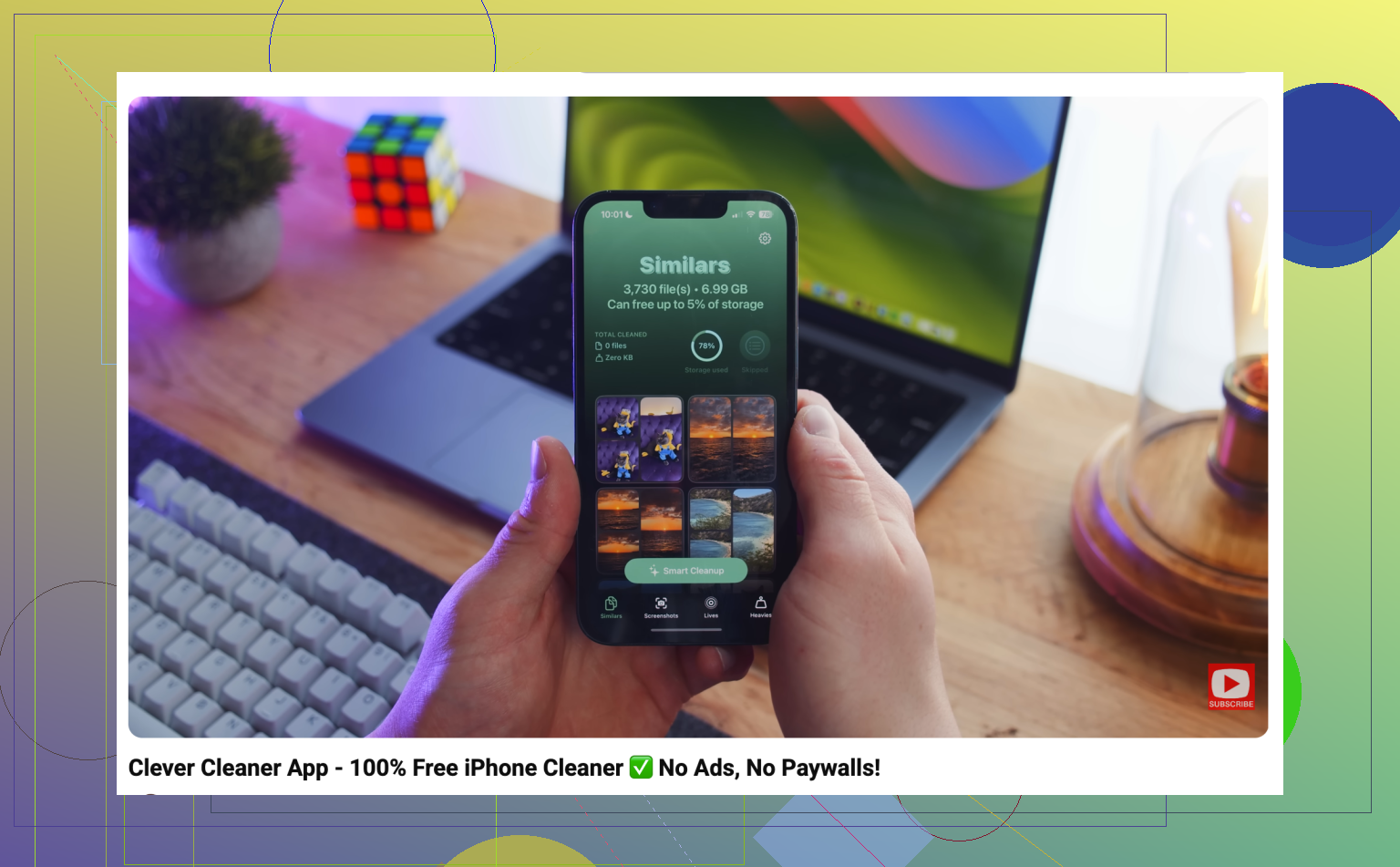
You probably won’t “fix” years of photos in one sitting unless you’re willing to make a bunch of sloppy decisions. I’d treat it like triage first: free up space, make search easier, then worry about making albums pretty later.
Before deleting thousands of things, check what is actually using space. Sometimes it’s not the random screenshots, it’s five long videos, screen recordings, or downloaded stuff in Messages. In Photos, the Media Types section is useful for this because you can jump straight to Videos, Screen Recordings, Bursts, and Screenshots. I’d start with the largest and least emotional files first. Deleting a 2 GB concert video you don’t care about does more than spending 45 minutes picking through memes.
I agree with the backup warning above. I’d be even more boring about it: don’t clean while you’re tired, rushed, or half-watching TV. That’s when people delete the wrong vacation folder and only realize it after Recently Deleted is gone. Apps like Clever Cleaner can help with the comparison work, but I wouldn’t blindly accept every suggestion. Similar photos are not always duplicates. Sometimes the “worse” one is the one where everyone is actually looking at the camera.
For finding photos later, albums are less important than people think. Use Favorites aggressively, add captions to the handful of photos you know you’ll search for later, and let Photos search by date, place, person, or object. A smaller library plus a few marked important photos beats 40 carefully named albums that you stop maintaining after a week.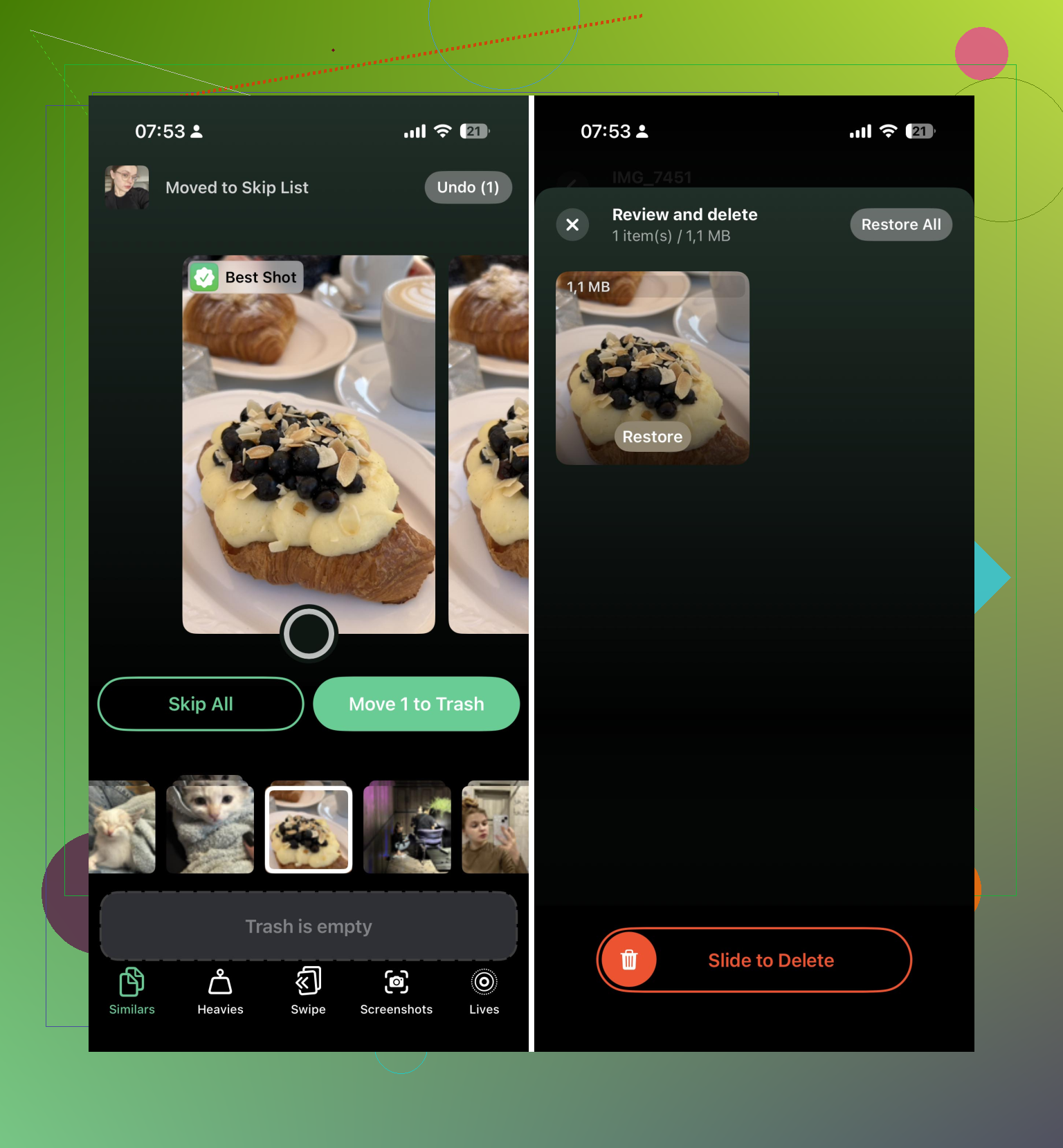
Don’t start a big cleanup while iCloud Photos is paused, low on battery, or stuck on “syncing,” because you can end up judging an out-of-date library. Plug in, let Photos finish syncing, then clean from the obvious categories first so the same junk doesn’t keep reappearing on another device.