My computer crashed, and now my hard drive seems corrupted. Windows is slow to boot, some files won’t open, and I’m worried about losing data. What are the safest steps to repair the drive or recover files without making the damage worse?
If the drive still shows up in Disk Management and the capacity looks right, I’d take that as a good sign. A crash can mess up the file system or partition info without actually destroying the files. So the drive refusing to open doesn’t automatically mean the HDD is dead.
The main thing is to avoid “fixing” it too soon. Don’t format it when Windows asks. Don’t run CHKDSK right away. Don’t copy anything new onto it. And don’t keep rebooting over and over hoping it suddenly mounts correctly. Those steps can change what’s on the drive, and if the file system is already damaged, that can make recovery harder.
I’d handle it in this order:
- Confirm the HDD appears in Disk Management with the correct size.
- If it’s external, try a different USB cable, USB port, or another computer, just to rule out a dumb connection issue.
- Recover the files you care about first.
- After the data is safe, then try repairing the drive.
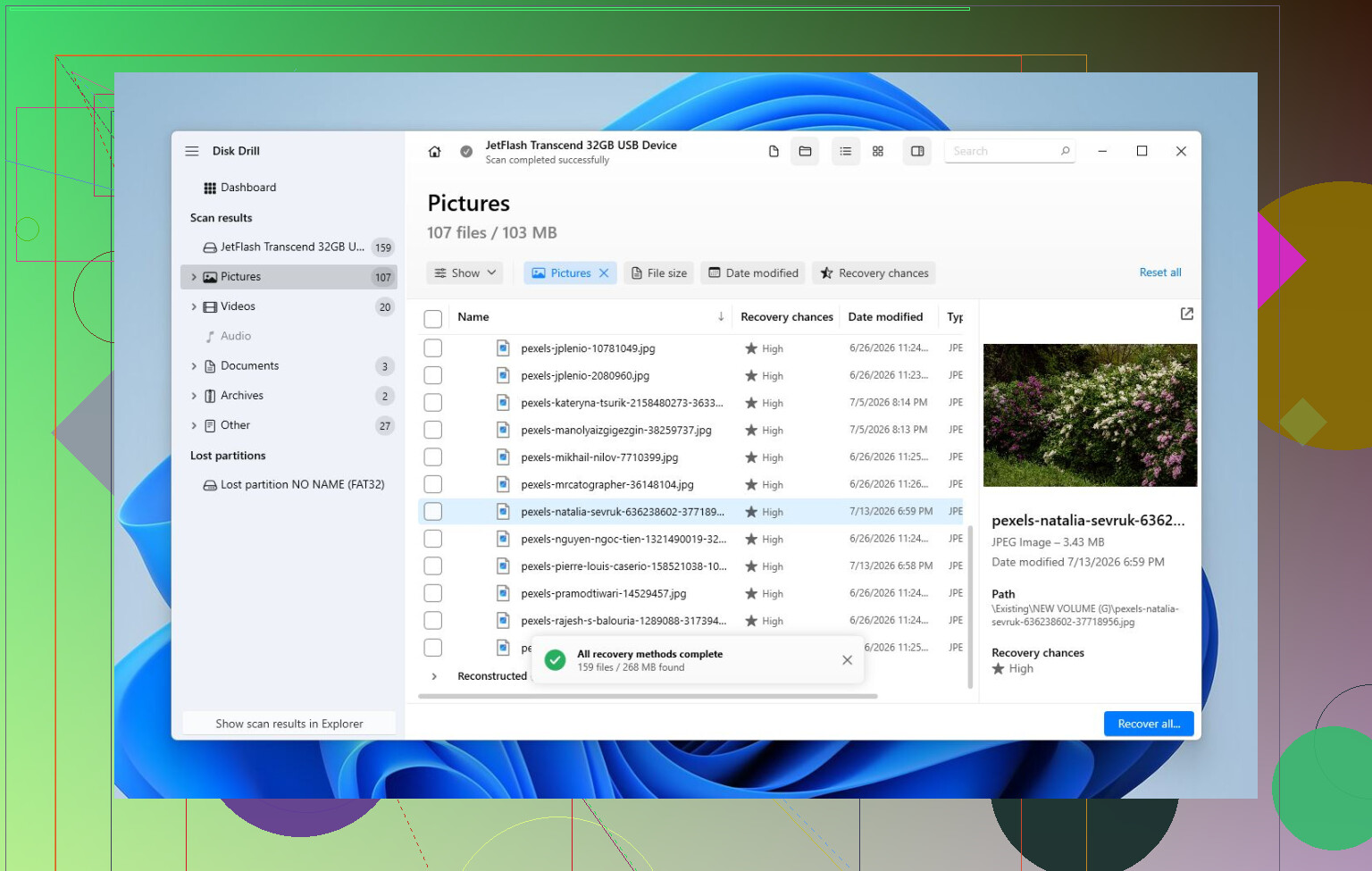
For the recovery part, Disk Drill is a reasonable choice because it can make a full image of the drive before scanning. That matters if the disk is acting flaky, since scanning an image is safer than repeatedly hammering the original HDD.
The basic workflow would be:
- Install Disk Drill somewhere else, not on the damaged drive.
- Create a complete image of the corrupted HDD.
- Mount or open that image in Disk Drill.
- Run Universal Scan on the image.
- Preview the results.
- Recover the files to a different healthy drive.
The preview step is worth using before paying for anything, since it lets you see whether your photos, videos, documents, and other files are actually recoverable.
Once the important stuff is copied off, then I’d move on to repair attempts. CHKDSK can help if the file system is still readable, but it should come after recovery because it writes changes to the disk. If the partition shows as RAW or the partition table is messed up, TestDisk is often the better next thing to try. If none of that works, formatting may be the final option. A quick format can rebuild the file system, but if the drive corrupts again afterward, I’d replace it rather than trust it.
Also watch how the HDD behaves. Clicking noises, disappearing from Disk Management, showing the wrong size, or getting painfully slow are bad signs. That points more toward hardware failure than simple file system damage. If you see that, I’d stop running scans on it, because every pass can make a failing drive worse.
At that point, a professional recovery service is the safer route. They can work with the hardware, clone the disk with specialized tools, and recover from the copy instead of beating up the original drive.
So yeah, I wouldn’t panic yet. If Windows still detects the drive with the correct capacity, there’s a decent chance the data is still there. Just recover first, repair later. That order matters.
8 Likes
Expect the repair step to take a long time, and don’t assume “slow but working” means the drive is safe to keep using. If this is your Windows boot drive, I’d stop booting from it and connect it to another PC or boot from a USB environment so Windows isn’t constantly writing logs, updates, temp files, and index data to the same damaged disk. That gets overlooked a lot. Check the SMART status if you can, but don’t treat a “passed” result as a guarantee. If the files matter, copy or image first, recover to a separate drive, then worry about CHKDSK or reinstalling Windows. After a crash like that, even if you repair the file system, I’d be planning to replace the drive unless you can prove the problem was only software-related.
Shut the machine down and write down exactly what you still need from that drive before you touch it again. People often go straight into “repair mode” and spend hours trying to make Windows healthy, when the smarter first job is deciding what data is actually worth risking the drive for.
I agree with the general “recover first, repair later” advice above, but I’d be a little less comforted by the drive showing the right size in Disk Management. That only means the controller and partition info are readable enough for Windows to display something. A failing drive can still show the correct size right up until it drops out completely.
The hidden trap here is Windows automatic repair. If this is the boot drive, Windows may keep trying Startup Repair, updates, indexing, pagefile writes, crash dumps, and file system fixes in the background. That can make a borderline drive worse. If it starts saying “Scanning and repairing drive” or “Preparing automatic repair,” don’t just let it loop all afternoon unless the data is already backed up.
For important files, I’d do this:
- Stop booting from that disk if possible.
- Use another computer, a USB-to-SATA adapter, or a bootable USB environment.
- Copy the most important files first, not the entire drive.
- Save them to a different physical drive.
- Only after that, try imaging or deeper recovery.
That “copy the most important files first” part is worth stressing. If the drive is dying, you may not get unlimited attempts. Don’t start with your Steam library, downloads folder, or a full system clone if what you really need is tax documents, family photos, work files, password vaults, project folders, etc. Grab the irreplaceable stuff first.
If normal copying hangs on one folder forever, stop trying to drag and drop huge chunks in File Explorer. Explorer is bad at dealing with sick drives because one bad area can freeze the whole copy process. A recovery tool that can image the drive or skip bad sectors is better. Disk Drill can be useful for that kind of workflow, especially if you scan an image instead of constantly scanning the original disk. The catch is that you need another drive with enough free space, and you should install the software somewhere other than the damaged drive.
Another thing people forget is encryption. If the drive used BitLocker or device encryption, make sure you have the recovery key before moving it around or trying repairs. You might need the Microsoft account recovery key page, a printed key, or whatever your organization used if it was a work machine. Without that, the data may look “corrupted” when it is really just locked.
After your files are safe, then repair attempts are fair game. CHKDSK can fix file system damage, but it is not a recovery tool. It can rename, move, truncate, or discard damaged file records while trying to make the file system consistent again. That may be fine after you have a backup. It is not what I’d run first on the only copy of important files.
If you do get Windows booting again, don’t treat that as the end of it. Check the drive health, back up everything, and watch for signs like reallocated sectors, pending sectors, repeated freezes, clicking, disconnects, or the drive vanishing from BIOS/UEFI. If any of that shows up, replace the drive. A “fixed” file system on a mechanically failing disk is still a bad place to keep data.
For a machine you need working quickly, the fastest practical route is often: remove the questionable drive, install Windows fresh on a new SSD/HDD, then recover files from the old drive as a secondary disk. That avoids spending days trying to revive an unstable Windows install while your data is still sitting on the problem drive.
And if the files are worth serious money or are truly irreplaceable, don’t keep experimenting. Power it off and get a recovery shop involved. Home recovery attempts are fine for replaceable data or mild corruption, but every scan, repair, reboot, and failed copy can reduce your chances when the drive is physically failing.

A corrupted NTFS volume after a bad shutdown is one case; a drive that is timing out, clicking, or vanishing is a different problem entirely. Before any repair, turn off “optimize/defrag,” don’t reset Windows, and don’t let cleanup tools touch it, especially if it’s an SSD where TRIM can make deleted or damaged-file recovery much less forgiving.