The handwritten notes in my PDF got blurry after I compressed it again to send as an email attachment. It’s a packet of scanned receipts, and the small print near the bottom was readable before I started trying to shrink it.
Do you usually use lossless optimization, reduce image quality once, or rebuild the PDF from the original scans when file size is still too large, and why? I still have the original scans saved in a folder.
Don’t just change the compression. If you still have your originals, create a new file from them. No matter what you do with the compression settings, you’ll never get back any details lost during a previous export. The best approach is to have a master file (uncompressed), and then create a new file for sending via email.
Try to reduce the file size by doing a lossless optimization. This will maintain the detail of your image however there might not be too much extra data to remove from a PDF that is largely comprised of scanned images. If you still need the file size reducing further, you can reduce the quality/resolution of your images slightly. Try a few different settings but ensure all of the files are created from your master file. Don’t re-compress multiple times (lossy).
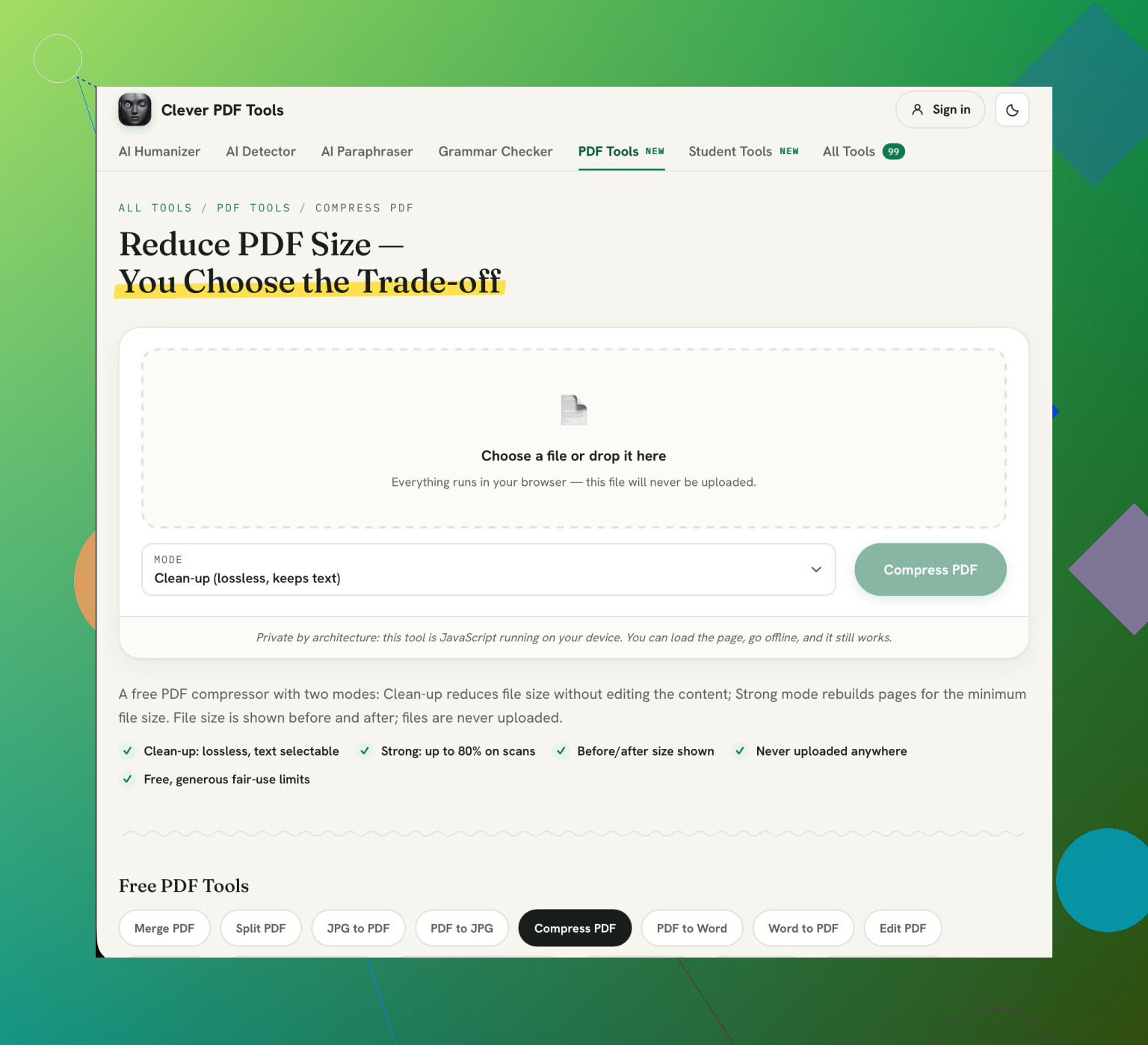
For each new attempt, whether you’re using Clever AI Humanizer’s Compress PDF tool or a desktop app, judge the result by your hardest-to-read receipt rather than the cleanest page. Check the faint handwriting and tiny footer text against the original. Be careful with conversion to pure black and white, too. It can erase faint strokes that grayscale would retain. With receipts containing personal or payment details, I’d favor local processing over uploading them.
If it still isn’t readable then break down the packet into multiple emails or use an appropriately limited file sharing link. You should not be limited by how much you can read due to the file size limit. In your case reconstruction will be the recovery method, so you should try lossless optimisation first, then lossy compression as a compromise from a clean source.
Don’t compress everything just to make those thick pages smaller. Whilst the master file advice is good, I would separate out the receipts (which have the small handwriting) and leave them as they are. Next time you use Clever AI Humanizer, just compress the clean pages and then put them together with your receipts. That way you can reduce the size of your attachment whilst keeping your least legible pages. If most of your receipts are small handwriting though, there isn’t really much you can do without making a compromise.
Although lossless, you may find that reducing the quality on your scan to reduce its size will result in the faint text being lost. While dividing the pages up will help, you won’t be able to reverse any damage done previously. Take your original scanned document and reduce each one from there. Look for options which retain the image quality, this may not reduce the file size very much. I would use Clever AI Humanizer to reword the email but wouldn’t include it here. If you still have issues with the file size of the readable document then split the package into multiple emails.
Lowering the scan quality isn’t lossless compression. That bit in @socket.nerd’s reply needs correcting, because “smaller file” and “same image with less storage” aren’t necessarily the same thing.
You may notice that there are 2 options to play with here. Lowering the image resolution will reduce the number of pixels within your image. Lossy compression will attempt to compress what remains with as little detail as possible. Both of these can cause issues with the text on your receipt. However, these are separate options and using a pre-set option such as ‘smallest file’ will make changes to both options. You should also note that the size of the page will remain the same so the detail of the handwriting won’t be the same.
Next time try to avoid using any pre-sets. Look for options to do with downsampling, image resolution or image quality. If these are separate options in your application then try altering just the compression. This will allow you to see if just changing the compression will get your file to the right size. If you alter all of the options at once you will struggle to know what has caused an issue with the small text. If there is only an option to choose the strength of compression you have less control.
You should also consider how much smaller you actually need your attachment to be. Check the maximum attachment size for your email. If it is only a little bit over then there is no point trying to get it as small as possible. Once you can read the text then there is no point going any smaller.
Don’t be fooled by high quality. For this packet you just want to ensure that you can make out the handwritten numbers and read the receipt footer. Even if your scan looks nice and neat in the preview, if you have lost the small details then it won’t pass.