My external drive suddenly shows “drive is not accessible, the parameter is incorrect” in Windows. It has important files, so I don’t want to format it and lose data. What safe steps can I try to fix the error or recover files without formatting?
Before doing anything else, I’d focus on getting the files off the drive, not “fixing” it. I ran into the same 'The parameter is incorrect.' message on an older WD external drive and thought it was dead. In my case, the drive was still readable underneath, but the file system was messed up.
Don’t format it just because Windows asks you to. I’d also hold off on CHKDSK until the important stuff is recovered or backed up somewhere else. CHKDSK can repair some logical errors, but on a badly damaged file system it can also make recovery messier.
I’d check the basics first:
- Use a different USB cable.
- Try another USB port.
- Plug it into a different computer.
- Open Disk Management and see whether the drive shows up with the right size.
- Check SMART health with something like CrystalDiskInfo, or the SMART tool built into Disk Drill. If you see a bunch of pending or reallocated sectors, assume the drive may be failing and stop using it more than you have to.
If the drive is still detected, I’d recover first and repair later. I’ve had the best results with Disk Drill for this kind of thing, especially when Windows can see the disk but refuses to open it because of the parameter error.
If the drive seems unstable, make a full disk image first. That way you scan the image instead of hammering the original drive over and over. After that, run a Universal Scan, preview the files, and recover them to a different drive. The free Windows version can recover up to 100 MB, which is at least enough to confirm whether your files are actually recoverable before paying for anything.
Once the files are safe, then I’d look at repairs.
- If Windows still sees the file system, try CHKDSK with
chkdsk X: /r. - If the drive shows as RAW, or CHKDSK refuses to run, try TestDisk. It can fix damaged partitions in some cases, though it’s not as friendly if you’re not used to tools like that.
If recovery is done and the repairs don’t work, a quick format is usually the next thing to try. It rebuilds the file system and can clear the error if corruption was the only problem. But if the same issue comes back after formatting, I wouldn’t keep trusting that drive. At that point it’s more likely hardware trouble.
Also, yeah, this is the kind of problem that makes backups feel less optional. External drives are useful, but they’re still hardware, and they can fail without giving you much warning.
If the drive clicks, drops connection, vanishes from Disk Management, or SMART reports serious warnings, I’d stop with the DIY attempts and contact a professional recovery service. Repeated power cycles can make things worse when the drive is physically failing. 
There may not be a true “safe fix” until the files are copied somewhere else first. A cheap thing to try before paid tools is booting a Linux live USB and seeing if it can mount the drive read-only enough to copy your data, since Windows can be pickier about a damaged exFAT/NTFS volume. If Linux also complains or the drive disconnects, stop trying fixes and treat it as recovery, not repair.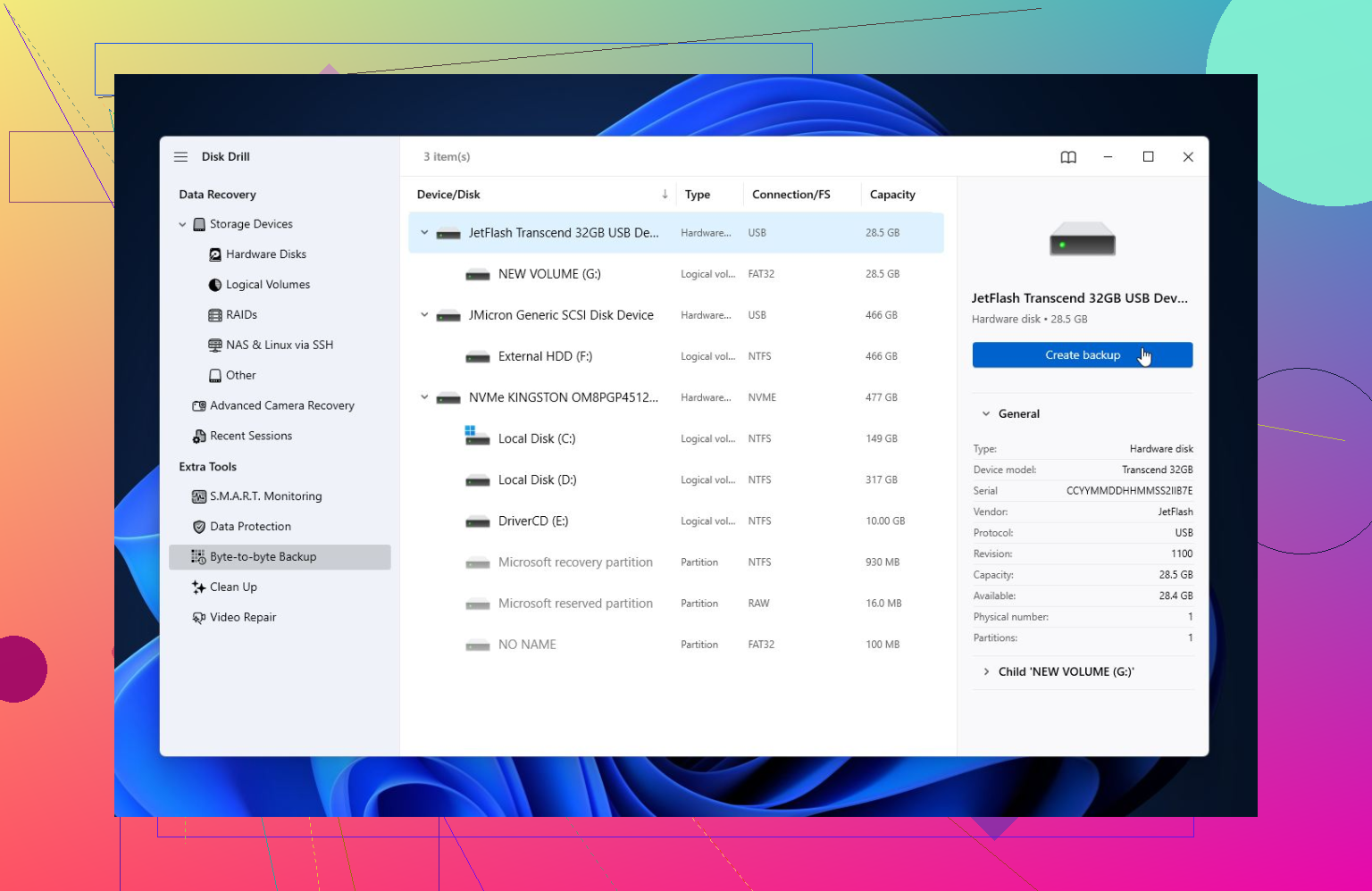
Do not let Windows initialize it.
That prompt is easy to click past, and it is the wrong direction if you care about the files. Same with “format before use.” Cancel out of anything that wants to create, initialize, convert, or format the disk. Those are setup actions for a disk you are willing to wipe, not recovery actions.
I agree with the warning about CHKDSK, but I’d be even more conservative than that. chkdsk /r is not a gentle test. It can run for ages, touches a lot of the drive, and writes changes to the file system. If the problem is a few bad sectors in the wrong place, it might help. If the drive is starting to fail, it can turn a recoverable mess into a worse mess.
A safer order is:
- Check whether the drive is detected with the correct size.
- If it is, copy or recover data first.
- Only after that, try repairs.
- If repairs work, still don’t treat the drive as trusted until it has been fully tested.
The detail people often miss is the “correct size” part. In Disk Management, does your external drive show as the expected size, like 1 TB, 2 TB, 4 TB, etc.? Or does it show as 0 bytes, “No Media,” some tiny size, or keep appearing and disappearing? If the size is wrong, file recovery software is usually not the first thing to fight with. That points more toward the USB bridge, power, cable, enclosure, or the disk electronics.
For a desktop-size external drive, use its original power adapter if possible. Weak power can cause nonsense errors that look like file system damage. Avoid front-panel USB ports and cheap hubs while testing. Plug it directly into the back of the PC. Boring advice, but external drives are very good at wasting your afternoon over a bad cable or underpowered port.
If Windows shows the drive with the right capacity but the volume will not open, then treat it as “readable but damaged.” That is where recovery makes sense. Disk Drill, R-Studio, DMDE, UFS Explorer, GetDataBack, etc. are all in that category. The brand matters less than the workflow: scan the problem drive, preview what it finds, and recover to a different disk. Never recover files back onto the same external drive you are trying to save.
If you are comfortable with Linux tools, the better first move is making a clone/image with GNU ddrescue, then scanning the clone. That way, if the original drive gets worse, you already captured as much as it would give you. If that sentence sounds annoying or unfamiliar, don’t learn it on the only copy of your important files. Use a recovery program with an imaging feature, or get help from someone who has done it before.
A couple of small traps:
If the drive was BitLocker encrypted, recovery tools may show garbage until the volume is unlocked or the recovery key is used.
If it came from a multi-drive external box, NAS, or RAID enclosure, do not pull disks and randomly try them one by one in Windows. That can make things much harder.
If Disk Management shows the partition as RAW, do not format it just to “make it visible.” Formatting may make Windows happier, but it does not bring your folder structure back.
If the only issue is a missing drive letter, then assigning a letter in Disk Management can be harmless. But that is a different situation from Windows saying the parameter is incorrect when opening the volume. If it already has a letter and errors out, assigning another letter probably won’t fix the actual problem.
After the files are copied somewhere safe, then you can experiment. Try CHKDSK, try TestDisk if the partition table looks wrong, or do a quick format if you no longer need recovery from it. But don’t confuse “the drive works again” with “the drive is healthy.” If it threw this error once because of bad sectors or disconnects, I would not use it as the only home for anything important again. Use it for temporary junk at most, or retire it.
There may be no clean repair button here; the best outcome is usually copying the data while the drive is still willing to talk.
The mistake I see people make with this error is treating “parameter is incorrect” like a Windows setting problem. Sometimes it is, but with an external drive it can also mean Windows asked the file system for something and got nonsense back. That could be corruption, a bad USB bridge, failing sectors, or a drive dropping out for half a second. So I’d avoid repeatedly opening it in File Explorer just to “see if it works this time.” Explorer can sit there retrying, building thumbnails, reading metadata, and generally poking the disk more than you think.
A slightly different approach from the usual “scan the whole thing” advice: if the drive still opens sometimes, copy the most important folders first, manually, to another disk. Don’t start with a full-drive copy of everything including old installers, movies, and junk. Grab documents, photos, accounting files, project folders, whatever hurts most to lose. If it fails halfway through, you at least got the highest-value stuff first. After that, then image it or run recovery scans.
If it does not open at all but still shows the right capacity, I’d skip CHKDSK for now, same as others said. Use a recovery tool that can either make a disk image or scan the drive without trying to “repair” it in place. Disk Drill is fine for this if you use it in that order: image or scan, preview, recover to another drive. The key detail is the destination. Recovering back onto the broken external drive is how people overwrite the exact data they are trying to save.
I’d only call it a “fix” after your files are somewhere safe. At that point you can try changing the cable, testing another enclosure, running CHKDSK, rebuilding the partition with TestDisk, or formatting and testing the drive. Before that, every repair attempt is really a gamble. Sometimes it pays off, sometimes it turns a readable damaged volume into a neater empty one.