I accidentally deleted important files and now I’m trying to figure out the safest data recovery software to use before I make things worse. I’m considering Recuva, but I’m not sure how it compares to other recovery tools for safety, reliability, and avoiding malware or further file damage.
People ask this a lot, and the short version is simple enough. Yes, Recuva is safe to run. I did not see malware behavior from the current build, and it is not some fake cleaner app waiting to wreck your PC. Still, 'safe' splits into a few different buckets. One is whether the installer is clean. Another is privacy. The last one, and this is where people trip up, is whether you use it in a way that protects your deleted files instead of stomping on them.
I spent time testing recovery apps on old SSDs, USB sticks, and one dying laptop drive I should have retired years ago. Recuva still has a place. It also has limits you feel fast once the job gets messy.
About the old malware scare
A lot of the distrust comes from the 2017 CCleaner mess. Same developer, Piriform. Their official CCleaner update got hit in a supply chain attack, and malware slipped into a trusted download. Bad incident. Huge one.
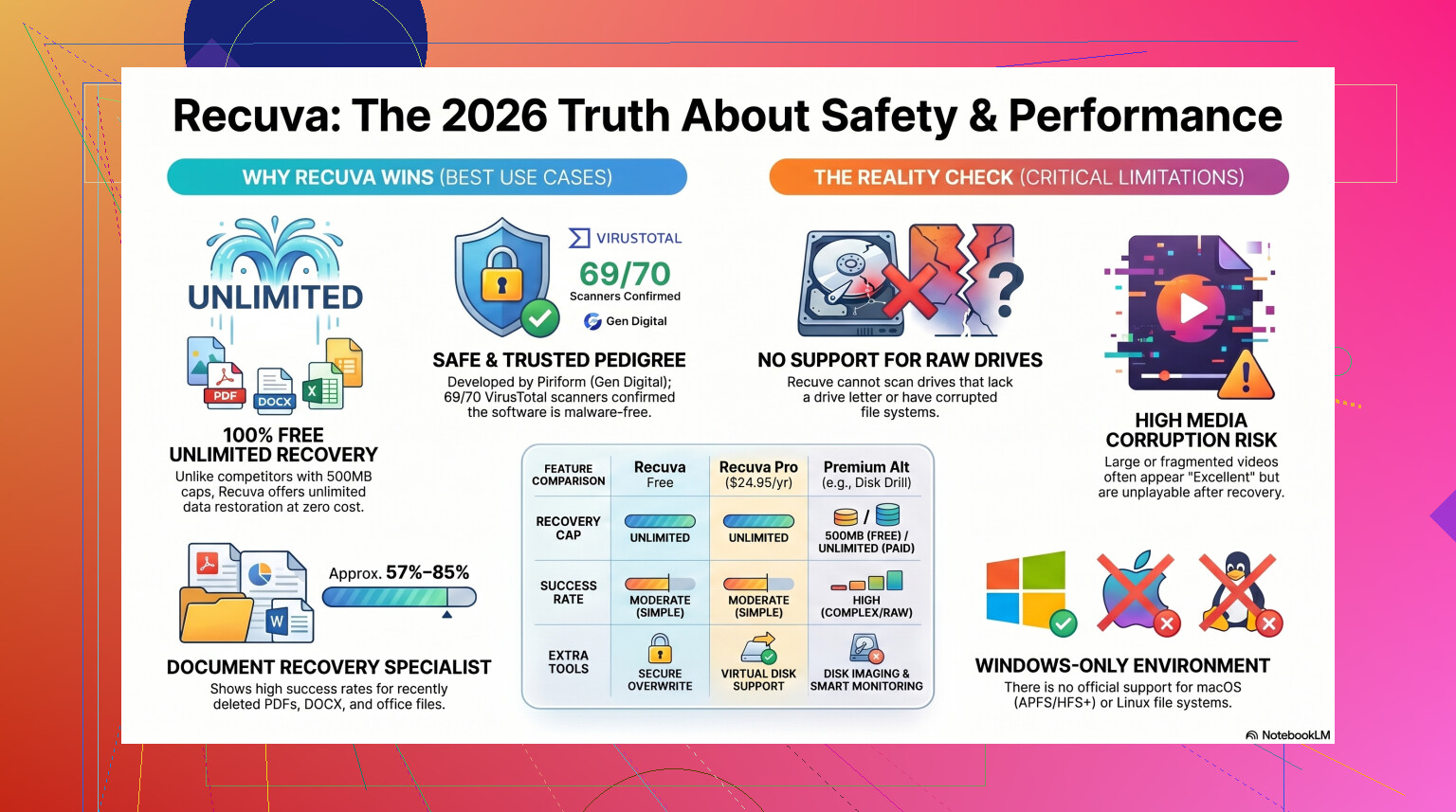
That said, people often drag Recuva into the same panic without checking the current situation. Piriform ended up under Avast, and later under Gen Digital. In 2026, the current Recuva installer from the official source tends to scan clean. If you throw it into VirusTotal, you might spot a random detection from some tiny antivirus engine nobody uses. I saw this once, and it looked like a heuristic flag, not proof of infection. Recovery tools poke around low-level disk structures, so over-sensitive scanners sometimes throw fits.
If you get Recuva from the official site, the virus risk looks low. If you grab it from some download mirror with a fake green button, you are rolling dice for no reason.
Privacy is a different issue
Clean installer does not mean private app. Gen Digital collects data tied to the product, and their policy spells out more than some people expect. I saw references to IP address, device identifiers, OS details, and approximate location used for licensing and fraud checks.
If that bugs you, open the settings right after install. In Options under Privacy, turn off the usage data setting. I always do this first. No reason to leave telemetry on if your only goal is pulling back a few deleted files.
One thing worth knowing, they retain IP data for quite a while before anonymizing it, around 36 months from what I read. For some users, fine. For others, nope.
The part most people get wrong
Recuva is usually not what kills the recovery attempt. The user does.
If the missing files were on drive D:, do not install Recuva to drive D:. Do not save the installer there. Do not recover the found files back onto it either. I know this sounds obvious after the fact. In practice, people panic, click next a few times, and overwrite the same space where the deleted files were sitting.
When a file gets deleted in Windows, the data often stays on disk until something else writes over it. The file system removes the reference and marks the space as available. So if you write new data to the same drive, you chip away at your own chances.
Best move, use the portable build on a USB drive. Run it from there. Then recover files to a different drive, or at least another partition if you have no better option. External SSD, spare flash drive, network share, anything separate. I learned this one the hard way a while back with a folder of MP4s. I saved the recovered batch back to the source USB. Half of them were toast. Dumb mistake, but common.
How well it works now
This is where the tone shifts. Safe enough, sure. Effective enough, depends.
Recuva feels old because it is old. The core of it has not changed much since around 2016. There were smaller updates later so it still runs on newer Windows versions, but under the hood it still behaves like a light undelete tool, not a full recovery platform.
On simple jobs, I had decent results. Deleted photos from a healthy NTFS drive. Empty Recycle Bin by accident. Small office files removed an hour ago. Stuff like that, Recuva is quick and easy. The wizard makes it easy for beginners, and the price is zero without weird file limits, which is getting rare.
Once the drive is damaged, formatted, or showing as RAW, things get shaky. Recuva often needs a visible and healthy partition before it does much useful work. On formatted USB tests, I saw results in the same rough band others report, around 63% to 67% recovery success. And even those numbers flatter it a bit, because 'recovered' does not always mean 'opens fine.'
I had JPGs marked in great condition fail to open. I had filenames come back stripped and folder structure gone. One scan dumped thousands of files into one directory with names like 000123.jpg and 000124.jpg. If your life is organized around family photos, client work, or project folders, sorting that pile is miserable.
When I would stop using it
If the files matter and Recuva misses on the first pass, I would stop there.
Same if the disk is clicking, disconnecting, showing RAW, asking to be formatted, or running hot. Repeated scans put more strain on a weak drive. On a failing disk, wasting time with a tool built for easy undeletes is not a good trade.
For tougher jobs, I had better luck with Disk Drill. It handles damaged partitions and RAW volumes far better than Recuva did in my tests. Recovery rates on formatted media were also much stronger, often landing in the 95% to 97% range in published tests and close to that in a couple of my own runs on USB media. Not perfect, no app is, but the gap felt obvious.
The feature I care about most is Byte-to-Byte Disk Imaging. Clone the failing drive first, scan the clone, leave the original alone. This matters more than marketing copy ever will. If the physical drive gives up in the middle of a scan, your image file is still there. Recuva does not give you the same safety net.
Media work is another weak point for Recuva. If you shoot on Nikon, Canon, or work with fragmented video files, results get rough fast. I saw it choke on larger clips and weird file fragments. A stronger recovery app tends to identify those signatures better and rebuild more of them intact.
Video review
For a side-by-side look with real tests, I found this useful:
https://www.youtube.com/watch?v=z0CVd7PxOms
What I would do in your spot
If you deleted something on a healthy Windows PC and want a free first try, Recuva is fine. I would do it like this:
- Get it from the official site only.
- Use the portable version on a USB drive if possible.
- Turn off data sharing in the privacy settings.
- Recover files to a different drive.
- Keep expectations low if the drive was formatted, damaged, or shows as RAW.
If it finds nothing useful, or the files come back broken, stop writing to the drive. Stop scanning it over and over. Move to a stronger tool like Disk Drill, or if the data is irreplaceable, go straight to a recovery shop before the situation gets worse.
So yes, Recuva is safe in the normal malware sense. I’d still call it a starter tool. Good for easy mistakes. Not where I’d stay when the files matter a lot.
2 Likes
Recuva is safe enough if you get it from the official source. I agree with @mikeappsreviewer on that part. Where I differ a bit, I think people focus too much on the app and not enough on the drive state.
The bigger risk is your next write to the disk. If the deleted files are important, stop using that drive now. Don’t browse, install stuff, or copy files onto it. That is what ruins recoveries.
Compared to other recovery tools, Recuva is one of the safer free picks because it is simple and doesn’t push sketchy bundled junk like some no-name tools do. But it is also weaker on tougher cases. If you deleted files from a healthy drive, it’s fine for a first scan. If the drive was formatted, corrupted, or acts weird, I’d skip Recuva and go to Disk Drill sooner. Disk Drill gives you more control and is stronger for deep scans and damaged file systems.
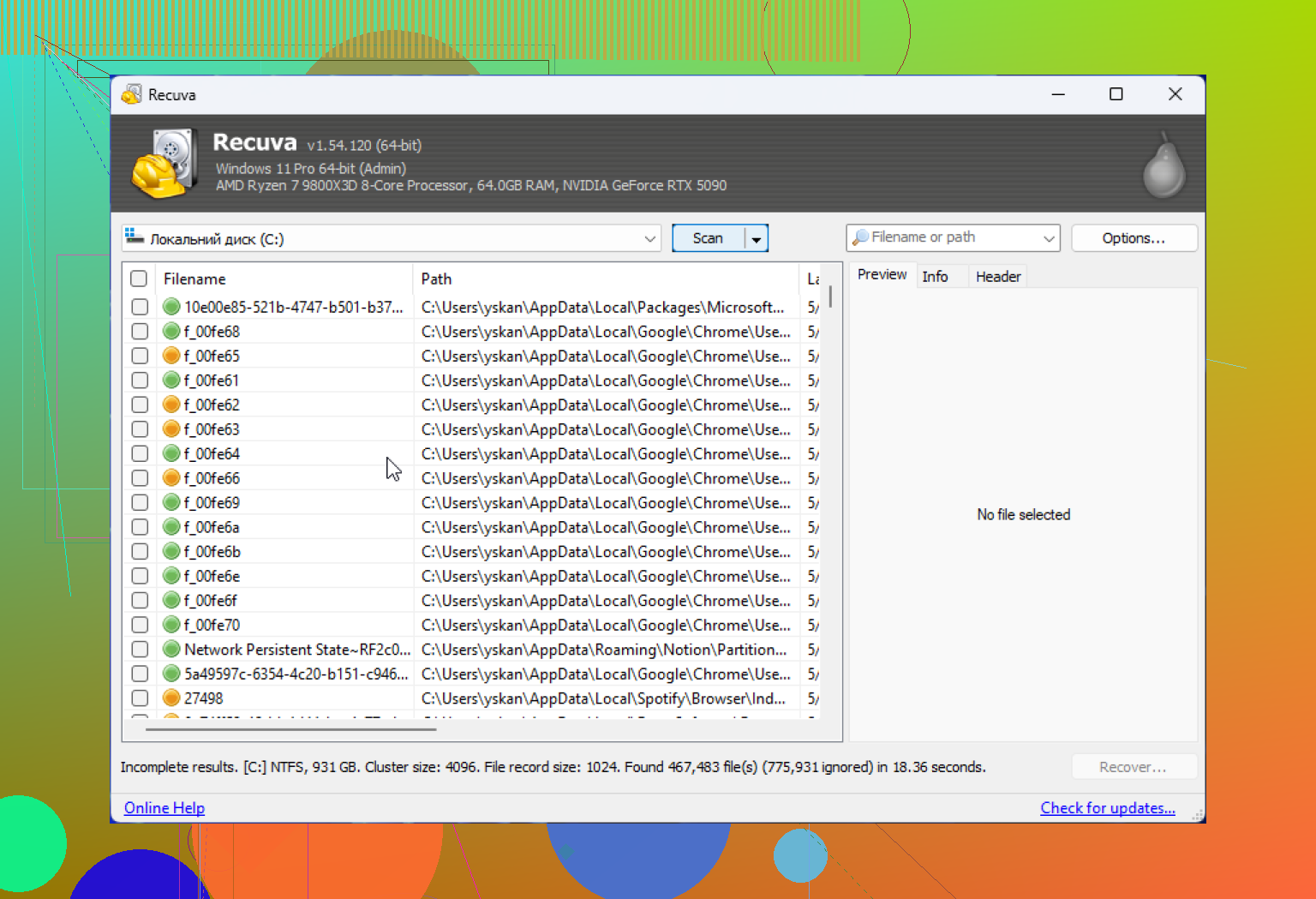
One thing I don’t love about Recuva is it gives people false confidence. “Green status” does not always mean the file will open. Seen that too many times.
If you want a solid comparison list of safe file recovery software options, this page is useful:
best data recovery software for deleted files and damaged drives
Short version:
Recuva, safe.
Recuva, best choice for critical files, not always.
Disk Drill, stronger option when the data matters more than saving a few bucks.
If the files are irreplaceable, stop testing random apps. One bad move and yup, it gets worse fast.
Recuva is generally safe, yes, but I’m a little less relaxed about it than @mikeappsreviewer and @voyageurdubois. Not because it’s malware, but because “safe” should also mean “least likely to reduce your recovery chances.” Those are not always the same thing.
If you want the quick version:
- Recuva is a legit Windows file recovery tool
- it’s fine for simple accidental deletes
- it is not the safest choice when the files are truly critical, because it lacks some of the guardrails and stronger recovery features better tools have
For basic background, this is the app people mean when they talk about Recuva file recovery software for Windows.
Where I slightly disagree with the usual advice is this: people say “try Recuva first because it’s free.” Maybe. But if the files are actually important, your first attempt should also be your smartest attempt, not just the cheapest one. Every extra scan, every install, every file preview can be one more thing touching the drive.
That’s why I tend to put Disk Drill ahead of Recuva for serious cases. Not hype, just risk management. Disk Drill is better built for situations where the file system is messy, the partition info is broken, or you need to be more careful about how you handle the source disk. Recuva is more of a quick undelete utility than a full recovery workflow.
Also, one underrated issue: Recuva can look “safe” because the interface is simple, but simple can trick ppl into moving too fast. A lot of bad recoveries happen because the software feels easy, so users click through stuff without thinking where recovered files are being saved. That’s not exactly Recuva’s fault, but it matters.
My take:
- Healthy drive, recently deleted files: Recuva is safe enough
- Formatted drive, corrupted partition, RAW disk, SSD with TRIM, or anything business-critical: skip the casual tool and use Disk Drill or a pro service
So yes, Recuva is safe compared to sketchy recovery apps from random download sites. Compared to stronger recovery tools, though, it’s more “safe starter option” than “best option when mistakes are expensive.” If this data really matters, I would not mess around too much tbh.
I’m with @voyageurdubois and @kakeru on the main point: the drive state matters more than the brand name. But I slightly disagree with the “Recuva first” habit. Free is nice, sure, but first attempt is often your best shot, so I’d choose based on file value, not price.
Recuva is generally safe if downloaded from the official source. It’s lightweight, familiar, and decent for plain accidental deletion on a healthy Windows drive. Where it falls behind is confidence versus actual results. @mikeappsreviewer touched on that, and yeah, “found” does not always mean “usable.”
My take:
Recuva pros
- Safe enough from a malware standpoint
- Easy for beginners
- Good for simple undelete jobs
- Free tier is actually usable
Recuva cons
- Weak on damaged, RAW, or reformatted drives
- File quality indicators can be misleading
- Limited recovery workflow
- Not my favorite for critical cases
Disk Drill pros
- Better deep scan performance
- More useful on corrupted or formatted volumes
- Can create a byte-level backup/image first, which is a big safety advantage
- Better file preview and broader format support
Disk Drill cons
- Not fully free for big recoveries
- Heavier app than Recuva
- Can feel like overkill for one tiny deleted document
So, is Recuva safe compared to other recovery tools? Yes, compared to sketchy no-name apps. But safest overall for important data? I’d give that edge to Disk Drill, mostly because it gives you better ways to avoid making things worse while scanning and recovering. If the files are truly important, I would skip the “test a bunch of free tools” phase entirely.