My Mac’s HFS drive stopped mounting after a crash, and I realized I don’t have a Time Machine backup. I’m trying to recover important files without overwriting anything. What are the safest HFS data recovery options or tools to try first?
First thing: stop using that HFS drive for now. Don’t copy anything to it, don’t try to “fix” it in Disk Utility, and don’t recover files back onto it. Deleted files on HFS/HFS+ often stick around until new data overwrites them, so the less you touch the drive, the better your odds.
Before jumping into recovery software, do a quick sanity check:
- See if the drive still shows up in Disk Utility.
- For an external drive, try a different USB port or cable.
- If your enclosure shows SMART status, check it. A drive with a bunch of bad sectors is a different problem than a simple deletion.
- If it keeps disconnecting, reads painfully slowly, or acts unstable, make a disk image first and work from that instead of repeatedly scanning the original drive.
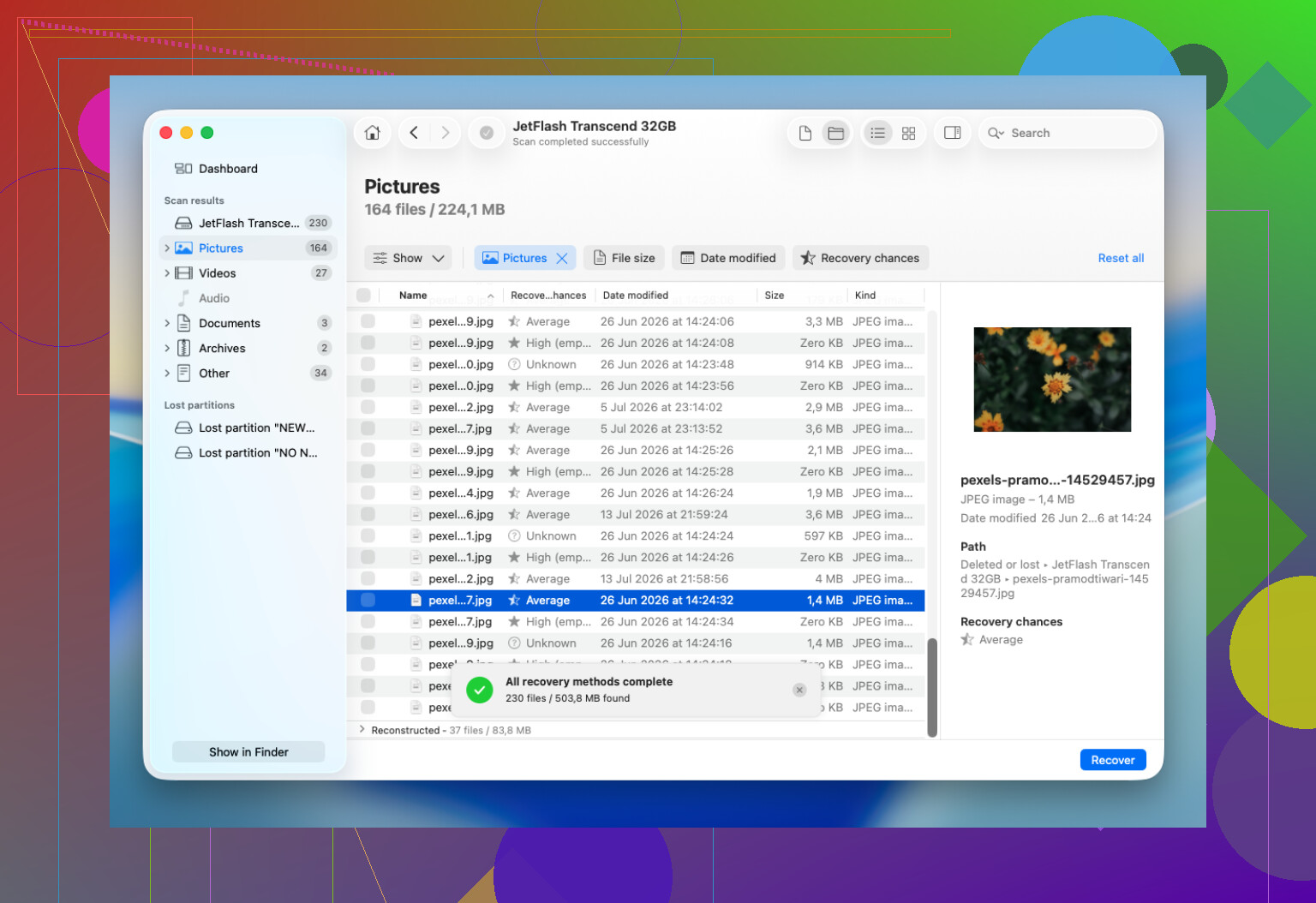
For HFS and HFS+ recovery, I’d usually point people toward Disk Drill. It’s fairly simple to use, handles HFS volumes well, and it can sometimes scan a drive even when Finder won’t mount it, assuming Disk Utility can still see the device.
The basic flow is:
- Install Disk Drill somewhere other than the drive you’re trying to recover from.
- Choose the HFS/HFS+ drive in the app.
- Use Search for Lost Data. For most external drives, Universal Scan makes sense.
- Let the scan finish instead of stopping it early.
- Preview the important files if the app finds them.
- Save recovered files to a separate healthy drive, not the original one.
Emptying the Trash or doing a quick format doesn’t automatically mean the files are gone forever. A lot of the time, the directory info is removed but the actual file contents are still sitting on the disk until something else gets written over them. That’s why continuing to use the drive is the big risk.
Also check Time Machine if you had it enabled. Restoring from a backup is way less painful than trying to reconstruct files from a damaged or deleted HFS volume.
I’d stop with DIY recovery if the drive is clicking, grinding, buzzing, vanishing from Disk Utility, freezing the Mac, disconnecting over and over, or throwing so many read errors that scans can’t finish. At that point it may be a hardware issue, and repeated scans can make things worse. That’s when a recovery lab starts to make more sense.
If the drive is still detected and doesn’t seem physically damaged, recovery software is worth trying before doing anything that changes the disk. Accidental deletion and file system damage are often recoverable if you catch them early enough.
8 Likes
You might get the files back, but don’t assume you’ll get the original folders and filenames if the HFS catalog got damaged in the crash. Mike’s “don’t write to it” advice is the big one, and I’d add that if macOS pops up “initialize” or “repair” prompts, cancel them. Disk Drill is fine to try if the disk is still visible, but recover to another drive and expect some sorting by file type afterward.
Expect the first pass to be messy, not a clean “put everything back where it was” button. If the HFS directory/catalog is damaged, recovery tools may find a lot of real data but label it by file type, dates, or generic names. That is still a win if the files matter, but it can mean hours of sorting afterward.
I agree with the “don’t write to it” advice, but I’d be a little more conservative than running scans against the original disk over and over. If the drive is readable enough, make a full clone or disk image to another drive first, then scan the clone. That way, if the original gets worse, you are not starting from nothing. This matters even more if the crash was caused by the drive itself and not just macOS freezing.
Disk Drill is a reasonable option if the disk still appears as a device, even if the HFS volume will not mount. Just make sure the recovery destination is a different physical disk. If the drive is making noise, dropping offline, or taking forever to read simple areas, skip the “let’s try five different apps” phase and consider a lab. Software recovery is for logical damage and deleted data. It is not a safe fix for a dying mechanism.
Small caveat people forget: if the volume was encrypted, you’ll need the password or recovery key, and the recovery results may depend on whether enough of the volume structure is still readable. No backup does not mean no chance, but it does mean you should treat every read from that drive as limited and make it count.
Whether this is a spinning hard drive or an SSD changes the advice a lot. On an old HFS+ hard drive, “deleted” or orphaned data can sit there for a long time if nothing overwrites it. On an SSD, especially if TRIM was active, recovery after deletion or formatting can be much less forgiving. If the problem is only that the HFS volume won’t mount after a crash, you may still have a shot, but I wouldn’t treat all HFS recovery cases the same.
I agree with making an image first, but I’d be picky about how. A normal Finder copy or drag-and-drop is useless here because the volume does not mount. You want a block-level clone/image to another disk that is at least as large as the original. If you are comfortable in Terminal, tools like ddrescue are often better for a flaky drive because they can skip bad areas and come back to them later. If you are not comfortable with that, use a recovery app that can create a disk image before scanning. Disk Drill can be fine for that kind of “visible device, unmountable volume” situation, but don’t let any app talk you into repairing the original disk first.
Small warning: don’t run First Aid, fsck, rebuild tools, or “initialize” attempts just because macOS suggests them. Those can change the file system metadata, and sometimes that metadata is exactly what recovery software needs to rebuild names and folders. The safest order is image first, scan the image second, recover to a third location. If the drive cannot be imaged without constant read errors or disconnects, stop there and decide whether the files are worth lab money. Continuing to poke at it is the expensive way to save a few minutes.