My iPhone storage suddenly filled up, and now I can’t take photos, download apps, or update iOS. I’m not sure what caused it or if there’s a fast way to clear space without deleting important stuff. Looking for help with quick iPhone storage fixes and how long it usually takes.
The “iPhone Storage Full” alert wrecked my phone for a while. On my iPhone 13, it started small, then got ugly. Apps hung. The camera took forever to open. A quick photo turned into a missed moment. Once or twice the phone rebooted on its own. From what I saw, when storage is packed, iOS has less room for temp files and background stuff, so the whole thing drags.
First thing I’d check is not your app list. I did that first and it wasted time. The biggest space hogs were old 4K clips, giant message attachments, and the usual vague “System Data” pile. Go to Settings > General > iPhone Storage. Give it a bit to load. You’ll get the bar chart showing what’s eating space, Photos, Apps, Messages, System Data.
If you’re paying for iCloud and your phone still says storage is full, yeah, that part throws people off. iCloud is not extra local phone storage by default. It’s more like sync and backup unless your settings are right. Open Settings > Photos, then make sure “Optimize iPhone Storage” is turned on. If it isn’t, your phone keeps full-size originals on the device, which fills things up fast.
I tried the manual cleanup route. Bad idea for me. I spent way too long sorting the Recently Deleted album, and yes, you need to check it because deleted photos still sit there for 30 days. I also went through duplicates and blurry shots by hand. Miserable, if I’m honest.
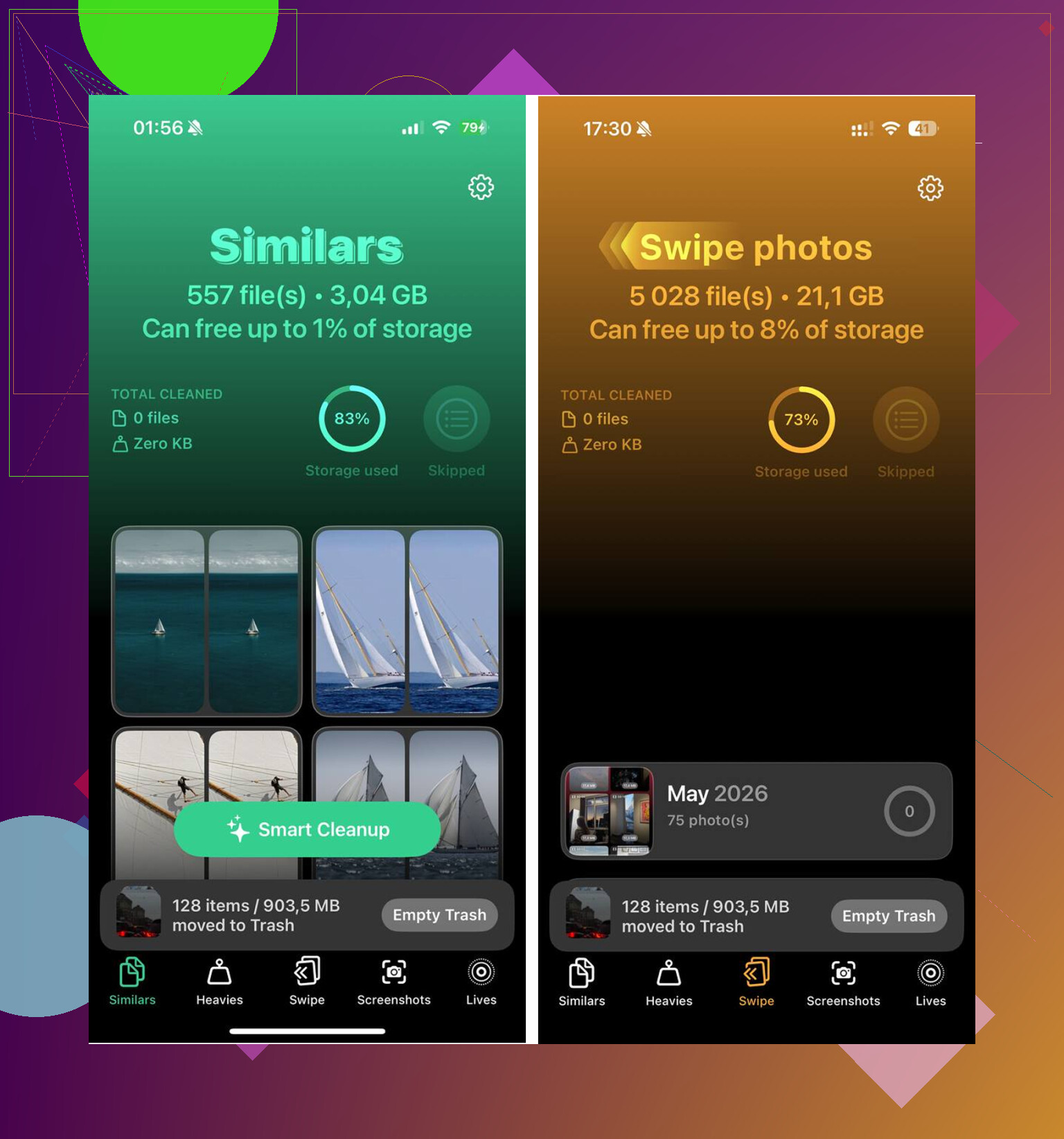
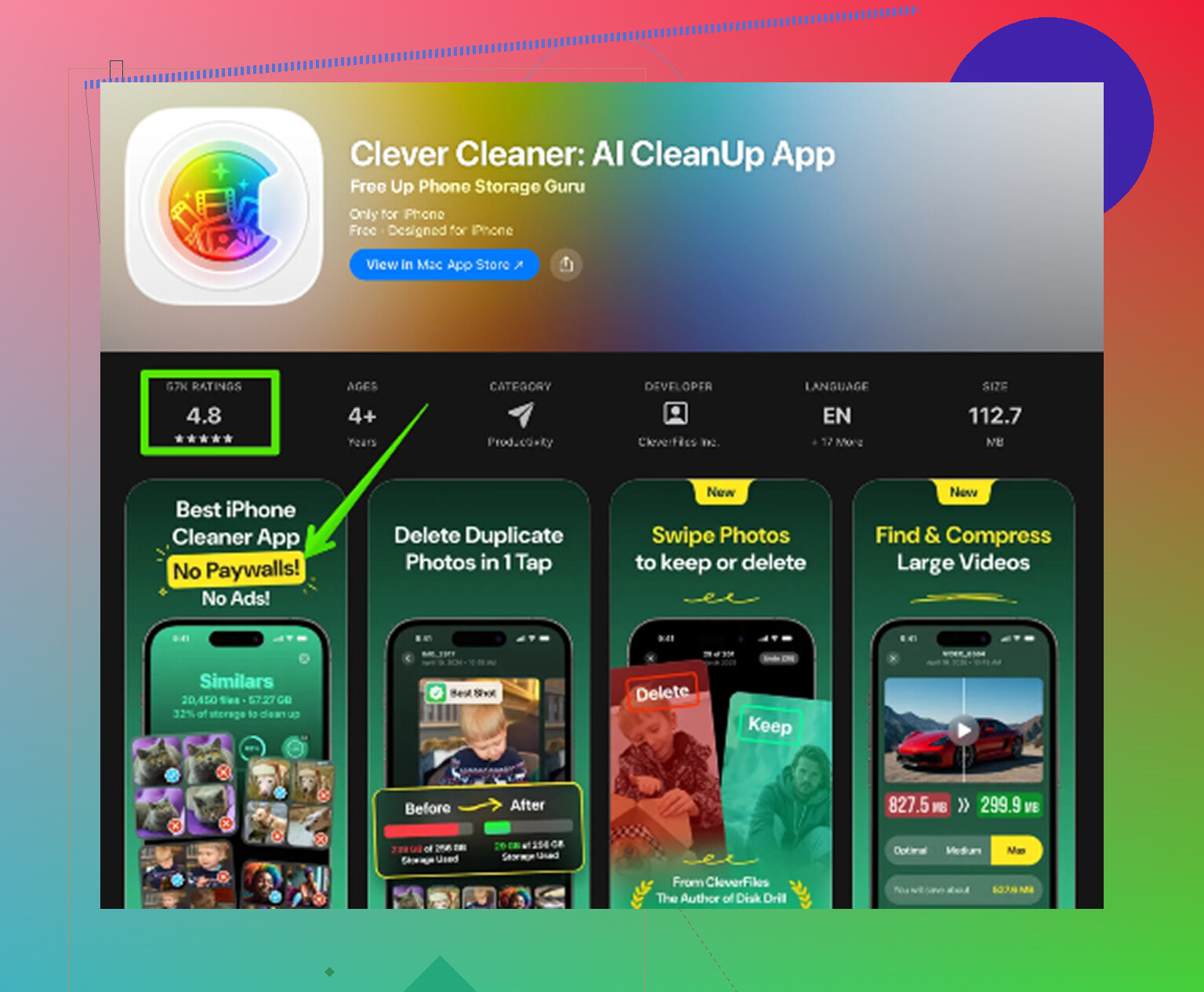
What fixed it for me was using a cleanup app. I don’t trust most of them, so I dragged my feet. Then I found Clever Cleaner. This was the first one I kept on my phone. No paywall popping up after two taps. No ad spam. No weird subscription ambush.
The layout helped more than I expected. The Heavies section sorted media by file size, so I spotted old videos sitting there at 1GB, 2GB, stuff I forgot existed. The Similars section grouped near-duplicate photos. If you’ve got nine versions of the same dog pic or ten sunset shots from one minute, it cuts down the mess fast. I also found a pile of screenshots I didn’t need, memes, receipt captures, QR codes, random junk. Mine was around 500MB, which surprised me a bit. Another thing I liked, it handles the scan on-device, so your private photos aren’t getting shipped off somewhere else.
After I cleared around 12GB, the lag was gone. The phone felt normal again. Not magic, still the same phone, but smooth.
If your storage still looks cramped after a cleanup, these spots are worth checking:
Messages
Go to Settings > General > iPhone Storage > Messages. Look at Large Attachments. Old videos, GIFs, voice notes, they pile up quietly.
Safari
Go to Settings > Safari > Clear History and Website Data. This sometimes frees a decent chunk of space, especially if System Data looks bloated.
Music and Podcasts
Offline downloads stack up fast. Open each app and check downloaded albums, playlists, and episodes.
Photos
Don’t forget Recently Deleted. If you skip that step, the free space won’t show up yet. I missed this once and thought the cleanup failed. nope.
The first pass takes a little time. After that, getting back a usable amount of storage is usually pretty quick, around 15 minutes if you focus on duplicates, large videos, and message attachments. If your phone feels slow and full, start there.
8 Likes
If it filled up suddenly, I’d look for a sync loop or failed update first, not only photos. Those jumps often come from Files downloads, WhatsApp or Telegram media, Podcasts, or iOS update files stuck in storage.
Fast fix, aim to free 5 to 10 GB. That’s enough for photos and usually enough to let iOS breathe again.
Do this:
- Restart the phone. Sometimes storage calc is wonky.
- Settings, your name, iCloud, iCloud Backup. Delete an old failed device backup if one is huge.
- Files app, On My iPhone, Downloads. People forget this folder exsits.
- TV, Netflix, Spotify, YouTube. Remove offline downloads.
- Settings, Accessibility, Spoken Content, Voices. Extra Siri voices take space.
- Mail app. Remove large attachments or re-add the account.
I partly disagree with @mikeappsreviewer on one thing. I would check apps early, but only for download-heavy apps, not every app one by one. Social, streaming, messaging, and cloud apps are the usual culprits.
If you want speed, Clever Cleaner is fine for photo clutter. For a broader look at AI iPhone cleaner apps, this review of the best AI cleaner apps for iPhone is useful, best AI cleaner apps for iPhone tested for real storage cleanup.
If your phone is under 1 GB free, expect lag and failed updates. Free some space first, then update. That part takes 10 to 30 mins if you target the big stuff and dont start deleting random apps.
Sudden full storage usually means one of two things: cached/app data exploded, or a failed iOS update/download is squatting on space. I slightly disagree with @mikeappsreviewer on not checking apps first, because sometimes one app goes feral and eats gigabytes overnight. Instagram, WhatsApp, TikTok, Telegram, Podcasts, and Files are repeat offenders.
What I’d do first is this:
- Settings > General > iPhone Storage
- Wait for it to calculate
- Look for a weird jump, not just the biggest category
If an app is way larger than it should be, offload or delete/reinstall it. Offloading keeps docs/data, deleting does not. Also check if an iOS update file is sitting there under iPhone Storage. That’s a sneaky one.
I also kinda disagree with @espritlibre on one point: clearing Safari data helps sometimes, but if you’re critically full, it’s usually not the main fix. It’s more of a side cleanup.
Best fast win without nuking important stuff:
- Offload unused apps
- Remove downloaded streaming content
- Check Files app and “Recently Deleted” in Files, not just Photos
- Delete old voice memos if you use them
- Review Mail if you have giant attachments cached locally
If the issue is mostly photo clutter, Clever Cleaner is probly the fastest low-effort option because it can surface duplicates/similar pics and bulky media without you digging forever. That’s more efficient than randomly deleting apps you’ll just reinstall tomorrow.
Also useful if you want a visual walkthrough: step-by-step iPhone storage cleanup guide
If you can free even 3 to 5 GB, the phone usually stops acting weird pretty fast. If it filled up literally overnight, I’d suspect an app bug before assuming it’s just your photos.
Quick fix exists, but only if you stop chasing tiny stuff. I agree with @espritlibre and @cacadordeestrelas that sudden jumps often mean cached downloads or media, but I’d add one thing they didn’t really stress: check whether your Photos app is in the middle of indexing, restoring, or syncing after a restart/update. That can temporarily make storage look worse than it really is.
My shortcut test:
- Go to Settings > General > iPhone Storage
- Wait a full minute
- If the colored bar keeps changing, restart and check again later before mass deleting
Also, I slightly disagree with @mikeappsreviewer on offloading as an early move. Offloading is fine, but if the app’s data is the real problem, offloading may barely help. For apps like WhatsApp, Telegram, Podcasts, or Chrome, you need to clear the actual downloaded content inside the app.
One underrated cleanup:
- Voice Memos
- GarageBand projects
- CapCut, iMovie, Lightroom exports
- Files app Recently Deleted
- Hidden album in Photos
If you want the fastest photo cleanup, Clever Cleaner is useful for surfacing duplicates, similar shots, screenshots, and heavy videos.
Pros:
- fast visual sorting
- easy for photo clutter
- good for bulky media discovery
Cons:
- mostly strongest for photo/library cleanup, not every system category
- you still need to review before deleting
- won’t magically shrink all System Data
So yes, this can be a 10 to 20 minute fix if it’s media/download clutter. If it’s system corruption or a failed update loop, it can take longer. The goal is just to free 5 GB fast, then do a deeper cleanup later.