My iPhone suddenly started lagging when I use the keyboard and scroll through apps, and it feels worse after the latest iOS update. Typing is delayed, scrolling stutters, and basic tasks feel slow. I need help figuring out if this is an iOS bug or if there’s a fix to make my iPhone run smoothly again.
iPhone lag after an update or out of nowhere, what fixed it for me
I hit this on my phone a while back. Typing felt broken, letters showed up late. Scrolling looked choppy. Apps I opened all the time started hanging for 3 or 4 seconds before showing anything. It makes the whole phone feel worn out, even when the hardware is fine.
What I found is boring, but useful. Each symptom usually points to a small set of causes. Most of them are fixable. I did not need a factory reset.
First thing, check when the slowdown started
If it began right after an iOS update, I would not panic yet.
After a big iOS release, the phone does a lot in the background. It reindexes photos, rebuilds app data, and cleans up system files for the new version. You do not see any of this, but you feel it. The CPU gets tied up and even simple stuff feels delayed.
What worked for me was waiting it out properly, not for a few hours, but a few days. I left the phone on Wi-Fi and plugged in overnight for at least 3 days. On one device, the lag faded out on its own.
If it has been a couple weeks and a reboot did nothing, I’d stop blaming the update.
Storage is the first thing I would inspect
This one gets dismissed a lot, but on iPhone it’s often the main reason.
Once free space gets low, around 10 to 20 percent left, iOS starts acting cramped. Apps need temporary room to open, cache data, and move files around. If the phone has no breathing room, performance drops in ways you notice fast. Delayed keyboard input. UI stutter. Slow app launches. All of it.
And no, deleting two random apps usually did nothing for me.
The space hogs were elsewhere:
- 4K videos
- long screen recordings
- giant message attachments
- piles of screenshots
- thousands of similar photos I never cleaned up
What I used to clear space without wasting an afternoon
I tried doing it by hand first. Bad idea. Sorting through 5,000 photos on a phone is miserable.
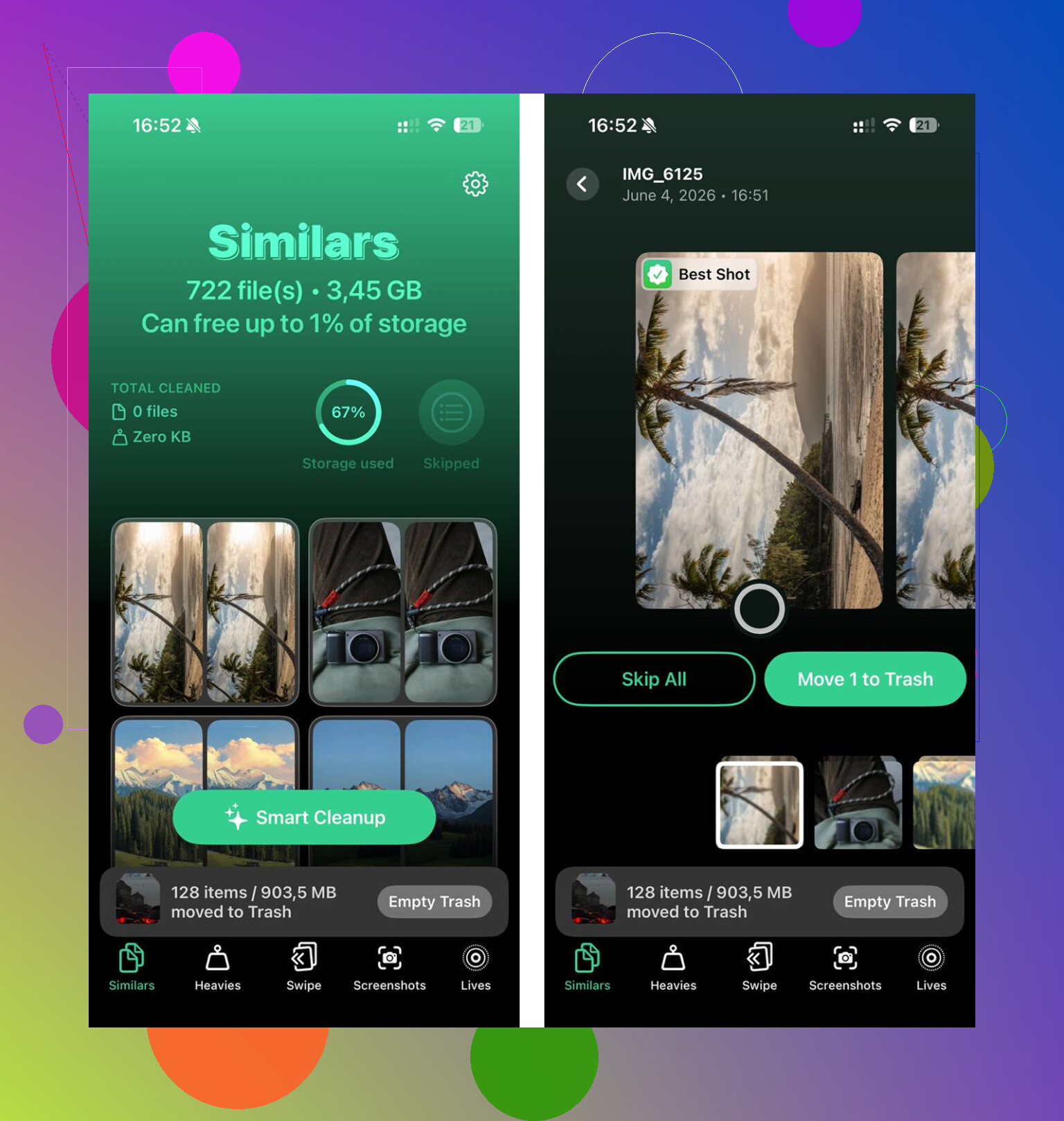
The app that helped me get through it was Clever Cleaner. I expected the usual mess, ads everywhere, half the features locked, fake scan screen, all of it. This one was free in the plain sense. No ads. No subscription wall. No paywall buried three taps in.
Here’s the order I used.
1. Check the Heavies section first
This was the quickest win.
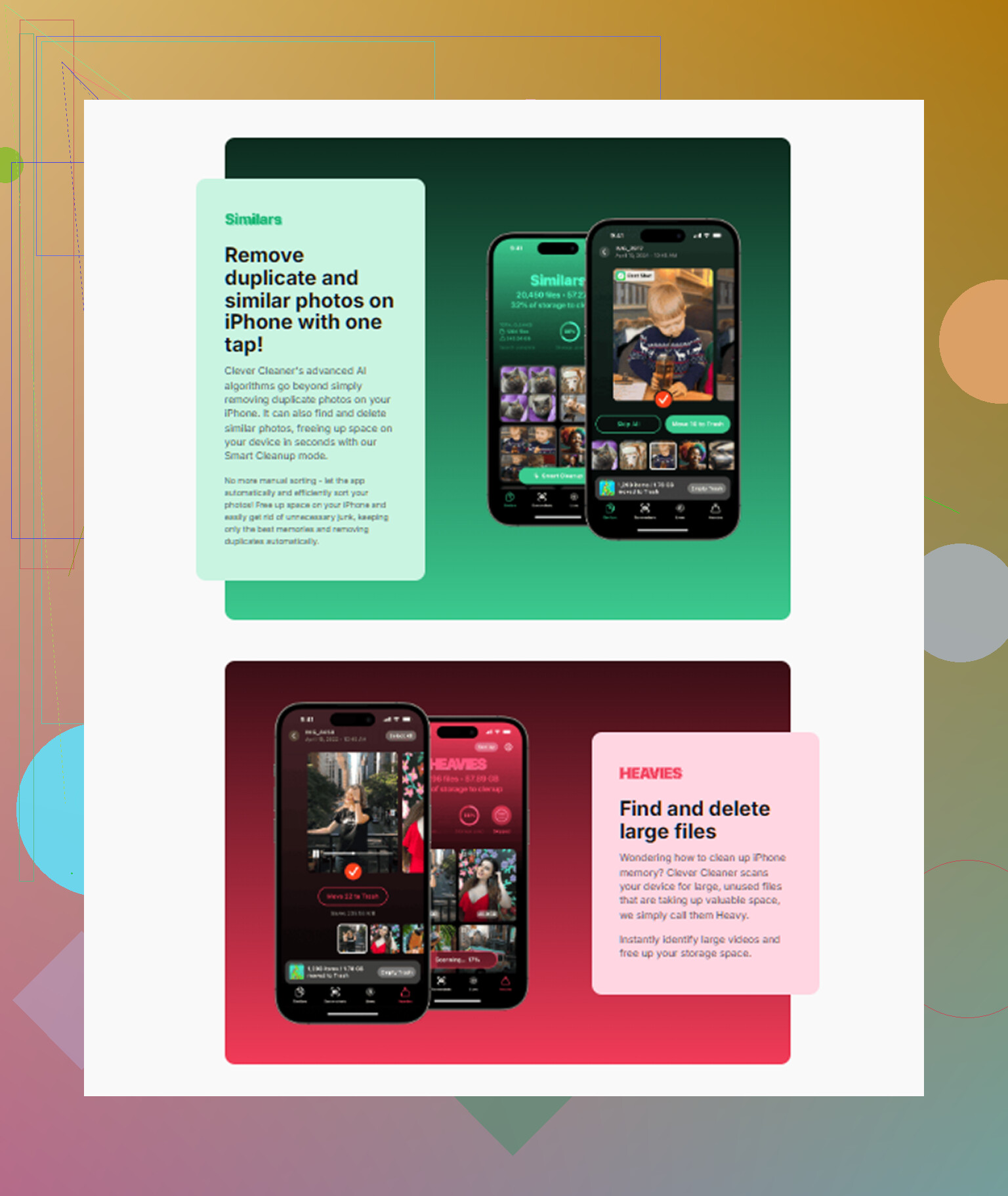
It sorts your library by file size, biggest at the top, with exact sizes shown. So instead of hunting blind, you see the stuff doing the most damage right away. On mine, the top results were old 4K clips and screen recordings I forgot existed.
Deleting 2 or 3 of those freed several GB fast. If your phone is close to full, you’ll feel the difference earlier than you’d think.
2. Then go through Similars
This part was more useful than I expected.
It does not only catch exact duplicates. It grouped near-matches too, like 8 photos of the same thing where I only needed one. Burst shots. Tiny angle changes. Multiple attempts at the same pic in bad lighting. Stuff I never clean because it takes too long manually.
It picked a best shot in each group, then I cleared the rest. I still checked a few groups myself, but it cut the workload way down.
3. Look at Screenshots
This one was dumb on my part. I had hundreds of screenshots I did not need, and the app showed the file size on each thumbnail before deleting anything.
Seeing the total made the decision easy. A lot of screenshot clutter feels harmless until you realize it adds up to gigabytes.
4. One detail I cared about, processing stayed on the device
For me this mattered. My library has personal photos in it.
Clever Cleaner processes things on the phone itself. Nothing gets shipped off to some outside server. If your camera roll has private stuff, you’ll care about this too.
The step people miss after deleting
After I cleared about 15 GB, the phone got better, but I still had to do one more thing.
Open Photos, go to Recently Deleted, then wipe it fully.
Deleted files sit there for 30 days and still count against storage until you remove them. I skipped this once and thought the cleanup barely worked. Nope. The junk was still sitting there.
Path is:
Albums > Recently Deleted > Delete All
After I did that, the lag was gone.
If your storage looks fine, check these next
If you already have plenty of free space, I’d move down this list.
Battery Health
Go to:
Settings > Battery
If maximum capacity is under 80%, performance can drop because Apple reduces CPU speed to avoid surprise shutdowns on worn batteries. If this is your issue, no setting tweak fixed it for me. Battery replacement is the real answer.
Low Power Mode
If you leave Low Power Mode on all the time, turn it off and test again.
It cuts performance on purpose to save battery. A lot of people forget they enabled it, then wonder why the phone feels sluggish every day.
Background App Refresh
Path:
Settings > General > Background App Refresh
I turned it off for apps that did not need it. News apps, shopping apps, random junk I barely open. If dozens of apps keep refreshing behind the scenes, it eats resources for no good reason.
You do not need to disable everything. Start with the obvious non-essential ones.
Keyboard lag only
If the main issue is typing delay, try this:
Settings > General > Transfer or Reset iPhone > Reset > Reset Keyboard Dictionary
I know, it sounds unrelated. Still, it helped on one device I used. Autocorrect history and learned keyboard data seem to get messy over time. Resetting it cleared the typing delay.
Update your apps before you overthink it
I’d do this early, not late.
Open the App Store and hit Update All.
I’ve seen post-update lag come from apps still running old code on the new iOS version. One outdated app can drag the whole experience down and make it look like the OS is broken. After updating, some slowdowns vanished with no other changes.
The short version
If your iPhone suddenly feels slow:
- wait a few days after a major iOS update
- check free storage first
- remove huge videos, screenshots, and duplicate-like photos
- empty Recently Deleted in Photos
- look at Battery Health
- turn off permanent Low Power Mode
- reduce Background App Refresh
- reset the keyboard dictionary if typing is the issue
- update every app
For me, low storage was the real problem. Once I freed around 15 GB and emptied Recently Deleted, the keyboard delay, stuttery scrolling, and slow app launches stopped. I spent way too long blaming iOS when the phone was simply out of working room.
10 Likes
Sounds more like post-update cleanup, bad app behavior, or memory pressure than a straight iOS bug. iOS bugs happen, sure, but if the keyboard and scrolling lag across multiple apps, I’d check system stuff first.
I agree with @mikeappsreviewer on one point, storage matters. I disagree a bit on waiting too long. If it’s been more than 2 or 3 days after the update, start testing.
Try this list.
- Force restart the iPhone.
- Turn off Keyboard haptics and Predictive text for a test.
Settings > Sounds & Haptics > Keyboard Feedback
Settings > General > Keyboard - Remove any third-party keyboard like Gboard.
- Check Accessibility settings. Reduce Motion off, zoom off, bold text off for testing.
- Open Safari and clear website data. Safari lag sometimes spills into system feel.
- Delete and reinstall the worst offending apps.
- If lag started after one app update, that app is the problem, not iOS.
Also check analytics logs.
Settings > Privacy & Security > Analytics & Improvements > Analytics Data
If you see the same app name crashing over and over, there’s your clue.
If your photo library is bloated, Clever Cleaner is worth a look for fast cleanup. And if you want a simple video walkthrough, see how to speed up iPhone performance step by step.
Last step before a full reset, do Reset All Settings. Not erase. I’ve fixed weird keyboard lag that way twice. Annoying, but it works alot more often than people think.
Doesn’t always mean “iOS is broken,” honestly. Sometimes the update just exposes a weak spot that was already there. I mostly agree with @mikeappsreviewer and @sternenwanderer, but I would not jump to full reset stuff too fast unless the phone is unusable.
A couple things I’d check that they didn’t really focus on:
- System services going nuts: Settings > Privacy & Security > Location Services > System Services. If stuff like Significant Locations, Analytics, or location-based suggestions are hammering away, scrolling can feel weirdly choppy.
- Mail/calendar accounts: a bad Exchange or Gmail sync can bog the whole phone down. Remove and re-add the problem account if Mail is hanging.
- Widgets: sounds dumb, but I had a Today View full of weather/news/widgets and my phone felt janky till I cleaned that up.
- Safari tabs: if you have 400 tabs open, yes, that matters lol.
Also, if the lag is worst only when the keyboard appears, test with Dictation off:
Settings > General > Keyboard > Enable Dictation off
I’ve seen that fix delayed typing on one iPhone after an update. Same with turning off sticker suggestions in Messages.
If storage is even kinda tight, then yeah, clean it up. Clever Cleaner is actually useful for that, especially if your Photos app is bloated with duplicate shots and giant videos. If you want a decent roundup of free iPhone cleaner apps, this is a solid place to start: best free iPhone cleaning apps for faster performance.
My take: if it lags in every app, it’s system load. If it’s only in one or two apps, blame the apps first, not iOS. Kinda annoying, but that’s usualy how it goes.