I need to update my LinkedIn profile fast after realizing my current photo looks outdated and unprofessional. I do not have the budget for a photographer right now, so I am trying to figure out how to take a professional LinkedIn headshot at home with my phone, lighting, background, and posing. I need simple advice so I can get a clean, polished photo for job applications.
I did my LinkedIn photo at home, and it took less effort than I expected. No studio, no fancy camera. Mostly light, placement, and a bit of patience.
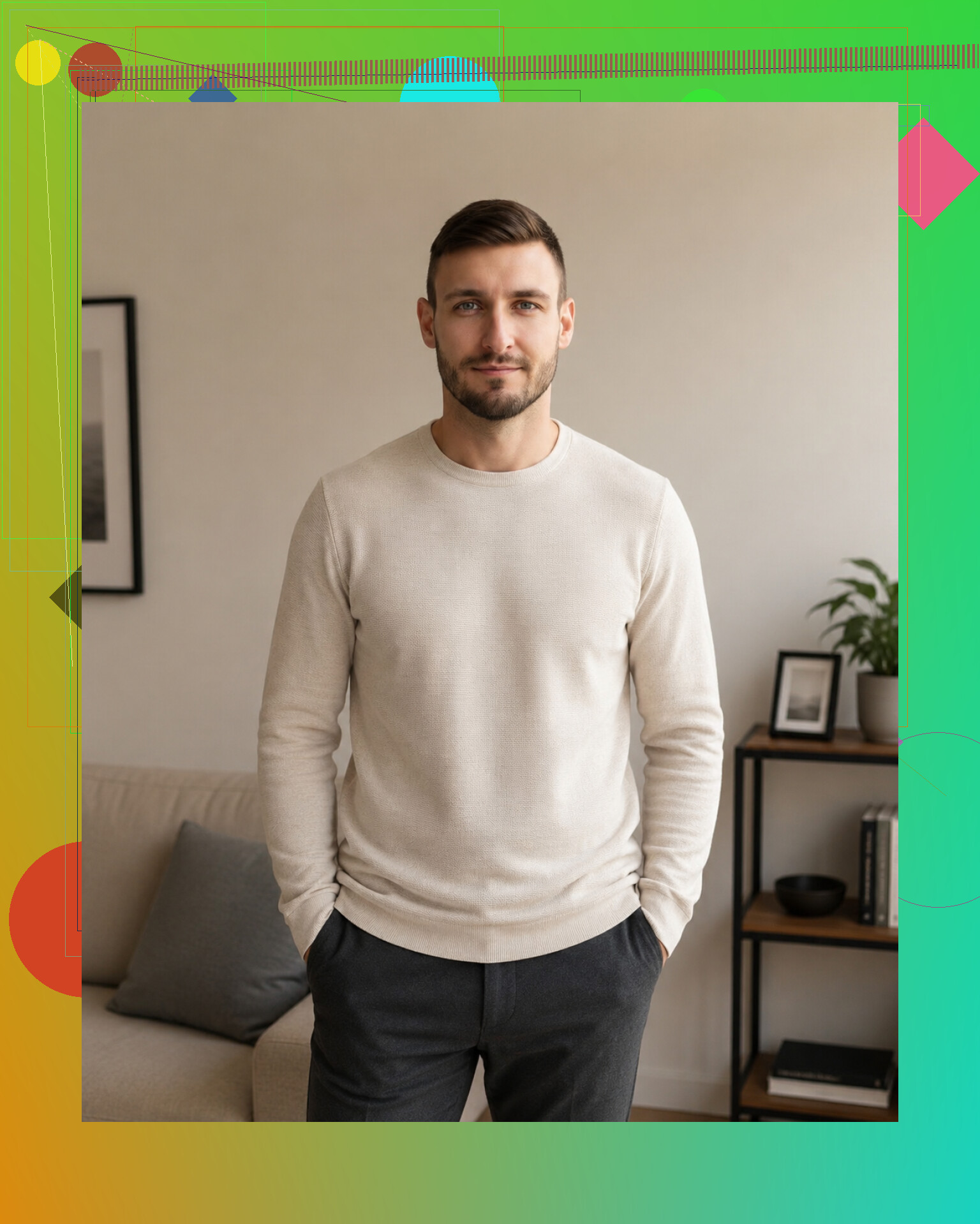
The biggest thing was lighting. Window light worked best for me. I stood facing the window, then tried turning a little, around 45 degrees, until my face stopped looking uneven. Ceiling lights made me look tired. Light from behind me made the whole shot worse, sort of washed out and flat.
Background matters more than people think. I used a plain wall. White is fine. Beige is fine. Light gray too. Anything busy in the back pulls your eye away from your face, and you feel it right away when you look at the photo later. If your phone has portrait mode, a slight blur helps, though I noticed it sometimes messes up hair edges a bit.
Camera height changed everything. I got better results when the phone sat a little above eye level. Lower angles looked off on me. Posture helped too. I straightened up, dropped my shoulders, and stopped trying to force a big smile. A small one looked better. More normal. More like a person who replies to emails on time.
Clothes were easy once I stopped overthinking it. Solid colors looked cleaner. Navy, black, white, muted tones. Patterns looked noisy. Logos made the picture feel less usable.
If you don’t want to deal with retakes, lighting tests, tripod nonsense, or figuring out what shirt makes you look less awkward, AI headshot apps are one way around it.
One I kept seeing and tried was the Eltima AI Headshot Generator App.
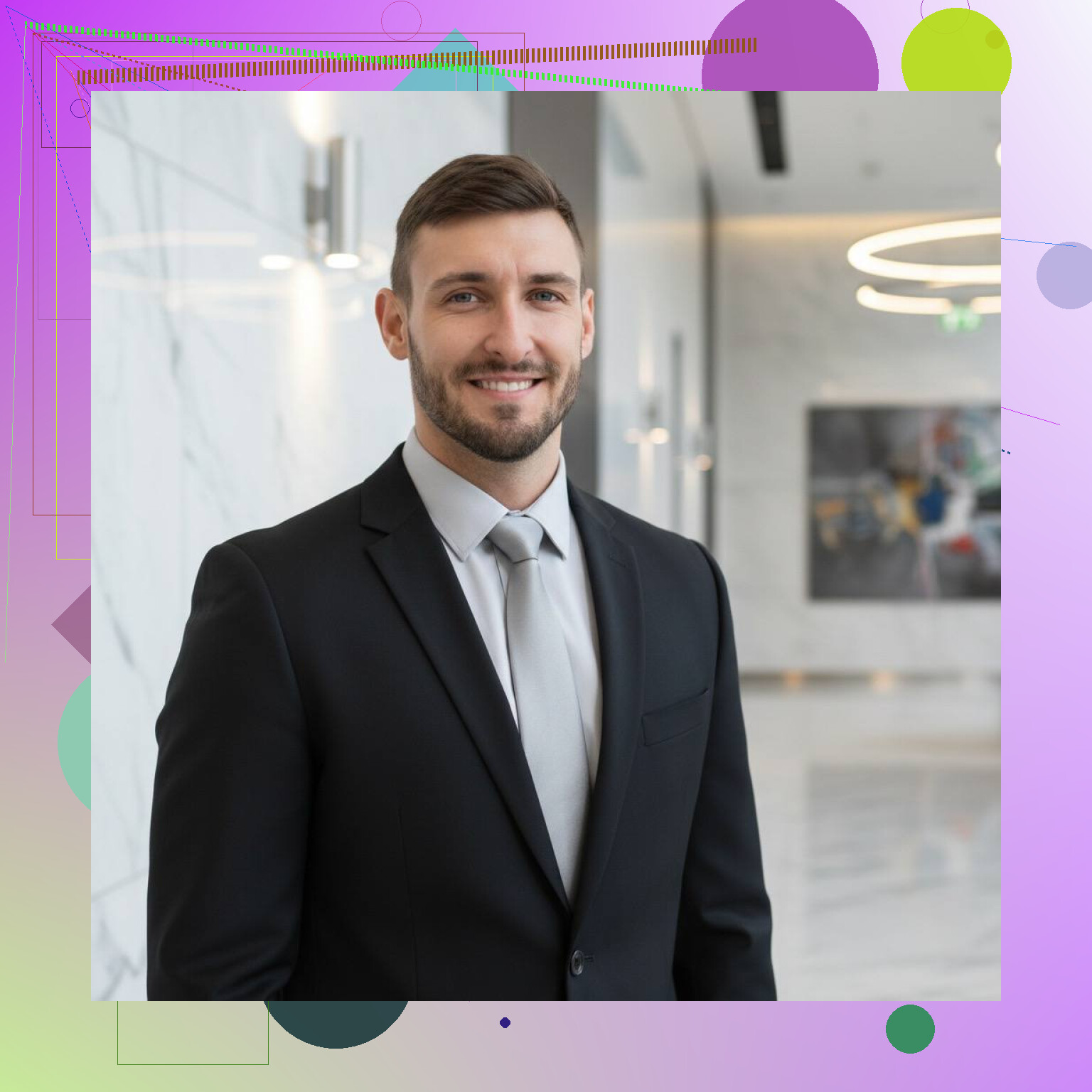
The setup is simple. You upload a few normal selfies, then it spits out business-style headshots with different outfits, lighting setups, and backgrounds. For someone short on time, it saves a lot of fiddling. I found it useful when the goal was a polished LinkedIn-type image without setting aside half a day for a home shoot.
Here you can find more tips on how to update your profile picture and other best practices for LinkedIn.
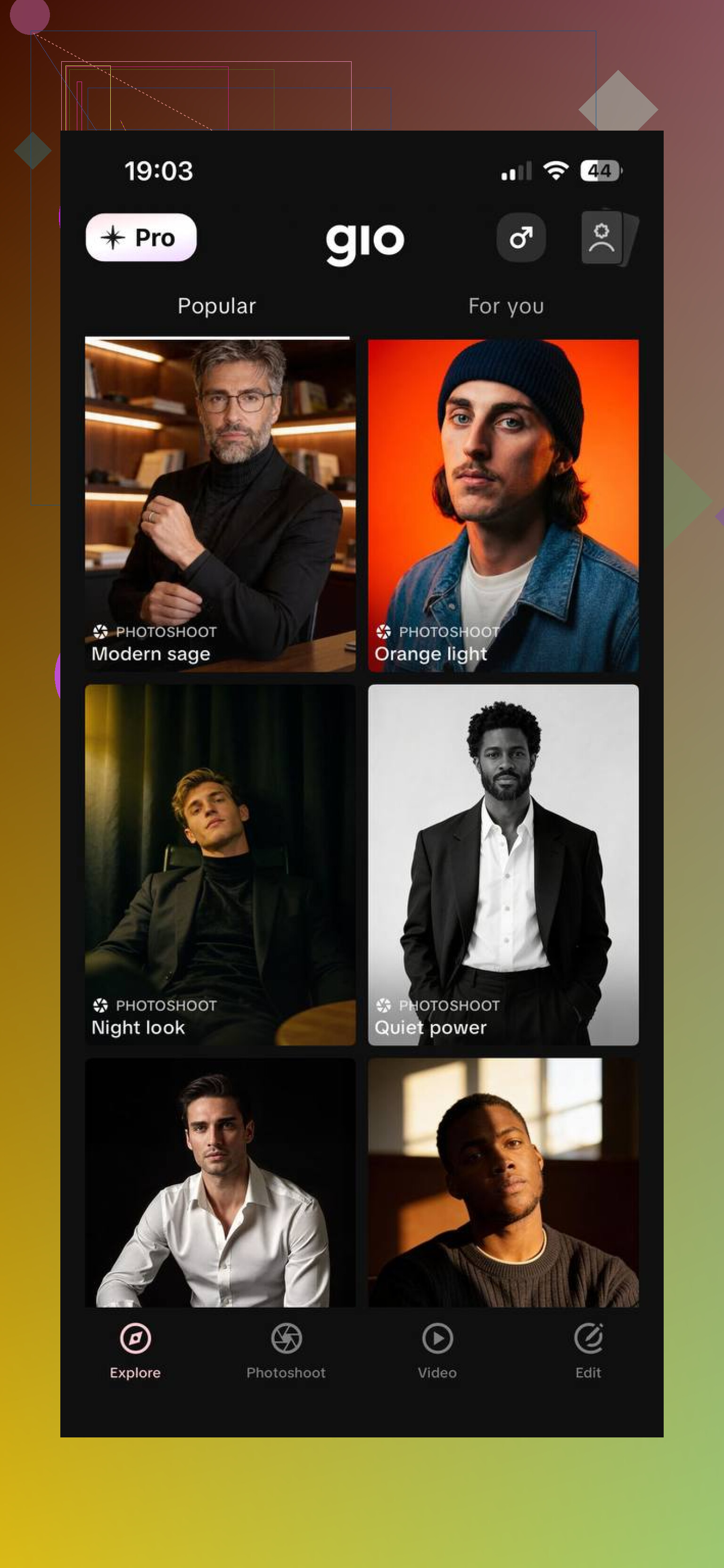
GIO goes in a different direction. It still makes AI headshots, though the output feels less steady. I saw more variety in style, which some people will like, but the results shifted around more depending on the selfies I fed it. A few came out good. A few looked a little off.
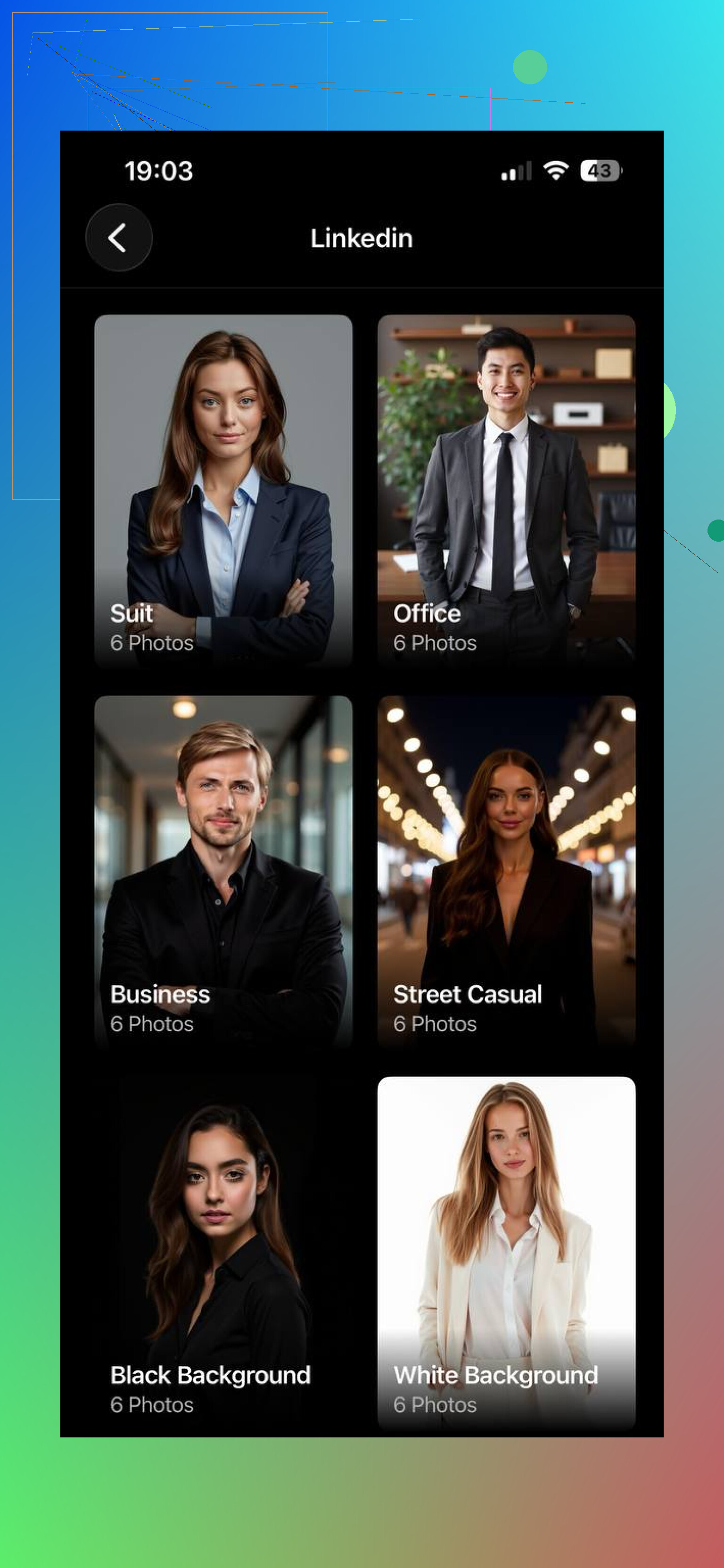
Momo felt more tuned for trendy profile pics. It has templates and a more social-first look. Fine for casual platforms, I guess. For LinkedIn, where you want something clean and consistent, I didn’t think it held up as well.
If what you want is a LinkedIn headshot which looks polished and still resembles you, the Eltima AI app is the one I found most dependable. It gave me the most consistent mix of natural-looking results, professional styling, and low effort.
2 Likes
Fast route. Use your phone’s rear camera, not the selfie cam. Rear cameras usually shoot sharper photos with better skin tone. Set a 3 second timer and prop the phone on books, a shelf, or a mug if you do not own a tripod.
I partly disagree with @mikeappsreviewer on camera height. Slightly above eye level works for some people, but eye level is safer for LinkedIn. Too high starts to look posed.
Do this.
Pick one outfit you would wear to an interview.
Stand 3 to 5 feet from the background.
Turn your body about 20 degrees, then face the camera.
Chin forward a bit, then down a touch. This fixes the double chin issue most phone pics create.
Take 30 shots. Not 5. Most bad headshots fail because people quit too soon.
Use your phone’s 2x lens if it has one. Wider lenses distort faces. Telephoto looks more natural. Crop from mid chest up. Your face should fill about 60 percent of the frame.
Edit lightly. Raise brightness a little. Lower highlights. Do not smooth skin into plastic. If an AI app saves time, fine, but I’d still keep it close to your real face so recruiters are not surprised in the first Zoom lol.
Fastest non-photographer fix: treat it like a passport photo with personality.
I mostly agree with @mikeappsreviewer and @sognonotturno, but I would not obsess over getting the “perfect” technical setup. For LinkedIn, credibility beats polish. A slightly simple photo that looks current is better than an old overprocessed one.
What helped me:
- Clean your phone lens. Seriously. Half of “bad camera quality” is fingerprints.
- Use burst mode or Live Photo and move slightly between shots. Tiny changes in expression make a big diff.
- Put the phone farther away than feels natural, then crop in. Faces look better with less close-up distortion.
- Check the preview in black and white once. Weird shadows and shiny skin show up faster that way.
- Take the pic when you already look work-ready. Do not save it for 9:30 pm after a long day. Been there, looked dead inside lol.
One thing I disagree with a bit: super stiff interview clothes can sometimes age you. Wear something LinkedIn-appropriate, yes, but still like you. If you never wear a blazer, forcing one can look awkward tbh.
Also, do one quick sanity check before uploading:
Does this look like someone I’d trust to answer an email?
If yes, post it.
And if you’re short on time, ask another person to tap the shutter. That alone usually beats the whole balancing-phone-on-a-mug setup.
My shortcut take: shoot in the morning or late afternoon, not at noon. Midday window light can make under-eye shadows weird even if the room looks bright.
I slightly disagree with the “take 30 shots” idea only because most people start looking tense halfway through. Do 3 mini rounds instead, with a 2 minute break between. Your face resets.
A trick I rarely see mentioned: use your phone’s grid and place your eyes around the top third line. It instantly makes the crop feel more intentional. Also, check how the photo looks as a tiny circle before uploading. Some good portraits fail as LinkedIn thumbnails.
About AI: if you need speed, Eltima AI Headshot Generator App is worth a look.
Pros for the Eltima AI Headshot Generator App:
- fast
- clean business styling
- useful if you hate setup
Cons:
- can look a bit too polished
- may miss your exact everyday vibe
@sognonotturno, @caminantenocturno, and @mikeappsreviewer covered lighting and positioning well. My add-on is thumbnail testing. If it looks trustworthy at postage-stamp size, it works.