My iPhone says storage is almost full, but the numbers in Settings do not seem to match what apps are using. I deleted photos and apps, and I still cannot tell how much space is actually available right now. I need help finding the most accurate way to check available iPhone storage so I can free up space and install an update.
I keep running into the same dumb problem. I go to record a video, or grab a huge game, and then iPhone throws the ‘Storage Almost Full’ alert in my face. If your phone feels slow, or you want to see what is taking space, storage on iPhone is one of those things Apple makes look simple, then you poke it and it gets messy fast.
If you want to check storage without opening Settings, the cleanest route I found is a computer.
On a Mac, connect the iPhone, open Finder, then click your phone in the sidebar. On Windows, use Apple Devices or iTunes. After it connects, you should see a storage bar near the bottom. I trust this view more when I need a quick read before installing something big. The number in Settings sometimes sits there recalculating forever. The computer view tends to look cleaner, and in my use it often reflects free space a bit better because sync clears some temp junk first.
If the phone will not even turn on, and you only need the total capacity, there is still a way. An IMEI lookup usually helps.
You can pull the IMEI from a few places:
- the SIM tray on most newer iPhones
- the back of older models, like iPhone 6
- the original box
- your carrier account page, usually under device management
One part of the storage chart confuses almost everyone. System Data, which used to show up as Other, is the catch-all pile. It covers Siri voices, dictionaries, fonts, logs, app cache, and other leftovers iOS keeps around. If you stream a lot of music or video, cached data builds up there too. iOS is supposed to clear some of it when space gets tight. In my expereince, it does not move fast enough.
What I noticed on my own phone was simple. Once free space got low, the whole thing started dragging. Apps opened slower. The camera hesitated. Scrolling felt off. My iPhone 13 got bad enough a few months ago that I checked, and I had around 2GB left. That was the whole story.
Yes, the built-in storage recommendations help a little. You can offload unused apps. You can review large attachments. Fine. But if your photo library is the real problem, those tools feel half-finished.
What worked better for me was using a cleanup app built around photos and videos, since those are usually the main storage hogs anyway.
The one I kept using was Clever Cleaner.
What stood out to me:
- no ads
- no paywall tricks
- no fake free trial stuff
- it targets the biggest storage offenders first
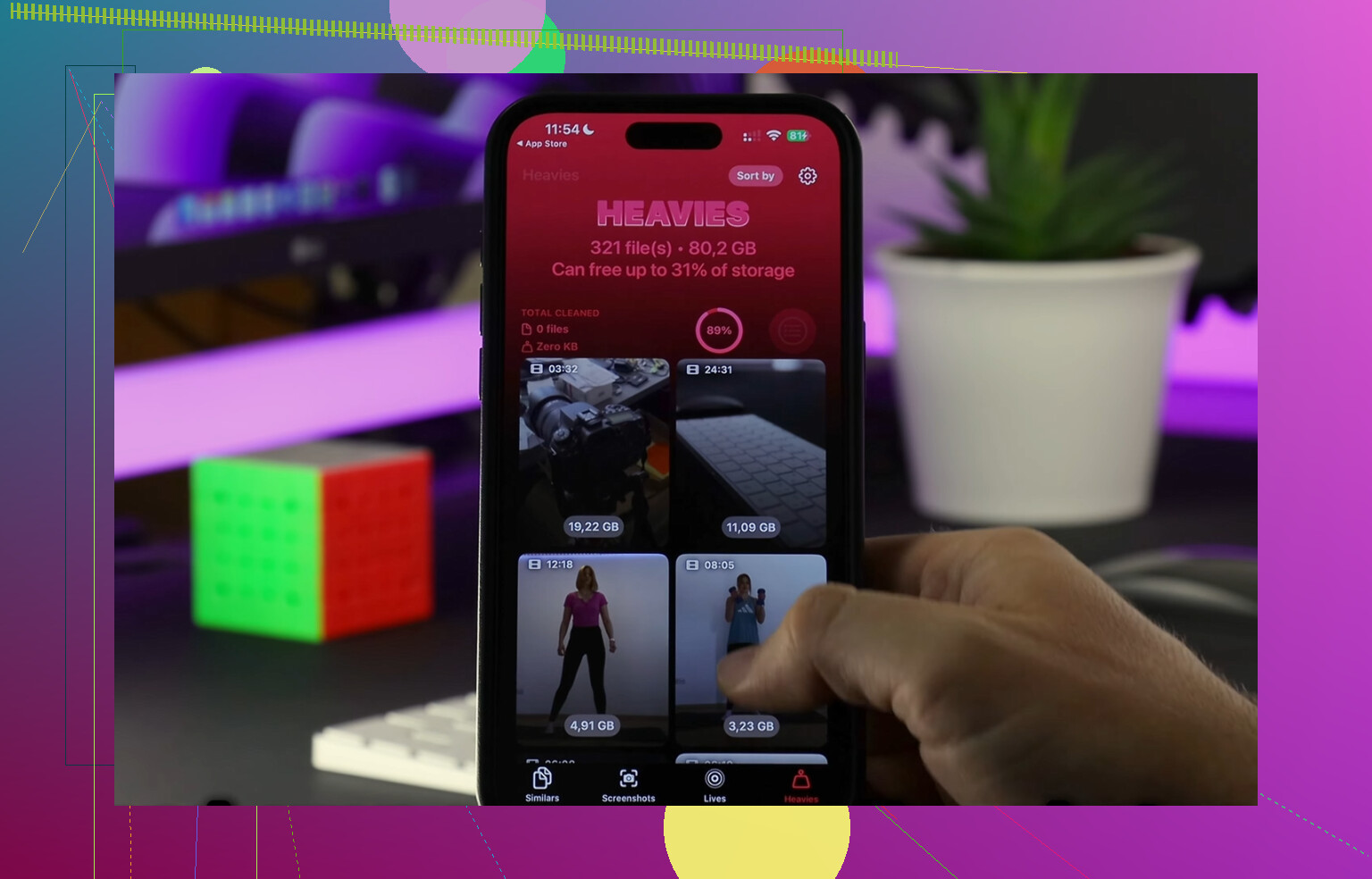
The Heavies section was the first thing I checked. It sorts your media by file size, so you can spot the giant clips fast. Mine had old 4K videos sitting there doing nothing and eating gigabytes.
The Similars tool helped too. If your camera roll looks like mine, you have five near-identical shots of the same thing because one had better focus, one had better lighting, one had less blur, and then you forgot to delete the rest. This tool groups those together so you keep one and dump the clutter.
The privacy part mattered to me more than I expected. It processes data on the device, so your photos are not being shipped off somewhere else. I liked one small detail too. It shows the file size for each screenshot, which sounds minor, but it makes cleanup feel less random. You see what you removed, and how much space came back.
If your iPhone feels sluggish, look at storage first. I would do that before blaming iOS, battery health, or some mystery bug. If you are close to full, clearing large videos and duplicate photos often fixes the slowdown fast. For me, deleting media made more sense than removing apps I still needed and re-downloading them later.
5 Likes
What you want is the number Apple hides in plain sight.
Go to Settings, General, iPhone Storage. Wait. Do not back out fast. iOS often needs 30 to 90 seconds to recalculate after you delete stuff. If you removed photos, empty Recently Deleted too. Until you do, the space is still gone. That catches a lot of peple.
The number to watch is this:
Used plus Available should equal your iPhone’s total capacity, give or take some system rounding.
If app sizes do not add up, the missing chunk is usually System Data and iOS itself. Settings does not show this cleanly. It also lags after big deletions. I disagree a bit with @mikeappsreviewer on one part, the computer view is nice, but it still does not explain where the missing space went. It mostly gives a cleaner summary, not better detail.
A few checks that help right now:
- Restart the iPhone. This flushes temp files sometimes.
- Check Photos, Recently Deleted.
- Check Files app, On My iPhone, Downloads.
- Check Messages, large videos and attachments.
- Check Safari, clear website data.
- If iCloud Photos is on, make sure optimization finished syncing.
If photos are the main problem, Clever Cleaner is worth a look. It finds large videos, duplicate shots, and similar pics faster than Apple’s own tools.
Also, this Facebook video on freeing up iPhone storage and cleaning large media is relevant.
Rule of thumb, keep 5 to 10 GB free. Below 3 GB, iPhones start acting dumb.

What usually trips people up is that iPhone storage is not a live meter. Settings shows a snapshot, then iOS quietly reshuffles caches, photo library indexes, message attachments, and system files in the background. So yeah, the math often looks wrong for a while.
I partly disagree with @mikeappsreviewer on using the computer readout as the “real” number. It can be cleaner, sure, but for usable space right now on the phone, I’ve had better luck checking whether iOS can actually create space on demand. The fast test is this:
- open Camera and try recording 4K or a long video
- or try downloading a large file in Files
- then re-check Settings > General > iPhone Storage after a few mins
If the available space suddenly jumps or shifts, that means cached/system stuff was purgeable but had not been flushed yet. Annoying, but normal-ish.
Also check this one place people miss:
- Settings > your name > iCloud > Photos
If Optimize iPhone Storage is on, local photo sizes can change over time, so the storage page may lag behind what Photos is actually holding.
Another sneaky one:
- downloaded Spotify/Netflix/YouTube content
- voice memos
- GarageBand sound library
- offline Maps data
@sterrenkijker is right that Recently Deleted matters, but I’d add that Messages media can be weirdly huge too, esp if you get lots of videos and memes.
If photos/videos are the bulk, Clever Cleaner is actually useful for sorting big files and duplicate shots faster than Apple’s own tools. This guide on freeing up iPhone storage with Clever Cleaner explains it pretty well.
Short version: the “actual available” number is the one shown after waiting for recalculation, after Recently Deleted is emptied, and after iOS has had a chance to purge caches. Before that, the phone is kinda lying. Not maliciously. Just very Apple about it.
The part I’d add to what @sterrenkijker, @suenodelbosque, and @mikeappsreviewer said is this: “Available” on iPhone is not just empty space. It’s empty space plus space iOS thinks it can reclaim fast. That’s why the warning can appear even when the numbers look survivable.
A better sanity check is Settings > Accessibility > Per-App Settings or any spot where iOS tries to save a new file. If the phone refuses a moderate action, your “available” number is basically theoretical.
One thing I disagree with a bit: restarting helps sometimes, but the bigger liar is often mail attachments and app documents, not just cache. Check:
- Settings > General > iPhone Storage > tap individual apps
- Look at App Size vs Documents & Data
If Documents & Data is huge, deleting and reinstalling that app can free more than offloading it.
For photos, Apple’s tools are clunky. Clever Cleaner is decent if your mess is duplicates, similar shots, and giant videos.
Pros
- fast visual sorting
- good for large media cleanup
- easier than hunting manually
Cons
- mostly useful if photos/videos are the problem
- less helpful for app data or system bloat
- you still need to review before deleting
So the “actual available right now” number is basically: what iPhone Storage shows after recalculation, minus any space trapped in bloated app data that iOS will not purge automatically.