I’m trying to clean up storage on my iPhone, but some photos are in the Hidden album and I can’t access them because I forgot the passcode. I don’t want to bypass security or lose important data. What are the safest legitimate options to remove hidden photos from an iPhone?
If you're trying to clean out the Hidden album on an iPhone, there are a few separate things going on. The album can be hidden from view, locked with Face ID, synced through iCloud, and anything you delete still sits in Recently Deleted unless you clear that too.
First, check the Hidden album settings
Go to Settings > Photos. There are two settings that matter here:
- Show Hidden Album decides whether Hidden appears in the Photos app under Utilities. If this is turned off, the album is still there, but the shortcut disappears.
- Use Face ID controls whether Photos asks for biometric authentication before opening Hidden. If you turn this off, the album opens without a Face ID scan.
If tapping Hidden does nothing and Face ID never seems to trigger, wait a moment because iOS should offer the passcode fallback. If that prompt never shows up, restarting the iPhone usually clears the glitch.
Deleting everything from Hidden
Open Photos, go to the Albums tab, scroll down to Utilities, then tap Hidden. From there:
- Tap Select in the top-right corner.
- Drag across rows to select a bunch of items quickly instead of tapping each one.
- Tap the trash icon.
That only moves the photos and videos to Recently Deleted. They are still taking up storage at that point. Recently Deleted keeps them for 30 days, so if you want the space back right away, open Recently Deleted under Utilities and use Delete All.
If you deleted something by mistake, Recently Deleted is also where you get it back. Open the item and tap Recover before the 30-day window runs out.
About iCloud syncing
If iCloud Photos is turned on, deleting something from Hidden on your iPhone deletes it from the same iCloud photo library everywhere else too. That includes your iPad, Mac, and iCloud. The Hidden album is not a separate private storage area on the phone. It is just a filtered part of the same library.
So no, this method will not let you remove a photo from the phone while keeping the same copy in iCloud.
The Hidden album usually is not the biggest storage problem
Cleaning it out can help, but the main Photos library is usually where the real storage mess is. Old screenshots, duplicate-looking shots, burst photos, and huge videos tend to take up a lot more space than people expect.
Once iPhone storage gets tight, iOS can start feeling rough. The camera may open slower, app switching can lag, and background tasks may drag. Clearing Hidden is worth doing, but it often will not be enough by itself.
Cleaning the rest of the library
Clever Cleaner does not get access to the Hidden album. Apple blocks third-party apps from reading that folder, so the Hidden cleanup has to be done manually.
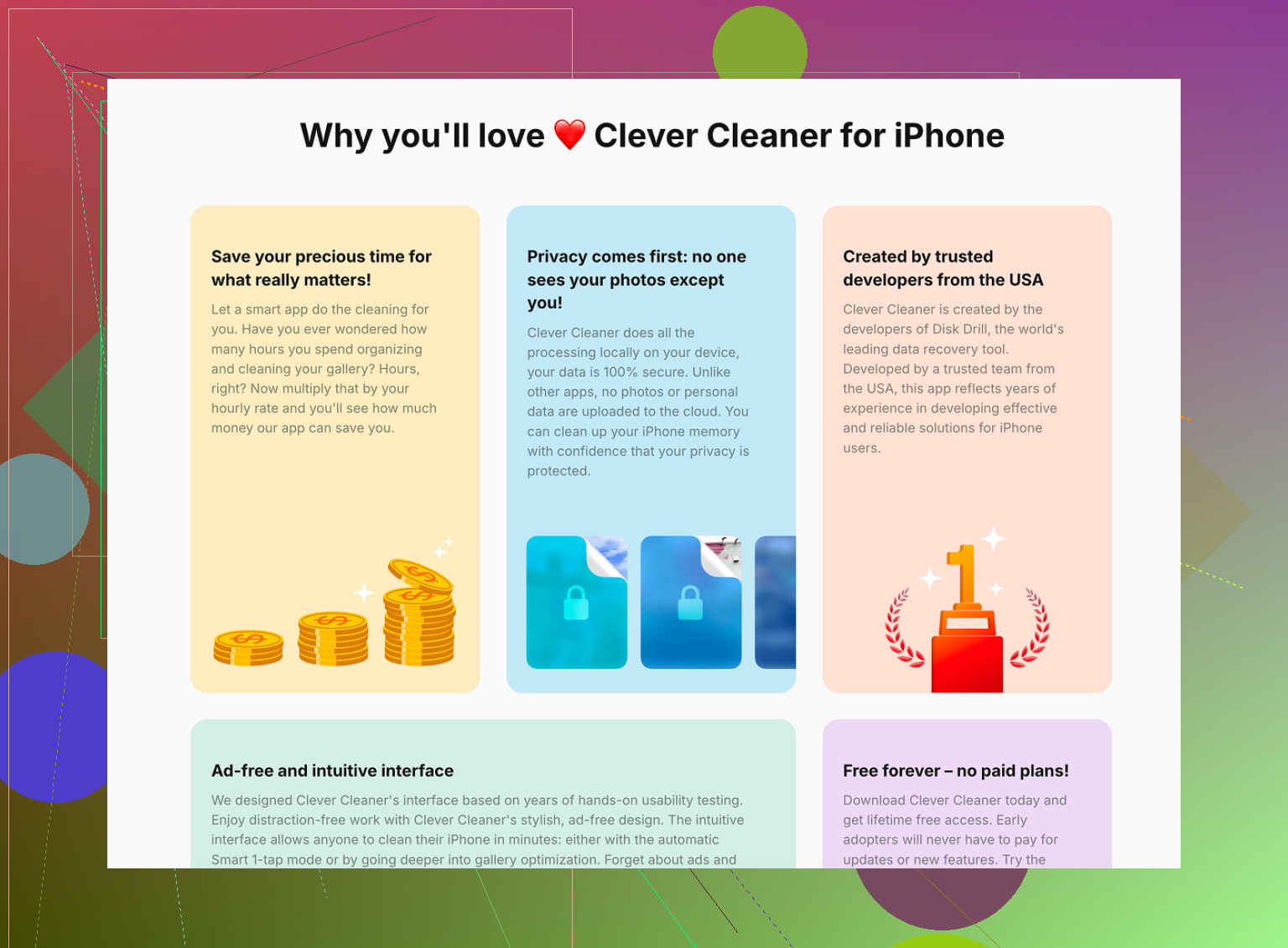
For the regular Photos library, the app is free and does not have ads or a subscription.
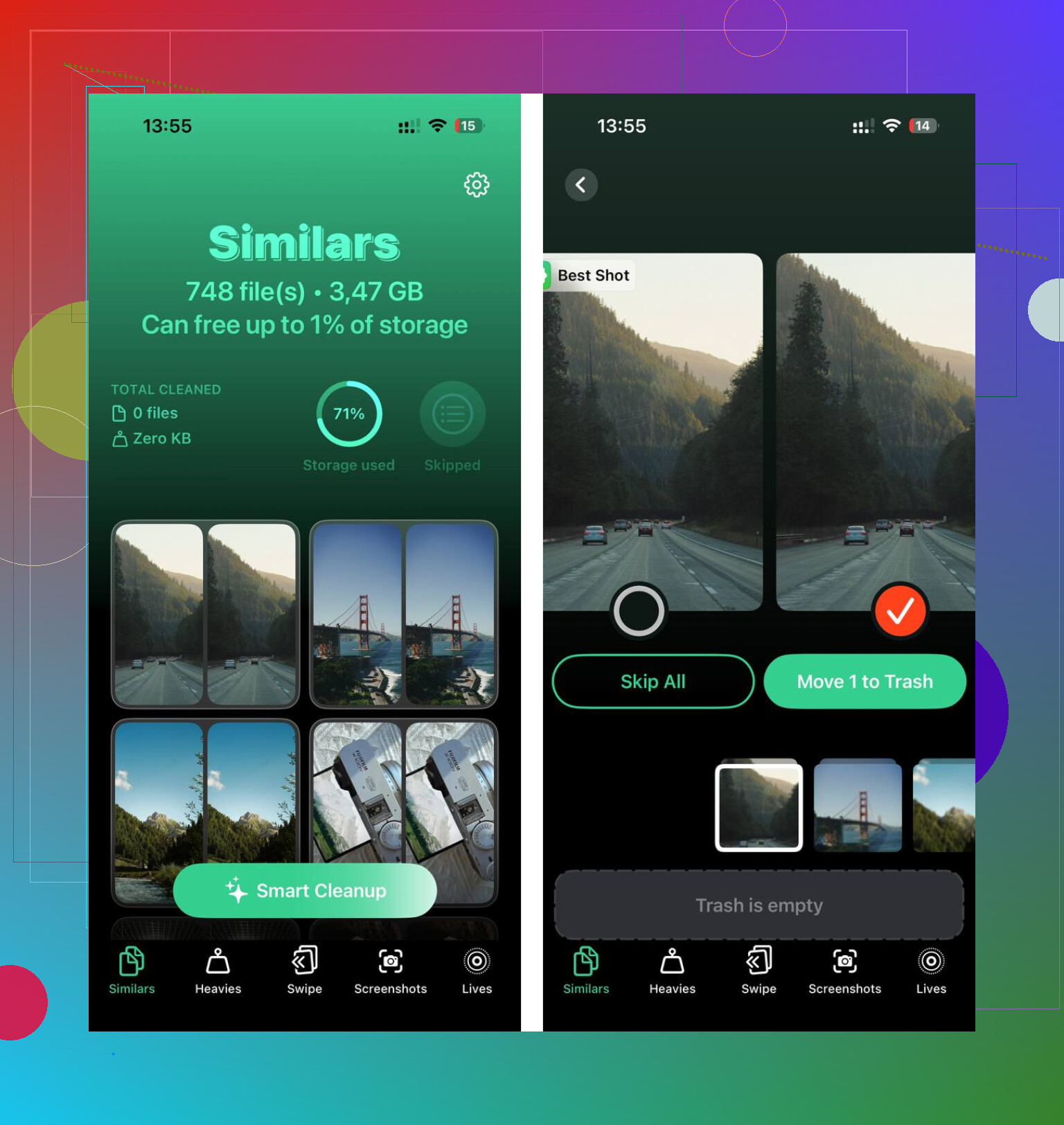
The Similars tab looks through the library and groups photos that are nearly the same. It suggests a Best Shot for each group, usually the sharpest one, so you can clear the extras without checking every single image one at a time.
The Heavies tab is more straightforward. It sorts files by size, largest first. A few big videos near the top can easily take up more space than a huge number of normal photos.
It also shows file sizes before you delete anything, which makes it easier to decide what is actually worth removing.
The scan and cleanup happen on the device. The photos are not uploaded somewhere else for processing.
12 Likes
Don’t use “iPhone unlocker” tools or random desktop apps for this, because they usually mean wiping the phone or handing over access you don’t want to hand over. If you don’t have the device passcode/Face ID, there isn’t a legit way to delete only the Hidden album from that locked phone, so the safe route is to use another trusted Apple device/iCloud account you can already access, or clear normal storage elsewhere first.
Check Settings > General > iPhone Storage before you chase the Hidden album. If Photos is only a small slice of the storage problem, you may be fighting the wrong battle. Big app caches, Messages attachments, downloaded videos, offline maps, and iOS “System Data” can eat more space than a hidden photo folder.
If the phone is asking for the device passcode and you truly do not know it, I agree with the warning above: there is no clean “delete only Hidden photos” trick. Anything claiming to do that from a computer is either going to need the phone unlocked, remove the lock by erasing the phone, or ask for trust/access you probably should not give it. Face ID working today does not mean you are safe forever either, since a restart, update, or failed Face ID attempts can force the passcode again.
The safer move is to free space in places you can reach first. Turn on Optimize iPhone Storage if you use iCloud Photos, clear large videos from the normal library, empty Recently Deleted where you can authenticate, and review Messages attachments. If you are worried about losing important photos, make sure they are backed up or exported before deleting anything, because with iCloud Photos a delete is not just “from this iPhone.” It follows the library.
Stop treating ‘without a passcode’ as the actual goal here, because if you genuinely don’t know your device passcode, the Hidden album is the least of your worries. That same passcode is what stands between you and buying apps, changing your Apple ID, resetting anything, or restoring a backup. You can limp along on Face ID for a while, but the first time you restart the phone or it sits idle too long, iOS demands the passcode again and Face ID won’t save you. So the real question isn’t how to nuke Hidden, it’s whether you actually still control this phone.
If you do know the passcode and just meant Face ID is being annoying, then this is easy and everyone above already covered the manual route. @mikeappsreviewer is right that turning off Use Face ID in Settings > Photos drops the biometric gate entirely, which is honestly faster than fighting the prompt every time you open the album.
Where I’d push back a little is the ‘chase your storage elsewhere’ advice from @sognonotturno. Good instinct, but System Data is the one line in iPhone Storage you basically cannot control by hand. People see it sitting at several gigs and start deleting random stuff trying to shrink it, and it barely moves. It fluctuates on its own. Don’t waste an afternoon on it.
The point about third-party apps not touching Hidden is worth repeating, because it kills half the ‘iPhone unlocker’ pitch on its own. Apple walls that folder off from every app, so anything promising to reach in there from a computer is either lying or planning to wipe the phone. Clever Cleaner runs into the same wall, which is actually a decent sign it’s playing by the rules rather than a limitation to complain about. It’s fine for the ordinary library, the big-video and near-duplicate cleanup, but nobody should expect it or anything else to crack Hidden.
Realistic take: sort out the passcode situation first through your Apple account recovery if it’s truly lost, then delete Hidden manually in about two minutes, then empty Recently Deleted so the space actually comes back. Chasing clever workarounds before you’ve settled the passcode is backwards.