I accidentally lost an Outlook PST file that was saved in my Documents folder, and now I can’t open old emails, contacts, or attachments I still need for work. I’m looking for the best way to recover a deleted or missing PST file from the Documents folder on Windows without damaging the data.
I had this happen once after cleaning up Documents and the Outlook Files folder. It felt bad for about ten minutes, then I stopped touching the PC and worked the recovery steps in order. If your PST vanished, do the same. The less you write to the drive, the better your odds.
Windows usually does not erase a deleted file right away. It marks the space as free. If you keep downloading stuff, installing apps, or copying files around, you risk writing over the old PST before you try to pull it back.
Start with the easy places
Check the Recycle Bin first. A normal delete often lands there. If you used Shift+Delete, skip ahead, because Windows usually bypasses the bin in that case.
Then look at any synced cloud service tied to the folder. OneDrive, Dropbox, and similar tools often keep deleted items and older versions on the web dashboard. Don’t rely on the local folder view alone. Sign in on the service website and check the trash or deleted files area there.
Try Windows folder history and previous versions
I’d check this before running recovery software.
Go to the folder where the PST used to live. The common path is:
C:\Users\YourName\Documents\Outlook Files
Right-click the folder, pick “Restore previous versions,” and see what shows up. If you spot a version from before the file disappeared, open it and copy the PST somewhere else. Don’t restore over the same folder yet. I’d copy first, then inspect.
Use recovery software if the file is gone everywhere else
If the bin is empty and the cloud service has nothing, this is where I’d move next.
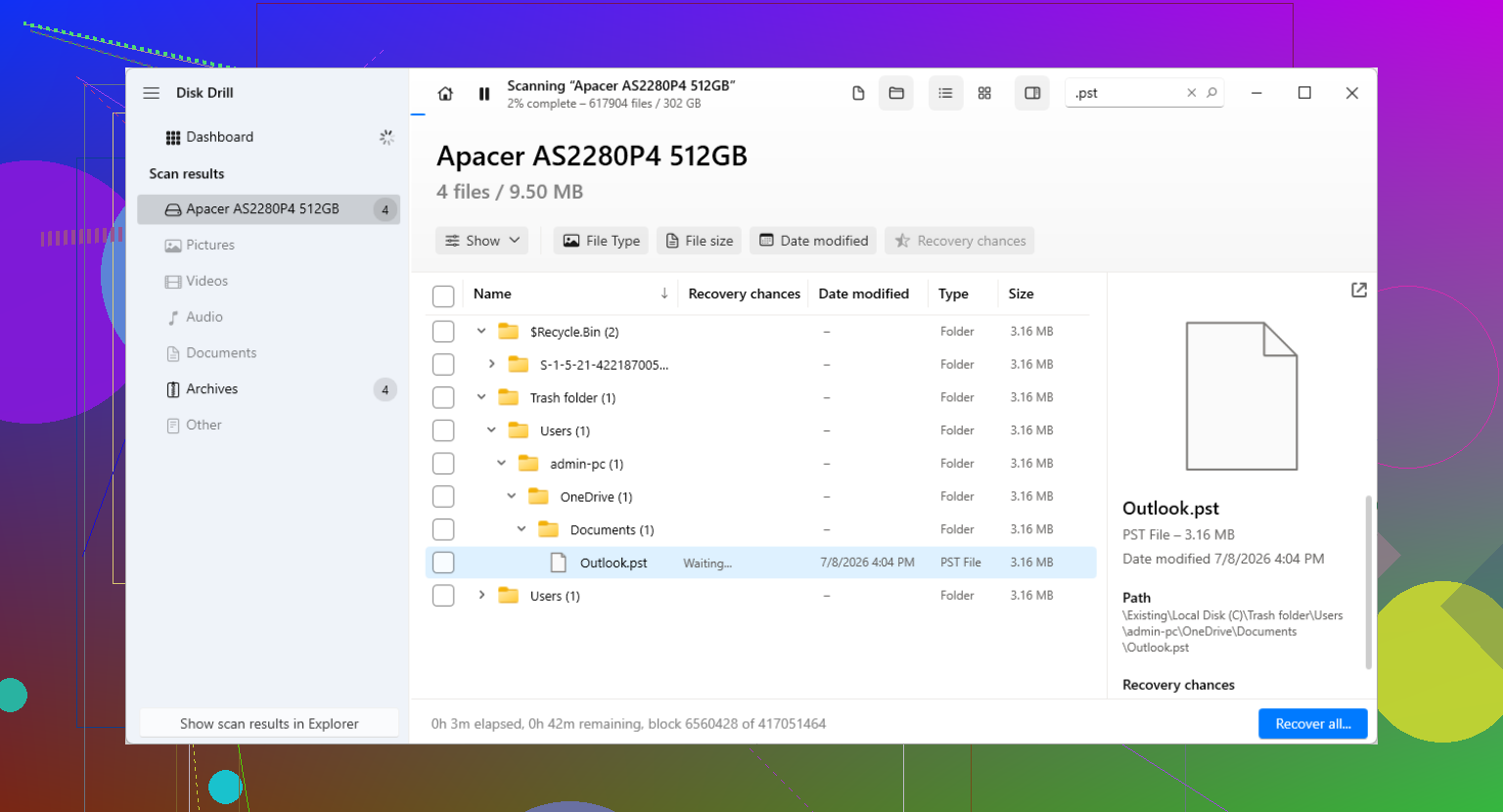
Disk Drill is one of the tools people use for deleted PST scans. The key part is not the brand name. The key part is avoiding writes to the affected drive while you scan.
The workflow I’d follow looks like this:
Install the recovery app on another drive if you have one. An external SSD or USB stick is better than putting it on the same C: drive you’re trying to recover from.
Scan the drive where the PST was deleted. Most of the time, that’s C:.
Filter or search the results for .pst files.
Compare sizes before restoring. Outlook sometimes creates a fresh empty PST, and it’s tiny. Your old file is often much larger, sometimes hundreds of MB or a few GB.
Restore the file to a different location. Don’t dump it back into the same folder right away.
Open the recovered file the right way
This part trips people up. Outlook might already have made a new blank data file, so the mailbox view looks empty and you think recovery failed. It didn’t always fail. You might only be looking at the wrong file.
Open Outlook, then go here:
File > Open & Export > Open Outlook Data File
Select the recovered PST. If the file is intact, your old folders should appear in the left pane. I saw this once with an archive PST, and the mail came back the second I opened the recovered copy. After you confirm the data is there, change Outlook’s Account Settings so the recovered file becomes the default data file if needed.
If you use IMAP, some mail may come back on its own
For IMAP accounts like Gmail, Comcast, Yahoo, and a lot of others, the server usually keeps the mailbox. Re-adding the account often rebuilds synced mail through a new OST file.
Still, don’t count on this for everything.
Archives, imported mail, custom local folders, and old stuff stored only in the PST won’t reappear from the server. I’ve seen people think the inbox returning means all mail is safe, then notice years of archived folders are still gone. Those lived only in the PST.
After you get it back
Once the file is safe, set up some kind of backup. Keep a copy on an external drive, use a folder backed up by your normal system, or export on a schedule. PST files tend to hold years of mail, and keeping only one copy is asking for trouble. I learned that one the dumb way.
If your scan finds more than one PST, start with the biggest one from the right date range. In my expereince, the largest candidate is often the real one, while the tiny one is the fresh empty file Outlook made after the loss.
7 Likes
If the PST is missing from Documents, I’d add one check before you go deep into file recovery. Search Windows for *.pst and sort by Date Modified. Outlook often leaves stray PSTs in odd places after a move, profile reset, or Office repair. I’ve seen files turn up in AppData, old backup folders, and even on a second drive. People assume “deleted” when it was moved or Outlook pointed to the wrong file. Annoying, but fixable.
I partly agree with @mikeappsreviewer on going straight into restore checks first, but I’d verify Outlook’s profile too. Open Control Panel, Mail, Data Files. If Outlook still lists the old PST path, note it. If it shows a new tiny PST, that explains why your old mail looks gone.
If search finds nothing, use Disk Drill and scan the drive fast, before more writes hit the disk. For PST recovery, file size matters a lot. A real work PST is often 500 MB, 2 GB, even 10 GB. A fresh empty one is often under 1 MB. Recover to another drive, then run ScanPST.exe on the recovered file before opening it in Outlook. That step gets skipped too oftne. Microsoft includes it with Office, and it fixes header and index damage in many PSTs.
Also, if your Documents folder was redirected to OneDrive, check OneDrive version history on the folder itself, not only deleted files. Sync issues sometimes replace the PST with a newer blank copy.
For more user cases on permanently deleted Outlook data files, see real Reddit fixes for deleted Outlook PST file recovery. It has a few usefull edge cases people miss.
I’d do one thing a little differently than @mikeappsreviewer and @boswandelaar. Before chasing recovery too hard, check whether the PST is actually blocked by Outlook rather than truly gone. Right-click the recovered or found PST, open Properties, and see if there’s an Unblock button. Windows sometimes tags files copied from another source and Outlook acts weird with them.
Also check File size in Explorer. If it shows 0 KB or some tiny number, don’t waste time trying to mount it in Outlook first. Repair won’t magically rebuild a basically empty file.
Another thing people miss is Windows Search indexing. Search from Command Prompt too:
dir C:\*.pst /s /a
That can find hidden/system-labeled PSTs Explorer search skips. I’ve seen “missing” PSTs sitting in old user profile folders.
If you do need software, Disk Drill is a solid pick for Outlook PST recovery because it lets you scan for deleted PST files and restore them somewhere safe. After recovery, copy the file, then test the copy with ScanPST. Work on the copy, not the original. Small diffrence, big deal.
For picking the best Outlook PST recovery software and recovering deleted email archives safely, this video covers the basics pretty well: watch this PST recovery walkthrough
One more boring but important thing: if the drive is an SSD and TRIM already ran, recovery odds can drop fast. On a normal HDD, chances are usually better. That part kinda sucks, but it matters.

One angle the others barely touched: check File Explorer address history and Quick Access. If you opened that PST recently, Windows may still show the old folder path even if the file was moved, renamed, or the Documents library got remapped. I’d also inspect Outlook shortcut targets and any Recent Items entries before assuming true deletion.
I slightly disagree with going too quickly into repair mode. If the PST vanished because of a bad sync client, cleanup tool, or profile switch, ScanPST won’t help until you first identify the correct file copy.
Also, if you use Windows Backup, Macrium, Acronis, or a corporate endpoint backup, restore just that single PST from yesterday’s snapshot. That is often cleaner than carving a giant PST from raw disk sectors.
If you do reach recovery software, Disk Drill is reasonable.
Pros
- Good deleted-file scan for PST by name/type
- Preview of recoverable structure can help
- Simple enough for non-admin users
Cons
- Best results depend on how little the drive was used after deletion
- Deep scans on large drives take time
- On SSDs, TRIM can ruin recovery chances fast
Worth combining the suggestions from @boswandelaar, @sternenwanderer, and @mikeappsreviewer with one rule: recover the file to another drive, then archive a copy before testing it in Outlook.