My drive’s GPT partition suddenly disappeared after a disk management change, and Windows now shows the space as unallocated. I need help recovering important files without overwriting anything or making the data loss worse.
If a drive suddenly shows as “RAW,” “Unallocated,” or “GPT Protective Partition,” don’t assume the files are automatically gone. With GPT drives, there’s usually a backup copy of the partition table at the end of the disk, so one damaged part of the GPT doesn’t always mean the whole drive is lost.
The big thing is to stop writing to the disk. Don’t initialize it. Don’t format it. Don’t create a new partition. Don’t run Diskpart commands just to “fix” it. Every write gives you another chance to overwrite something you might still be able to recover.
The safer approach is to get the data off first, then worry about repairing the partition layout later.
Start by cloning or imaging the drive if you can. A sector-by-sector image gives you a working copy, which is how recovery work is normally handled when the data matters. Tools like dd or ddrescue can do this. ddrescue is the better pick if the drive might have bad sectors, since it handles read errors more carefully than plain dd.
Once you have an image, run recovery attempts against that instead of the original disk. If a scan goes badly or a tool writes something it shouldn’t, your actual drive is still in the same condition as before.
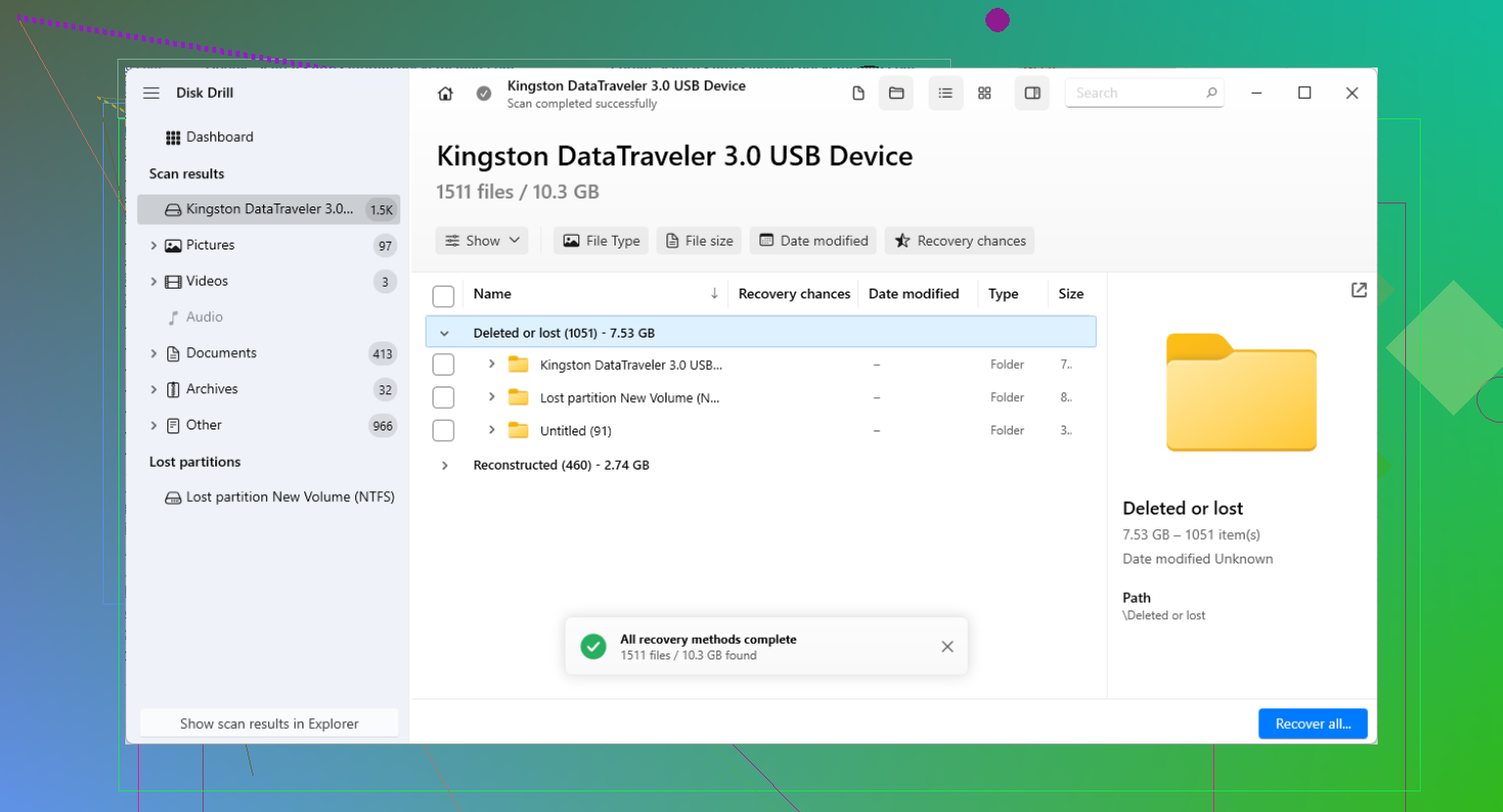
For most users, the next step should be file recovery, not GPT repair. Something like Disk Drill can scan for lost partitions, broken file systems, and file signatures without making you manually edit the partition table. The scan itself is non-destructive, so you can see what it finds before doing anything else.
If the files show up in the preview, recover them to a different drive with enough free space. Don’t put recovered files back onto the damaged disk. That can overwrite data that hasn’t been copied out yet.
After the important stuff is safe, then you can look at partition repair. TestDisk is often used for this because it can search for lost partitions and rebuild the partition table if it finds the right layout. Just be careful at the write step. If the detected partition doesn’t match what the disk used to look like, don’t commit the changes.
For GPT-specific damage, gdisk can also help. Since GPT stores a secondary header near the end of the disk, gdisk can sometimes rebuild the main GPT header from that backup.
One extra warning: if Windows calls it a “GPT Protective Partition,” don’t jump straight to Diskpart clean. That removes partition information and can make recovery harder. Sometimes that label shows up because of an older OS, a compatibility problem, or even a USB dock/enclosure that isn’t reading the drive correctly.
So before doing anything destructive, scan the disk or its image and see what’s still readable. In a lot of cases, the data is still sitting there even though Windows can’t mount the volume normally.
6 Likes
If the drive was in an external USB enclosure when this happened, try to identify whether the enclosure is part of the problem before doing recovery work. Some docks and cheap adapters report the disk with a different sector size or capacity, and Windows can then show a perfectly valid GPT disk as nonsense. Don’t swap it around endlessly, but if the disk was originally used internally, connect it the same way if you can.
I agree with the “don’t write to it” advice, but I’d be a little more cautious about jumping straight into partition repair tools. TestDisk and gdisk are useful, but the moment you choose the write option you are changing the disk. If the scan finds several possible old partitions, pick wrong and you can make the next recovery attempt messier. I’d only repair the partition table after the files have been copied somewhere else.
Another thing people forget is encryption. If the missing GPT partition was BitLocker encrypted, normal file carving may produce junk or partial results unless the BitLocker metadata is still found and you have the recovery key. In that case, look for the lost volume first rather than only scanning by file signatures. Disk Drill or similar recovery software can be useful for seeing whether the old partition structure is still detected, but recover to a separate disk, never back to the unallocated space.
If the files are really important and there’s any clicking, read errors, or the drive keeps disconnecting, stop scanning it repeatedly. That’s when an image with ddrescue or a lab becomes the safer route. Software recovery is fine for a logical GPT screw-up, but it’s the wrong first move if the disk is physically failing.
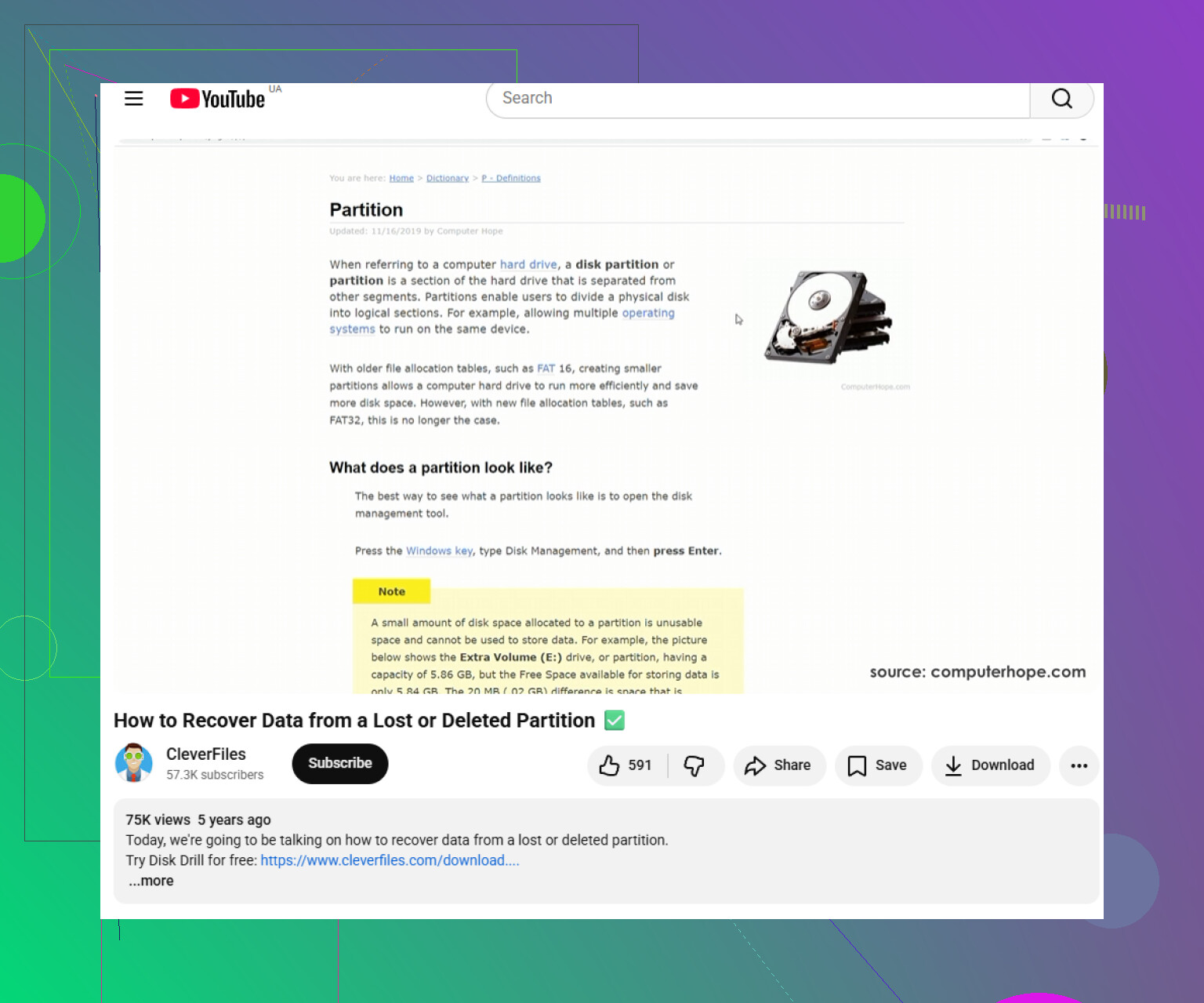
A missing partition entry is a very different case from a damaged file system, and Windows tends to offer the wrong “help” for both. If it shows as unallocated, do not run chkdsk, because there is no mounted volume for it to safely check and it can make a half-recognized NTFS volume worse if you force it later. I’d first save a screenshot of Disk Management and note the exact disk size, then work from an image if possible. If you use Disk Drill or TestDisk, treat the first scan as a map, not a repair job. The goal is to copy files to another drive before you write any “fixed” GPT back. If you already clicked “new simple volume” or formatted it, say so, because that changes the recovery odds and the advice.