My iPhone storage is completely full, and now I can’t save photos, download apps, or update iOS. I’ve tried deleting a few things, but I’m not sure where the biggest files are or how to free up space safely. I need help finding the best way to delete files and clear storage without losing anything important.
Storage warnings on iPhone always seem to pop up when you need the phone most. I ran into this after trying to record a video, and the annoying part was not the lack of space. It was how scattered the junk was. Files in one place, deleted stuff still hanging around somewhere else, photos eating half the phone, message attachments buried in Settings.
Here’s the clean way to deal with it.
How to remove old files from the Files app
Open the Files app. Hit Browse at the bottom.
Look in these two spots first:
- On My iPhone, for stuff stored only on the phone
- iCloud Drive, for files tied to iCloud
The folder I always check first is Downloads under On My iPhone. Mine had old PDFs, random ZIPs, attachments from mail, junk I forgot existed.
To delete one file or folder:
- Press and hold the item
- Tap Delete
If you delete a folder, all the stuff inside goes with it.
To delete a bunch at once:
- Tap the three-dot menu in the top right
- Tap Select
- Pick the files you want gone, or use Select All
- Tap the trash icon
How to clear space for real
This part trips people up. Deleting a file does not free storage right away. iOS moves it into Recently Deleted and keeps it there for 30 days. It still counts against your storage until you clear it out.
To empty it now:
- Open Files
- Go to Browse
- Find Recently Deleted under Locations
- Tap the three dots
- Tap Delete All
Same issue in Photos. If you deleted videos or pictures, go empty the Recently Deleted album there too. If you skip this, your storage number barely moves and you end up thinking the phone is bugged. I did.
How to remove files tied to specific apps
Go here:
Settings > General > iPhone Storage
This screen is more useful than it looks. It lists apps by size, biggest first. Tap an app and you’ll usually see two choices:
- Offload App, removes the app but keeps its documents and saved data
- Delete App, removes the app and its stored files too
If Messages is taking up a stupid amount of space, scroll inside its storage section and look for Review Large Attachments. This is one of the sneaky ones. Old videos, voice notes, images, files from text threads, all piled up there. You get to remove the heavy stuff without wiping the whole conversation.
How to find what is taking the most space
This is where iPhone storage gets dumb. Files and Settings give you totals, but they don’t show your photo library in a useful way. And for most people, the real problem is not documents. It’s photos and video.
4K clips, duplicate shots, burst photos, screenshots you forgot to delete. That stuff adds up fast. On my phone, documents were nothing compared to the camera roll.
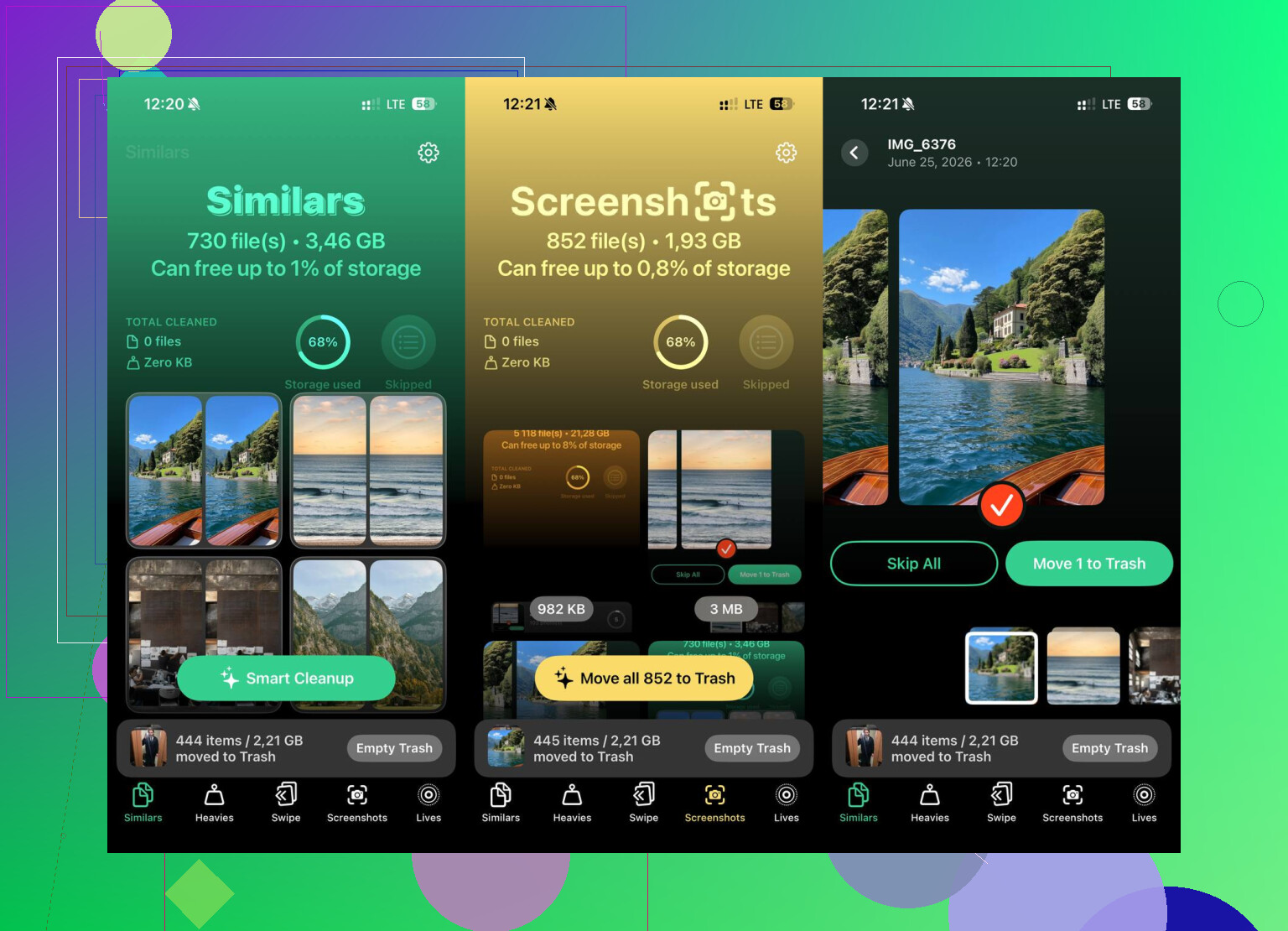
If you want a clearer view of photo and video size, there’s Clever Cleaner.
What stood out to me:
-
Heavies tab
It sorts your library from biggest file to smallest and shows exact sizes. I found giant videos near the top right away, including one long concert clip I kept for no reason. -
Similars tab
It groups near-matching photos and picks a best shot. This saved me from tapping through ten versions of the same pic with slightly different blur. -
Swipe mode
You go month by month instead of staring at your whole library at once. Swipe left to delete, right to keep. Less annoying, less chance of deleting the wrong thing when you’re tired. -
On-device processing
The sorting and grouping happen on the phone, not on some outside server.
The wipe-and-start-over option
If storage is so full your iPhone is lagging, freezing, or failing basic tasks, sometimes the fastest route is a full reset.
Path:
Settings > General > Transfer or Reset iPhone > Erase All Content and Settings
This wipes the phone back to factory state. Back up what you need first, to iCloud or a computer. Once you run it, there’s no undo button. I’d only do this if the phone feels half-dead and cleanup is turning into a time sink.
What fixed it for me
The biggest gains came from three places:
- Cleaning Downloads in Files
- Emptying both Recently Deleted sections
- Removing large videos and duplicate photos from the library
After I did those, storage dropped a lot and the lag eased up fast. Not magic. iPhone still hides too much stuff. But if you hit those areas in order, you stop wasting time poking through random folders.
8 Likes
Start with the stuff iPhone hides in plain sight.
-
Safari cache
Settings > Safari > Clear History and Website Data.
If you browse a lot, this frees a surprsing amount. -
Downloaded media in apps
Netflix, Spotify, YouTube, Podcasts, Audible, Maps. Offline downloads get huge. Open each app and remove saved content. A few movies or playlists often eat 5 GB to 20 GB. -
Messages auto-delete
Settings > Apps > Messages > Keep Messages > set to 30 Days or 1 Year.
This trims old photo and video threads over time. -
Mail attachments
If the Mail app is bloated, remove and re-add the account. iOS often keeps local cache. Fast fix. -
Voice Memos and GarageBand
People forget these. Long recordings are storage killers.
I slightly disagree with @mikeappsreviewer on reset as a fast route. Full erase is overkill for most people. You usually get space faster by killing app downloads and caches first.
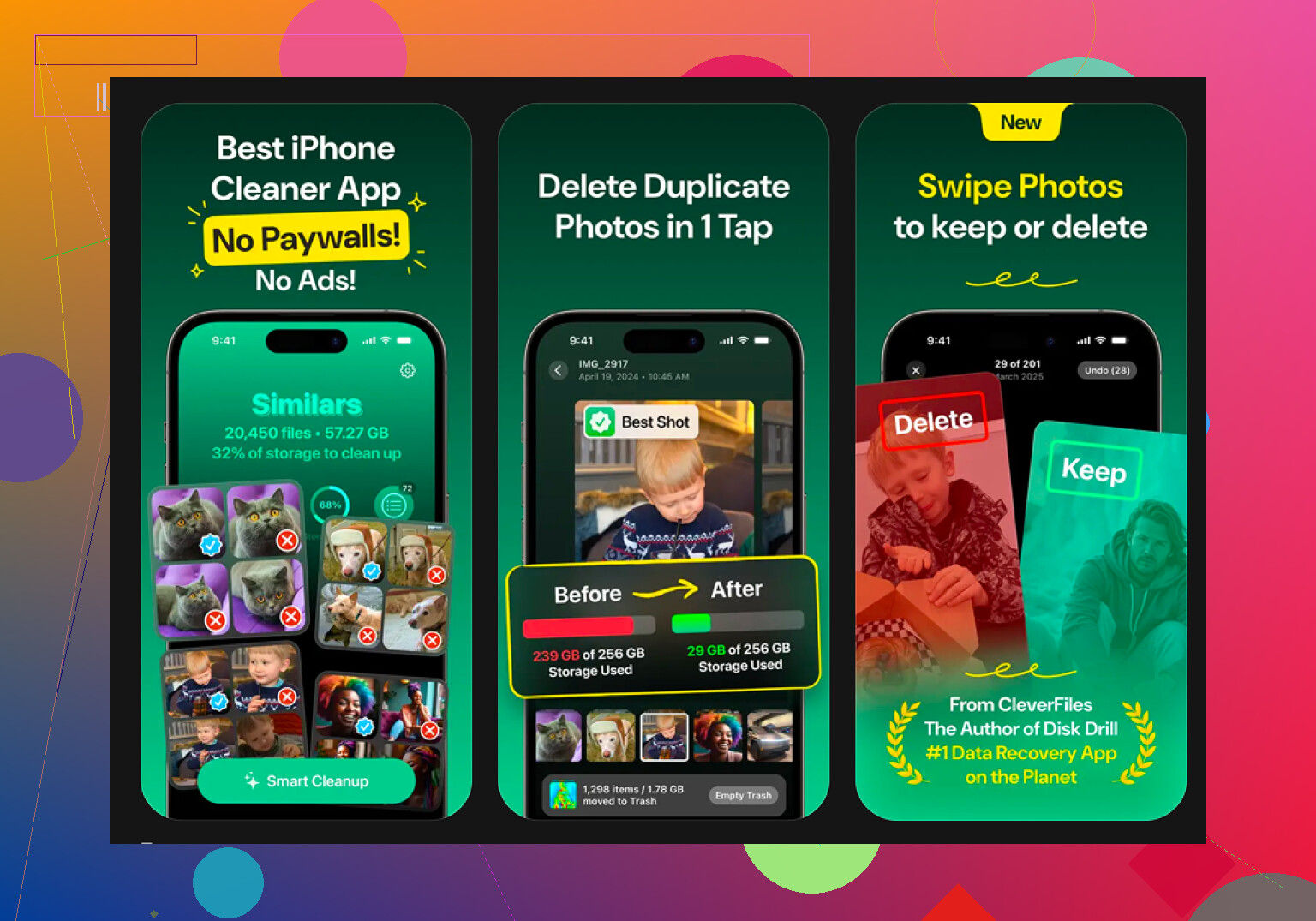
For photos, Clever Cleaner is worth a look if your library is the main problem. It helps sort big videos and duplicate shots faster than doing it by hand.
Also check this video guide for freeing up iPhone storage fast, watch the full iPhone storage cleanup tutorial here.
If you need an update installed, aim for 8 GB to 10 GB free. iOS updates fail a lot when you run too close to zero.
Start with the stuff iPhone hides from you, not the obvious app icons. @mikeappsreviewer and @viajantedoceu already covered Files, Photos, and app storage pretty well, so I’d hit the “other” junk next.
- Restart the iPhone after deleting stuff. Seriously. iOS sometimes doesn’t recalculate storage right away, and people think nothing changed.
- Check Settings > General > iPhone Storage and wait a minute. That bar updates slowly when storage is packed.
- Delete old iOS update files if one is stuck: Settings > General > iPhone Storage > look for an iOS update entry > Delete Update.
- Remove Safari Reading List offline pages: Settings > Safari > Reading List > clear saved offline content.
- If WhatsApp/Telegram is huge, clean it inside the app. Deleting the app blindly can remove chats you wanted to keep. I disagree a bit with the “just delete apps” approach because some apps store the real bloat internally.
If photos are the main issue, Clever Cleaner is probly the fastest way to spot giant videos, duplicates, and similar pics without digging forever. Also, this thread on real Reddit feedback on a free iPhone cleaner app is worth skimming.
One more trick people forget: use a computer. Plug the iPhone into a Mac or PC, import photos/videos off the phone, then delete them from the device and empty Recently Deleted. That usually frees the most space the fastest. If you can get 8 to 12 GB free, updates stop being such a pain.