My iPhone photos are using too much storage, but I don’t want to lose my entire library. Is there a safe way to clear photo data, caches, or unnecessary files while keeping my important pictures and videos?
You probably don’t need to wipe your whole photo library. When mine passed 100 GB, I got a decent amount of space back by clearing out the stuff I didn’t really consider part of my photo collection: duplicates, bursts of nearly identical shots, old screenshots, oversized videos, and Live Photos I didn’t need.
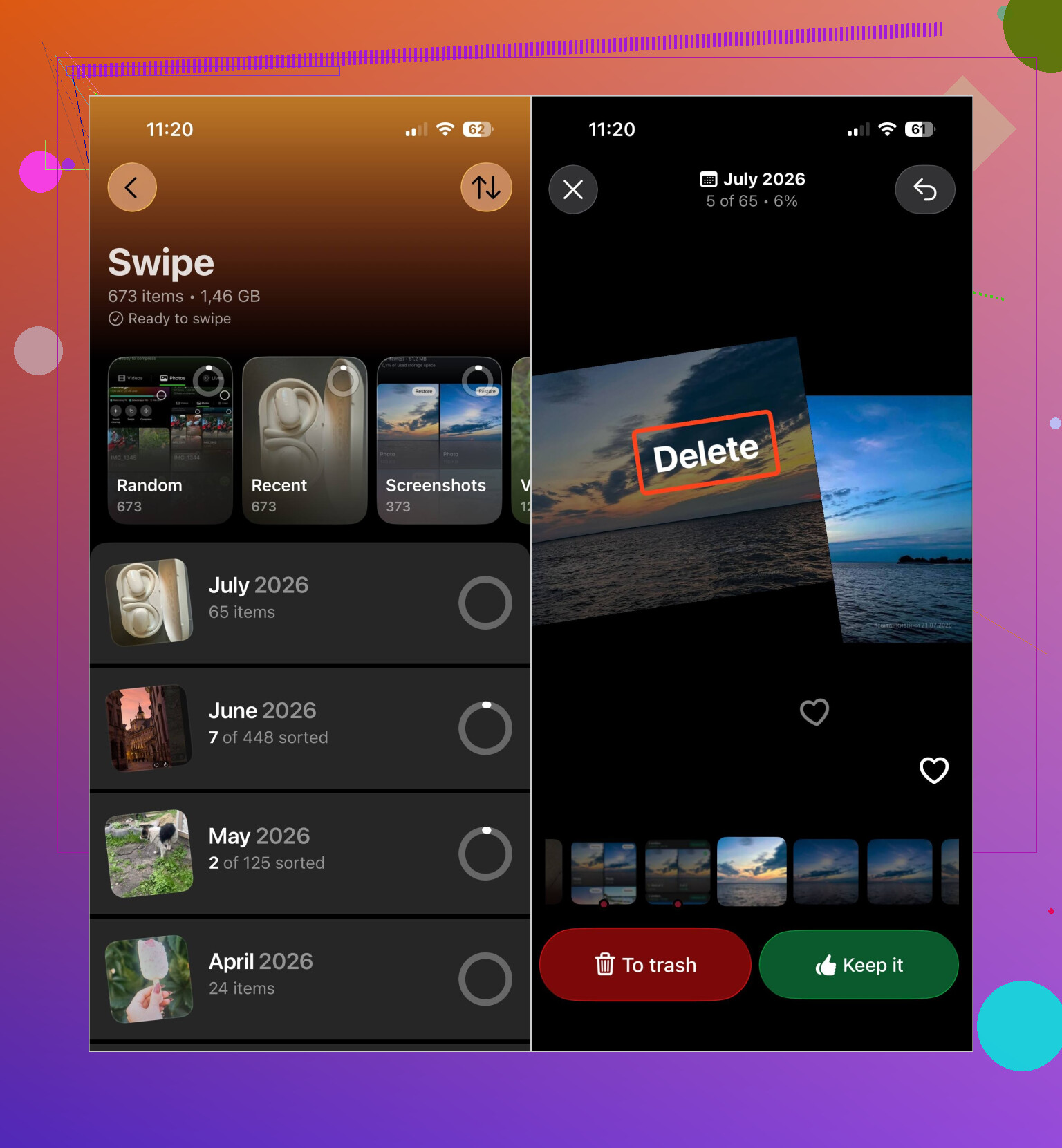
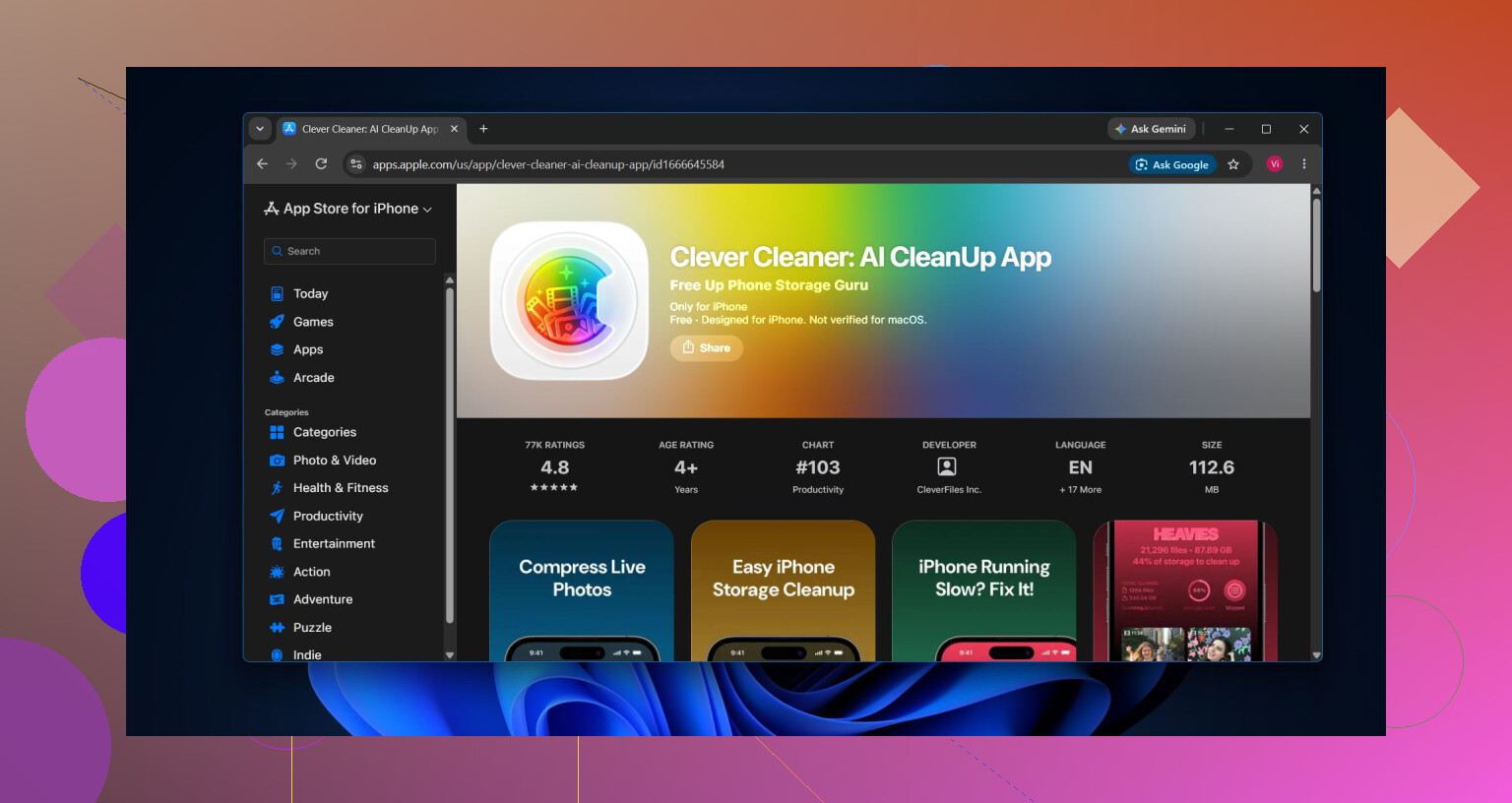
Manually sorting thousands of files wasn’t practical, so I used Clever Cleaner. It separates duplicate and similar photos, duplicate videos, screenshots, Live Photos, and large media into categories. You can review files before removing them, shrink photos with the Compress tool, or go through the library one item at a time in Swipe mode.
Smart Cleanup is useful if you want to handle several categories at once. It can remove similar photos and compress eligible media with a few taps. The app is free to use, has no ads, and doesn’t require a subscription to get started. Some cleanup features have a fairly generous daily limit for new users.
I’d clean things up in roughly this order:
- Remove duplicate and similar photos.
- Check large videos and duplicate videos.
- Delete unwanted Live Photos, or compress them if you still want to keep them.
- Clear out old screenshots.
- Run Smart Cleanup if you want to process multiple categories together.
- Empty the Recently Deleted album in Photos. Otherwise, those files can continue using storage for up to 30 days.
Also check media stored in Messages. Deleting something from Photos doesn’t necessarily remove the copy someone sent you in a conversation. Open the conversation, tap the contact’s name, select See All under Photos, then choose and delete the attachments you no longer need. If the entire conversation is disposable, deleting it will remove its attachments too.
If you use iCloud Photos, enable Optimize iPhone Storage under Settings > Photos. That keeps smaller versions on the phone while the full-resolution originals remain in iCloud.
It’s also easier to work album by album. Old trips and events are good places to start because you can quickly compare 50 similar vacation shots instead of scrolling through the entire library. Once you’ve finished the main cleanup, spending a minute or two each week on new screenshots and duplicates helps keep the problem from coming back.
If the main goal is freeing up storage without losing important memories, deleting the full library is overkill. Clearing duplicates, similar shots, large videos, unwanted Live Photos, screenshots, and old Messages attachments will usually recover plenty of space while leaving the photos you actually care about alone.
6 Likes
If iCloud Photos is enabled, deleting a picture on the iPhone deletes it from iCloud and your other synced devices too. There isn’t a separate Photos cache you can safely purge. The closest option is Optimize iPhone Storage, which may take time to reclaim space. Before using any cleaner or removing large batches, make a separate backup of the photos you cannot replace.
Photos you took on the iPhone are handled very differently from photos that were synced onto it from a Mac or PC. That second case gets overlooked. If the trash button is gray on certain pictures, reconnect the phone to the computer that supplied them. In Finder on a Mac, or the Apple Devices app on Windows, deselect the albums or folders under Photos and sync again. They will be removed from the iPhone while the originals stay on the computer.
For photos taken on the phone, check Settings > your name > iCloud > Photos before touching anything. If Sync this iPhone is enabled, @nextlogic’s warning applies. Deleting means deleting from the synced library, not merely clearing the phone’s copy. Optimize iPhone Storage is the proper option when you want the full library available but do not need every original physically stored on the device. It requires enough iCloud space and may not reduce the storage number immediately.
If iCloud Photos is off, the safest low-cost method is less convenient but straightforward: copy the older photos and videos to a computer or external drive, open several of those copied files to confirm they work, and only then delete that group from the phone. Do it by year or event rather than selecting thousands of items blindly. Keep a second copy of anything irreplaceable.
Be aware that deleting an album does not necessarily delete the media inside it, so that usually saves no space. Cleaner apps can make sorting easier, but they cannot purge some hidden Photos cache and leave every original untouched. They still work by deleting or changing media you approve.
Finally, look at Settings > General > iPhone Storage before assuming Photos is the whole problem. If Photos is using 25 GB but Messages has another 20 GB of attachments, aggressive photo cleanup may barely solve the storage warning. The useful distinction is where the files came from and whether they are synced, not which “clean cache” button an app claims to offer.
Do not treat an iCloud device backup as a separate backup of your photo library. When iCloud Photos is enabled, those pictures are synced rather than included in the normal daily iCloud backup. If you delete a synced photo and empty Recently Deleted, that backup will not bring it back.
Before cleaning, export the irreplaceable originals to a computer or external drive. Open a random selection of photos and several longer videos from that copy. Checking videos matters because a failed or incomplete transfer is less obvious from thumbnails. Only start deleting after you know the files work outside Apple Photos.
I would use the iPhone’s built-in duplicate detection before giving a cleaner app full library access. Look in Photos under Collections and Utilities for Duplicates. Merging keeps the best-quality version and relevant information. If that section is missing, the phone either has not finished analyzing the library or has not found duplicates. Clever Cleaner may be more convenient for similar shots and large files, but it is optional rather than a required “cache cleaner.”
For the least risky space savings, back up first, merge exact duplicates, remove obvious screen recordings and downloaded clips, then enable Optimize iPhone Storage if you use iCloud Photos. Avoid flattening edited photos, converting Live Photos, or compressing originals unless you accept losing quality or edit history. There is no hidden Photos-cache purge that will reclaim a huge amount while guaranteeing every original remains untouched.
Pull up Settings > General > iPhone Storage and actually read the breakdown before you delete a single thing. @the_shell already said this, but it’s worth repeating because most people skip it and go straight to nuking photos. Nine times out of ten the real hog is video, not thousands of tiny screenshots. Deleting 800 screenshots feels productive and buys you almost nothing. Trimming five 4K screen recordings buys you way more.
That’s the part I’d push on. Chasing duplicates and similar shots is fine, but photos are small. A single minute of 4K60 video can eat more space than a few hundred stills. So if your goal is getting the storage warning to go away fast, sort your library by size or go straight to the large videos category and start there. The duplicate cleanup is more about tidiness than reclaiming gigabytes.
On the compress idea from the first reply, just know what you’re trading. Compressing a Live Photo or shrinking an original is permanent on that copy. If it’s a photo you genuinely care about, don’t compress the only version you have. That’s a convenience move for stuff you’re lukewarm about, not for the memories you’d be upset to lose quality on.
Clever Cleaner is reasonable for the sorting-into-buckets part, and I get why it keeps coming up. The categories save you scrolling. But it’s not doing anything magic, it’s still just deleting files you approve, same as the built-in Duplicates tool @kevin86 mentioned. I’d run Apple’s own duplicate merge first since it’s free and keeps the metadata, then use a cleaner only for the fuzzier stuff like near-identical bursts and big videos.
One thing nobody flagged clearly: Optimize iPhone Storage doesn’t delete anything, it just swaps local originals for smaller versions while iCloud holds the full res. Great if you have enough iCloud space and a decent connection. If your iCloud is already full, that toggle does nothing and you’re back to actually deleting or paying for more storage. Check that before you count on it.
And yeah, back up the irreplaceable stuff to a computer or drive first, open a couple of the videos to confirm they actually transferred, then delete. Boring advice, but the people who ignore it are the ones who post a week later asking how to recover a wedding video.