After updating iOS, my iPhone storage is nearly full, and System Data seems unusually large. What’s the safest way to remove junk files and free up space without deleting important photos, apps, or messages?
The first place to check is Settings > General > iPhone Storage. Give it a moment to load the full breakdown. That will tell you what is actually taking up space instead of leaving you to guess.
For me, Photos was the main problem. This happened after an iOS update on an older 64 GB iPhone, so at first I blamed the update. Storage was nearly full, and apps kept reloading whenever I switched between them. The update did need some temporary space, but most of the storage was being used by years of photos, videos, screenshots, downloads, and accumulated app data.
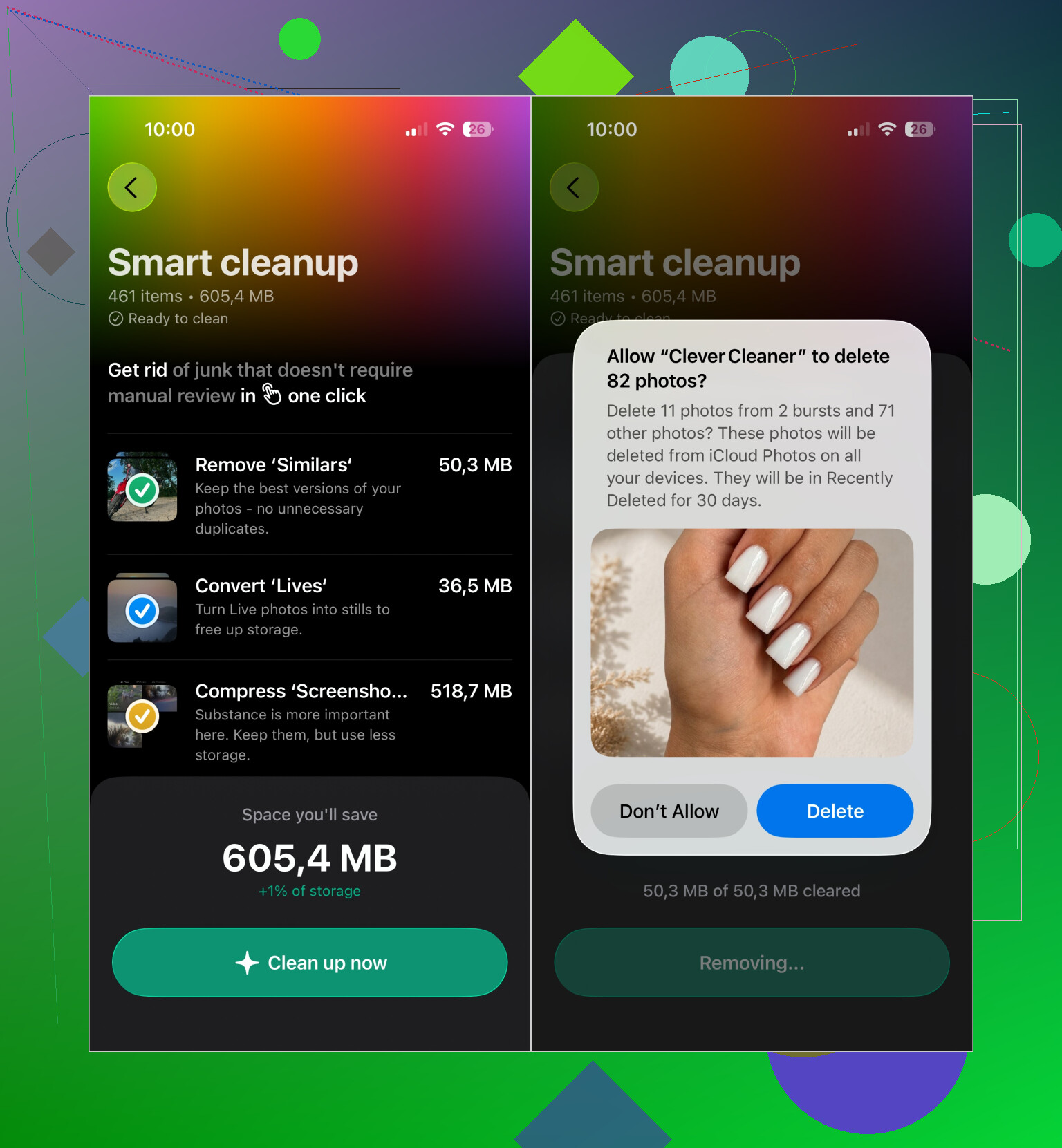
Manually sorting several thousand photos wasn't practical, so I use Clever Cleaner. It groups duplicate and similar photos, flags large videos, finds old screenshots, and separates Live Photos for review. Everything is analyzed locally on the iPhone, there are no ads, and the free version is enough for routine cleanups.
I usually run Smart Cleanup first to remove the obvious clutter. After that, I spend a few minutes using Swipe mode to sort older pictures individually. For groups of similar shots, it suggests which one to keep. That was especially useful for batches of photos from vacations and family events.
Once the photo library is under control, these are the other places worth checking:
- Remove apps you haven't used in months. If you might want one again, choose Offload App so its documents and data are kept.
- Check the Downloads folder in the Files app. I found old PDFs, ZIP files, and miscellaneous documents taking up space there.
- Delete offline content stored by Netflix, Spotify, YouTube, Apple Music, and similar apps.
- If Messages is unusually large, remove old video attachments rather than deleting entire conversations.
Keep in mind that deleting photos may not free the space right away. iOS moves them to Recently Deleted and keeps them there for 30 days. The first time I cleaned up hundreds of pictures, the storage number barely moved until I emptied that album. Then the available space showed up almost immediately.
I also wouldn't spend too much time worrying about System Data. It can grow after an update and then shrink again as iOS clears temporary files. App Store cleanup apps can't directly remove system files because Apple doesn't give them that access. If System Data jumps after an update, it will often settle down within a day or two.
On a 64 GB iPhone, keeping roughly 5–10 GB available makes a noticeable difference. Since I started leaving that buffer, the phone has been more responsive, updates install without storage warnings, and the “Storage Almost Full” alert shows up much less often.
11 Likes
If the update finished only a few hours ago, don’t start deleting things yet. Leave the iPhone charging on Wi-Fi overnight, then restart it and check storage again. @web_chris23 is right that System Data often settles after indexing finishes. If it stays huge, clear Safari history and website data only if you’re okay signing back into sites, remove offline downloads, and offload unused apps rather than deleting them. Cleaner apps can help sort photos, but they cannot erase iOS System Data. The last-resort fix is an encrypted backup followed by an erase and restore.

You probably won’t recover all of that space immediately, and iOS has no safe “clean all junk” button. Before deleting photos, verify that iCloud Photos has finished syncing. Deleting a synced photo from the phone deletes it from iCloud and your other Apple devices too, which is an easy mistake when storage warnings are pushing you to act quickly.
A useful distinction here is that offloading an app removes the app itself but keeps its documents and data. That is safer, but it may barely help if the app’s cache is what grew. For a large social, podcast, or streaming app, deleting and reinstalling can clear more space, but only do that after confirming its account data is synced and any local projects or downloads are expendable.
I’d clean the clearly identifiable categories first, restart, and then give the storage calculation some time to update. If System Data remains abnormally large after a couple of days, make an encrypted computer backup before considering erase and restore. That backup step matters because it preserves more account and health data than an unencrypted backup.
A phone that finished updating this morning is a different case from one still showing huge System Data several days later. In the first case, the safest move is to free a small working buffer, connect it to power and Wi-Fi, and let iOS finish indexing and cleanup. When storage is completely packed, the phone may struggle to complete the very housekeeping that would reduce System Data.
Create that buffer from replaceable items first: downloaded Netflix or Spotify content, podcasts, offline maps, large files in Downloads, and unused apps that can be offloaded. Check Recently Deleted in both Photos and Files, since clearing only the Photos album can leave deleted documents still occupying space. I would leave messages, photo libraries, and app reinstalls until you have confirmed backups and syncing.
If the number is still abnormal after a few days and a couple of restarts, connect the iPhone to a Mac or PC, make an encrypted local backup, and check storage again afterward. Sometimes the storage categories recalculate during that process. Avoid repeatedly deleting random apps to attack “System Data.” It is a category, not a folder you can safely open and clean.
I’m with @fox.react on cleaner apps: something like Clever Cleaner may make reviewing duplicate photos less tedious, but it cannot touch iOS caches. Treat it as a photo-organizing tool, not a fix for System Data. Erasing and restoring should stay at the bottom of the list, after the backup has been verified rather than merely started.
Depends whether you actually use iCloud Photos. If you do, none of the local photo cleanup (Clever Cleaner included) really frees storage, since the phone only holds optimized versions and the big System Data number won’t move much anyway. In that setup I’d chase caches and offline downloads first and just let the update settle.