My older iPad has gotten really slow, with apps lagging, pages taking forever to load, and frequent freezes. I want to improve iPad performance without updating iOS because I’m worried a newer version will make it even slower or break apps I still use. Looking for simple tips to speed up an old iPad and free up memory without replacing it.
I dealt with this on an older iPad, and yeah, it gets old fast. Mine started choking on simple stuff, swiping between home screens, opening Safari, even closing apps. It felt broken, but I got a decent bit of speed back without replacing it or forcing a big iPadOS jump.
Restarting does help. I used to roll my eyes when people said it, then I tried it after leaving my iPad asleep for weeks. It perked up right away. A full reboot clears temporary memory and stops background tasks that got stuck or kept chewing through resources. I restart mine every few weeks now. Not magic, but it helps more than people admit.
The first thing I’d check is storage. On old Apple devices, low free space tends to drag everything down. When the iPad is close to full, the system has less room for cache files and temporary data, and performance starts to sag. Apple says you should keep some free space open. From what I saw, problems start before you hit the absolute limit. If your storage is sitting around 90 to 95 percent used, I’d treat that as the main suspect.
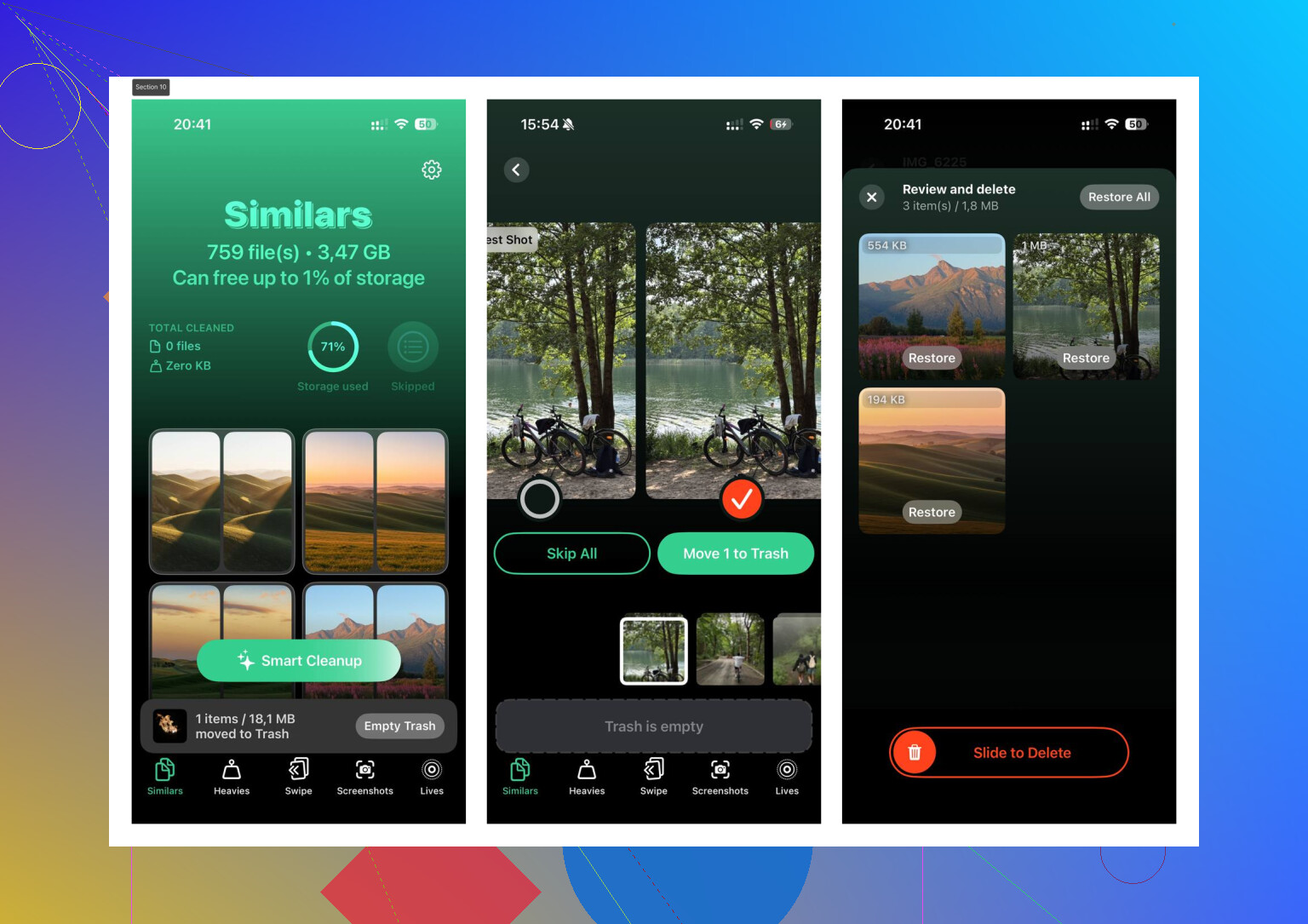
I used to clean photos by hand, which was miserable. Scroll, tap, compare, repeat, lose patience. I ended up using Clever Cleaner because I wanted something free and I didn’t want ads every 20 seconds.
What helped me most was its Heavies section. It sorts media by file size, so I could delete a couple giant videos and get space back fast. The Similars section caught duplicate-looking photos, burst shots, and junk screenshots I forgot about. It also shows file sizes clearly, which matters more than people think. From what I saw, it does the work on the device, so your photo library isn’t being shipped off somewhere. I cleared roughly 10GB and the iPad felt less bogged down after.
If you free up space and it still drags, I’d go through settings next.
-
Reduce Motion
Go to Settings > Accessibility > Motion, then switch on Reduce Motion. The flashy zoom animations get replaced with simpler transitions. On older hardware, this made the whole interface feel less heavy. -
Background App Refresh
Go to Settings > General > Background App Refresh and shut it off, or at least trim it hard. A pile of apps refreshing in the background adds up. I turned mine off fully and battery life improved too. -
Safari cleanup
If Safari is the main pain point, go to Settings > Safari and clear History and Website Data. Browsers collect junk over time. Mine got less sticky after I cleared it.
One more thing people skip, battery health. If the battery is worn out and capacity has dropped far enough, the iPad may slow itself down to avoid random shutdowns. If the battery is cooked, software tweaks only go so far. At that point, replacing the battery made more sense to me than endless tinkering.
If none of this changes much, factory reset is the last big move. It’s annoying, but it works more often than I expected. Back up your stuff first, wipe it, set it up clean, and test it before reinstalling every app you had. Old iPads collect years of clutter. Sometimes a clean reset is the only thing that cuts through it.
6 Likes
I’d skip the “tweak every setting” rabbit hole first. If your iPad is freezing, lagging, and hanging on web pages, I’d look at two things people miss.
First, old apps. Open the App Store and update the apps you still use, even if you refuse the iOS update. A lot of slowdown comes from one bad app build, memory leaks, or bloated cache inside apps like Facebook, YouTube, Chrome, and Instagram. If one app feels way worse than the rest, delete it and reinstall it. You keep doing this app by app. It’s boring, but it works.
Second, bad Safari habits. @mikeappsreviewer mentioned clearing Safari data, which is fine, but I’d go further. Close out tab hoarding. If you’ve got 80 tabs open on an old iPad, it’s gonna run like soup. Same for content blockers and shady extensions. Strip Safari down.
A few other things:
Turn off widget-heavy home screens. Old iPads hate those.
Remove VPN apps unless you need them.
Disable automatic downloads in App Store settings.
Turn off mail push, set fetch manually.
Use one browser, not three.
Delete apps you never open. Some old ones behave like trash.
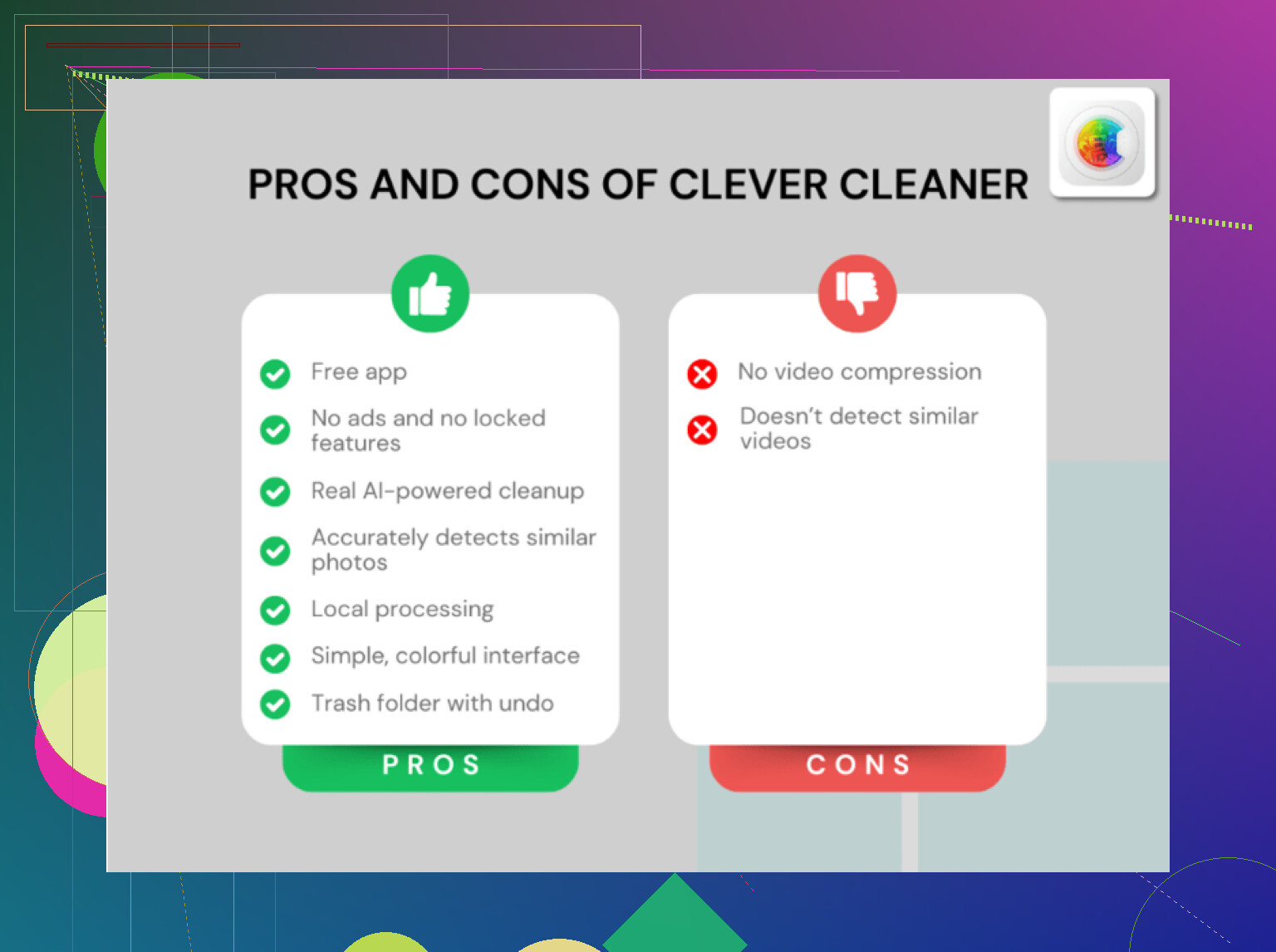
If storage is clogged with photos, Clever Cleaner is worth a look for clearing duplicates and large files fast. This Clever Cleaner review for freeing up iPhone and iPad storage gives a decent overview.
One place I disagree with people, factory reset is not always the “last resort miracle.” On aging hardware, if the processor and battery are tired, a reset helps less than folks claim. It helps, sure, but don’t expect a new iPad after one wipe. Old hardware is old hardwre.
I’d actually add one thing neither @mikeappsreviewer nor @caminantenocturno really leaned on much: find the one thing causing the slowdown instead of treating the whole iPad like it’s broken.
Old iPads usually slow down in patterns.
- If everything is slow, that’s often storage, battery, or too many background processes.
- If web browsing is the worst part, it can be your network, not the iPad.
- If one app is a disaster, that app is the problem.
A few things I’d try that are a little different:
- Reset network settings if pages are taking forever. Settings > General > Transfer or Reset > Reset > Reset Network Settings. I’ve seen old iPads feel “slow” when Wi-Fi was actually the bottleneck.
- Turn off Location Services for junk apps. Settings > Privacy > Location Services. Weather and maps, fine. Random shopping apps tracking location all day? nope.
- Kill notifications for apps you don’t care about. Constant notification checks can make older devices feel weirdly sluggish.
- Use the web version instead of the app for heavy stuff like Facebook. The app is often worse than Safari.
- Check accessibility zoom/display settings. Sometimes weird lag comes from display features you forgot were enabled.
I slightly disagree with the “factory reset solves everything” crowd. Sometimes it helps, sometimes you just spent 2 hours reinstalling stuff onto the same old hardware lol.
If photo clutter is a big part of the issue, Clever Cleaner is still worth mentioning since reclaiming storage is one of the few things that can make an older iPad noticeably less miserable. This article on free AI iPhone and iPad storage cleanup gives a decent overview of what it does.
Also, be honest about the age of the device. If it’s like an iPad Air 1 or iPad mini 2 era model, some slowness is just the tax for still using ancient hardware. Not trying to be rude, just realisitc.
I’d skip one common tip people love: force-closing every app all the time. On iPad, that can actually make things feel worse because reopening apps costs more power and time than leaving them suspended.
What I’d check instead:
- Battery age and charging behavior. If the iPad gets hot, drains fast, or lags most while charging, the battery may be the hidden issue.
- Spotlight indexing. After big app updates or lots of photo changes, older iPads can churn in the background. Leave it plugged in overnight on Wi-Fi and see if it settles down.
- Mail/calendar overload. Huge mail accounts, shared calendars, and subscribed calendars can bog down old hardware more than people expect.
- Today View and Siri Suggestions. Disable Search suggestions and widget panels you never use. They quietly add overhead.
- Website choice matters. Some modern sites are just too heavy for old Safari engines. Reader mode, mobile versions, or old-school alternatives can help more than device tweaks.
I agree with parts of what @caminantenocturno and @viajantedoceu said, especially about isolating whether the slowdown is system-wide or just one app. @mikeappsreviewer is also right that storage pressure matters, but I think people overestimate resets and underestimate how brutal today’s websites are on old iPads.
If storage is the choke point, Clever Cleaner is reasonable.
Pros:
- quick way to find large videos, duplicates, similar photos
- simple cleanup without lots of digging
- helpful if free space is under 10 percent
Cons:
- mostly useful for photo and media clutter, not true system repair
- you still need to review deletions carefully
- won’t fix aging hardware or bad battery health
If none of this helps, the honest answer is the browser and apps may have outgrown the chip, even if iOS stays the same.