My iPhone storage shows a lot of synced media, but iTunes is gone and I’m not sure how to remove it now. I used to sync music and videos from my computer, and after updating my setup, those files are still taking up space. I need help figuring out how to reduce synced media on my iPhone and free up storage without losing anything important.
Apple changed the label, so people keep running into two names for the same thing. Synced Media and Synced Content mean the same storage category. I get why this trips people up, because the old iTunes workflow got split apart and renamed over time.
What synced media on iPhone means, and how it differs from your normal Photos library
This section covers stuff copied from a Mac or PC onto the iPhone through a cable or local Wi-Fi. Think music, movies, TV shows, and photo folders you picked on the computer side.
The big split is how the data moves.
iCloud Photos syncs both ways. Delete a photo on your phone, and it disappears elsewhere too. Add one on your Mac, and it shows up on the phone.
Synced Media does not work like tha t. It is a one-way push from computer to iPhone. The computer stays in charge. Because of that, you usually do not remove those files straight from the phone. You change or remove them from the Mac or PC, then sync again.
Why Synced Content suddenly looks huge
After iOS 17, a lot of people started seeing storage numbers that looked doubled. Example, 20GB of music under Music, then another 20GB under Synced Content. From what I saw, this is often a storage reporting bug, not a true second copy eating space.
The bad part is the phone still treats the inflated number like it is real. So app installs fail. iOS updates stall. Downloads stop. It feels like fake clutter with real consequences.
How I removed synced media after iTunes disappeared
Apple killed off iTunes for this job. On Mac, you use Finder. On Windows, you use the Apple Devices app.
Mac steps
- Plug the iPhone into your Mac.
- Open Finder.
- Click your iPhone under Locations.
- Open the tab for whatever was synced, Music, Photos, Movies, or TV.
- Turn off the sync option, like Sync photos to your device.
- Click Apply.
Windows steps
- Install Apple Devices from the Microsoft Store.
- Connect the iPhone.
- Open the same media tabs you would see in Finder.
- Turn off the synced items you do not want.
- Apply the change.
The empty folder fix, for stuff that refuses to leave
I had better luck with this when the normal uncheck method left junk behind.
- Make a new empty folder on your desktop.
- In Finder or Apple Devices, set photo syncing to use that empty folder.
- Click Apply.
What happens next is simple. The iPhone checks its synced photo set against the empty folder, sees nothing there, and wipes the synced copies from the phone. It is a dumb workaround, but it works more often than it should.
Is deleting synced media safe
Yes. You are only removing the phone copies. The originals stay on the computer. No change to the source files.
Why your iPhone still feels slow after you clear it
Synced Media is often one chunk of the problem, not the whole mess. I usually find the bigger drain in old 4K clips, repeat shots, burst piles, and years of screenshots nobody cleaned up. The sync cleanup does not touch most of that.
When storage gets cramped, iPhone performance drops. Apps reload more. System tasks drag. Updates get weird. iOS wants breathing room for temp files and background work, and when it does not get it, the phone acts tired.
After dealing with synced content, Clever Cleaner handles the leftover media cleanup. It is free, with no ads or subscription. The Screenshots tab shows file sizes before deletion. The Heavies tab sorts files from largest to smallest, so the worst space hogs show up first. The Similars tab groups near-duplicate photos, picks a Best Shot, and helps clear burst sets fast. Processing stays on the device. Nothing gets uploaded elsewhere.
Using Finder to remove synced content, then cleaning the photo library with Clever Cleaner, recovered about 15GB for me. The lag stopped after that.
2 Likes
If your iPhone shows Synced Media and you no longer use iTunes, the key thing is this. The files were added from a computer, so the phone usually will not let you remove them by hand from Storage.
I agree with @mikeappsreviewer on the cause, but I don’t fully buy the idea that it’s always a fake storage bug. A lot of the time, old synced movies, music libraries, and photo folders are still sitting there for real. I’ve seen 10GB to 30GB free up after cleaning out old sync settings.
A few things to check first.
On a Mac, old sync jobs moved into Finder.
On Windows, they moved into Apple Devices.
If you still have Apple Music app or TV app on Mac, those apps manage the library, but device sync settings still live in Finder.
What helps if you no longer have the old computer:
- Connect the iPhone to any trusted Mac or PC with your Apple account signed in.
- Open the device page.
- Look for media tabs with sync enabled.
- Remove selected playlists, movies, or photo albums instead of wiping all of it.
- Sync again.
That selective approach matters if you want to keep some songs but lose the giant old video files.
If the synced stuff is from a dead computer and nothing will clear, try this:
- Turn off sync for each media type.
- Restart the iPhone.
- Sync one more time.
A lot of people skip the second sync. That’s where it fails.
Also check downloaded content from Apple apps. Synced Media and offline downloads get mixed up in people’s heads all the time. Music app downloads, TV app downloads, and Podcasts storage are removed inside those apps, not through computer sync.
After you clear the old synced files, use a local cleaner for the rest of your space hogs. Clever Cleaner is useful for screenshots, duplicates, and heavy videos left in your Photos library. This helps because synced media is often only part of the problem.
If you want a simple video walkthrough plus an easy-to-read Clever Cleaner review, this is decent:
see how Clever Cleaner frees up iPhone storage
One more thing. If the storage number does not drop right away, wait a bit. iOS storage reporting is slow and kinda dumb sometiems. Rebooting after the sync cleanup often forces it to recalc.
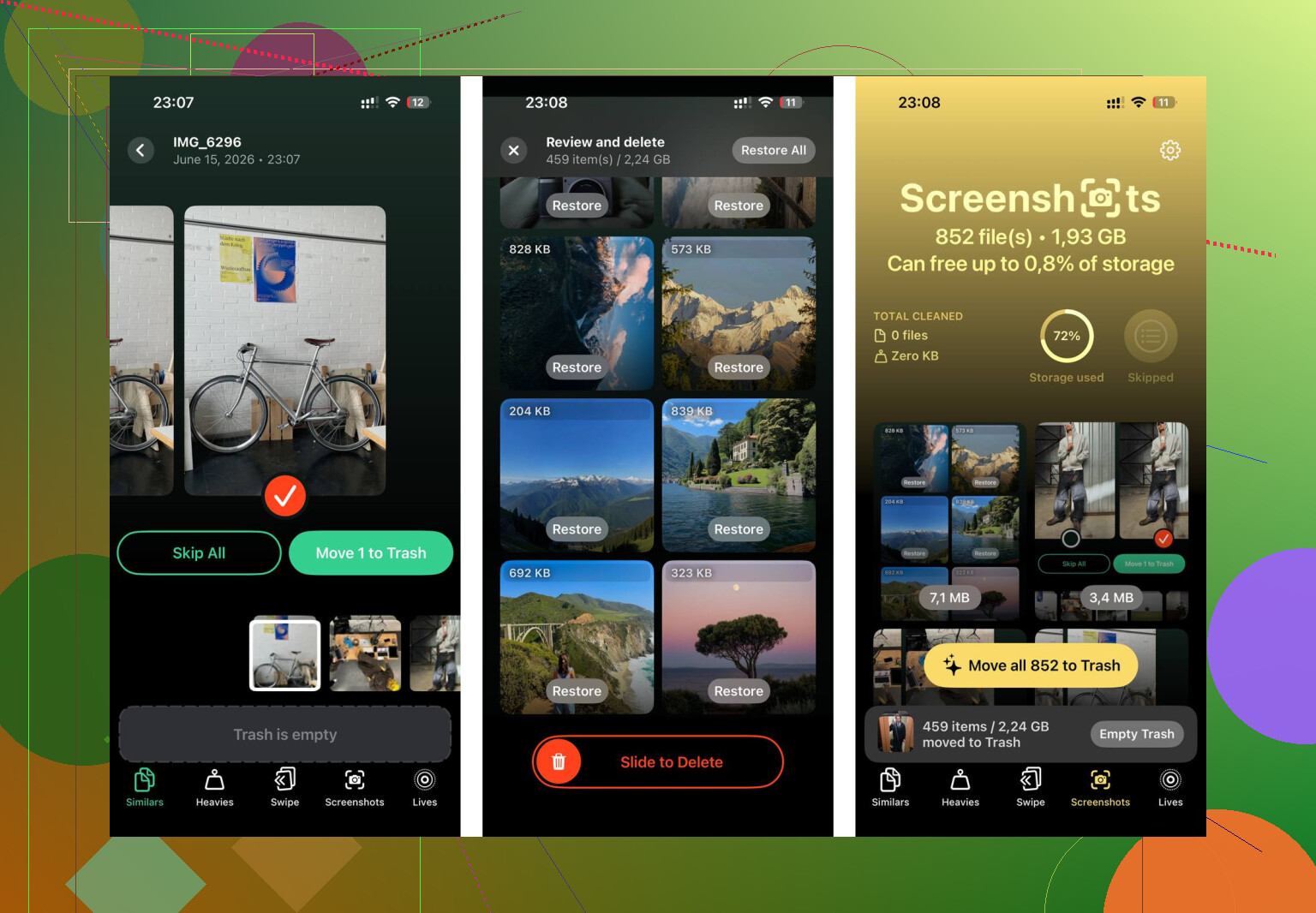
If “Synced Media” won’t budge, I’d check one thing the other replies only touched lightly: old Finder sync profiles can stick even after you stop using the original library. So yeah, @mikeappsreviewer is right that the category got renamed, and @viajeroceleste is right that some of it is real space, but I wouldn’t assume it’s only a bug or only old files. Sometimes it’s both. Apple loves that kind of chaos.
What helped me was this:
- connect iPhone to the computer you use now
- in Finder or Apple Devices, go to the device Summary page
- uncheck “Automatically sync when this iPhone is connected”
- also uncheck any media tabs still tied to an old library
- then do a manual sync
Another thing people miss: if the synced videos were imported into the TV app or songs into the Music app, remove the source library entries there too, or the next sync may just shove them back on the phone. Annoying, but very Apple.
If you can’t access the old computer at all, sometimes the fastest fix is backing up the iPhone, doing an erase, and restoring. Kinda nuclear, but it clears ghost sync junk when normal cleanup fails.
After that, if storage is still trash, the problem is probly your local Photos library, not Synced Media. I’d use Clever Cleaner for that part. It’s useful for heavy videos, duplicate shots, screenshots, all the usual junk. This page explains it pretty well: best iPhone cleaner app for freeing up storage fast.
Also, wait a bit after cleanup. iOS storage numbers are slow and weird sometiems.
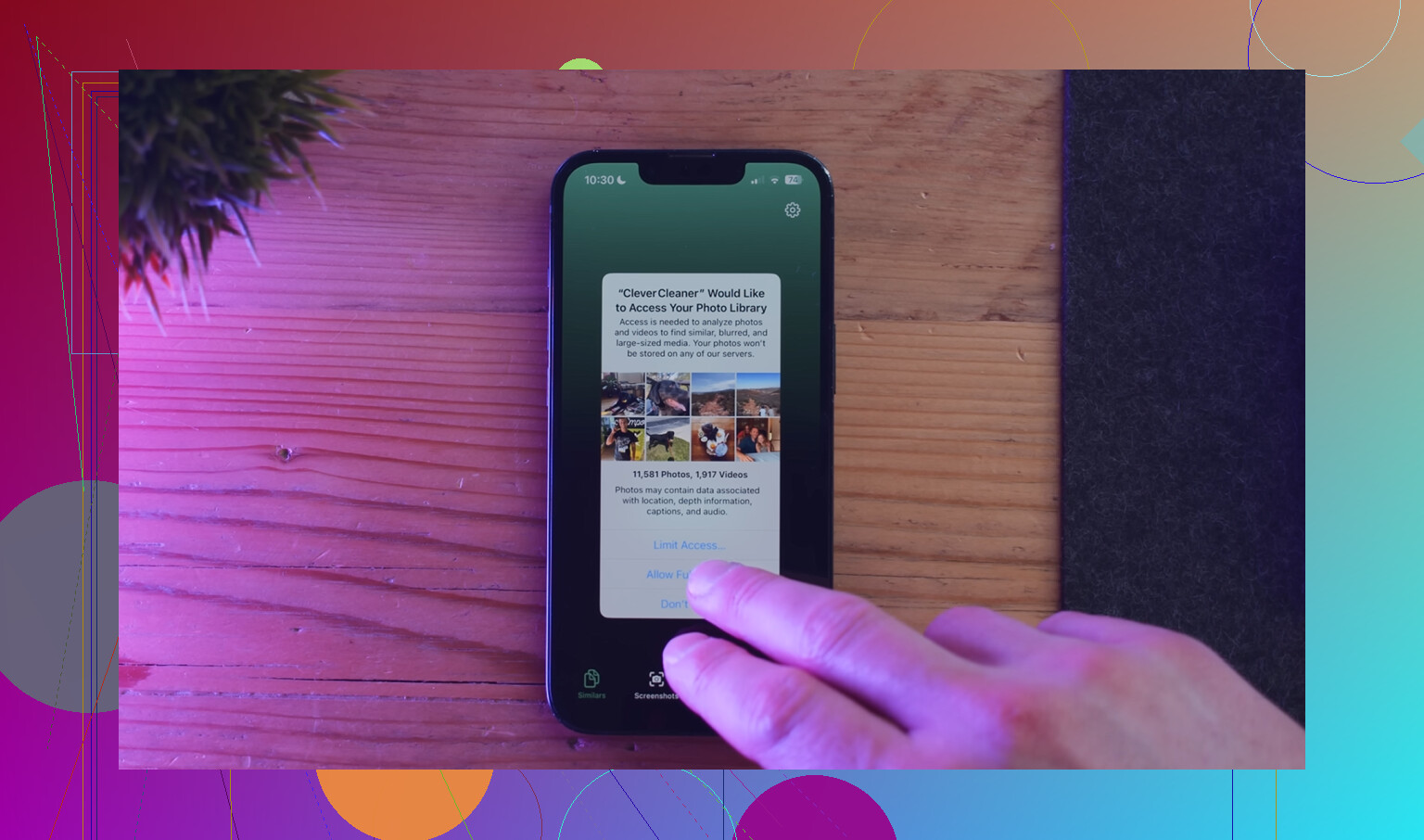
One angle I’d add to what @viajeroceleste, @jeff, and @mikeappsreviewer said: check whether Messages attachments are being mislabeled as Synced Media. I disagree a bit with the “erase and restore” route as the next move. That works, sure, but it’s overkill unless you’ve confirmed the storage category is truly stuck.
Try this instead:
- Settings → General → iPhone Storage
- Tap Messages and review large attachments
- Check Voice Memos too
- Then connect to Finder or Apple Devices and look at the Files tab for apps storing local media
Why this matters: iOS storage categories are sloppy. Sometimes old media caches get counted in weird places.
Also, if you used Home Videos years ago, those can linger under TV sync rules even if you think you removed movies already.
After the sync mess is gone, then I’d use Clever Cleaner for the stuff Apple never organizes well.
Pros: easy for duplicates, screenshots, large videos, quick scan.
Cons: won’t remove computer-synced media itself, and cleanup suggestions still need a human check.
So my order would be:
- Verify it isn’t Messages or app files
- Check old Home Videos / TV sync leftovers
- Reboot and recheck storage
- Only then consider reset-level fixes
- Use Clever Cleaner for photo library bloat, not the sync category itself
That usually separates real synced junk from fake reporting weirdness.