I’m trying to free up storage on my iPhone, but deleted files, photos, mail, and notes seem to have separate trash or recently deleted folders. Is there any way to empty trash across all iPhone apps at the same time, or do I have to clear each app manually?
Yeah, this is one of the more annoying parts of cleaning up an iPhone. There’s no single Empty Trash button like you’d have on a Mac or Windows PC. Apple basically makes every app manage its own deleted stuff, so you have to clear a few different places if you actually want the storage back.
The big one is Photos. Deleted photos and videos don’t disappear right away. They sit in Recently Deleted for 30 days, and during that time they still take up space. So if your phone is already full, deleting photos from the main library won’t help much until you empty that folder too.
In the newer Photos layout, Recently Deleted is tucked away under Collections, then down in the Utilities section. You may have to unlock it with Face ID or your passcode. Once you’re in there, tap Select, hit the three dots, then choose Delete All.
Notes and Files have their own deleted folders too. In Notes, keep tapping the back arrow until you get to the Folders screen, then look for Recently Deleted. In the Files app, go to Browse, check under Locations, and open Recently Deleted. Those usually stick around for about 30 days as well.
Also check Messages, because that one is easy to forget. Since iOS 16, deleted messages can sit in their own Recently Deleted area. Open Messages, tap Edit or the filter icon near the top, then choose Show Recently Deleted. If you send or receive a lot of videos, this can eat a surprising amount of storage.
Mail is separate again. Go into Mailboxes, open each account like iCloud or Gmail, then find that account’s Trash folder. From there you can usually tap Edit and clear everything with Delete All.
If your iPhone is lagging badly, storage being maxed out can absolutely be part of it. iOS needs some free space for cache, logs, and other temporary system stuff. If System Data looks huge in your storage settings, try a forced restart. It won’t delete your photos or apps, but it can clear out some temporary junk that doesn’t have an obvious delete button.
Going through Photos, Notes, Files, Messages, and Mail by hand works, but it gets old fast. I used to try doing it manually and would still miss things. When my phone got slow enough that opening the camera was a pain, I started looking for something that made the cleanup less tedious.
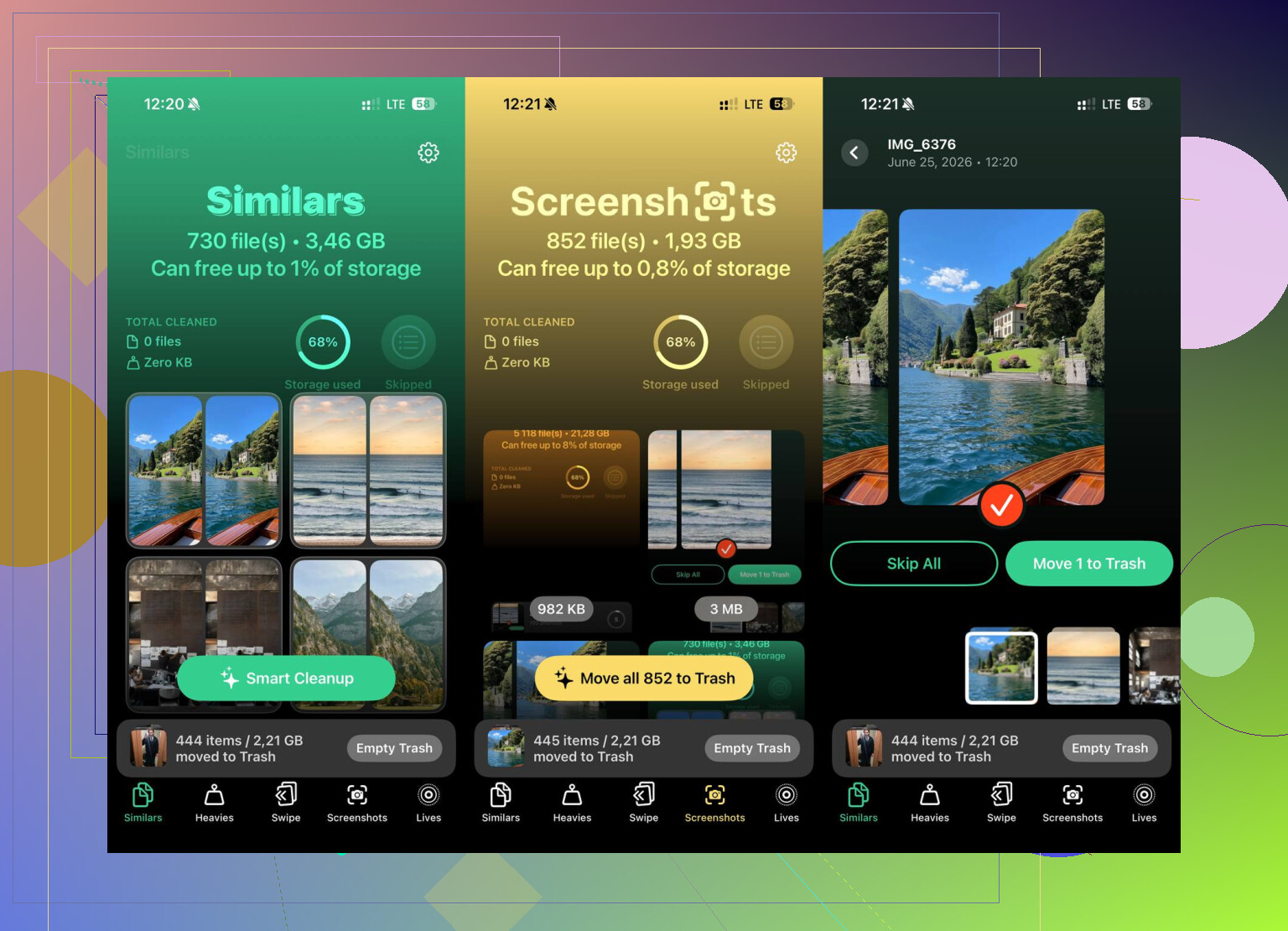
The app I ended up using was Clever Cleaner. The main reason I kept it is that it’s completely free, with no ads constantly popping up and no paywall just to delete files.
Its Heavies tab sorts photos and videos by size, which is useful because deleting a few huge videos can free up more space than deleting hundreds of tiny images. The Similars tab uses AI to find near-duplicate shots, like all those slightly different photos you took before picking the best one. It also shows the exact file size for screenshots and photos, which makes it easier to decide what’s actually worth keeping.
The privacy part matters too. It processes everything on-device, so it’s not uploading your photos somewhere else just to scan them.
I’d still start by emptying the built-in Recently Deleted folders first, since that’s where a lot of “deleted” storage is usually hiding. But if your phone is still packed after that, Clever Cleaner is worth checking out. It made cleanup a lot less painful for me.
10 Likes
Deleting a photo and deleting something from Files are two different jobs on iPhone, even though they feel like the same “trash” action. There isn’t a master empty-trash switch, and I wouldn’t trust any cleaner app to empty every app’s deleted folder because Apple keeps most of that separated. The annoying caveat is that storage may not update right away after you clear Recently Deleted, especially with iCloud Photos or Mail accounts syncing in the background. After clearing the obvious places, restart the phone and check Settings > General > iPhone Storage again. If the number still looks wrong, it may be app cache or synced data rather than trash, so deleting/offloading a bloated app can sometimes do more than hunting through deleted folders.
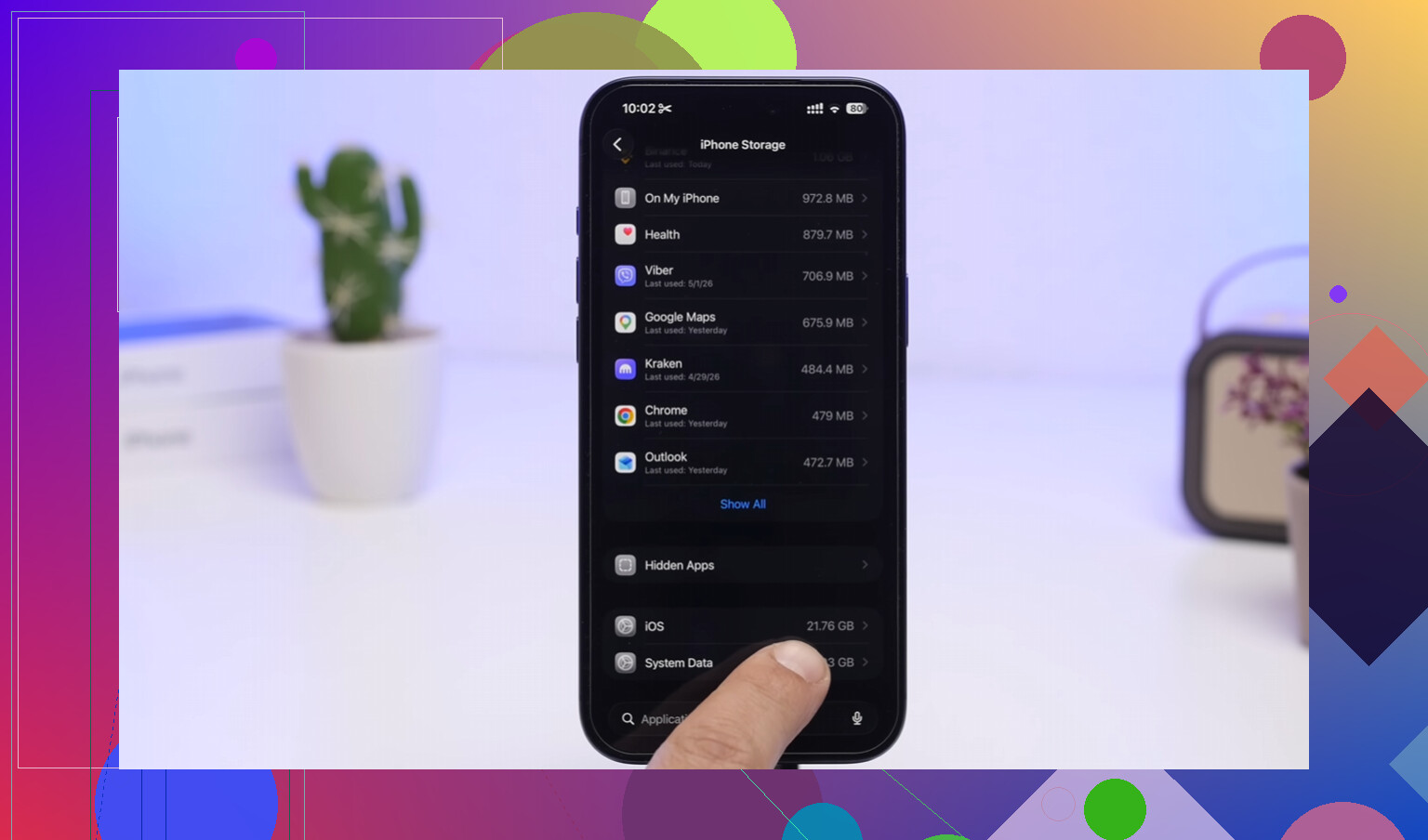
Expect this to be a cleanup route, not a single button. The replies above are right about Photos, Files, Mail, Notes, and Messages, but the easy-to-miss bit is third-party apps: Google Photos, Drive, Dropbox, WhatsApp, Signal, etc. can have their own deleted items, media storage, or cached downloads that iOS won’t clear from a central place. For those, open the app’s own storage/trash settings, or if you don’t need its local data, offload or delete and reinstall the app. I’d be careful with “cleaner” apps too, including Clever Cleaner or any similar tool: they can help find big videos or duplicates, but they cannot magically empty every app’s private trash folder.
If your goal is freeing local iPhone storage, emptying “trash” may not be the fastest win if most of the space is tied up in iCloud-synced apps or app caches. There’s still no all-app trash button, so I’d check Settings > General > iPhone Storage first and let that list tell you which app is actually worth cleaning, offloading, or reinstalling. Deleted folders are worth clearing, but don’t chase every trash can if one app is taking 40 GB by itself.