I’m trying to free up storage on my iPhone, but deleting photos one by one is taking forever. I have hundreds of old screenshots and duplicate pictures in the Photos app and need an easy way to select and delete multiple photos at once without messing up my albums or iCloud photos.
The fastest way depends on what you’re trying to delete. If it’s just a chunk of photos, the Photos app is fine. If you’re dealing with thousands, doing it all on the phone gets old fast.
I ran into this after my iPhone kept complaining about storage, even though I thought I had already cleared out the obvious junk. Then I checked Photos and found more than 18,000 items sitting there. Manually tapping through that was not happening, so I ended up using a few different methods.
Use the Photos app for smaller cleanups
For a few hundred photos, or stuff from one vacation, event, or random burst of pictures, Apple’s Photos app works well enough.
- Open Photos.
- Tap Select in the top-right corner.
- Drag your finger across photos instead of tapping them one at a time.
- If there are a lot, pinch out to the Months view first so you can move through bigger sections faster.
- Tap the trash icon once everything you want gone is selected.
This gives you the most control, but it gets painfully slow once your library is huge.
Clear out media types like screenshots
If screenshots, screen recordings, bursts, or similar stuff are taking up space, check the built-in albums Apple already creates.
- Open Photos.
- Go to Collections.
- Scroll down to Media Types.
- Open something like Screenshots, Bursts, or Screen Recordings.
- Tap Select, then Select All.
- Delete the items.
This is much less annoying than manually selecting everything, mostly because Apple actually gives you a Select All option in these albums.
Use Clever Cleaner if your library is a mess
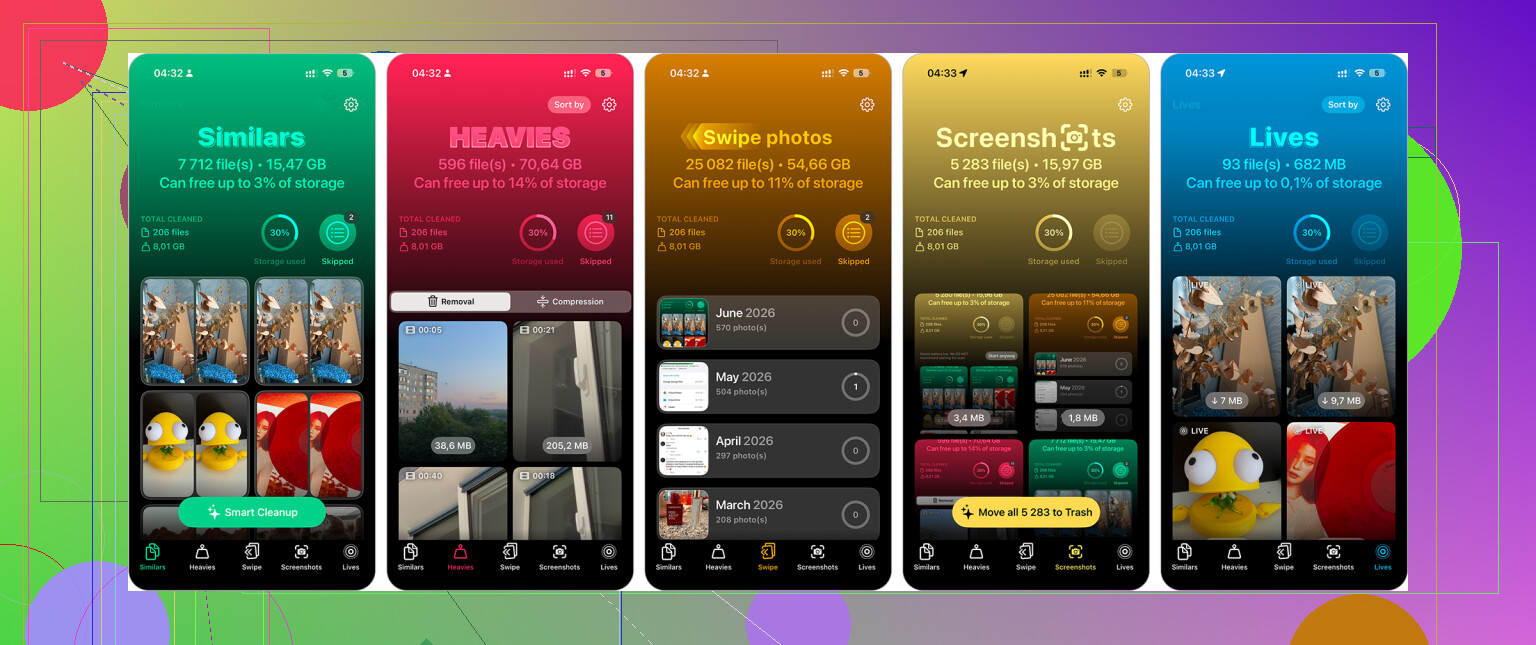
For a large photo library, this saved me the most time. Clever Cleaner sorts your photos into cleanup-friendly groups instead of making you dig through everything manually.
- Install and open Clever Cleaner.
- Check Similars to review groups of almost identical photos. It suggests a Best Shot to keep.
- Swipe away duplicates or similar shots you don’t want.
- Use Screenshots if you want to bulk-delete those.
- Look at Live Photos if you want to turn them into normal still photos and save space.
- Open Heavies to find the biggest videos, since deleting a few large videos can free up more space than deleting tons of photos.
I’m usually skeptical of cleaner apps because a lot of them are packed with ads or push subscriptions, but this one is free and was actually useful for sorting through a big library.
Use a computer for bulk deleting
If you’re deleting thousands of photos, a computer is usually easier than fighting with the iPhone screen.
- Go to iCloud.com on your computer if you use iCloud Photos.
- Sign in.
- Use Shift-click to select big ranges of photos.
- Delete the ones you don’t want anymore.
- Wait for the changes to sync back to your iPhone.
A mouse and keyboard make this way less frustrating, especially when you’re selecting large blocks at once.
Factory reset only if you want everything gone
If you truly don’t need anything on the phone anymore, photos included, a reset is the fastest way to wipe it.
Back up anything you might want later before doing this.
- Go to Settings > General > Transfer or Reset iPhone.
- Tap Erase All Content and Settings.
- Follow the steps on the screen.
I wouldn’t use this just to clean up photos unless you’re completely sure. But if you’re selling the phone, handing it off, or starting over from scratch, it clears everything the fastest.
9 Likes
Deleting a big photo library is usually a two-step cleanup, because the space may not come back until Recently Deleted is cleared. After you delete the batch in Photos, go to Albums, scroll to Recently Deleted, unlock it if prompted, then choose Select and Delete All. Until you do that, iOS may still count those photos against your storage for a while.
The other thing to watch is iCloud Photos. If it’s turned on, deleting photos from your iPhone deletes them from iCloud and any other Apple devices using the same library. That’s fine if you really want them gone, but it surprises people who think they’re only clearing local phone storage. If your goal is just to make the phone use less space, check Settings > Photos and make sure Optimize iPhone Storage is on before you start nuking everything.
For screenshots specifically, I’d use the Screenshots album and Select All, then quickly unselect anything important before deleting. For duplicates or similar shots, a cleaner app can save time, but I’d still review before confirming anything. The Photos app is slower, but it is less likely to wipe something you meant to keep.
If the trash icon is missing or grayed out, those photos may have been synced from a computer instead of saved normally on the phone, and you won’t be able to delete them in bulk from Photos. In that case you have to connect the iPhone to the Mac/PC you synced with and change what albums are synced. For normal camera roll photos, use Select, drag across a row, then keep your finger near the bottom edge to auto-scroll while it keeps selecting. It is a little fiddly, but much faster than tapping hundreds of thumbnails. Then empty Recently Deleted like @viaggiatoresolare said, because deleting alone usually won’t free the space right away.
The annoying catch is that your storage number may not drop right away, even if you deleted the photos correctly. iOS can take a while to recalculate, and if the photos are still in Recently Deleted, they are basically still taking up space.
For your exact case, screenshots are the easy win: open Photos, go to Albums, scroll to Media Types, open Screenshots, tap Select, then use Select All if you really want to wipe them. I would not do that blindly, though. Screenshots often include receipts, passwords, confirmation codes, or random “I’ll need this later” stuff. A safer trick is to select all, then quickly tap the few you want to keep so they are unselected before hitting the trash.
For duplicates, I’d be more cautious than with screenshots. The built-in Duplicates album is worth checking if it appears under Utilities, because it merges duplicates instead of making you manually judge every copy. If you use a cleaner app like Clever Cleaner, treat it as a sorting helper, not an autopilot delete button. Let it group similar shots, but still review the keep/delete choices before confirming. The fastest cleanup is usually screenshots first, big videos second, duplicates last.