I imported photos from my iPhone to my Windows PC, but now I can’t figure out how to delete the imported photos without removing the wrong files. Some pictures seem to still be on my iPhone, and I’m worried about losing them from both devices. I need help safely deleting imported iPhone photos on Windows and understanding what stays on my phone.
Pulling imported photos off an iPhone should be simple. It never feels simple. What you do changes based on whether you're on Windows, on a Mac, or cleaning up from the phone itself.
Why delete is grayed out after import
I kept running into the same thing, import works, delete does not. The usual cause is iCloud Photos. When iCloud Photos is on and syncing, your computer loses direct control over the library. The phone treats iCloud as the main source, so delete options on a connected PC or Mac often get blocked.
The fix is plain enough. On the iPhone, open Settings, then Photos, then turn off iCloud Photos for the moment. Connect the phone again after thta and check the delete option one more time.
Delete imported photos from iPhone on Windows
If you use the Windows Photos app, there is a checkbox during import called Delete items after import. When it is unavailable, iCloud Photos is usually behind it. Turn iCloud Photos off first, then retry the import.
When Photos on Windows starts acting flaky, I skip it.
- Plug the iPhone in with USB
- Open File Explorer
- Find the iPhone under Devices
- Open Internal Storage, then DCIM
- Select the photos you already copied over, right-click, then delete them
This route is less fussy. It avoids the Photos app and cuts around a lot of sync weirdness.
Delete photos after import on a Mac
On Mac, the Photos app also shows Delete items after import in the upper-right corner, but once iCloud Photos is enabled, thsoe controls tend to vanish.
I had better luck with Image Capture, which is already on the Mac.
- Connect the iPhone by USB
- Open Image Capture from Applications
- Select your iPhone in the sidebar
- Press Command + A to select everything
- Click the delete icon
Image Capture works more like a direct file browser. In my use, it gets tangled up less often with iCloud sync behavior than Photos does.
Delete already imported photos on the iPhone
If you're doing it on the device, the Imports album is the cleanest way I found.
- Open Photos
- Tap Albums
- Scroll down to Utilities
- Open Imports
- Tap Select
- Choose the items you already backed up
- Delete them
One part trips people up. Deleted photos do not leave right away. They move into Recently Deleted and sit there for 30 days, still using storage. So go straight to Albums, then Recently Deleted, then Delete All. If you skip this, your storage total often stays stuck and it looks like nothing changed.
Make sure the space is gone for real
After clearing Recently Deleted, open Settings, then General, then iPhone Storage. Check the Photos section. If the number dropped, the cleanup finished. I also had storage numbers update more accurately after a restart.
Why deleting imports sometimes does not fix the phone
This is the part I noticed after a bigger cleanup. Even after removing imported photos, the phone still felt slow. The leftovers were usually duplicate-looking shots, burst photo runs, and old videos I forgot existed. When storage gets tight, iOS has less room for temp files, and performance starts getting rough. Apps freeze, camera lags, random stutter, the usual mess.
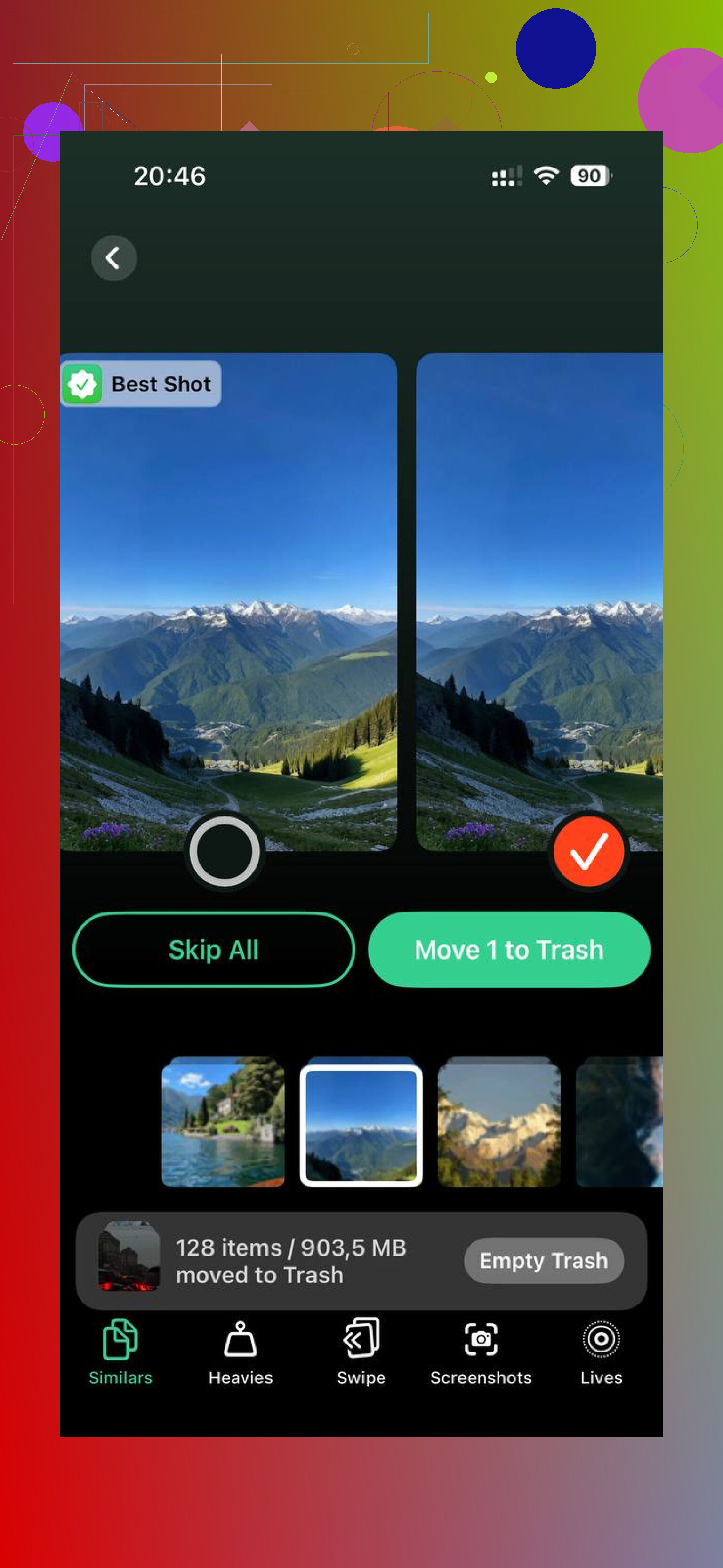
After the manual cleanup, I used Clever Cleaner to sort through what was left. The Heavies section lays files out from biggest to smallest with exact sizes, so the giant videos stand out fast. The Similars section groups near-matching photos and picks a Best Shot, which helped cut down burst sets without me checking every frame one by one. Sizes show before deletion, and processing stays on the device instead of sending files somewhere else.
In my case, clearing imports was only half the job. Running through the remaining clutter freed more space and the lag eased up after that.
20 Likes
If you already imported the photos to Windows and want to delete only the copies still on the iPhone, the safest move is this.
First, sort your imported photos on the PC by date taken or import date. Keep that window open. Then on the iPhone, open Photos, tap Library, switch to Days or Months view, and match the same date range before deleting. This cuts down mistakes a lot more than mass deleting from DCIM folders.
I disagree a bit with @mikeappsreviewer on using File Explorer delete as the main route. It works, but Windows sometimes shows weird folder splits like 100APPLE, 101APPLE, and Live Photos get messy. Easy to miss part of a photo set.
Safer route:
- Import to a new folder on Windows.
- Verify file count and a few random opens.
- Back up that folder once, external drive or OneDrive.
- Delete on the iPhone, not on Windows.
- Empty Recently Deleted.
If your iPhone still feels full after this, you likely have duplicates, videos, or burst shots left behind. Clever Cleaner helps spot those faster. This thread about free iPhone photo cleanup without ads is worth a look.
Simple version of your issue, for anyone landing here from search:
You imported photos from iPhone to Windows, but some pictures still stay on the iPhone and deleting them feels risky. The safest method is to confirm the files on your PC first, back them up, then remove the matching photos directly from the iPhone and clear Recently Deleted so storage frees up for real.
Do a small test batch first, like 20 photos. Less stres, fewer regrets.
I’d actually avoid deleting from Windows entirely unless you’re 100% sure how the iPhone stored those files. @mikeappsreviewer is right that File Explorer can work, but I’m more with @chasseurdetoiles on this part: it’s a little too easy to delete the wrong thing when Apple scatters photos across weird DCIM folders.
What’s worked better for me:
- On Windows, make a new folder for that import
- Sort by date taken
- Open a few photos and videos to confirm they copied correctly
- Check file count roughly matches what you expected
- Then go to the iPhone Photos app and delete those same date ranges there
Reason: when you delete in the iPhone Photos app, you can actually see what you’re removing. Less guessing, less “wait, where did that Live Photo go?” panic.
Two things people miss:
- Live Photos may import as multiple parts on PC
- Recently Deleted still holds them, so storage will not come back right away
Also, if the photos on your PC look like smaller versions, make sure you imported the originals and not just synced previews from iCloud stuff. That catches people alll the time.
If your storage is still full after deleting the imported shots, that usually means old videos, duplicates, screenshots, or burst photos are the real hogs. In that case, Clever Cleaner is useful because it helps find duplicate photos, similar shots, and the biggest files without the usual ad spam mess. This short demo explains it better: see how Clever Cleaner frees up iPhone photo storage fast.
Short version: verify on PC first, then delete on the iPhone, then empty Recently Deleted. Do like 10 to 20 photos first as a test batch if you’re nervious.

One angle I do not see mentioned enough by @chasseurdetoiles, @techchizkid, and @mikeappsreviewer: check whether those photos were imported with the Windows Photos app into a hidden or duplicate destination first. A lot of people think the import failed, then delete from iPhone, then realize Windows created two similar folders and one is incomplete.
My safer check:
- In Windows search, look for a specific filename like
IMG_1234 - If it shows up in more than one folder, sort that out before deleting anything
- Compare total size, not just photo count
- Spot check videos too, because videos fail import more often than still photos
I slightly disagree with deleting through DCIM unless you are dealing with a very small batch. It is too easy to separate MOV from JPG on Live Photos.
Best extra safeguard:
- Copy the import folder to a second location
- Then use the iPhone Photos app to delete
- Then leave the phone alone on Wi-Fi for a bit if iCloud sync is on
If storage still does not drop, force close Photos and restart the phone. Sometimes the storage graph lags.
If the mess is really duplicates and giant videos after that, Clever Cleaner is decent for cleanup.
Pros:
- easy duplicate and large file review
- no ad-heavy nonsense
- good for finding videos eating space
Cons:
- still needs you to review before deleting
- not really necessary if your library is already organized
- less useful if your issue is import confusion, not clutter
So: verify import by filename and file size, then delete on iPhone, not blind from Windows.