I downloaded movies and shows in a few streaming apps on my iPhone for a trip, and now my storage is almost full. I can’t figure out how to remove the downloads from inside the apps, and deleting the app isn’t what I want. I need help finding the right steps to free up space without losing my account or settings.
I ran into this mess more than once. iPhone storage cleanup sounds simple until you try doing it. Apple spreads stuff all over the place, so you delete one thing, then find out it is still sitting somewhere else. When your phone throws the 'Storage Almost Full' alert, or typing starts to lag, storage is often the thing choking it.
For streaming app downloads, the annoying part is this, you usually will not remove them from the main iPhone storage screen. Netflix, Spotify, YouTube, Disney+, stuff like that keeps downloads inside each app. So you need to open the app itself, find its Downloads or Offline area, and clear it there.
A small shortcut exists for Apple Music. If your downloaded songs are eating space, go to Settings > Music > Downloaded Music. Tap Edit, then remove individual artists or hit All Songs if you want it all gone in one shot.
The bigger trap is Recently Deleted. A lot of people miss this, then wonder why storage barely moved after a cleanup. On iPhone, delete does not always mean erased.
Inside the Files app, deleted PDFs, documents, and other files usually sit in Recently Deleted for 30 days. If you want the space back now, open Files, go to Browse, open Recently Deleted, and wipe it out manually.
Same deal in Photos. Deleted pictures and videos go into the Recently Deleted album under Utilities. If you are clearing space today, you need to remove them there too. Otherwise they still count for a while.
If your goal is to remove a file from the phone but keep it in iCloud, do not hit Delete. I learned this one late. In the Files app, if the file lives in iCloud Drive, press and hold it, then choose Remove Download. This clears the local copy from your iPhone while keeping the file in iCloud. Later, you tap the cloud icon and pull it back down when you need it.
There is another spot people forget. Browser downloads. Chrome, Firefox, and similar apps often stash files in their own folders inside Files. Open Files > On My iPhone and check for folders named after those apps. I found old PDFs, ZIP files, and random junk there I did not even remember saving.
If storage still looks wrong after a cleanup, two things usually caused it for me. First, one of those hidden trash bins still had stuff in it. Second, iOS had not updated the storage numbers yet. A restart sometimes fixes the storage bar and makes the freed space show up.
I had one stretch where my phone got so sluggish I could barely type without delay. Turned out I had a pile of duplicate photos, plus old 4K video downloads from Safari, and they were taking up a stupid amount of space. I started cleaning it by hand and gave up pretty fast. Too slow, too much digging.
I ended up using a third-party cleaner called Clever Cleaner. Most apps in this category felt shady when I tested them, lots of paywalls, lots of nags, lots of ads. This one was the only one I stuck with because it was free and did not keep blocking basic cleanup behind some upgrade screen.
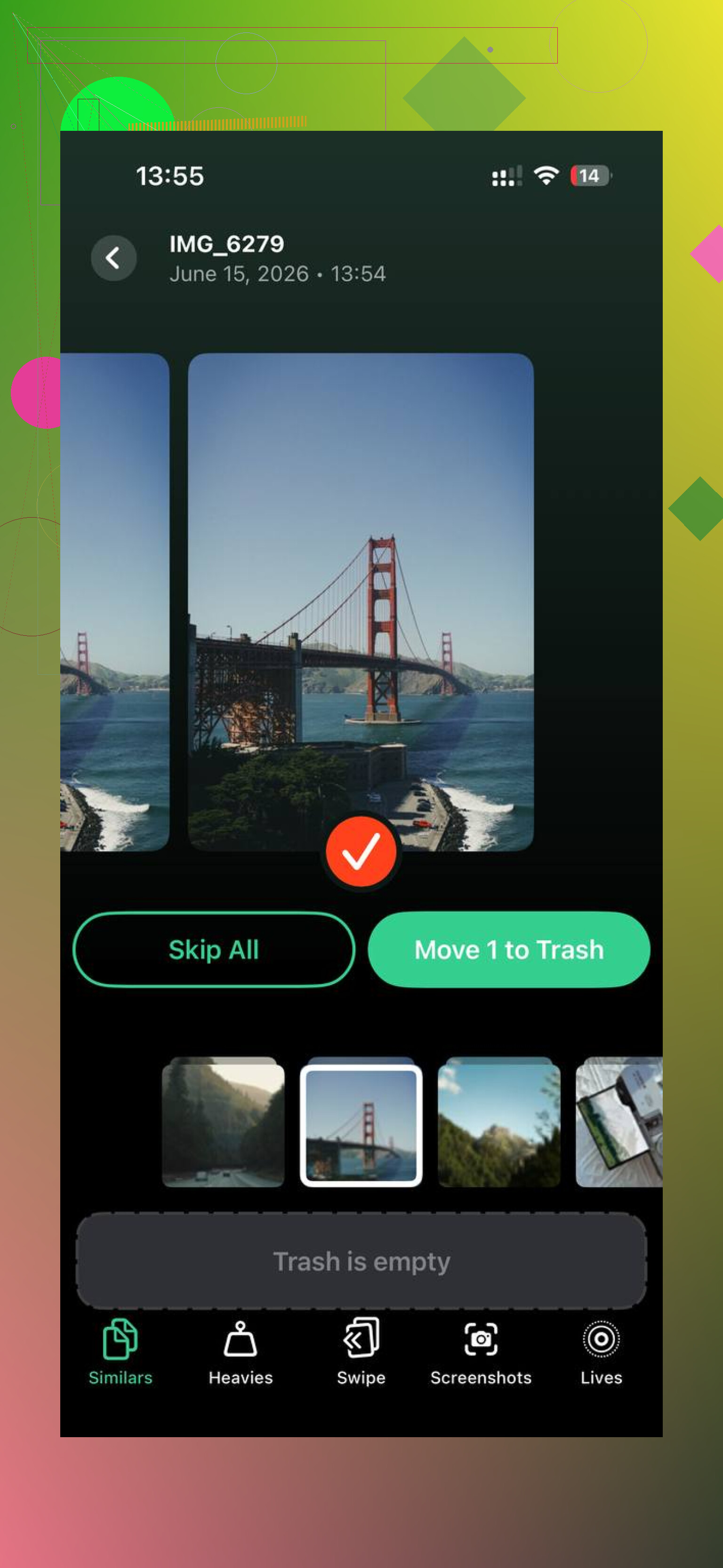
The part I kept using was the Heavies section. It sorts videos and photos by file size, so the big storage hogs float straight to the top. If one video is 2GB, you see it fast instead of hunting for it through your library.
It also has a Similars section for near-duplicate photos. Mine caught those bursts where I took six or seven shots of the same thing and forgot about them. That alone saved me a lot of time.
The one thing I liked most was privacy. From what I saw, it handled the scan on the device itself, so my photo library was not getting pushed to some random server. After I cleared around 30GB between duplicates and oversized files, the lag on my iPhone dropped off hard. Felt normal again.
If you are cleaning storage right now, I would check things in this order:
1. Delete downloads inside each streaming app.
2. Empty Recently Deleted in Files.
3. Empty Recently Deleted in Photos.
4. Check Files > On My iPhone for browser folders and app leftovers.
5. Use Remove Download for iCloud files you do not need stored locally.
6. Restart the phone and recheck storage.
The main gotcha is simple, if you skip the trash folders, you did not free much. You only moved the mess into another room.
11 Likes
You need to delete them inside each app’s own download section. iPhone Settings will show the storage use, but it usually will not let you manage the files there.
Fast path for the big apps:
Netflix, open My Netflix, Downloads, tap the pencil or swipe, delete.
Disney+, tap Downloads from the bottom bar, Edit, remove titles.
Max, open Downloads, Edit, delete.
Prime Video, My Stuff, Downloads, then remove.
Hulu, Downloads, Edit, delete downloaded episodes.
YouTube Premium, Library, Downloads, tap the 3 dots, Delete from downloads.
Spotify and Apple Podcasts work the same way, go into Downloaded or Your Library and remove there.
One thing I disagree with from @mikeappsreviewer, restarting is fine, but if storage is tight right now, I’d check each app’s download quality setting first. Some apps save in High quality by default, and one movie can eat 1GB to 3GB easy. Lowering future download quality stops this from happening agian.
Also check this on iPhone:
Settings, General, iPhone Storage, tap the streaming app.
Some apps show an Offload App option. Do not use it if you want your app data untouched. Offload removes the app binary, not always the offline files in the clean way people expect.
If you want a cleaner way to find what else is taking space after the streaming stuff is gone, Clever Cleaner is decent for photos and big files. For user feedback, see Clever Cleaner app reviews from real users.
If one app still looks bloated after deleting downloads, open it, sign out, force close, reopen. A few of them keep the storage count wrong for a bit. Annoying, but common on iOS.
A thing I’d add to what @mikeappsreviewer and @reveurdenuit said: if the app has a smart download or auto-download setting turned on, it may keep re-downloading stuff after you delete it. That’s why people clear downloads, check storage later, and go wait why is it full again?
Check inside each streaming app for settings like:
- Smart Downloads
- Download Next Episode
- Auto Download on Wi-Fi
- Keep Downloads Updated
Turn those off first, then delete the offline titles. Otherwise you’re basicly bailing water while the tap is still on.
Also, don’t trust the storage number immediately. Some apps keep a chunky cache even after downloads are removed. I actually disagree a little with the “sign out” suggestion people sometimes give, because that can be annoying if you forget passwords or lose app preferences. I’d try this order instead:
- Delete the downloads in the app
- Disable auto-download features
- Force close the app
- Wait a few mins and recheck iPhone Storage
If one app still shows huge storage, sometimes there’s a Clear Cache button buried in that app’s settings, which is safer than deleting the whole app.
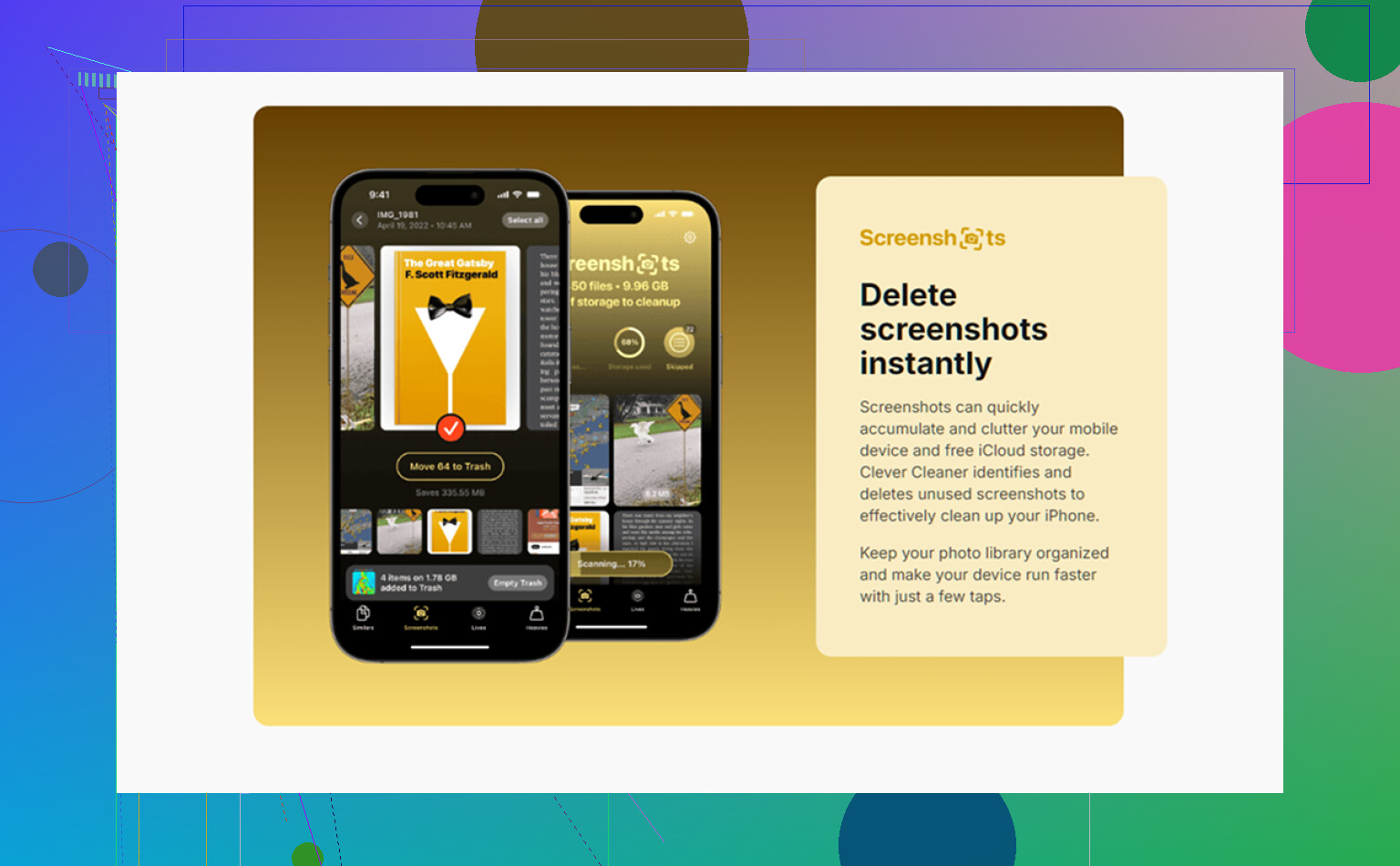
And if the streaming stuff is gone but your phone is still packed, then yeah, it’s usually photos/videos doing the damage, not Netflix. Clever Cleaner is actually useful for that part since it surfaces large videos and duplicates way faster than digging through Photos manualy.
If you want a quick visual walkthrough, this Clever Cleaner video review for clearing iPhone storage fast is easier than poking around blind in Settings.
One extra angle the others did not hit, especially @reveurdenuit, @viaggiatoresolare, and @mikeappsreviewer: some apps split downloads from cached streaming data. So you can delete every offline episode and the app may still look huge for a while because temporary video cache sticks around. That is not always user-accessible, and honestly I disagree a bit with the idea that sign-out is the next best move. Usually I would try Clear Cache inside the app first if it exists, because sign-out can be a pain with TV-provider logins and parental settings.
Also check whether the app stores downloads in higher audio/video formats than you realized. On some services, HDR or “Best Available” quality quietly balloons storage.
If you want to verify what actually shrank, compare:
- Settings > General > iPhone Storage
- App’s own Downloads section
- Available iPhone storage after a few minutes, not instantly
If storage is still bad after the streaming cleanup, it is often photos and local files, not the apps anymore. That is where Clever Cleaner can help.
Pros of Clever Cleaner
- quick at surfacing large videos
- good for duplicate/similar photos
- simpler than digging manually through Photos and Files
Cons
- does not manage in-app streaming downloads for you
- cleanup suggestions still need your review
- less useful if your problem is only app caches
So yes, delete from inside each app, but if the size does not drop right away, do not assume the downloads are still there. Sometimes it is just cache lag or iOS storage reporting being weird.