I realized a huge number of pictures in my Camera Roll were saved as Live Photos, and now they’re taking up more space than I expected. I’m trying to find a quick way to bulk turn off Live Photos instead of editing each one individually. Is there an easy method on iPhone to disable Live Photos in batches or across my whole library?
Your photo library gets messy fast when Live Photos pile up. I noticed it after trying to send a plain receipt pic and ending up with a tiny video instead. Same thing with grocery lists, whiteboard notes, random docs. It eats storage, and the clutter gets old.
- Stop new Live Photos from sneaking back on
Do this first or you’ll clean things up once and end up back in the same spot.
Go to Settings > Camera > Preserve Settings. Turn Live Photo on there. Then open the Camera app and switch Live Photo off.
What this does is simple. Your iPhone keeps your choice. If you turn Live Photo off in Camera after enabling Preserve Settings, it stays off instead of quietly turning itself back on later.
After I fixed this part, the cleanup felt worth doing.
- If your library is huge, use an app and be done with it
I tried the manual route first. Bad idea. If you’ve got hundreds of Live Photos, doing them one by one turns into a chore fast.
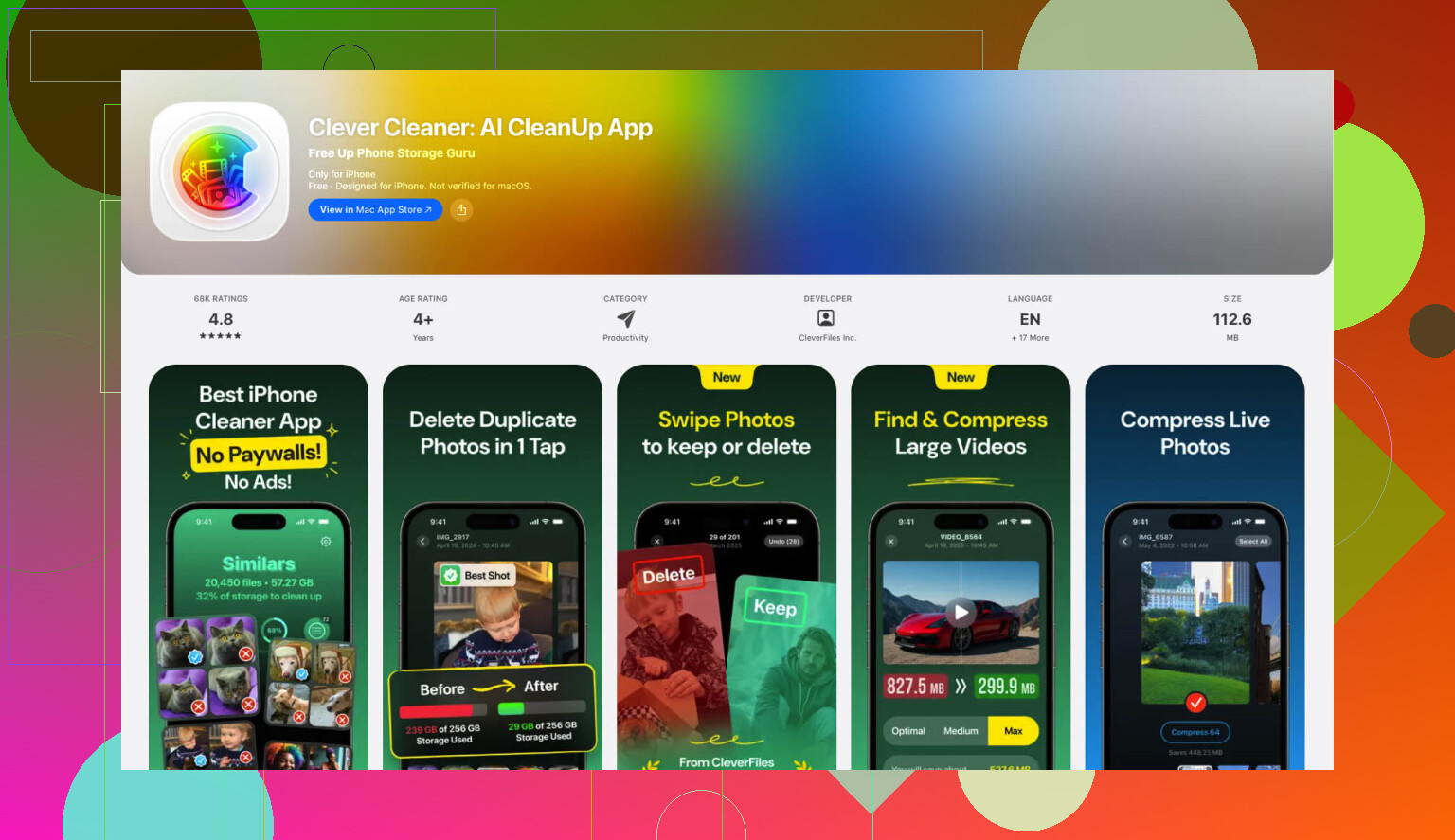
The cleanest option I found was Clever Cleaner.
What stood out to me:
- free
- no ads
- no subscription wall
- has a section built for Live Photos
How it works:
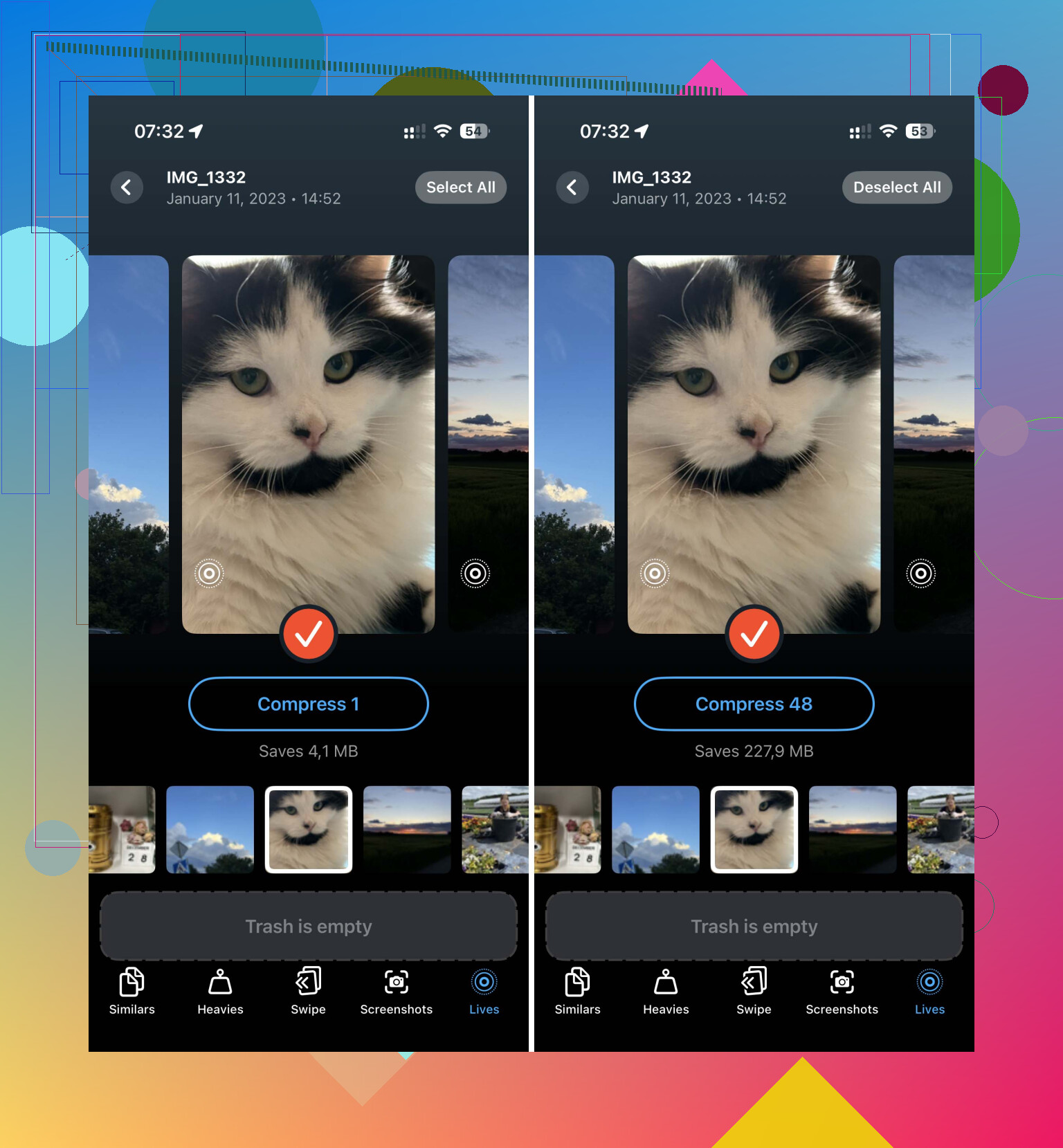
- Open the app and go to the Lives section.
- Sort by date or size if you want to hit the biggest files first.
- Tap Select All, then Compress.
The wording is a little odd because it’s not shrinking the image into mush. It removes the motion part and keeps the still image.
When it finishes, you get a choice to remove the original Live Photos or leave them in trash for a bit. It also shows how much space you get back. I like seeing the number before deleting stuff. Makes the cleanup feel less random.
- If you want Apple-only tools, use Shortcuts
I messed with this when I didn’t feel like installing anything. It works, though it takes more setup.
In Shortcuts:
- Make a new shortcut with the + button.
- Add Find Photos.
- Set the filter so Photo Type is Live Photo.
- Add Repeat with Each.
- Inside the loop, add Convert Image and set the format to JPEG or HEIF.
- Add Save to Photo Album.
Run it, and it makes still copies from your Live Photos.
One catch. The original Live Photos stay where they are. You still need to open the Live Photos album later and delete those yourself. So this is more of a conversion tool than a cleanup tool.
- For a small batch, use the built-in duplicate option
If you only need to fix a few photos, this is the quickest built-in method.
Steps:
- Open Photos.
- Go to Media Types > Live Photos.
- Tap Select and pick the ones you want.
- Tap the three-dot menu.
- Choose Duplicate.
- Pick Duplicate as Still Photo.
This gives you a new still image file. It does not replace the old Live Photo. If you want storage back, delete the original Live Photos after. Then clear Recently Deleted too. If you skip thar part, the files sit on your phone for 30 days.
What I’d do:
- huge library: use the app
- medium library and you like tinkering: Shortcuts
- small cleanup: Duplicate as Still Photo
The main fix, though, is stopping Live Photo from turning back on. If you miss that step, you’ll be cleaning the same mess again next week.
18 Likes
No built-in iPhone switch exists for turning all existing Live Photos into still photos at once. Apple lets you stop future ones, but old Live Photos need conversion or deletion in bulk.
I agree with part of what @mikeappsreviewer said, but I would skip the Shortcuts route for most people. It makes copies, leaves originals behind, and turns cleanup into a 2-step mess.
If your goal is space, do this:
-
Turn Live Photo off for future shots.
Settings > Camera > Preserve Settings > enable Live Photo.
Then open Camera and tap the Live Photo icon off. -
Bulk clean your current library with Clever Cleaner.
It has a Live Photos section, so you sort, select, and convert them into stills faster than doing it inside Photos. For storage cleanup, ths is the part most people care about. -
After conversion, empty Recently Deleted.
Otherwise your storage number won’t drop right away. A lot of ppl miss this.
If you want to review other cleanup tools in the app, this page is useful for seeing more storage-saving options like duplicate photo removal, large video cleanup, and screenshot sorting:
see how Clever Cleaner frees up iPhone storage
One more thing. If iCloud Photos is on, space savings on your phone and in iCloud depend on deleting the original Live versions everywhere. That part trips people up alot.
Nope, not with Apple’s built-in Photos app in the way people usually mean it.
You can bulk find Live Photos easily, but you cannot bulk switch all existing Live Photos into regular stills with one native toggle. That’s the annoying part. @mikeappsreviewer and @sonhadordobosque already covered conversion-heavy options, but I’d add this:
If your real goal is storage, sometimes the fastest move is not “turn off Live” but bulk review the Live Photos album and delete the junk ones first. A ton of Live Photos are accidental throwaways anyway, esp receipts, blurry notes, pocket shots, etc. That gets you space back way faster than carefully converting every single one.
Also, small correction to how a lot of ppl think about this: turning off the Live badge on an individual photo in Photos does not always equal the same kind of bulk storage reclaim people expect across the whole library. If you want a mass workflow, you’re basically looking at third-party cleanup or making still copies and removing originals.
So practical answer:
- future photos: disable Live Photo in Camera and preserve that setting
- existing small batch: edit individually or duplicate as still
- existing huge batch: use a cleaner app like Clever Cleaner and process the Live Photos section there
- fastest storage win: delete useless Live Photos first, then empty Recently Deleted
If you want a better breakdown of whether it’s actually worth using Clever Cleaner for this stuff, this review is decent:
see if Clever Cleaner is worth using for Live Photo cleanup
So yeah, short version: there isn’t a magic Apple “convert all Live Photos to stills” button. Kinda dumb, but that’s where things are rn.