I accidentally lost photos and video files from my SD card after connecting it to my PC, and now the card looks empty. I really need help finding a safe way to recover deleted files from an SD card on Windows before anything gets overwritten.
I’ve been in this exact mess. I deleted a whole batch of trip photos off an SD card before I copied anything over, and yeah, my stomach dropped for a sec. If you move carefully from here, your photos still have a decent shot.
Do these first. Right now.
- Stop using the SD card.
- Pull it out of the camera or phone.
- Do not take more photos or video on it.
Here’s the part people miss. Deleting files from an SD card usually removes the file references, not the photo data itself. The card marks the space as free, but the images often still sit there until new data lands on top of them. Once you keep shooting, recovery gets worse fast. If nothing overwrote the old data yet, you’re still in decent shape.
Before you install anything, check the obvious stuff.
- Look in Trash or Recycle Bin if the deletion happened while the card was plugged into your Mac or PC.
- Check cloud sync services like Google Photos, Dropbox, or OneDrive. If the card was used in a phone, auto upload might have been on and you forgot.
If the files are gone for real, recovery software is the next step. One thing I learned the hard way, don’t connect the camera to your computer with a USB cable and expect great results. A lot of cameras expose storage in a way recovery apps don’t scan well. Use an SD card reader and connect the card itself.
Out of the tools I tried, Disk Drill gave me the best result on camera media. I used it on a wiped card and it pulled back the missing shots.
Why I liked it:
- It handles camera formats well. It has a scan path aimed at camera files, including RAW formats and broken up video data.
- You get previews. This matters. You can check whether the photo opens before saving it.
- You can test it first. On Windows, the free tier recovers up to 100 MB, so you can see whether your files show up before paying.
If you want other routes, these are the ones I’d look at.
- Windows File Recovery is Microsoft’s own free tool from the Microsoft Store. I tried it. It works better on regular Windows drives than on SD cards, at least from what I saw. It also runs in a command window, so if you hate typing commands, this one feels rough fast.
- DiskDigger is small and easy to run since it doesn’t need a full install on PC. It’s decent at finding photo files. The annoying part, the free desktop version makes you wait 5 seconds and confirm each recovery one by one. Fine for ten photos. Misreable for three hundred. There’s also an Android app, but deep scanning there needs root access.
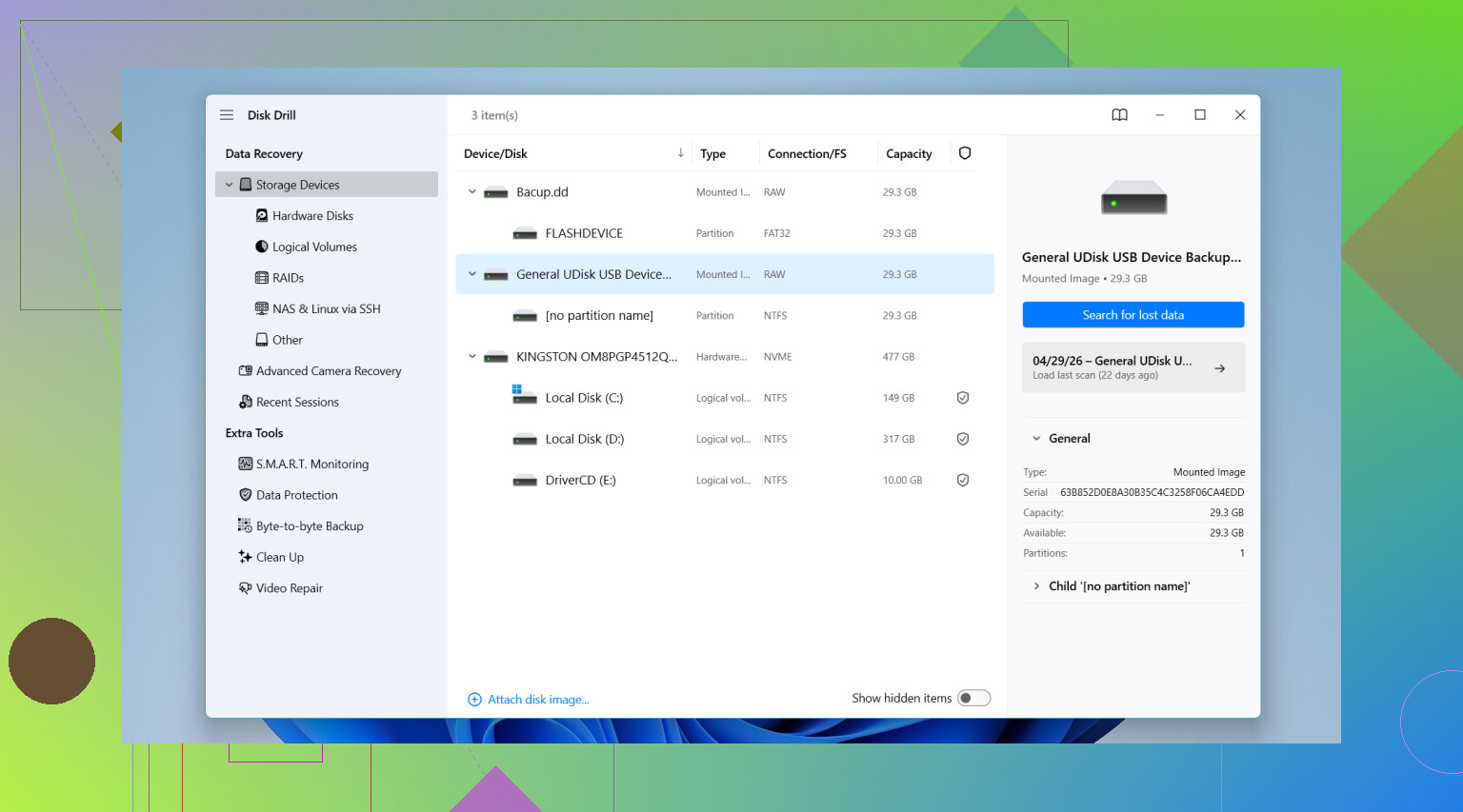
If you use Disk Drill, the flow is simple enough. Put the SD card in a card reader, open the app, select the card, start the scan with Advanced Camera Recovery, then wait it out.
One more rule, and don’t ignore this one.
When the app asks where to save recovered files, do not save them back to the SD card.
Save everything to your computer’s internal drive or another separate storage device. If you restore files onto the same SD card during recovery, you risk overwriting other photos the software hasn’t pulled yet. I’ve seen people do this and make a bad day worse.
9 Likes
First, check whether the card is empty or the file system is messed up. Windows sometimes assigns no drive letter, or the SD card flips to RAW after a bad disconnect. Open Disk Management. If the card shows a partition but no letter, assign one. If it shows RAW, stop there and scan it before you do anything else.
I agree with @mikeappsreviewer on using a card reader. I don’t fully agree on checking Recycle Bin first as the main move, because if the card now looks empty, this is often a file system issue, not normal delete behavior.
Best safe path on Windows:
-
Make a byte-for-byte image of the SD card first.
Use USB Image Tool, Win32 Disk Imager, or HDD Raw Copy Tool. Save the image to your PC. Work from the image if possble. This lowers risk if the card is failing. -
Run CHKDSK only if you suspect hidden files, not deletion.
Command:
chkdsk X: /f
Sometimes lost photos get turned into hidden files or found.000 fragments. Sometimes CHKDSK makes recovery worse on damaged cards. So do this after imaging, not before. -
Scan with recovery software.
Disk Drill is a solid option on Windows for SD card photo and video recovery, especially if you need previews and support for common camera formats. PhotoRec is another strong pick if you want a free tool, but it skips original filenames and folder structure. Recuva is fast, though weaker on formatted or corrupted cards. -
Recover to your PC drive, not back to the SD card.
If the videos matter more than the photos, this helps too:
SD card video recovery guide for Windows PCs
One more thing. If the card came from a phone or action cam, look for a DCIM, PRIVATE, or Android folder with hidden files enabled in File Explorer. I’ve seen files “disappear” because Windows hid them after a file system error. Small thing, but worth 30 sec to check.

If the SD card suddenly looks empty on Windows, I’d check one thing that neither @mikeappsreviewer nor @mike34 really leaned on enough: whether the files are still there but the directory got scrambled.
A couple quick checks before full recovery:
- In File Explorer, enable Hidden items
- Open Command Prompt and try:
attrib -h -r -s /s /d X:\*.*
ReplaceXwith the SD card letter
Sometimes photos/videos get marked hidden after a bad unplug, and the card looks blank even tho the data is still there.
Also, look at the card’s used space in Properties. If it says, for example, 20 GB used but no files visible, that usually points to file system weirdness, not true deletion. Different problem, different fix.
If the used space is basically 0, then yeah, recover it like they said. I’d still avoid messing with CHKDSK unless you already made an image, because CHKDSK can “fix” things into a bigger mess. Been there, super fun, 10/10 regret.
For actual recovery on Windows, Disk Drill is a solid pick for SD card photo and video recovery because it can show previews and tends to do well with camera media. I’d scan first, preview what’s recoverable, then restore only to your PC drive.
Also worth reading: how to recover deleted files from an SD card on Windows
Biggest mistake now is poking at the card too much. Every “maybe this will fix it” move can make recovery worse.
One thing I’d add to what @mike34, @viaggiatoresolare, and @mikeappsreviewer said: check the SD card’s SMART-like behavior by symptoms, not just the file system. If Windows freezes when you open the card, the copy speed drops to 0, or the card disconnects/reconnects, that points more to hardware failure than simple deletion. In that case, skip CHKDSK and skip repeated rescans. Every extra read can be the one that finishes it off.
What I’d do differently:
- Try copying the entire visible card contents with TeraCopy or
robocopyfirst if the card still mounts normally - If reads fail, switch straight to an image-based recovery workflow
- If the card is physically unstable, use a different reader and even a different USB port before assuming the data is gone
On software, Disk Drill is a reasonable choice for SD card recovery on Windows.
Pros
- good preview support for photos/video
- easy to sort found files by type
- friendlier than command-line tools
Cons
- free recovery is limited
- deep scans can return lots of duplicates or files with generic names
- not my first pick if the card is physically dying and unreadable half the time
So my take is: if the card is stable, Disk Drill is fine. If it is unstable, focus less on “which app is best” and more on getting one solid image of the card before it degrades further. That’s the part people usually underestimate.