I’ve seen this a bunch with SD cards. The card looks empty, people panic, and then it turns out the photos were still sitting there the whole time. Deletion usually clears the file map first. The image data often stays put until new files land on top of it. So if you stopped using the card right after you noticed, your odds are still decent.
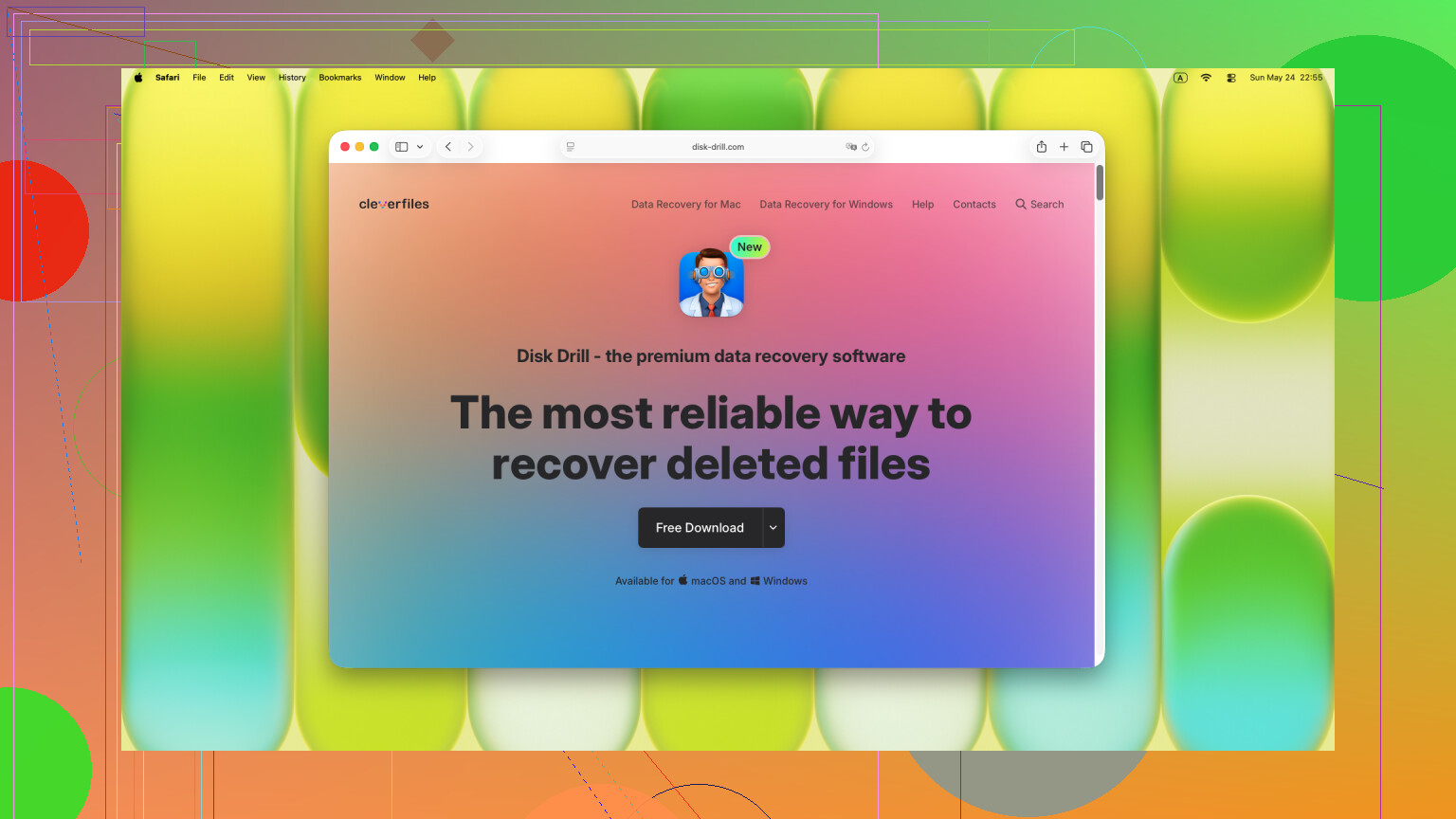
If I were doing this on my own machine, I’d start with Disk Drill. I used it on camera SD cards, phone microSD cards, and one drone card that went weird after a bad transfer. It’s one of the simpler recovery tools I’ve dealt with, and it tends to find more than the stuff you deleted five minutes ago.
What helped me was this. It didn’t only pull back normal deleted files. It also worked on cards after formatting, cards showing up as RAW, and cards the system struggled to read. It also recognizes common photo types like JPG and PNG, plus RAW formats from Canon, Nikon, Sony, and other camera brands.
Here’s the process I’d follow.
- Pull the SD card out of the camera, phone, or whatever it’s in right away.
- Plug it into your computer with a card reader.
- Launch Disk Drill and pick the SD card from the list.
- Hit “Search for lost data.”
- Wait for the scan to finish, then check the Pictures section.
- Preview the files before you recover them.
- Save anything you recover to your computer or another drive, never back onto the same SD card.
Small thing, but it matters. Previews tell you a lot. If a photo opens properly in the scan results, I’d take that as a good sign. In my experience, those files usually come back in usable shape.
If the recovery app doesn’t get everything, I’d still check a few other places before giving up.
- Look through cloud backups like Google Photos, iCloud, OneDrive, or Dropbox.
- Check whether the camera or device has internal storage and see if copies ended up there.
- Go through backups on your computer, like Windows File History or Time Machine.
- Try another card reader or a different computer. I’ve had bad readers make a healthy card look dead.
- If the card keeps disconnecting or has visible damage, send it to a recovery service instead of pushing it further.
One thing I would not do, don’t format the card, don’t run repair tools on it, and don’t copy anything new onto it before recovery. Those are the moves I’ve seen ruin a salvageable card fast.
You did the most important thing already, you stopped using the card. That gives you the best shot.
I mostly agree with @mikeappsreviewer on using Disk Drill for SD card photo recovery. Where I differ a bit is this, before scanning, make a full image of the SD card if your card reader and system still read it cleanly. Work from the image, not the card. If recovery software crashes, or the card has weak sectors, you still keep one untouched copy. Safer move.
My order would be:
- Put the write-protect lock on the SD card, if it has one.
- Connect it with a decent USB card reader.
- If the card mounts, create a byte-for-byte image first.
- Run Disk Drill on the image or on the card.
- Sort results by file type and file size. Family photos with 0 KB or weird names are often gone or damaged.
- Recover files to your computer, not back to the SD card.
If the files were deleted during a move, also check the computer used for the transfer. A failed move often leaves temp files, cached previews, or partial copies behind. On Windows, search by file extension and date. On Mac, check Photos imports and the Trash.
If thumbnails show up but full photos do not, stop poking at the card. At thta point, more scans are not always better.
Also worth a look if you want a quick visual explainer on SD card photo recovery, watch this SD card photo recovery Reel.

Stopping use of the card right away was the smartest move, so you already did the part most people mess up.
I mostly agree with @mikeappsreviewer and @viaggiatoresolare, but I would not keep running a bunch of different scans back to back unless the first results look promising. Every extra thing you do is another chance for the card reader, OS, or some ‘helpful’ system process to touch the card. Keep it simple.
What I’d do first:
- Use the little lock switch on the SD card if it has one
- Plug it into a reliable card reader, not the camera
- Check whether the missing photos are actually on the computer you moved them to
- Look in the computer’s Trash/Recycle Bin and search by file type and date
- If they’re not there, use Disk Drill and recover to your computer or an external drive, never back to the SD card
One reason I mention checking the computer first: when a move fails, sometimes the files were copied off the card but then got misplaced, renamed, or dumped into a temp/import folder. That happens more than people think.
Also, don’t trust folder names too much. SD card recoveries often come back under generic names, but the previews and file sizes tell the real story. If the preview opens and the size looks normal, that’s usually a decent sign.
If you want a solid easy-to-read overview, this Disk Drill review for SD card photo recovery is worth a look.
One more thing people forget: if the card starts disconnecting, asks to be formatted, or makes the reader freak out, stop. That’s where DIY can turn ‘recoverable’ into ‘well, crap.’ At that point, a pro service is probly safer.
One small disagreement with @viaggiatoresolare and @sterrenkijker: if the card is behaving perfectly normally, I would not over-handle it chasing the “ideal” workflow. The safest extra check is often this: inspect the SD card’s DCIM folder with a read-only file manager first. Sometimes the photos were not deleted at all, just moved into a weird folder, the filesystem index glitched, or the camera created a new directory.
Also, if these are RAW family photos, look for sidecar files like XMP or duplicate JPG previews. Even when the main RAW is damaged, the embedded preview can sometimes be extracted later.
About Disk Drill, it’s a solid choice, but not magic.
Pros:
- easy previewing
- good support for common photo and RAW formats
- simple enough for non-tech users
Cons:
- deep scans can return tons of clutter
- filenames/folder structure may be lost
- best results often depend on how healthy the card is, not just the app
If Disk Drill finds previews that open correctly, recover those first before digging through everything else. I agree with @mikeappsreviewer on one thing in particular: recover to another drive only.
If the card shows the wrong capacity, becomes unreadable intermittently, or asks for formatting, stop DIY there. That starts looking less like accidental deletion and more like card failure.