My USB drive started showing error messages and now my computer won’t open it. It has important photos and work files, and I’m worried the drive may be corrupted. I need help with safe USB data recovery steps that won’t make things worse or erase the files.
I’ve seen this go bad fast. A USB stick works for years, then one day Windows says it needs formatting, or it won’t open at all. It sucks, but I wouldn’t start clicking repair stuff yet.
First move, stop using the drive. Don’t format it. Don’t run CHKDSK right away. Don’t throw random “fix USB” apps at it. I did stuff like this once on an old flash drive and made the file list worse, not better. If your files matter, the goal is to pull data off first, fix later.
Why this happens is all over the place. I’ve had it happen after yanking a drive during a copy job. Other times it was a bad file system, flaky flash storage, malware, power loss, driver issues, or plain age. USB sticks wear out. They don’t fail with much warning either. One day fine, next day nonsense.
What you do next depends on what the drive is doing.
I’d try software recovery first if:
- The USB shows up in Disk Management.
- The size looks correct.
- Windows asks to format it.
- It appears as RAW, or you can see it but not open it.
I’d stop the home fixes and hand it off to a recovery shop if:
- The drive is missing everywhere, not shown at all.
- It keeps dropping connection.
- The connector looks bent, loose, or broken.
- It gets hot fast.
- The files are one-of-a-kind and you don’t want to make a bad sitation worse.
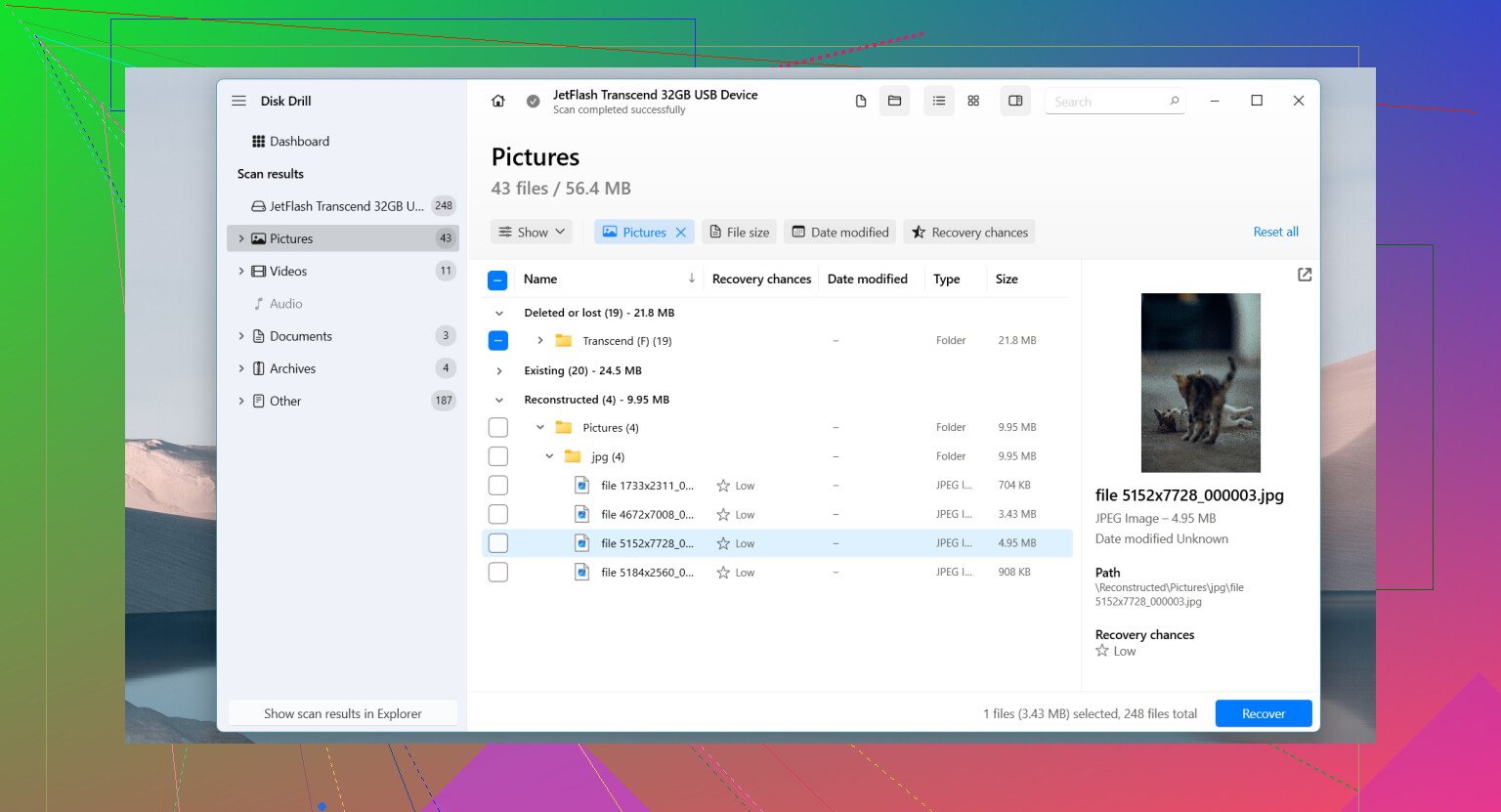
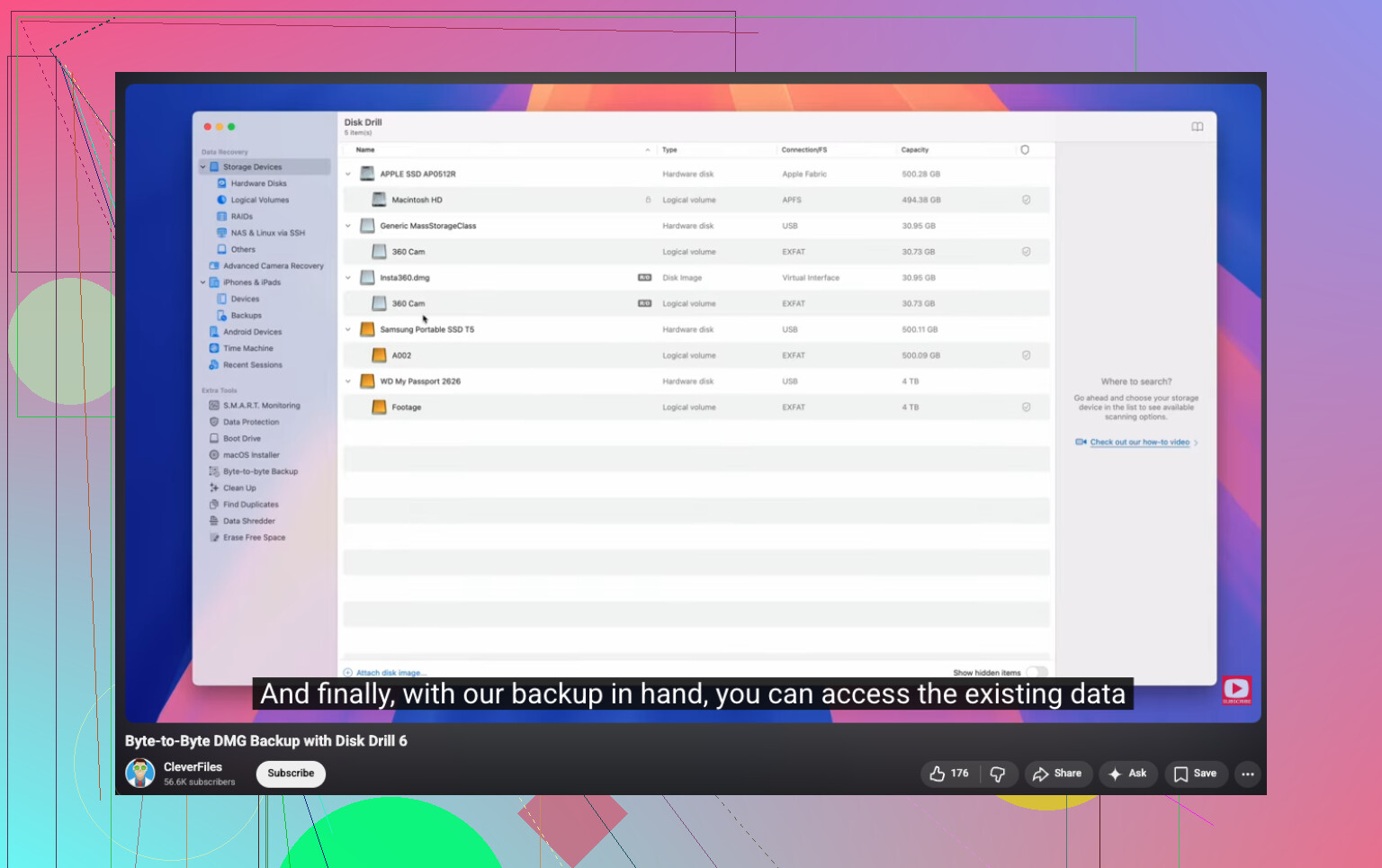
For the software side, I’d go with Disk Drill. I used it on a flash drive Windows refused to read, and on another one showing RAW. The part I liked most was the option to make a full byte-to-byte backup before scanning. If the stick is unstable, working from an image is safer than hammering the original over and over.
The steps are simple enough:
- Install Disk Drill on your PC, not on the broken USB.
- Plug in the USB drive.
- Open Disk Drill and pick the USB device.
- If it looks shaky, create a byte-to-byte backup first.
- Run the full scan.
- Preview what it finds.
- Save recovered files to another drive.
Only after the files are safe would I mess with repairs.
Stuff I’d try after recovery:
- Set a new drive letter in Disk Management.
- Run CHKDSK if the file system looks damaged.
- Use Windows Error Checking.
- Remove and reinstall the USB device in Device Manager.
- Format the drive if corruption keeps showing up.
My rule is simple. If a USB stick keeps acting up after a format, I stop trusting it. If files vanish, writes fail, it disconnects at random, or corruption comes back, I replace it. The drive is cheap. The lost data usually isn’t.
8 Likes
Stop using the USB now. Every write lowers your odds.
I agree with @mikeappsreviewer on one big point, recover first. I differ a bit on CHKDSK. I would skip it entirely until your files are off. CHKDSK is fine for fixing a drive you do not care about. It is bad for a drive with photos and work docs you still need. It edits the file system. If corruption is bad, it sometimes turns a messy folder tree into lost fragments. Been there, it sucked.
What I’d do:
-
Test the simple stuff once.
Use a different USB port.
Use a different PC.
If it shows up there, copy the most important files first. -
Check Disk Management.
If the USB appears with the correct size, that is a good sign.
If it shows RAW or unallocated, stop trying repair tools. -
Make an image of the USB before repeat scans.
This matters if the stick disconnects or reads slow.
A failing flash drive often gets worse fast. -
Recover files from the image or from the USB with Disk Drill.
Install it on your computer, not the USB.
Scan the whole device.
Filter by file type if you need photos first.
Save recovered files to your internal drive or another external drive, never back to the same USB. -
Verify the recovered files.
Open a batch of photos.
Check doc sizes and dates.
Some recovred files look fine until you open them.
If the USB is not detected at all, shows 0 bytes, gets hot, or drops in and out, stop home recovery. That points more to hardware failure than file system damage. A lab has better odds there.
One more thing. If the files are photos, look for both original names and generic found files like JPG, CR2, NEF, PNG. Deep scans often recover data without folders.
If you want a visual walkthrough, this step by step USB file recovery video guide is easy to follow.
After recovery, format the USB and test it with a few throwaway files. If it throws errors again, toss it. USB sticks fail a lot more often than people think. I woudln’t trust it again for important stuff.
If the USB still mounts for even a minute, I’d actually prioritize a straight manual copy of the most critical folders before doing a full recovery scan. That’s the one place I slightly differ from @mikeappsreviewer and @sternenwanderer. Imaging and scanning are smart, but if the drive is semi-readable, sometimes you can still grab the irreplaceable stuff first before it goes totally weird.
A few extra things people forget:
- Check Event Viewer in Windows for disk/ntfs/usb errors. It can hint whether this is file system corruption or the controller flaking out.
- On Linux, a live USB session can sometimes read a drive that Windows refuses to open.
- If Windows shows the right capacity but no file access, that is usually more hopeful than 0 bytes.
- If the files are super important, avoid plugging and unplugging it ten times. Each reconnect can make a dying stick worse.
For software recovery, yeah, Disk Drill is a legit option, especially if the USB is detected but inaccessible. Just don’t recover back onto the same flash drive. People do this, then wonder why evrything got more broken.
Also, if you want more opinions on USB and flash drive recovery tools, this thread is useful:
best recovery software for flash drives and USB data recovery
One blunt truth: if the drive disappears, reports 0 MB, smells hot, or has a loose connector, software probably won’t save you. That’s lab territory. Expensive, yeah, but cheaper than losing tax docs or years of photos forevr.