My iPhone storage is almost full and it’s slowing everything down, blocking updates, and preventing new photos and apps from installing. I’ve already deleted some obvious large apps and old photos, but the “System” and “Other” storage still take up a ton of space and I’m not sure what’s safe to remove. What are the most effective, real-world steps to clear storage without losing important data or messing up my phone?
iOS storage is a mess, so here is the fast way I free space when an iPhone is choking.
- Check big stuff first
Settings > General > iPhone Storage.
Wait for it to load, then:
- Delete apps over 1 GB you do not use.
- Tap each app and check “Documents & Data”. If something like TikTok, Instagram, Snapchat has 2–10 GB, remove and reinstall it. That clears cache bloat.
-
Offload instead of delete
Same menu, tap any big app, use “Offload App”.
This removes the app but keeps its data. You get space back and your stuff returns when you reinstall.
Good for games and social apps you use sometimes. -
Photos and videos
- Settings > Photos.
- Turn on “Optimize iPhone Storage” if you use iCloud Photos. This alone frees many GB on some phones.
- In Photos app, go to Albums > Recently Deleted and empty it.
- Sort by Videos and remove long clips, screen recordings, slow‑mos.
- In Messages, tap a convo > info > see “Photos” and “Videos” and delete old ones. Group chats eat storage fast.
- Messages cleanup
Settings > Messages.
- Set “Keep Messages” to 30 Days or 1 Year instead of Forever. That often frees multiple GB after some time.
- Under “Message History”, tap “Delete” if you switch from Forever.
-
Safari and other caches
Settings > Safari > Clear History and Website Data.
Do similar inside other apps that have “Clear cache” or “Clear downloads” in their own settings, like YouTube, Spotify offline cache, podcast apps. -
Deal with “System” and “System Data”
These are messy. They include caches, logs, updates. They grow over time. Quick ways to shrink them:
- Restart the phone. Simple but it often drops a few hundred MB.
- If System Data is huge, like 20–40 GB, do this:
- Backup with iCloud or Finder on a computer.
- Settings > General > Transfer or Reset iPhone > Erase All Content and Settings.
- Set up as new or from backup.
A clean reinstall is the only consistent method I have seen to nuke massive System Data bloat.
- Offload old downloads
- Delete offline maps in Google Maps or Apple Maps.
- Remove offline playlists and podcasts you do not listen to.
On Spotify / Apple Music / Podcasts, check downloaded items and clear them.
-
Use a cleaner tool for junk, dupes, and big files
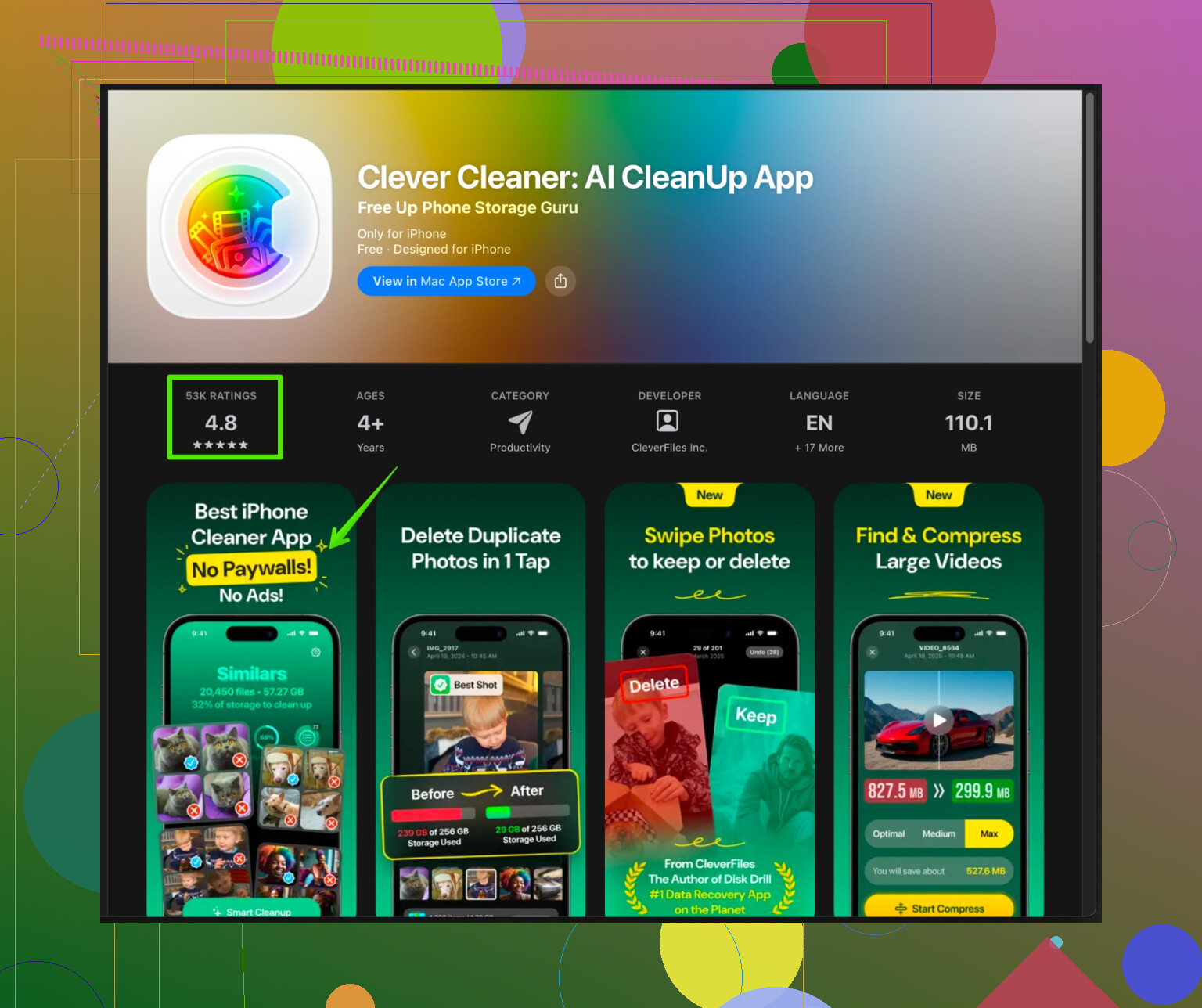
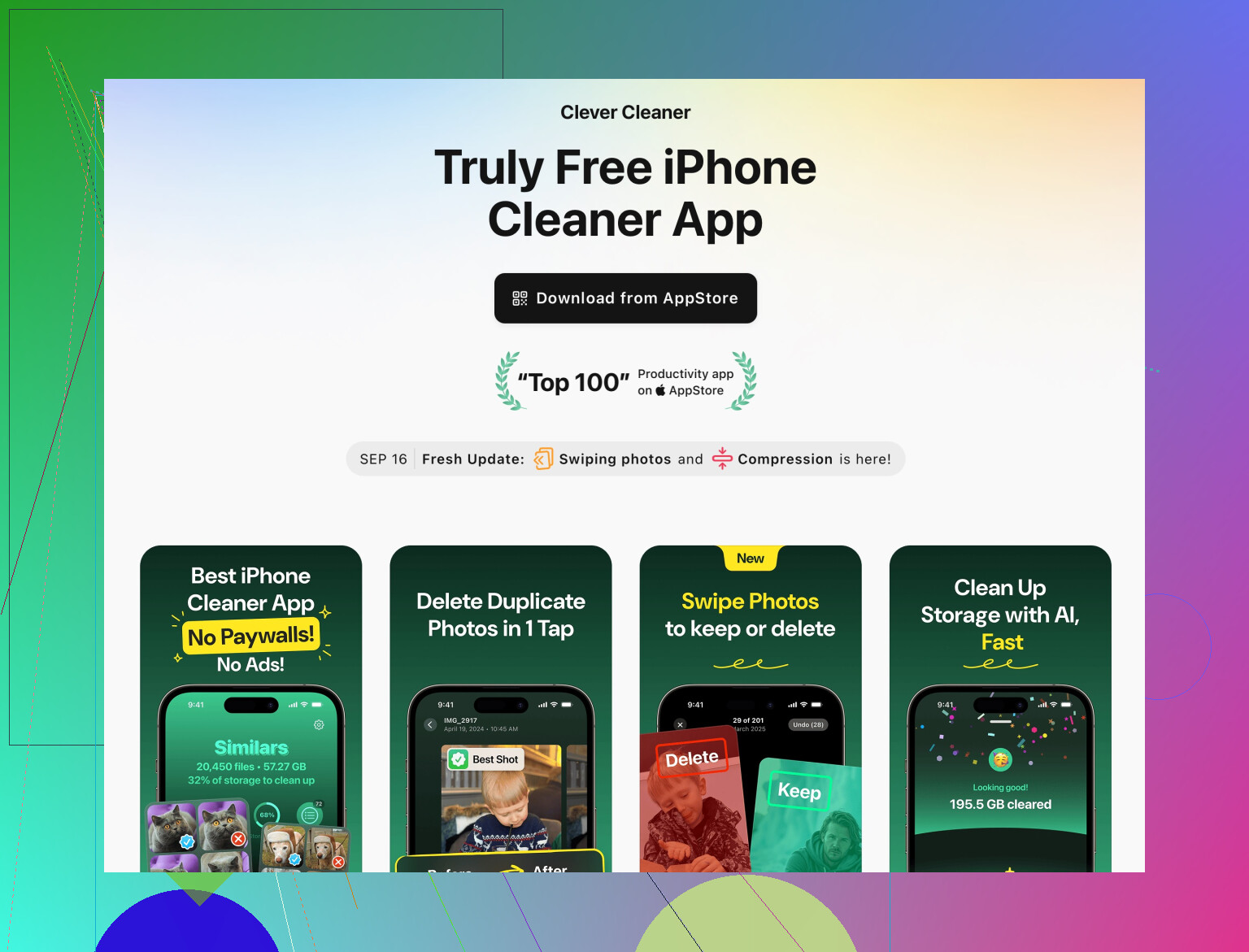
If your main issue is tons of duplicate photos, blurry screenshots, or hidden junk, something like Clever Cleaner helps a lot.
The Clever Cleaner App for iPhone focuses on removing duplicate photos, burst shots, similar images, screenshots, and large unused files. That helps free storage fast without digging through everything by hand.
You can check it here: clean up iPhone storage with Clever Cleaner
On phones with years of photos, tools like this often free 5–20 GB in a few minutes. -
Final quick checklist
- Empty Recently Deleted in Photos.
- Clear big chats in WhatsApp, Telegram, iMessage.
- Reinstall any app with multi‑GB “Documents & Data”.
- Remove old VPN, editing, or file apps that stash lots of local files.
- Restart after a big cleanup so iOS recalculates space.
Do these in this order when my iPhone hits the “Storage Almost Full” message and I usually get back enough space for updates and new photos.
11 Likes
@kakeru already covered the normal “do this in Settings” route pretty well, so I’ll skip repeating all that and hit the stuff people usually don’t try when iOS storage goes nuclear and “System / Other” looks absurd.
1. iCloud backup bloat & local backup trick
If you’re using iCloud and your phone has been around for a few years:
- Go to Settings > [your name] > iCloud > iCloud Backup
- Delete old device backups you don’t need anymore (like past phones).
- Then plug your iPhone into a Mac/PC, open Finder (or iTunes on Windows), do an encrypted backup, let it finish, then delete that backup if you don’t care to keep it.
Weirdly, doing a fresh full backup sometimes forces iOS to purge junk and shrink “System Data” a bit. Not magic, but I’ve seen a couple gigs vanish.
2. Nuke old shared content people forget about
Everyone wipes Photos, but then:
-
WhatsApp / Telegram / Signal
- Inside each app, go to Storage / Data / Manage Storage.
- Sort by size and kill old groups where people spam memes and 40 MB videos.
- You can mass-delete “Forwarded many times” trash in WhatsApp pretty fast.
-
Files app
- Open Files > On My iPhone and check random folders from PDF scanners, office apps, video editors, etc.
- A single forgotten export folder can sit there with like 5 GB in it.
3. Focus on “hidden” high-res media
Even if you deleted “obvious” stuff:
- Live Photos: Turning them off for future shots helps. Existing ones can be duplicated as a still and you can remove the Live version if you’re really desperate.
- Downloaded HDR / 4K content in streaming apps: Netflix, Prime, etc. Sometimes the app UI lies and says “tiny” but the local cache is actually huge. Sign out and back in or delete + reinstall if the app storage looks insane.
I slightly disagree with @kakeru about just blanket reinstalling every social app right away. If you rely on specific login sessions, 2FA, or work accounts, reinstalling can be a pain. I’d first see if the app itself has a built‑in “Downloads” or “Cache” section to clear before going nuclear.
4. Use a smarter cleaner instead of scrolling for hours
If your phone is years old and your Photos app is a dumpster of:
- duplicate shots
- 15 near-identical selfies
- screenshots of stuff you don’t even remember
then a manual cleanup is pure pain.
This is where something like the Clever Cleaner App actually makes sense. It’s not just a “junk button” gimmick. It can:
- detect duplicate and similar photos
- spot massive videos and large unused files
- clean out stuff like old bursts and random junk without killing your important albums
If you care about search engines actually finding a decent cleaner:
free up iPhone space with Clever Cleaner
I’ve seen it free 5–15 GB on phones that were basically “photo graveyards” without people having to hand‑sort every image.
5. Check iOS features quietly hogging storage
A few more sneaky ones:
- Voice Memos: Long recordings add up. Many folks have hours of audio they forgot about.
- Mail app: If you use the native Mail app with huge mailboxes, go to Settings > Mail > Accounts and temporarily disable email accounts you no longer use. Then remove and re-add only what you need. Local cached mail can be big.
- Offline dictionaries & language packs:
- Settings > General > Dictionary
- Remove languages you never use.
6. When “System / Other” is truly insane
If “System Data” is like 30+ GB and nothing touches it:
- Start with a simple restart. Sometimes iOS flushes temp files and the number drops after a while.
- If that does basically nothing and your phone is borderline unusable, the harsh reality:
- Full backup
- Erase All Content and Settings
- Set up again and don’t restore every random app and profile you’ve ever had.
I agree with @kakeru on this part: a clean setup is the only reliable way to obliterate years of weird cache and logs when it gets really bad.
TL;DR:
You already did the obvious deletes; now hit:
- old app backups & iCloud leftovers
- messaging app media / Files app junk
- streaming app downloads and hidden caches
- large duplicate photos & videos with something like the Clever Cleaner App
- and if “System” is still monstrous after all of that, bite the bullet and do a clean reinstall.
If @ombrasilente is “deep clean” and @kakeru is “settings surgeon,” here’s the “maintenance mode” angle so you do not end up in this mess again next month.
1. Stop iOS from refilling space immediately
Both already covered how to free space. The missing part is preventing instant re‑bloat.
- Go to Settings > App Store
- Turn off automatic video autoplay and in‑app content downloads. Some apps preload tons of assets.
- In Settings > Photos
- Turn off Auto-Play Videos and Live Photos. Less caching when you scroll big albums.
- In social apps, disable automatic media auto‑download where possible. That controls future junk.
I slightly disagree with the “reinstall tons of apps” approach as a first step. If you do not change these behaviors, the caches just regrow.
2. Target “invisible” creators of bloat
Stuff that usually survives normal cleanups:
- Keyboard dictionaries & third‑party keyboards
- Remove any third‑party keyboard you do not absolutely need. Some keep logs and custom assets.
- Shortcuts & automation
- Open the Shortcuts app, delete automations that save files, screenshots, or repeated exports. They can leave artifacts over time.
- Creative apps
- In video / photo editors, look for “projects” or “drafts” sections. Deleting a project often frees far more than deleting the exported video in Photos.
3. Use a cleaner, but with realistic expectations
The Clever Cleaner App can be useful when your main issue is “I have thousands of near‑duplicate photos and random big videos and no patience.”
Pros of Clever Cleaner App
- Quickly spots duplicate and similar photos, bursts, screenshots, large videos.
- Much faster than manually scanning a 30k‑photo library.
- Good for a “first pass” to get back several GB without brain damage.
Cons of Clever Cleaner App
- Any automated cleaner can misjudge what is “unimportant.” You still need to review its suggestions.
- It does not actually fix “System Data” bloat or OS‑level caches. That still needs reboots or a full reset.
- If your problem is mainly massive games or office files, its impact is limited.
Use it alongside what @ombrasilente and @kakeru suggested, not instead of them.
4. Decide when to stop and when to nuke
Before going to the full erase that both mentioned, ask:
- After all app / photo / message cleanup, is storage at least 10–15% free?
- If yes, I would avoid wiping. The pain of setting everything up again is not always worth shaving a few GB of “System.”
- If no and “System Data” is absurdly huge, then the backup + erase route they describe is justified.
5. Quick maintenance routine so it stays healthy
Once you dig yourself out:
- Monthly:
- Open iPhone Storage and sort by size, remove 1 or 2 worst offenders.
- Run Clever Cleaner App briefly to catch new duplicates.
- Every few months:
- Clear big chats and media in WhatsApp / Telegram / Messages.
- Review offline downloads in streaming and music apps.
That combo keeps you out of “storage almost full” territory instead of firefighting it every few weeks.