I need help figuring out the best way to delete all photos from my iPhone using a Mac or Windows PC. I tried a couple of methods, but some only imported photos instead of removing them, and others did not delete everything. My iPhone storage is almost full, so I need a reliable way to clear all photos without missing anything.
Some photo libraries keep swelling until the phone starts acting cooked. I had one hit the point where swipes lagged, the screen hung, and the storage graph sat there like it was ignoring me. What works depends on where your photos live and how packed the phone is.
First thing, the iCloud part trips people up.
If iCloud Photos is on, your phone, iPad, and Mac are all looking at the same synced library. I learned this the bad way. I deleted a batch on the phone, then saw them vanish on the iPad too. Nothing was broken. Sync did what sync does.
If you want to keep the photos and only need space back on the phone, go to Settings, then Photos, then turn on Optimize iPhone Storage. The phone keeps smaller local copies and pushes full-size versions into iCloud. In my case, storage started dropping without me deleting a thing.
If your photos already exist somewhere else and you want them off the phone for good, do it differently.
Working from a computer
On a Mac, I would pick Image Capture. Not Photos. Photos tends to drag iCloud into the mess, which is the last thing I wanted during a cleanup.
Plug in the iPhone, open Image Capture from Applications, and wait. On a huge library, the wait feels broken. I sat there for half an hour once before thumbnails showed up. Still, when it loads, it works. Press Command + A, then delete.
On Windows, you’re stuck using File Explorer and the DCIM folder. It does work, sort of. I saw more disconnects there, especially during large deletes. If you’re on a PC, keep each round under 500 files. Bigger batches failed for me more than once.
Doing it on the phone
The Photos app starts falling apart once the library gets big enough. From what I saw, somewhere around 10,000 to 15,000 items is where it turns annoying. Selection gets sloppy. Scrolling drags. If free space is nearly gone, deletes stall because iOS needs temp room to process them.
Two things helped me before I tried any mass delete on-device.
Delete one or two large apps first. A giant game or a bloated streaming app bought me enough room for the phone to breathe.
Then delete photos in chunks. A few thousand at a time went through. Trying to wipe the whole library in one pass was a mess.
For faster selection, there’s a trick. Tap Select, drag across the bottom row of thumbnails, then with your other hand tap near the top of the screen while keeping the first finger down. The view jumps and the selection keeps extending. It’s janky on huge libraries, but still faster than dragging forever.
Where the built-in app falls short
This was the part I found most annoying.
You don’t get file sizes.
You don’t get sorting by size.
You don’t get an easy way to protect favorites during a mass delete.
You don’t get grouping for near-identical shots.
You don’t get a clean way to spot which giant videos are eating gigabytes.
For casual browsing, Photos is fine. For cleaning up a swollen library, it feels underbuilt.
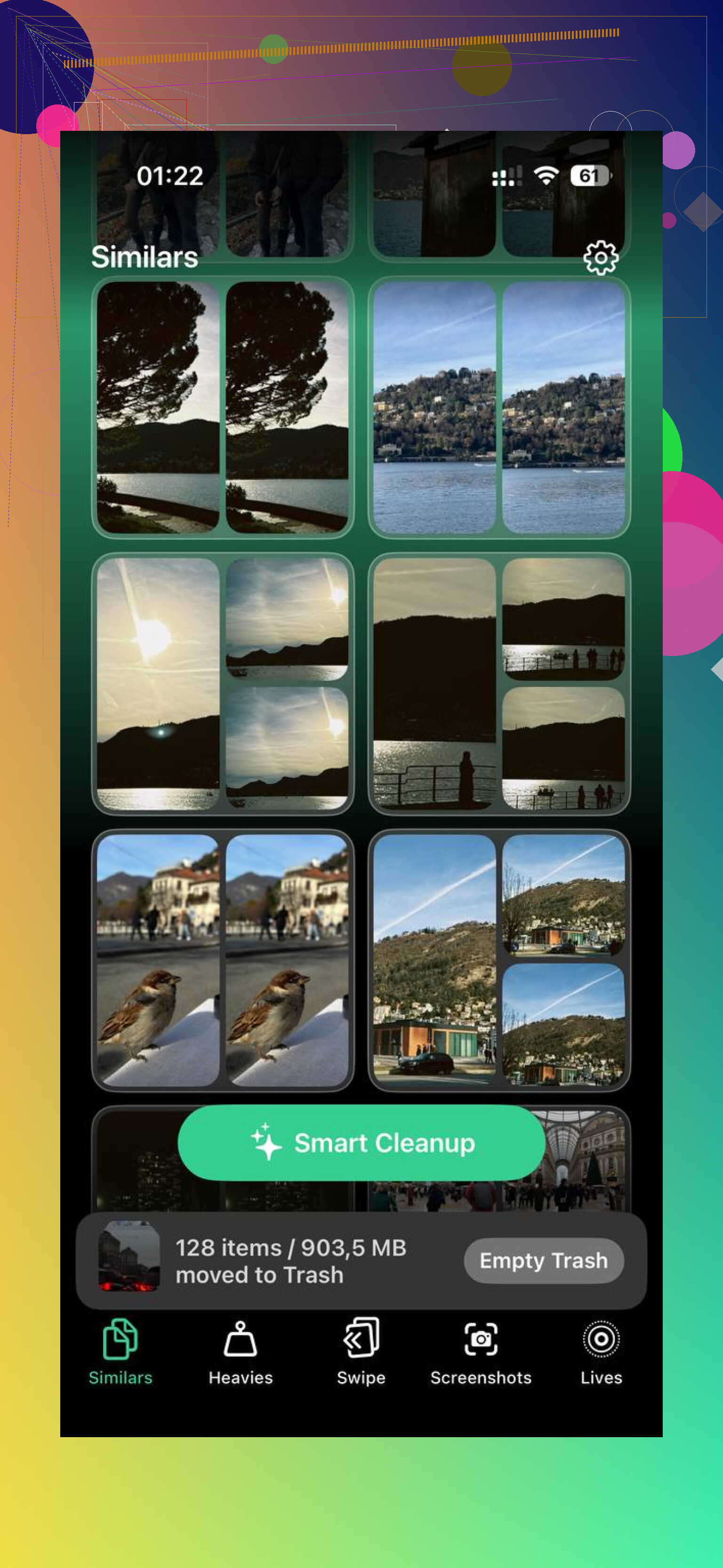
Clever Cleaner covers the stuff the default app skips
I don’t mean in a vague “cleanup app” way. I mean it shows the things I needed to see.
The Heavies tab sorts your library from biggest file to smallest. When I checked it, the top of the list was full of old 4K clips and exports I forgot existed. Deleting ten giant files got me more space than removing a few hundred normal photos.
The Similars tab groups shots which are close enough to be the same photo for normal people. Burst images, three attempts at one receipt, six near-matching pet photos taken two seconds apart. You keep one and dump the rest.
The Screenshots tab shows screenshots with file size right on the thumbnail. I liked this because I could see what was worth removing before touching anything.
It also runs on the phone itself. Nothing gets shipped off for processing. If your library includes banking screenshots, messages, IDs, or random personal junk, that matters.
If you want to keep favorites and clear the rest, this sort of app makes it far less painful than doing it in Photos.
The part people forget
Deleting isn’t the end. I’ve seen people wipe thousands of photos, check storage, then think the phone is lying.
iOS moves deleted stuff into Recently Deleted. Those files still count against storage until you clear them out. Sometimes they sit there for 30 days if you do nothing.
After cleanup, open Photos, go to Albums, find Recently Deleted under Utilities, tap Select, then Delete All. That is the step where the storage number usually changes.
If the number still looks wrong after that, restart the phone. I had to do this once before the freed space showed up properly.
10 Likes
If you want every photo gone from the iPhone by using a computer, skip the import apps. Use sync reset or direct file deletion.
On Mac, Finder is the cleanest route if you previously synced photos from the Mac. Plug in the iPhone, open Finder, pick your iPhone, go to Photos, uncheck Sync Photos, then Apply. iPhone removes the photos synced from that computer. This only wipes synced photos, not shots taken on the phone.
On Windows or Mac, if the photos are camera-made items in DCIM, use file deletion. Connect the phone, trust the computer, open Internal Storage, then DCIM, select all folders, delete. If some files stay behind, disconnect, reconnect, and hit the leftover folders. iPhone often keeps odd items, espicially videos.
One thing I disagree with from @mikeappsreviewer. Batch deleting under 500 is safe, but too slow for some libraries. I had better luck deleting by folder, like 1 month at a time.
If your goal is selective cleanup before the full wipe, Clever Cleaner is useful for finding huge videos and duplicates first. You can grab it here, free Clever Cleaner app for iPhone photo cleanup.
Last step matters. Empty Recently Deleted on the iPhone, or storage will still look full.

If you want every photo gone from the iPhone using a computer, I’d actually avoid the import/delete dance that @mikeappsreviewer and @espritlibre were talking about for one reason: Windows and macOS photo tools are weirdly inconsistent with Live Photos, videos, and partially synced libraries.
The cleaner method is this:
1. Figure out what kind of photos they are first
- Synced from Mac/PC: remove them by turning off photo sync in Finder or iTunes.
- Taken on the iPhone: use a full device reset if you truly want all photos gone in one shot.
- Stored in iCloud Photos: deleting from computer or phone deletes them everywhere. That part trips ppl up all the time.
2. If you want the nuclear option
Back up what matters, then go:
Settings > General > Transfer or Reset iPhone > Erase All Content and Settings
That is honestly the only method I trust to remove everything without leftovers hiding in DCIM or Recently Deleted weirdness. Yes, it’s overkill, but it works.
3. If you only want to clean the library before wiping
Use Clever Cleaner on the iPhone first to remove duplicates, giant videos, screenshots, and junk faster. Then do the reset or manual delete. Way less annoying.
Also, if you want a visual walkthrough, this is a solid one:
see how to delete iPhone photos from a Mac or PC step by step
Tiny disagreement with @mikeappsreviewer: batch deleting is safer, sure, but if the library is already a mess, sometimes reset is faster than babysitting folders for an hour lol.