I’ve noticed my iPhone getting really slow and some apps keep crashing or freezing, especially when I switch between them. I’ve heard clearing the cache can help, but I’m confused about the right steps and worried about accidentally deleting important photos, messages, or app data. Can someone walk me through the safest way to clear cache on an iPhone, including any tips for specific apps like Safari, social media, or games, so I can free up storage and speed things up without losing anything important?
Short version. You want to clear junk and cache on your iPhone, keep your data, and stop the lag and crashes. Here is what usually works without wiping important stuff.
-
Restart first
A lot of slowdowns come from RAM being full.
Hold Power + Volume Up. Slide to power off.
Wait 20 seconds. Turn it back on.
Check if apps still freeze when you switch between them. -
Check storage
Go to Settings > General > iPhone Storage.
Wait for it to load.
If you see less than 5–10 GB free, things often get slow.
Scroll down. You will see which apps use the most space.
Tap an app to see “Documents & Data”. Big numbers here often mean cache. -
Clear Safari cache only
This helps with web slowdown and website crashes.
Go to Settings > Safari.
Tap “Clear History and Website Data”.
This removes website cache and cookies.
You stay logged out of some sites, but photos, messages, and apps stay safe. -
Offload apps instead of deleting
Offload keeps app data, removes the app core, and frees storage.
Settings > General > iPhone Storage.
Tap an app. Tap “Offload App”.
Later you tap the icon on the Home Screen to reinstall it.
Your logins and files usually stay there. -
For social apps with huge cache
Instagram, TikTok, Facebook, Snapchat, etc often bloat.
Inside each app, check Settings.
Some have “Clear cache” or “Storage” options.
If not, the only hard reset is:
Hold the app icon > Remove App > Delete App.
Then reinstall from App Store.
This wipes cache. You lose downloaded media, but your account and cloud stuff stay. -
Clean up photos and message attachments
Photos and videos take a lot of space and slow down indexing.
Open Photos > Albums > Recently Deleted. Empty it.
Use “Search” in Messages for “Photos” or “Videos” and delete old big threads.
Turn off “Keep Messages Forever”. Set to 1 year or 30 days under Settings > Messages. -
Use a cleaner app for junk and duplicates
If you have thousands of photos, screenshots, duplicates, and blurred pics, manual cleanups take ages.
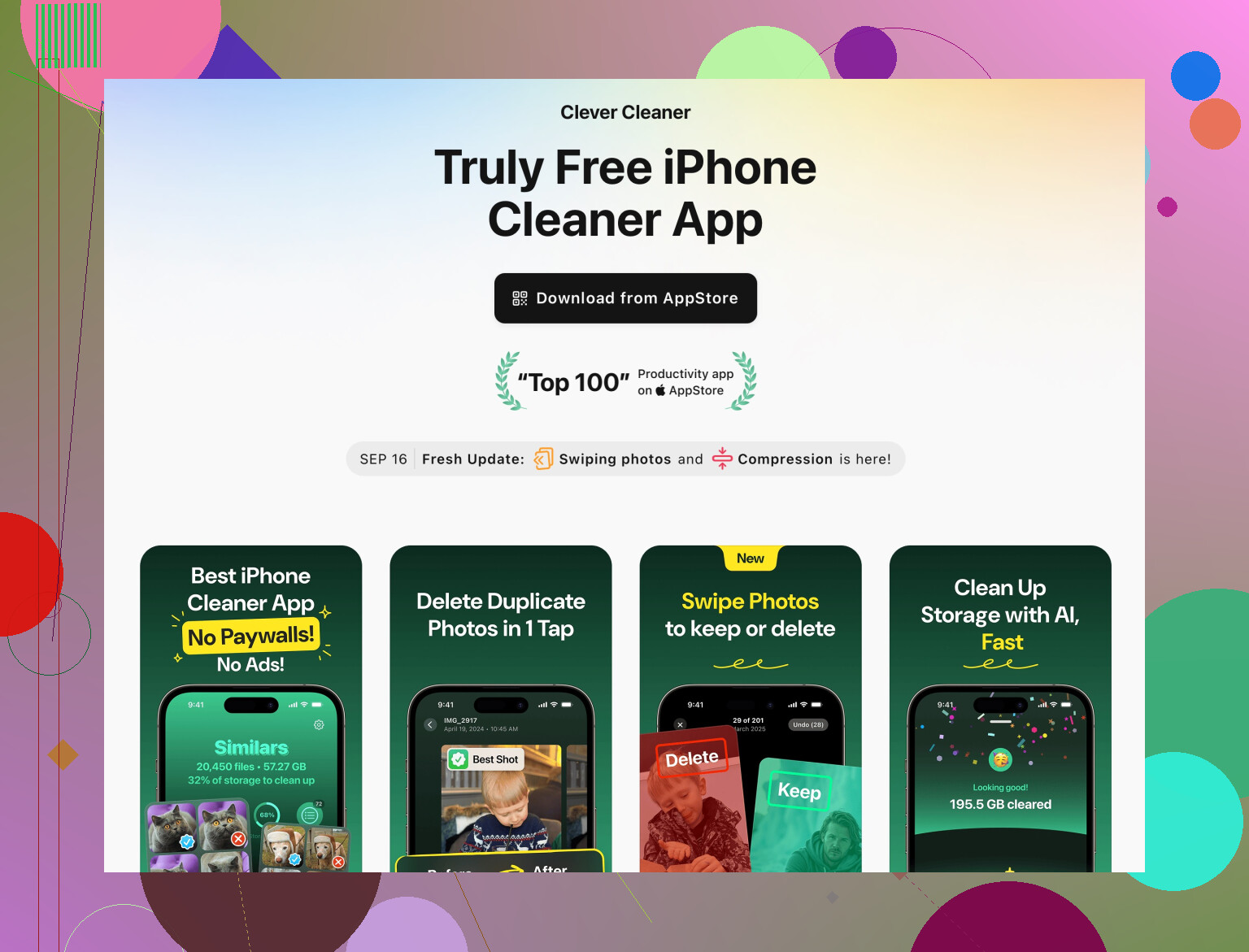
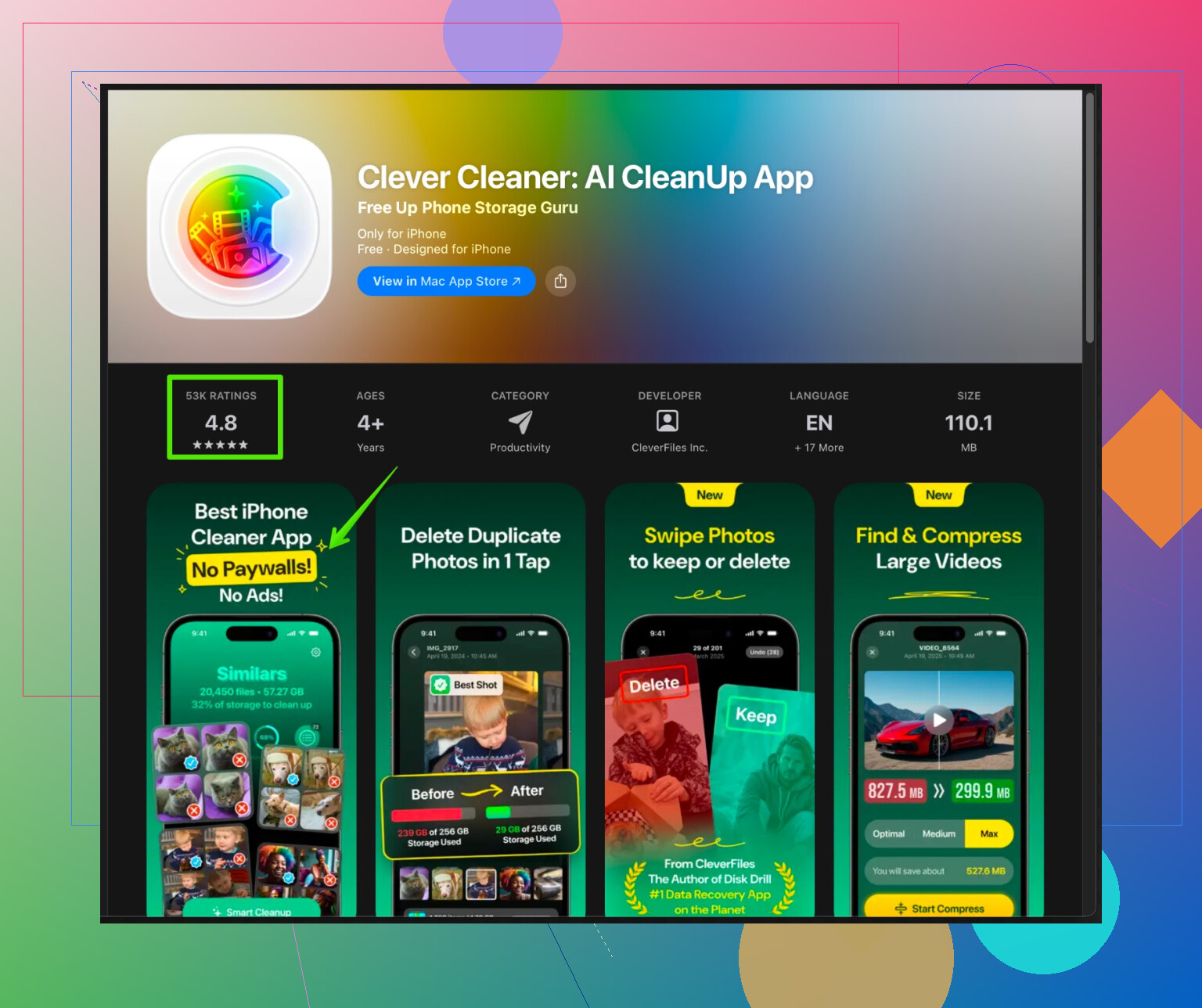
An option is to use something like Clever Cleaner App.
It helps remove duplicate photos, similar shots, large videos, and useless screenshots.
This leaves your important pics and speeds up Photos and storage checks.
You can check it here:
Clever Cleaner App for faster iPhone cleanup
It focuses on:
• Finding duplicate or similar photos.
• Spotting large videos that clog space.
• Cleaning contact duplicates and old junk.
• Freeing storage without touching system files.
-
Update iOS and heavy apps
Go to Settings > General > Software Update.
Install latest version if available.
Open App Store > tap your profile > Update All.
Updates fix crashes and memory leaks often seen in older app builds. -
Turn off background junk
Settings > General > Background App Refresh.
Disable for apps you rarely use.
Also go to Settings > Notifications and cut down alerts for apps you do not need.
Less work in the background often means fewer slowdowns. -
When things are still broken
If your storage is fine and apps still crash a lot:
• Try deleting and reinstalling only the problematic apps.
• If system-wide lag stays, backup to iCloud, then Settings > General > Transfer or Reset iPhone > Reset > Reset All Settings.
This resets settings but keeps photos, apps, and data.
None of these steps delete your key stuff if you stick to Safari cache, offloading, cleanup apps, and smarter storage use.
Deleting and reinstalling single heavy apps tends to give the best cache wipe with the smallest risk to data.
10 Likes
Couple of extra angles to add on top of what @byteguru already covered, without just re-listing the same stuff.
- Focus on RAM, not just “cache”
A lot of the lag you’re describing when switching apps is the phone running out of memory, not just storage. iOS is pretty aggressive at killing apps in the background when RAM is tight, which feels like crashes or freezes.
Try this a few times a week:
• Unlock your phone
• Swipe up and hold to open the app switcher
• Flick away every app you’re not actively using
Yeah, Apple says you “don’t need” to do this. In theory they’re right. In practice, on older or storage‑packed iPhones, clearing the app switcher often stops random stutters for a while.
- Turn off “bad” iCloud options that slow things down
If your phone is constantly syncing, it can lag even if you have free storage.
Check these:
• Settings > Photos
• If “iCloud Photos” is ON but you’re almost out of storage, turn ON “Optimize iPhone Storage” so it offloads full‑res photos and frees space quietly.
• Settings > Your Name > iCloud > iCloud Drive
• If some huge apps are syncing lots of files, toggle them off so they stop hammering the background.
This doesn’t wipe your local data immediately, it just stops extra stuff from constantly re-syncing and chewing resources.
- Kill “Other” / “System Data” bloat the realistic way
The big gray “System Data” or “Other” blob in iPhone Storage is often leftover logs, failed updates, and cached junk. There is no magical “clear” button. Anyone saying otherwise is lying or selling snake oil.
The only semi-practical tricks that actually shrink it without losing personal data:
• Update iOS to the latest version
• Plug into a computer, do an encrypted backup, then restore that backup
This is more work, but it keeps your photos, messages, and layout, while forcing iOS to rebuild a lot of system caches.
- Avoid overusing “Reset All Settings”
@byteguru mentioned it as a last resort, which I get, but I’d only do it if:
• You have solid backups
• The phone is laggy even right after a reboot and with lots of storage free
It will keep your data, but it will nuke Wi‑Fi passwords, some privacy settings, keyboard settings, and layout stuff. It’s safe, just annoying, and usually not needed if your main problem is storage + app cache.
-
Micro-clean the worst offenders manually
Instead of reinstalling every app, target the ones that misbehave:
• Social apps: log out inside the app first, then delete/reinstall. That reduces the risk of two‑factor or login headaches.
• Games: check if they sync to Game Center / their own cloud before deleting. Some games store save data locally and you’d lose it. Search “does [game name] save to cloud” before nuking it. -
Limit auto-download junk from the start
To avoid building cache in the first place (or at least slow it down):
• Settings > App Store
• Turn off “Automatic Downloads” for Apps and App Updates if your phone is older or tight on space.
• In streaming apps (Spotify, Netflix, YouTube):
• Disable or reduce offline downloads and “download on Wi‑Fi” features so they don’t silently fill storage with cached media. -
Use a cleaner app for stuff iOS is bad at
iOS will not auto-find 20 nearly identical selfies or random screenshots that are wasting gigs. That’s where third‑party tools are actually useful.
The Clever Cleaner App is one of the better ones for this kind of thing. It focuses on:
• Finding duplicate and similar photos
• Detecting large, useless videos
• Cleaning up duplicate contacts and other small junk
• Freeing space while leaving your core system alone
If you want something that helps you visually sort junk without nuking your key data, take a look at
smart iPhone cleanup and storage optimization.
It’s way more efficient than scrolling endlessly through your Camera Roll pretending you’ll “do it later” (and then never doing it… speaking from painful experience).
- Know what won’t delete your important stuff
Stuff that is basically safe for your core data (photos, messages, notes, etc.):
• Clearing Safari history & website data
• Offloading apps in Settings
• Deleting and reinstalling big social apps or streaming apps
• Cleaning duplicates and similar photos with a careful cleaner app
• Turning off Background App Refresh & some notifications
• Rebooting a lot more often than you think you “should”
Stuff that can cause pain if you’re not prepped:
• Deleting games or niche apps without checking if they sync
• Reset All Settings without knowing Wi‑Fi passwords / 2FA setups
• Logging out of iCloud or turning off iCloud Photos without understanding what’s stored where
If you want to be extra safe, do this sequence:
- Make sure you have an iCloud backup (Settings > Your Name > iCloud > iCloud Backup > Back Up Now).
- Free 5–10 GB by photo cleanup + offloading + one or two heavy social app reinstalls.
- Reboot daily for a few days and see if the crashes improve.
If, after that, it still laggs badly with plenty of free space, then it’s either:
• A very buggy app that needs an update
• A very old iPhone that’s just struggling with modern apps
• Or time for the backup → full restore route.