My exFAT SD card suddenly stopped showing my photos and videos after I tried to access it on my computer. The card still appears in Disk Management, but the files are missing or unreadable. I’m looking for safe SD card data recovery options or tools that work well with exFAT without making the damage worse.
exFAT recovery is possible, so I wouldn’t write the card off right away just because Windows says it needs to be formatted or the SD card looks corrupted.
The important thing is to stop using it immediately. Don’t format it, don’t run CHKDSK, and don’t try random “repair” steps before you’ve recovered the files. If it’s just file system corruption, those fixes can make things worse. A quick format usually wipes the file system info more than the actual data, so the files may still be there until something overwrites them.
When this happened to me, I had deleted a bunch of camera videos from an exFAT SD card by mistake. I pulled the card out of the camera right away and used a card reader on my PC. That was probably the main reason the recovery worked, because the camera didn’t get a chance to write anything else to the card.
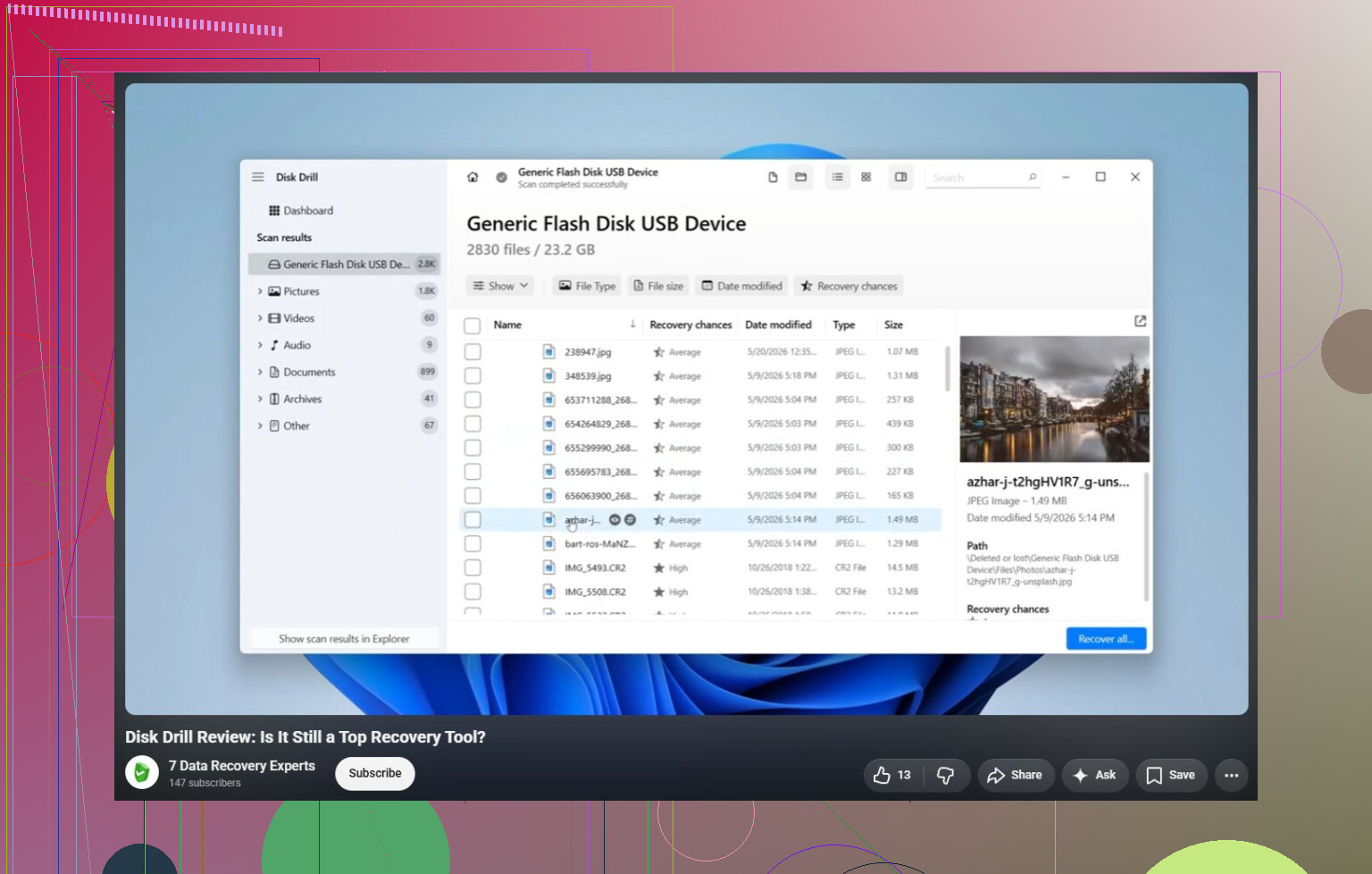
I used Disk Drill. The basic workflow is pretty straightforward:
- Install Disk Drill on your computer, not on the SD card or USB drive you’re trying to recover.
- Plug in the exFAT card or USB device.
- Select the device and choose Search for lost data.
- Use Universal Scan for most cases.
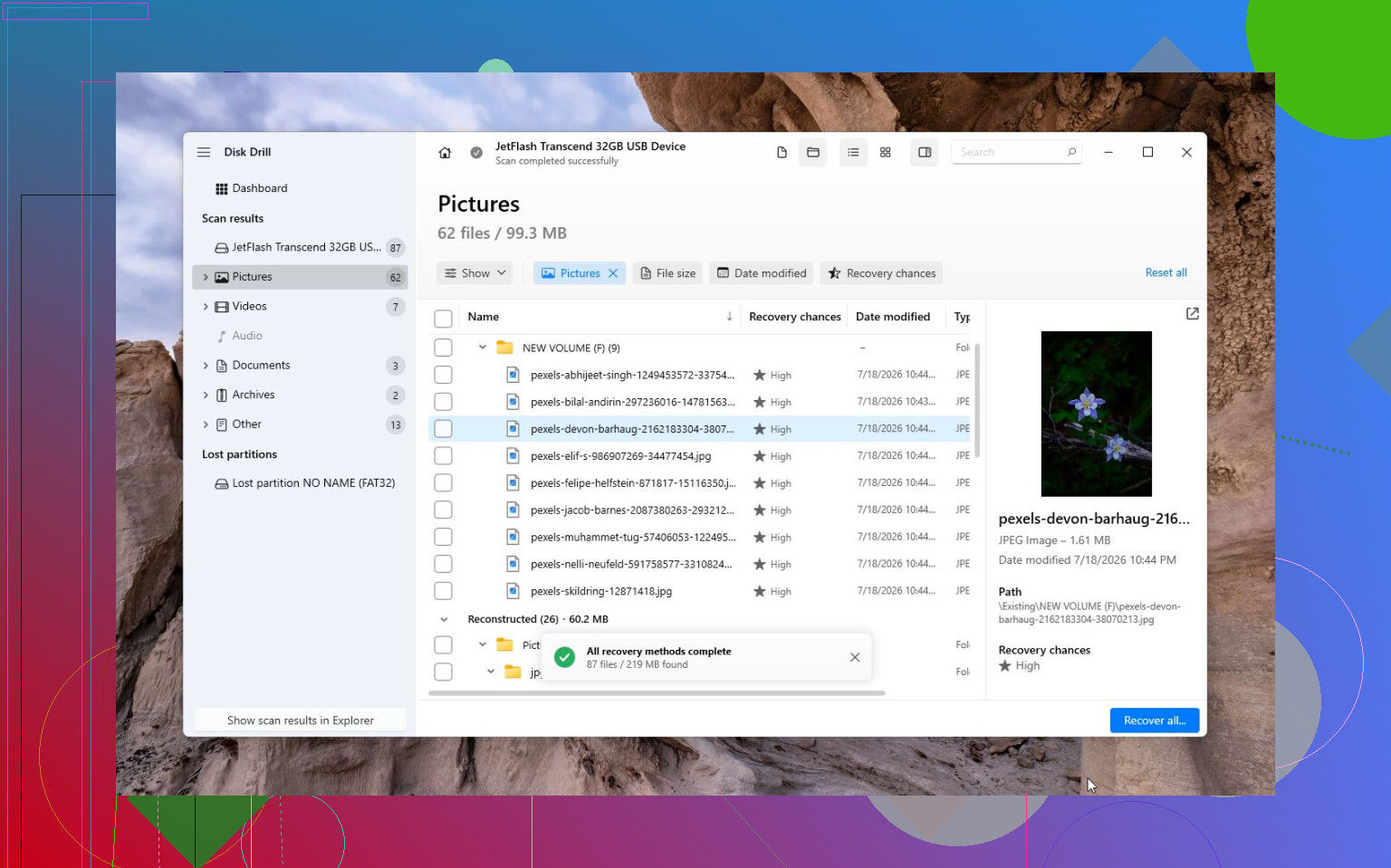
- Wait for the scan to finish, then preview what it finds.
- Save recovered files to your computer or another drive. Don’t recover them back onto the same card or USB stick.
On Windows, Disk Drill lets you recover up to 100 MB for free, which is useful for checking whether your files are actually recoverable before paying for anything. I’d also pay attention to the disk imaging option. If the card is acting flaky, disconnecting, reading slowly, or freezing during scans, make an image first and scan that instead. It puts less stress on the original device.
For camera footage, especially from DJI, GoPro, Canon, Sony, and similar devices, try Advanced Camera Recovery (ACR) too. Video files from cameras are often split into fragments, so a normal scan may not rebuild them correctly. ACR is meant for that kind of fragmented video recovery.
If Disk Drill doesn’t find the files, I’d look at TestDisk next. It’s free and a lot less beginner-friendly, but it’s very good when the real problem is a broken partition or corrupted file system instead of a simple deleted-file situation.
The one time I wouldn’t keep messing with DIY tools is when the device looks physically bad. If it won’t show up on multiple computers, disconnects constantly, has visible damage, or gets unusually hot, stop using it. At that point a recovery lab is the safer route. Many do free evaluations, but actual recovery can run from a few hundred dollars to over $1,000 depending on what failed.
So yeah, even without a backup, recovering files from an exFAT SD card or USB drive is very doable. Just don’t write anything new to it, and recover the data before trying to repair or reformat the device.
9 Likes
If Disk Management shows the card at the correct size, recovery odds are usually much better than if it shows 0 bytes, “No Media,” or keeps disconnecting. I agree with not running CHKDSK, but before scanning I’d try a different card reader or USB port, because a flaky reader can make an exFAT card look worse than it is. If it still shows correctly, make an image of the card first if the tool allows it, then scan the image with Disk Drill, R-Photo, DMDE, PhotoRec, or whatever you’re comfortable using. The annoying catch with photos/videos is that previews can look fine while some recovered videos are broken, so test a few recovered files before assuming the whole batch is saved. And don’t “repair” the card until the files are copied somewhere else.
Missing files doesn’t automatically mean the photos are gone. With exFAT, it can just mean the directory info is damaged, so Windows no longer knows how to list the files even though a lot of the actual photo/video data may still be sitting there.
I’d be a little careful with the “just scan it” approach, though. If the card is unstable, every full scan is another long read across the whole card. That’s why imaging the card first is more than a nice extra. It gives you a copy to work from, and if the SD card gets worse later, you’re not starting from zero.
The other thing people overlook with SD cards is fake or failing capacity. If this was a cheap large card from Amazon/eBay/marketplace, or one that always seemed a little suspicious, missing videos can happen because the card lied about its size and started overwriting earlier data once it filled past the real capacity. In that case recovery can be messy or incomplete, no matter what software you use. Do not test it with H2testw or F3 yet, because those tests write across the card and can destroy what you’re trying to recover. Save that kind of test for after recovery, or on a cloned image if you know what you’re doing.
For the actual recovery attempt, I’d go in this order:
- Remove the card and don’t put it back in the camera.
- Try a known-good reader, preferably directly plugged into the computer.
- If the card shows the correct size, make a sector-by-sector image first.
- Scan the image, not the card, if possible.
- Recover to an internal drive or another external drive, never back to the SD card.
- Open a sample of the recovered files before celebrating.
Disk Drill is fine as an easier first pass, especially if you want previews and don’t want to deal with a more technical interface. The caveat is that previews are not proof that every file will be perfect, especially with video. A JPG is usually simpler. Camera video can be fragmented, and if the file system records are damaged, normal file carving may find chunks but not rebuild the whole clip properly. There’s a related discussion here on recovering deleted videos from an SD card that’s worth reading if most of what you lost is footage rather than photos.
I’d push back slightly on trying too many tools one after another on the original card. People do that because each tool finds something different, which is true, but on a bad SD card it can turn into hours of repeated reads. If you have an image, go wild with Disk Drill, R-Photo, DMDE, PhotoRec, whatever. If you only have the original card and it’s acting flaky, be more selective.
And don’t be surprised if the recovered result is ugly. Best case, you get the original folders and filenames. More common with damaged exFAT, you get files sorted by type with generic names. Worst case, photos come back but some videos are corrupt or only partially playable. That doesn’t mean the recovery failed completely, it just means the file system metadata was probably damaged enough that the tool had to guess.
If the card starts disappearing during scans, shows different sizes each time, or freezes the whole machine, stop. That’s the point where DIY becomes less about software choice and more about whether the card can physically be read long enough to make a copy.
Stop opening it in File Explorer.
That sounds minor, but Explorer can sit there trying to generate thumbnails, read metadata, or refresh the folder over and over. If the card is already throwing read errors, that is wasted wear before you even start recovery. Disk Management seeing the card only proves the computer can detect something. It does not prove the file system is readable or that the NAND is healthy.
I agree with the image-first advice, but I’d be stricter about it if videos matter. A normal recovery scan is fine when the card is stable. If the scan slows to a crawl, hangs on certain percentages, or the card drops and reconnects, I would stop scanning the card directly. At that point you want a clone/image method that can skip bad areas and resume later. Some nicer recovery apps make this easy. On the more technical side, tools like ddrescue are better for a sick device because they don’t just grind forever on the same bad spot.
Small caveat on the SD lock switch: sliding the tab to “lock” on a full-size SD adapter can help prevent accidental writes, but don’t trust it like a real forensic write blocker. Some readers respect it, some setups are weird, and microSD cards don’t really have that protection by themselves. Treat the card as fragile anyway.
Disk Drill is reasonable for the user-friendly pass, especially if you want previews, but I wouldn’t judge the result only by thumbnails. Copy a few recovered files to your computer, open them fully, and for videos scrub near the beginning, middle, and end. A recovered MP4 that opens for two seconds can still be damaged. If filenames and folders come back, great. If everything comes back as generic JPG/MP4 files, that may still be a good result for an exFAT card with damaged directory records.
And don’t “fix” the exFAT volume after recovery unless you’re done with the data. Formatting, CHKDSK, camera repair prompts, and fake-capacity tests are all after-the-fact jobs. The boring order is best: make the safest copy you can, recover from that copy, verify the files, then decide whether the card is trash.