I accidentally deleted important videos and photos from my GoPro SD card and I’m trying to figure out the best way to recover them before they’re gone for good. I really need help finding safe GoPro recovery steps or software that works, because these files are important and I haven’t used the card much since it happened.
I’ve had to recover missing GoPro clips more than once, and yeah, this is one of the messier recovery jobs. Sometimes the footage is still sitting on the card. Sometimes it looks recoverable, then the file opens and falls apart halfway through. That part sucks. Recovering action cam video is a different beast from pulling back a deleted JPG or Word file.
Do this before anything else
Stop using the SD card.
No new recording. No formatting. No repair tools. Don’t let the camera keep writing to it.
When a GoPro clip gets deleted, the file entry is often removed first, while the raw video data stays on the card until something new lands on top of it. I learned this the hard way after shooting over a card I thought was “empty.” If you keep using it, your odds drop fast.
A few things are worth checking before you start scanning:
- GoPro cloud Trash or Recently Deleted, if you pay for the subscription
- Any copy you dumped to your laptop or external drive earlier
- LRV files on the card, since those preview clips are sometimes the only thing left
- Whether the camera asks to repair the file when you put the card back in
If none of those pan out, then yeah, move on to recovery software.
Why GoPro footage is harder than people expect
A lot of folks treat video recovery like photo recovery. I did too at first. It isn’t the same.
Newer cameras rarely write one neat MP4 in one clean stretch. A GoPro often writes the main video, audio, low-res preview files, GPS info, thumbnails, and other metadata around the same time. On the card, pieces of one clip end up spread all over. Not always in order either.
So a recovery app scans the card, finds chunks of an MP4, stitches together what it thinks belongs, and you end up with a file name and an icon. Then you hit play, and it freezes, has no duration, or cuts out after 12 seconds. I’ve seen all three.
This comes up a lot with:
- GoPro Hero models
- DJI drones
- Insta360 cameras
- Recent Sony, Canon, Nikon, and Panasonic cameras
- Dash cams
For this kind of job, the scan alone isn’t the whole story. The rebuild logic matters a ton.
What I’d try first
I’d start with Disk Drill.
The reason is simple. Its Advanced Camera Recovery mode is aimed at fragmented video from devices like GoPros, drones, and dash cams. Instead of assuming your deleted clip was stored as one clean block, it looks at scattered video fragments and tries to rebuild them into something playable. For modern camera footage, that approach makes more sense than the old file-carving routine.
The steps are pretty plain:
- Plug the SD card into your computer with a card reader
- Open Disk Drill
- Pick the memory card
- Select Advanced Camera Recovery
- Run the scan
- Preview what it finds
- Save recovered files somewhere else, never back onto the same card
The preview part matters. I like seeing whether a clip opens before I waste time exporting a pile of junk files. Disk Drill also pushes you toward making a byte-to-byte image of the card first, which matches what data recovery shops tend to do when a card looks flaky or starts throwing read errors. I did this once on a card with random slowdowns, and it saved me from hammering the original media.
If you want other options
PhotoRec is the free one I’d keep around.
It digs up a huge range of file types and costs nothing, which is nice. The catch is usability. No fancy camera-specific rebuild process. No proper preview flow. No help sorting the mess afterward. You often end up staring at a mountain of recovered files with generic names, trying to figure out which one is your bike ride and which one is a broken fragment. It works, but it’s rough.
UFS Explorer is on the other end.
It’s a serious tool. More technical. More control. In hard cases, it sometimes does better than the average consumer app. But it’s not the first thing I’d hand to somebody who wants their GoPro clips back tonight. The workflow is heavier, and it still doesn’t center the kind of camera-focused recovery path that makes Disk Drill easier for fragmented action cam footage.
If I was dealing with deleted footage from a GoPro, DJI drone, or something similar, I’d go in this order. Disk Drill first. PhotoRec if I needed a free fallback. UFS Explorer if the case looked uglier and I wanted more control.
3 Likes
First move, clone the card to an image file and work from the copy. I differ a bit from @mikeappsreviewer there, because with microSD cards, one bad read session can make things worse fast. Use USB Image Tool, Win32 Disk Imager, or dd if you know it.
Then check the basics most people skip:
- DCIM and MISC folders for hidden files.
- CHK files from Windows error repair.
- GoPro Quik imports cache on your phone or PC.
- exFAT directory damage. If the card went weird after a battery pull, the files might still exist but the index is broken.
For software, Disk Drill is a solid pick for GoPro SD card recovery, mostly because preview saves time and it handles photo recovery well too. If your clips were split into chapter files, look for matching timestamps and sizes. Recover all parts, then test in VLC.
If MP4 files come back broken, try untrunc or recover_mp4 with a healthy sample clip from the same GoPro mode, same resolution, same fps. This step fixes a lot of “file found but wont play” cases.
For photos, sort by file signature and date. For video, expect partial recovery if the card saw new writes. If the footage matters a ton, stop DIY after imaging the card. That’s the point where a lab has the best shot.
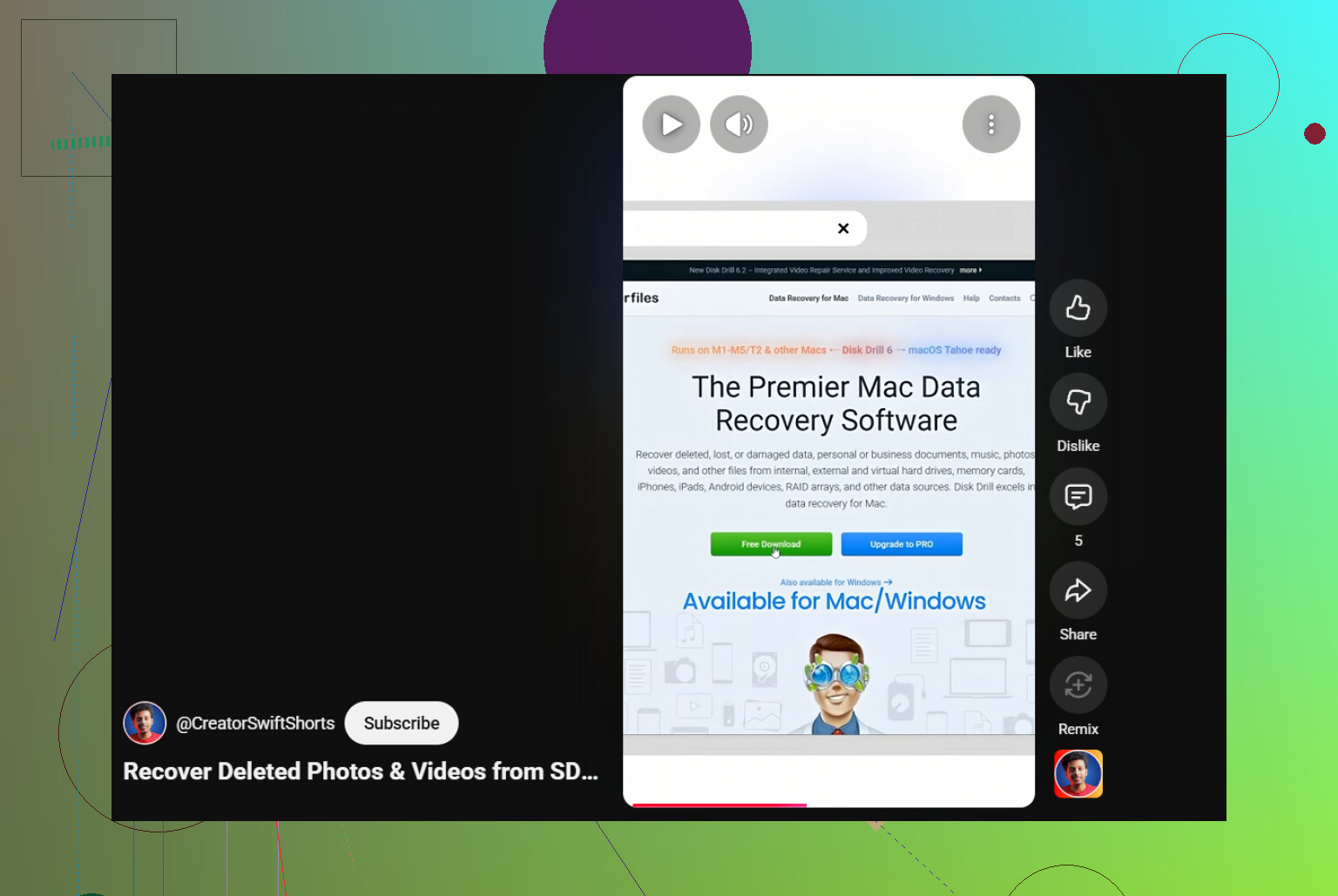
Also, this short guide is decent if you want a fast visual walkthrough on recovering deleted GoPro and SD card videos:
watch this quick tip for GoPro SD card video recovery
Main thing, do not save recovered files back to the same card. Thats how people nuke the last clean sectors.
One thing I’d add that @mikeappsreviewer and @codecrafter only touched on sideways: check whether the files were actually deleted, or just de-indexed by the card after a dirty shutdown. On exFAT cards, I’ve seen GoPro clips vanish from the camera but still show up if you mount the card on a computer and run a filesystem-aware scan instead of only a raw deep scan.
That’s why I usually do two passes, not one:
- filesystem scan for original names/folder structure
- signature scan for whatever is left
Disk Drill is pretty decent for this because it can do both without making the process super annoying, and for GoPro recovery that matters more than ppl think. If you get your original MP4 names back, sorting the right clips is way easier than digging through 800 generic recovered files.
Small disagreement with the “put the card back in the camera and see if it offers repair” idea: I woudln’t. Cameras are not recovery tools. They sometimes “fix” stuff by writing new metadata, which is exactly what you don’t want right now.
Also, if the card is from a recent Hero model and your lost videos were long, check for chaptered files like GX01xxxx, GX02xxxx, etc. People recover one segment and think the rest is gone when it’s actually split across multiple files.
If nothing shows up cleanly, browse this GoPro footage recovery discussion and SD card recovery tips too. There are a few real-world cases there that are more useful than generic “just scan it” advice.
One extra angle nobody’s really hammered on: check the card’s health before you trust any recovery result. A failing microSD can “recover” files that look fine in the list but corrupt during copy. On Windows, CrystalDiskInfo will not help much for SD cards, so I usually watch for slow reads, copy errors, or the card dropping offline. If that happens, stop rescanning over and over.
I slightly disagree with trying too many tools back to back on the original card, even read-only. With flaky cards, repeated passes are not free.
My order would be:
- Write-protect adapter if you have one
- Make one image if the card is stable
- Recover from the image
- Verify recovered MP4s with MediaInfo, not just VLC
Why MediaInfo? It tells you whether the container headers are intact, duration is real, codec info exists, and whether the file is just a stub.
On software, Disk Drill is a reasonable middle ground.
Pros:
- easy preview
- good for mixed photo/video recovery
- can recover from an image
- simpler than heavier forensic tools
Cons:
- paid if you need full recovery
- can still return fragmented MP4s that need repair
- not the deepest option for advanced filesystem work
That’s where I’d complement @codecrafter, @waldgeist, and @mikeappsreviewer: after recovery, validate every important clip immediately and duplicate it to two drives. A “recovered” file is not really recovered until it actually plays end to end.