My external hard drive is still showing up normally in Windows, but all of my files seem to have disappeared. The drive has the correct size and looks connected without errors, so I’m not sure if the files are hidden, corrupted, or something else is wrong. I need help figuring out how to recover the missing files without making the problem worse.
Yeah, I ran into almost the same mess once. My external drive still showed up in Windows, looked normal at first glance, but a bunch of folders were gone. I thought I had wiped something by mistake. I hadn’t. The file system was damaged, the data was still sitting there, and I got most of it back.
If your drive still appears in Windows, I’d treat that as a good sign. It does not mean your files are safe, but it often means they are still recoverable. What you do next matters a lot, so I would not start throwing random “fixes” at it.
The first step is simple. Stop using the drive.
Do not copy new stuff onto it. Do not format it. Do not run CHKDSK yet. Do not use repair tools yet either. Those tools write changes to the drive, and if the missing files are still there, you want the drive left alone as much as possible.
A few basic checks first.
- In File Explorer, turn on Hidden items. I’ve seen files look “gone” when they were only hidden.
- Look at the used space on the drive. If the folders look empty but the drive still shows most of its space as used, I’d take that as a strong hint your data is still there.
- Swap the USB cable, or move the drive to another USB port. I’ve had one bad cable waste an hour of my life.
If those checks go nowhere and you do not have a backup, I’d skip repair attempts and go straight to recovery software.
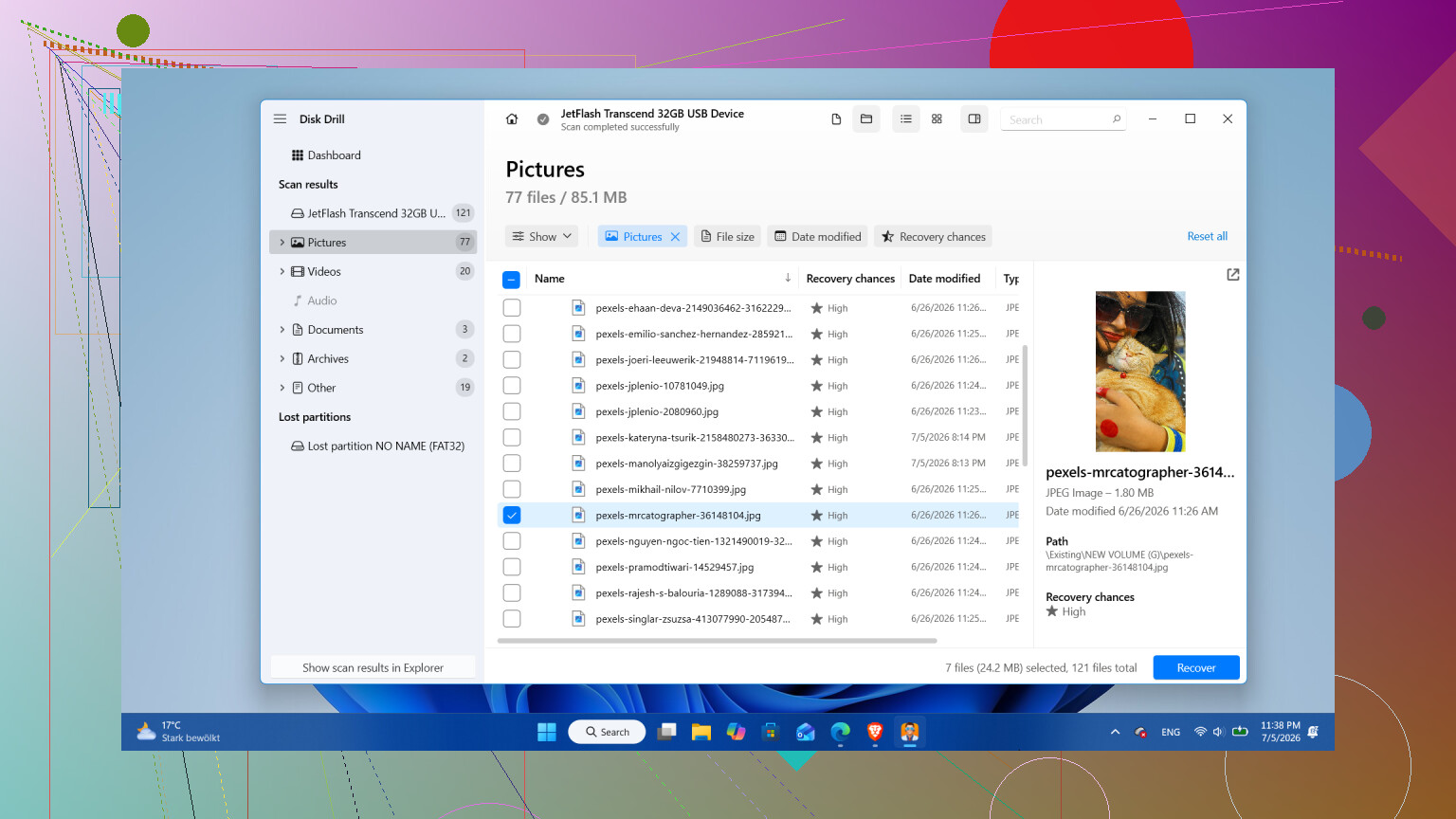
What I’d use is Disk Drill. I used it because the layout was easy enough and it handled common external-drive file systems without much fuss. The part I liked most was the disk imaging option.
That matters more than people think. A disk image is a full copy of the drive, bit for bit. It includes normal files, deleted data, damaged file system info, all of it. If your drive is unstable, disconnects, or feels slow in a weird way, scanning the image is safer than hammering the original drive again and again.
This is the order I’d follow.
- Install Disk Drill on your internal drive, or on another healthy drive. Do not install it onto the problem drive.
- Plug in the external drive and open Disk Drill.
- If the drive keeps dropping off, freezing, or acting sketchy, make a disk image first with Disk Drill’s built-in tool. Then scan the image, not the original drive.
- If the drive seems stable, select it and hit Search for lost data.
- When it asks for scan mode, I’d pick Universal Scan. It rolls multiple recovery methods into one pass, so you do not need to guess which mode fits your problem.
- Let the scan finish. On a big drive, this drags. Still worth it. I saw extra files show up late in the process.
- Check the results, use filters if needed, preview important files, then mark what you want back.
- Recover the files to a different drive. Not the same external one.
On Windows, there’s also a small free tier, up to 100 MB recovered. That is not enough for a big loss, but it is enough to test whether your files are readable before spending money.
I would only try repairing or reformatting the original drive after the important files are safely copied elsewhere.
One case where I would stop and not do software recovery first, physical failure signs. Clicking. Grinding. Repeated disconnects. Read speed crawling for no clear reason. Drive vanishing from Windows every few minutes. That points more toward hardware trouble. In my opinion, once it starts doing stuff like that, every extra power-on is a gamble. At that stage, I’d shut it down and send it to a recovery lab.
And yeah, after you get your files back, I’d think hard about retiring the drive. Drives do not usually “lose” files for fun. If it was a one-off file system issue from an unsafe eject, a reformat might leave it usable. If it starts dropping out in Windows, showing bad sectors, or pulling this stunt again, I wouldn’t trust it with anything I care about.
You replace a drive. You don’t replace old photos and personal docs so easy.
11 Likes
If Windows sees the drive with the right capacity, I would check the file system status before doing recovery. Slight disagreement with @mikeappsreviewer here, CHKDSK is not step one, but looking at the drive properties and SMART data matters a lot.
Do this first.
- Open Disk Management.
- See if the partition shows as RAW, Unallocated, or NTFS/exFAT.
- Check Properties, Tools, Error checking. Do not click repair yet.
- Read SMART with CrystalDiskInfo or the drive maker’s tool.
If SMART shows Caution or Bad, stop using the drive. Clone it first, then work from the clone. If SMART is clean and the used space still matches your missing files, hidden attributes or directory corruption are more likely than full data loss.
Also try this in Command Prompt as admin:
attrib -h -r -s /s /d X:*.*
Replace X with your drive letter. Malware and bad USB ejects sometimes flip hidden/system flags on whole folders. I’ve seen this fix the ‘everything vanished’ thing more than once.
If the folders still do not show, Disk Drill is a solid next move. I’d use it to preview files first, then recover to another disk. If you want more opinions before paying, this thread on top data recovery software picks from Reddit users is worth a read.
One more thing. Check Event Viewer, Windows Logs, System, and look for disk or ntfs errors around the time files disappeared. It helps tell you if this was corruption, power loss, or the drive starting to die. Small step, but useful.
I’d add one thing neither @mikeappsreviewer nor @espritlibre really leaned on enough: check whether the folders were moved into a lost directory instead of truly “gone.”
If this is an NTFS drive, open Command Prompt and run:
dir X:\ /a
then
dir X:\found* /a /s
Replace X with the drive letter. Sometimes after a dirty unplug, Windows leaves fragments in FOUND.000 type folders. Ugly, but recoverable. Also check if your user permissions got weird. Right click drive > Properties > Security. I’ve seen files “disappear” when the account lost access, not because the data vanished.
Another thing, search the drive with a wildcard from the root:
*.jpg
*.docx
etc.
Explorer can be dumb about showing broken folder trees while files still exist.
I slightly disagree with the idea of jumping straight into repairs even for a healthy-looking drive. If the directory structure is messed up, repairs can make recovery messier. I’d inspect first, then recover first, then fix later.
If you want recovery software for hard drives and external USB drives, Disk Drill is a solid pick because it handles missing partitions, deleted files, and corrupted file systems without being a total pain to use. Previewing files before recovery matters a lot.
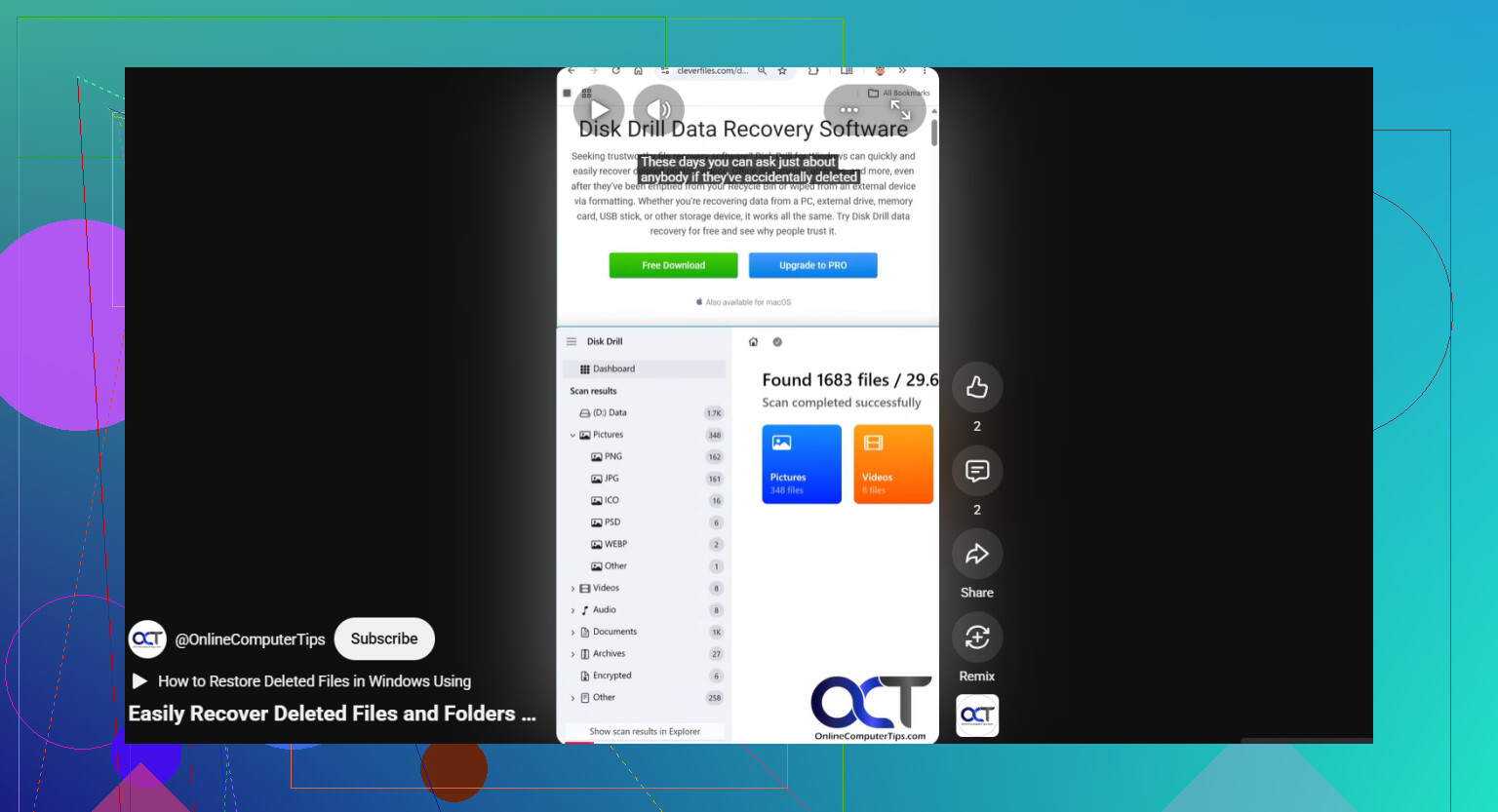
Also worth watching this quick bit on recovering files from an external hard drive.
One last boring check: look in Recycle Bin and also check if the files got renamed to nonsense. Sounds stupid, but I’ve seen it. Windows gets wierd sometimes.
I’m with @espritlibre and @voyageurdubois on one key point: don’t “fix” the drive first. Where I differ a bit from @mikeappsreviewer is that I would also check whether this is just an Explorer indexing/view problem before touching the filesystem at all.
A couple of checks that weren’t really covered:
- Open the drive in a different file manager, not just File Explorer. Total Commander or FreeCommander can sometimes show folders Explorer fails to render properly.
- In File Explorer Options, disable “Hide protected operating system files” temporarily and reset folder view settings.
- Run a root-level search from PowerShell:
Get-ChildItem X:\ -Force -Recurse -ErrorAction SilentlyContinue | Select-Object FullName
If files list there, the data may exist and the folder tree is what’s broken. - Check quota/compression/encryption weirdness in drive properties. Rare, but I’ve seen files “vanish” because of EFS or permission inheritance issues after moving between PCs.
If the drive mounts normally but the directory is mangled, recover first, repair later. That is where Disk Drill makes sense.
Disk Drill pros:
- easy preview of recoverable files
- good for corrupted directory structures
- can scan external USB drives and common filesystems
- cleaner interface than some rivals
Disk Drill cons:
- free recovery is limited on Windows
- deep scans can take forever
- results can be messy when filenames are already damaged
- not the cheapest option
So my order would be: verify files exist outside Explorer, check permissions, then use Disk Drill to preview and recover to another disk if needed. If the drive works after that, I still would not trust it long-term. A drive that “loses” files once tends to audition for doing it again.