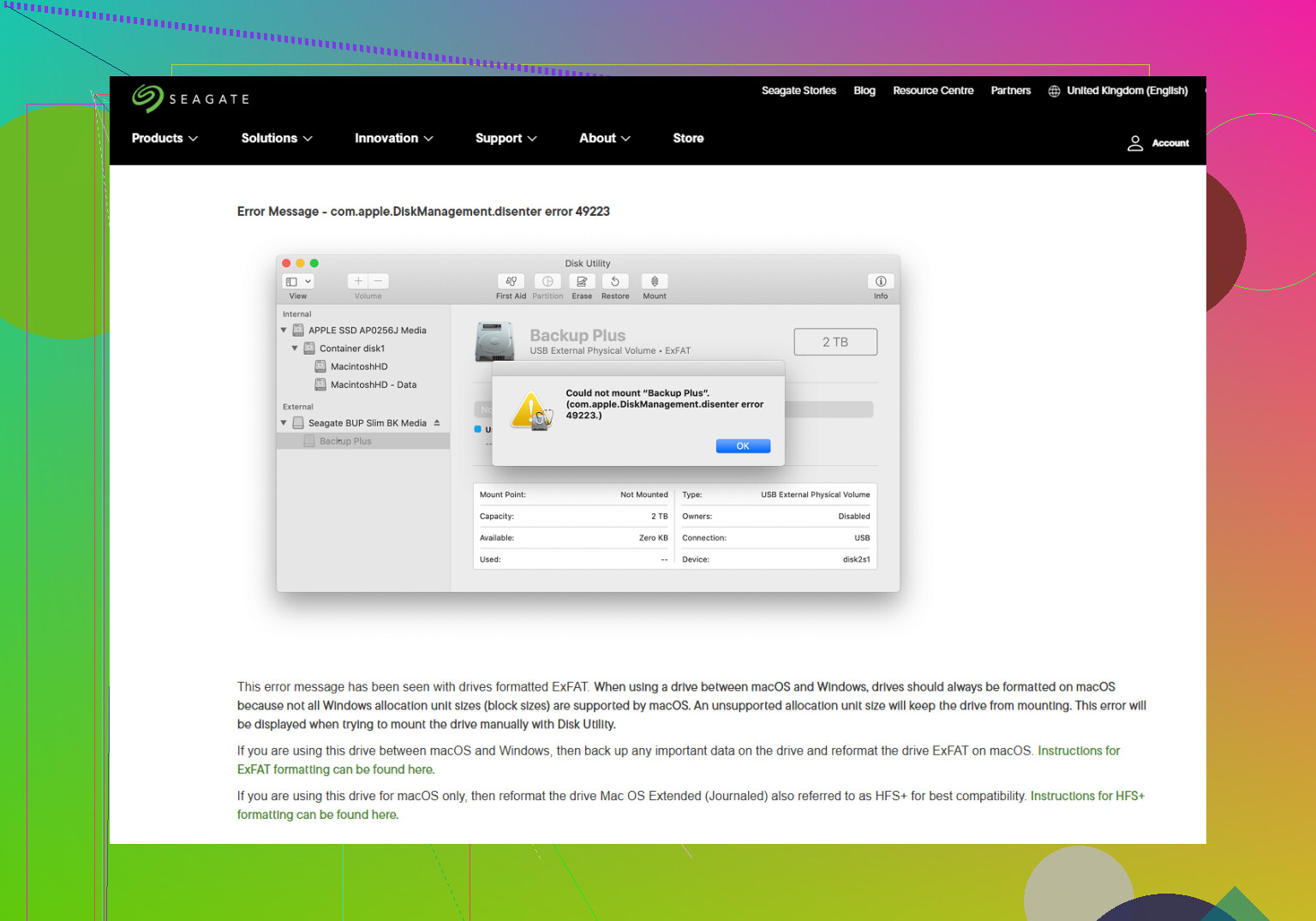
My external hard drive suddenly stopped mounting on my Mac and shows the com.apple.diskmanagement.disenter error 0 message. I need help figuring out what caused it and how to fix it because I have important files on the drive and can’t access any of my data.
I ran into this same mess a while back. The drive showed up in Disk Utility, sat there gray, and threw the “com.apple.DiskManagement.disenter” error. What I learned the hard way is simple. macOS sees the hardware, but it is failing at the file system layer, so the volume never mounts.
What caused it for me was one of the usual suspects. A drive got pulled without ejecting. An exFAT volume got weird after moving between systems. Once, macOS started checking the disk in the background and never seemed to finish. Same result every time, the disk looked present but unusable.
Don’t jump straight to erase. Start with the least risky stuff first.
1. Kill a hung fsck check
This fixed it for me more than once.
When a disk is unplugged badly, macOS often starts fsck on its own. That check is supposed to help, but if it hangs, the drive stays locked. I saw this most often on larger external drives and on exFAT.
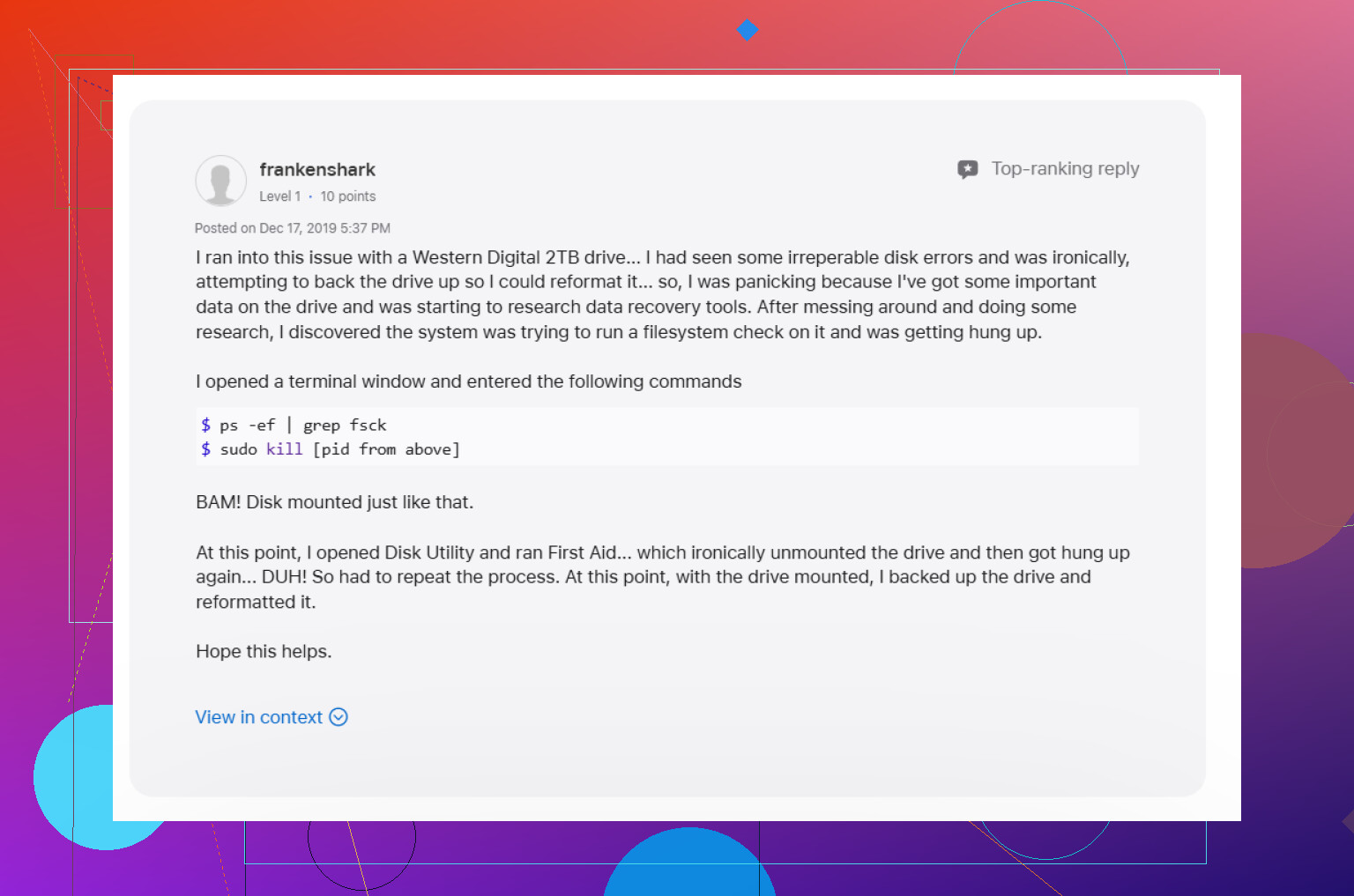
Open Terminal from Applications > Utilities, then run:
sudo pkill -f fsck
Type your Mac password when asked. You won’t see the characters while typing. macOS does that by design.
If fsck was the thing blocking access, the disk sometimes pops back almost right away. If it mounts read-only, stop poking at it and copy your files off first. I mean imediately.
2. Run First Aid on the whole chain, not only the volume
This part gets skipped a lot.
In Disk Utility, hit View, then Show All Devices. You want to see the top physical disk, any container under it, and the volume itself.
Then run First Aid in order:
physical disk
container
volume
I had one case where the first pass did nothing useful, and the second pass cleaned up errors. So if it fails once, I’d still try again before moving on.
3. Log out, or test from another macOS user account
I know this sounds random. Still, I’ve seen DiskManagement get stuck at the user level.
Log out of your account. Sign back in and recheck the disk. If you have another local account on the Mac, try there too. If the drive mounts in the other account, your main profile is part of the problem, not the disk alone. I’ve seen prefs and permissions cause some dumb behavior here.
4. Look at Time Machine if this disk was ever used for backups
This one bit me once and wasted a full evening.
If the drive used to be a Time Machine target, macOS might still be hanging onto it through backup jobs or local snapshot handling. Open System Settings and turn off automatic Time Machine backups for the moment. Then reconnect the disk and check again.
Not the first thing I’d blame, but worth trying if the drive has backup history.
5. Stop forcing mounts if recovery matters
If Terminal and First Aid get nowhere, I’d stop doing repair loops.
Repeated attempts to force a damaged file system online can push it further off the rails, esp if the directory structure is already broken. At this stage, file recovery comes before repair.
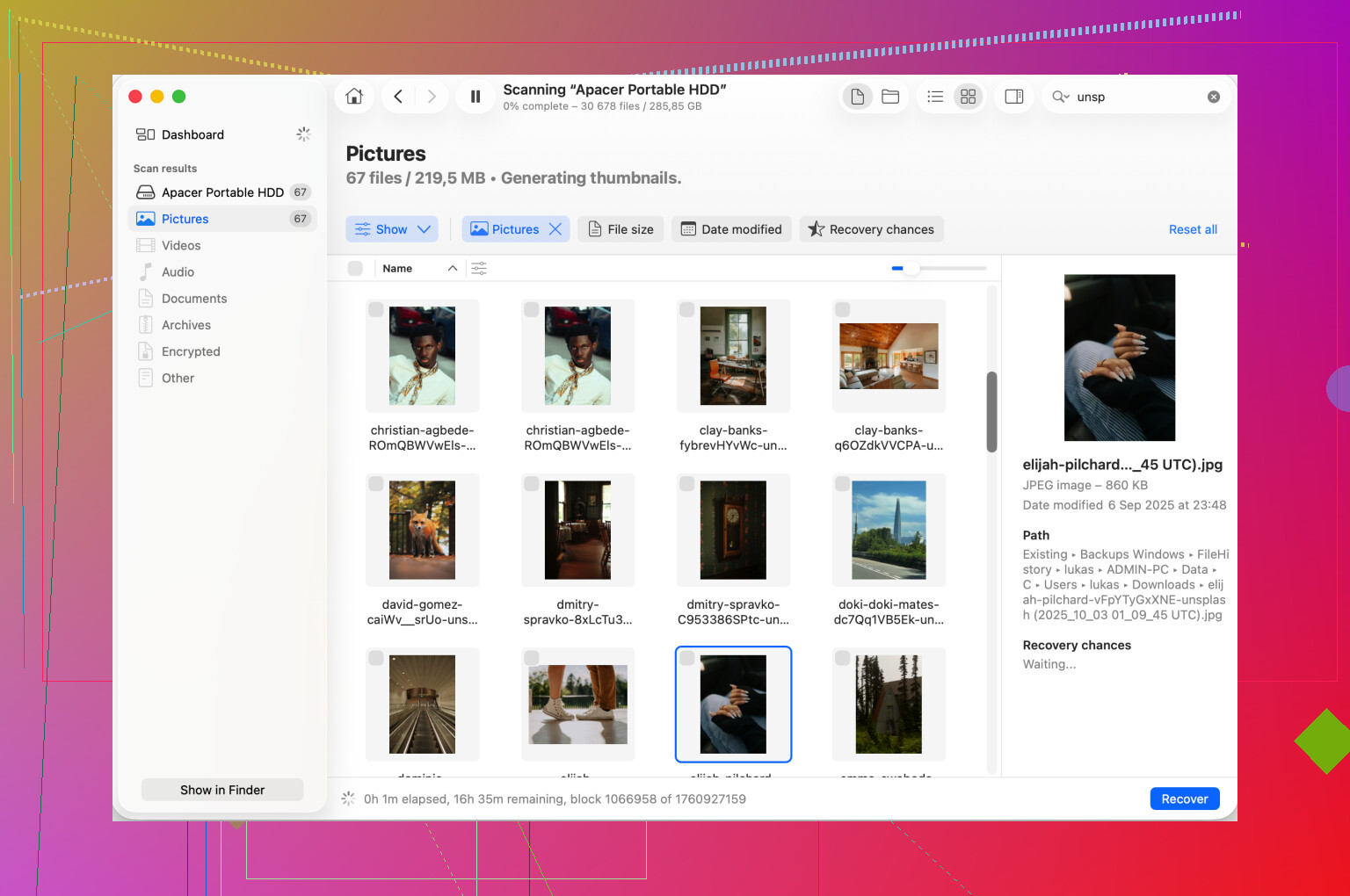
I’d use a recovery tool and pull data to another healthy disk first. Disk Drill is one route. It can scan a drive even when macOS refuses to mount it in the normal way. The point is not to “fix” the disk yet. The point is to get your files out while the raw data is still readable.
My rule after losing a weekend to this stuff was simple. Recover first. Repair later. Erase last.
6. Reformat only after the files are safe somewhere else
Once your data is off, go back into Disk Utility, select the physical drive, and erase it there.
Format choice depends on where the drive will live:
For Mac-only use, APFS or Mac OS Extended Journaled.
For Mac and Windows, exFAT.
I’d do the formatting on the Mac if the disk is going back and forth between systems. I’ve had fewer weird mount issues that way.
One last thing. Eject external drives every time, even when you’re in a hurry. Also, large drives take a while during checks, so give First Aid some time before deciding it froze. And yes, RAID still doesn’t replace backups.
9 Likes
Error 0 usually means macOS sees the drive enclosure, but it refuses the volume. I agree with part of what @mikeappsreviewer said, but I would check the hardware path before doing more file system repair loops. I have seen this caused by bad USB-C hubs, weak cables, and underpowered drives more often than people think.
Try this first.
-
Plug the drive straight into the Mac.
Skip docks and hubs.
If it has a power supply, use it.
If it is a portable HDD, try a different cable. Cables fail a lot. -
Check if the disk shows in Terminal.
Run:
diskutil list
If you see the physical disk, note its identifier, like disk4.
Then run:
diskutil info /dev/disk4
Look for:
Protocol
S.M.A.R.T. status
Read-Only Media
File System Personality
If the file system line looks blank or weird, the partition map or volume header is damaged.
- Mount from Terminal, not Disk Utility.
Run:
diskutil mountDisk /dev/disk4
If it fails, try:
diskutil verifyDisk /dev/disk4
This tests the partition map first. Disk Utility hides some of this info, which is annoying tbh.
- Check system logs.
Run:
log show --last 10m | grep -i diskmanagement
and:
log show --last 10m | grep -i ‘I/O error’
If you see I/O errors, stop trying to repair the disk. That points to failing hardware, not a simple mount issue.
- If the drive is NTFS, macOS often reads it but will not handle damage well.
A lot of these error 0 cases happen after unsafe removal on Windows. exFAT does this too, but NTFS is worse on Mac. If you have access to a Windows PC, plug it in there and run:
chkdsk /f
I know some people hate cross-platform checks, but for NTFS this is the correct move.
- If your files matter more than the disk, switch to recovery mode for your data, not macOS.
Disk Drill is a solid option for external hard drive data recovery on Mac when the drive will not mount. Scan the disk, save recovered files to a different drive, then worry about repair later.
Also, this is the right mindset for your case: when to stop using a failing external drive and focus on data recovery
One more thing people miss. If the drive clicks, spins down, disappears from diskutil list, or reconnects over and over, stop now. That is physical failure territory. More retries = worse odds. If it stays visible and stable, recovery software still has a fair shot.
If you post the output of diskutil list and diskutil info, people here can tell you if this is partition damage, file system damage, or the drive starting to die.
I’d add one thing that both @mikeappsreviewer and @hoshikuzu only touched indirectly: check whether the volume is being blocked by macOS security policy, not just corruption.
This happens more with older HFS+ drives, odd partition maps, or drives that were used in NAS / DVR / Linux boxes. The disk can appear fine in Disk Utility, but Finder refuses to mount it and throws the disenter error anyway.
A few things I’d try that are diffrent:
- In Terminal, run
mountand see if the volume is already partially mounted somewhere weird like/Volumes/DriveName 1 - Check
/Volumesfor ghost mount folders:
ls /Volumes
If you see duplicates of the drive name, that can confuse mounting - Try mounting read-only:
diskutil mount readOnly /dev/diskXsY
If that works, copy data off first and stop there - Boot into Safe Mode and test the drive there. That disables a lot of third-party junk that can interfere, esp NTFS helpers and antivirus stuff
- If you use Paragon, Tuxera, antivirus, drive monitor tools, uninstall or disable them tempraorily
Also, sometimes Finder is the liar, not the disk. Check if the volume appears in Terminal even when Finder acts like it does not exist.
If the data matters, I slightly disagree with doing too many verify/repair attempts. After 2 or 3 failed mount tries, I’d switch to recovery. Disk Drill is usually the practical move for external hard drive recovery on Mac because it can scan the disk even when macOS won’t mount it normally.
If this is a Seagate external, their own page on fixing Seagate drive mount and Disk Utility errors on macOS is worth a look too.
Short version: if the drive is stable and visible, test read-only and Safe Mode. If it vanishes, clicks, or keeps reconnecting, stop messing with it and recover the files first.