After a recent Windows update, one of my NTFS drives suddenly shows up as RAW and I can’t open any of my files. Disk Management sees the partition, but Windows says it needs to be formatted. I’m trying to figure out if NTFS partition recovery is worth attempting and what the safest steps are to avoid losing data.
I ran into this with a drive showing up as RAW, and I would not convert it to NTFS first. If Windows is asking you to format it, what it means is simple, it no longer reads the file system. It does not mean your files are gone.
What I saw most often was a partition still sitting there with the right size, while the NTFS structure got messed up enough for Windows to stop understanding it.
Recover first. Fix later.
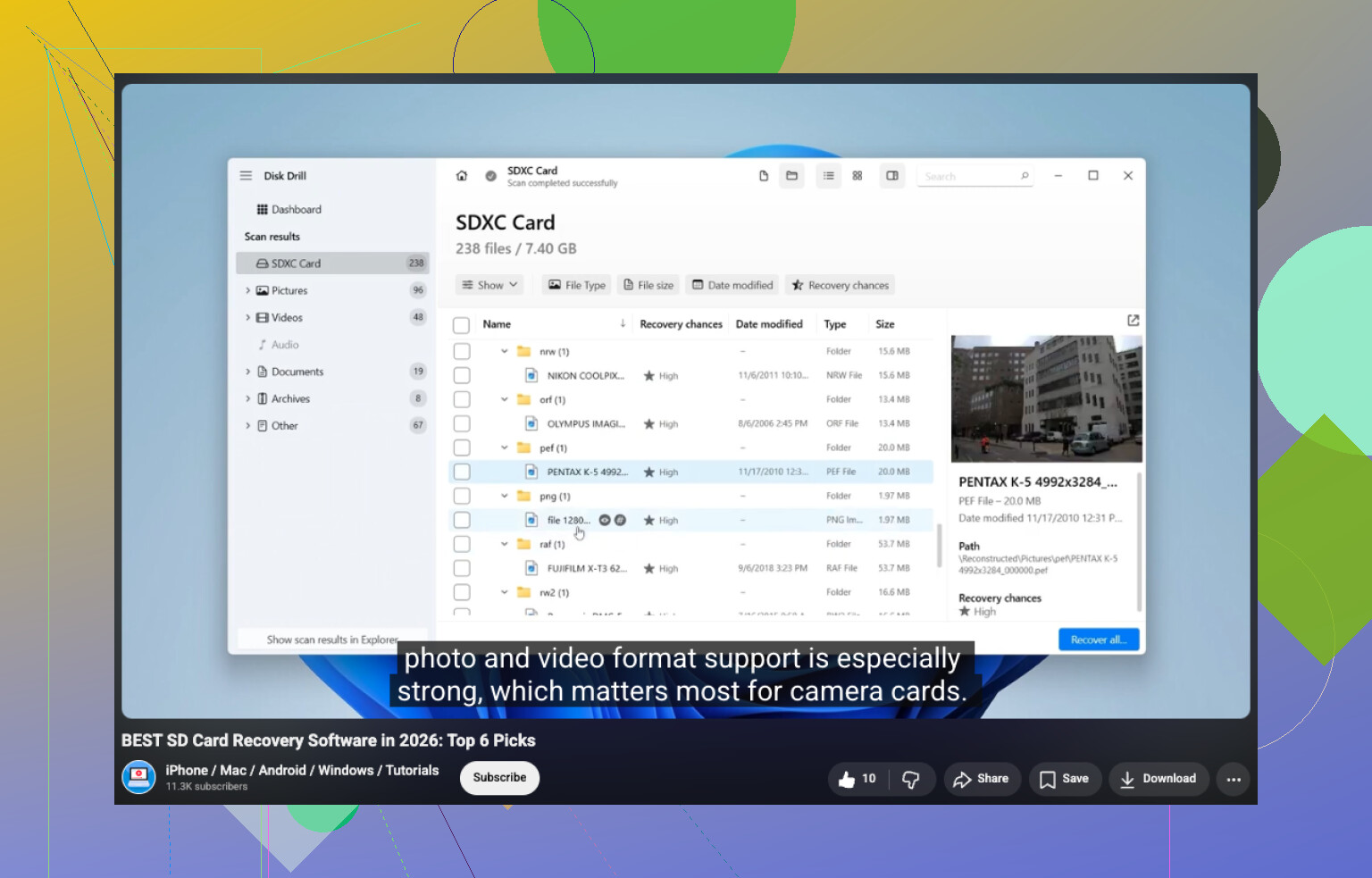
If the drive still shows the correct capacity, I’d scan it before touching anything else. The easiest one I used was Disk Drill. It tends to spot RAW partitions on its own and rolls a few recovery methods into one pass, which saves time. Pick the RAW drive, start the scan, wait it out, then go through what it finds. You should be able to preview stuff like photos, docs, video files, and other common formats before restoring them. That part matters, because it tells you whether the files are still usable.
Small but important thing, save recovered files to another drive. Do not write them back to the RAW disk.
If Disk Drill misses stuff, I’d try UFS Explorer next. I’ve seen it pull files other tools skipped. DiskGenius is worth a shot too, since it does file recovery and partition recovery in the same app. I’d compare results before making any repair attempt. Sometimes one tool sees folder structure, another one only finds raw files, and the difference matters.
After your important data is safe somewhere else, then deal with the partition itself. What you do next depends on why it turned RAW in the first place.
- Format it to NTFS if your goal is only to use the drive again.
- Restore the partition if the partition table got damaged and the data still seems present.
- Run CHKDSK only after recovery, and only if this looks like mild NTFS corruption. It fixes file system issues. It is not a recovery tool.
- Replace the drive if SMART alerts, bad sectors, or repeated read failures start showing up. At that point I stop trusting the hardware.
The main screw-up I’d avoid is throwing repair commands at the disk before copying your files off. Anything writing changes to the file system can make recovery worse. Get your data out first. Then repair it, reformat it, or bin the drive if it’s dying.
13 Likes
Yes, it’s worth trying to recover it. RAW after a Windows update often means Windows lost the NTFS metadata, not your files. Big difference.
I agree with @mikeappsreviewer on one part, do not format first. I disagree a bit on jumping straight into repair tools after scans. First I’d rule out the dumb stuff Windows updates sometimes break.
Do this in order:
- Try a different SATA or USB cable, port, and PC.
- Check SMART health with CrystalDiskInfo or your SSD maker’s tool.
- Look in Event Viewer for disk or NTFS errors around the update time.
- If SMART is clean and the size looks correct, make a sector-by-sector image first if the data matters.
Then recover from the image, not the original drive. That lowers risk if the disk starts throwing read errors. A lot of people skip this and regret it.
For recovery, Disk Drill is fine and easy to use on RAW drives. If you want a quick overview of top-rated data recovery tools for 2026, this video helps: see the best data recovery software for 2026
One more thing. TestDisk is worth trying before a full file carve if the partition entry or NTFS boot sector got damaged. It’s less friendly, but when it works, you keep names and folders. If TestDisk shows both NTFS boot sectors are bad, stop writing to the drive.
If the drive is an SSD, move fast. TRIM makes failed recovery worse over time. That part gets missed alot.
So yes, recover first. But I’d image first, then test partition repair, then file recovery. That order saves more data in my experiance.
Yes, it’s worth trying, but I’d be carefull about assuming the Windows update is the actual cause. Sometimes the update is just when Windows finally notices an already shaky file system.
I mostly agree with @mikeappsreviewer and @sognonotturno on one thing: don’t format it yet. But I’m a little less enthusiastic about trying repairs early, even “safe” ones. If the partition still shows the right size, that often means the data region is still there and only the NTFS metadata or boot record got borked.
What I’d add is this: check the partition in a Linux live USB first. If Linux can mount it read-only, you may be able to copy stuff off without doing any recovery scan at all. That’s sometimes faster and preserves folders better than jumping straight into carving tools. If Linux also sees it as RAW or unknown, then yeah, move to recovery software.
Disk Drill is a solid option for RAW drive recovery because it’s easy to scan the partition and preview files before restoring them. I’d use it for triage, not for “fixing” the disk. If it finds your files with normal names and folders, that’s a very good sign.
Also, disable auto-mount if you keep reconnecting the drive. Windows can be annoyngly pushy with “format this disk” behavior.
For extra reading, this thread is pretty relevant: RAW to NTFS recovery discussion for old hard drives
Short version: recover data first, then wipe and recreate NTFS later. If the drive starts clicking, disappearing, or slowing to a crawl, stop DIY and treat it like possible hardware failure.
Yes, it’s worth trying, but I’d separate two goals that often get mixed together: recover files and repair the volume. I’m with @sognonotturno, @sterrenkijker, and @mikeappsreviewer on not formatting first, but I slightly disagree with the idea that partition repair should be high on the list if the data is important. RAW after an update can be just NTFS metadata damage, but it can also be the moment a weak drive finally tips over.
My take: before recovery software, check whether the partition offset and size still look normal in Disk Management or diskpart. If those are suddenly wrong, that points more to partition table damage than simple NTFS corruption. Different problem, different chances.
If the layout looks right, I’d avoid any write action and do one of two things:
- Clone/image it if the data matters a lot.
- If the drive seems stable, scan it read-only with Disk Drill or another recovery tool.
Disk Drill pros: easy UI, good preview, handles RAW volumes well, decent for quick triage.
Disk Drill cons: not the deepest tool for badly damaged NTFS, can be slow on large drives, and the friendlier interface may hide what’s actually happening under the hood.
What I would not do yet is run CHKDSK just because the disk used to be NTFS. On a RAW volume, CHKDSK is often useless or risky.
One extra angle nobody should ignore: if BitLocker was enabled at some point, verify the partition did not lose its unlock state or metadata presentation. I’ve seen “RAW” reports that were really an encryption-related access issue.
So yes, recover first. If Disk Drill shows original folders and filenames, that’s a good sign. If it only finds generic file types, expect heavier filesystem damage. After the files are safe, then worry about rebuilding or formatting the partition.