My iPhone storage is filling up, and I think downloaded videos, photos, or app media are the reason. The problem is I can’t find a clear way in iOS to see the exact file sizes for each downloaded file. I need help finding an iPhone app or method that shows exact media file sizes so I can figure out what to delete and free up storage.
The part of iPhone storage that drove me nuts was always the big Media block. It would eat a huge chunk of space, and Settings gave me almost nothing to inspect. I kept opening Storage, staring at the bar graph, and wondering why free space kept dropping when I had not been shooting many photos or saving much on purpose.
What sits inside “Media”
This category is wider than it looks. It bundles a lot of unrelated stuff into one pile. Downloaded tracks from Apple Music or Spotify, podcast episodes saved for offline playback, movies from the TV app, voice memos, old ringtones, all of it ends up there.
On newer iOS builds, you might also notice Synced Media. That usually means files copied from a Mac or PC through iTunes or Finder. Old music libraries, home videos, random files from years ago, stuff you forgot existed. Apple changed how storage gets shown, so instead of seeing those items spread across separate apps, they often get folded into one large Media or Synced Media section. For a lot of people, that is why storage looked like it jumped out of nowhere.
And yeah, streaming apps add to the mess even when you did not go out of your way to save anything. YouTube stores Smart Downloads. Podcast apps grab episodes on their own. App artwork, thumbnails, and feed caches pile up too. Your phone keeps trying to be helpful, and your storage pays for it.
Why Settings is bad at this
The built-in storage page shows a total, then stops there. You see 50 GB used by Media, but you do not get a usable list of files. No proper drill-down. No size sorting. No clean way to spot the one 5 GB video wrecking your storage.
So you end up doing the dumb routine. Open TV, then Music, then Podcasts, then every streaming app one by one. Even then, a lot of apps only show totals, not the actual files inside. I did this more than once, and it felt like searching a garage with the lights off.
A huge Media spike might be three old offline movies. It might be 40 smaller downloads scattered across six apps. iOS does not tell you. That is the part I hated.
What worked better for me
After trying the usual stuff, offloading apps, clearing Safari data, checking message attachments manually, I was barely moving the needle. Most cleanup apps looked free until the moment I tried to remove something, then the paywall showed up.
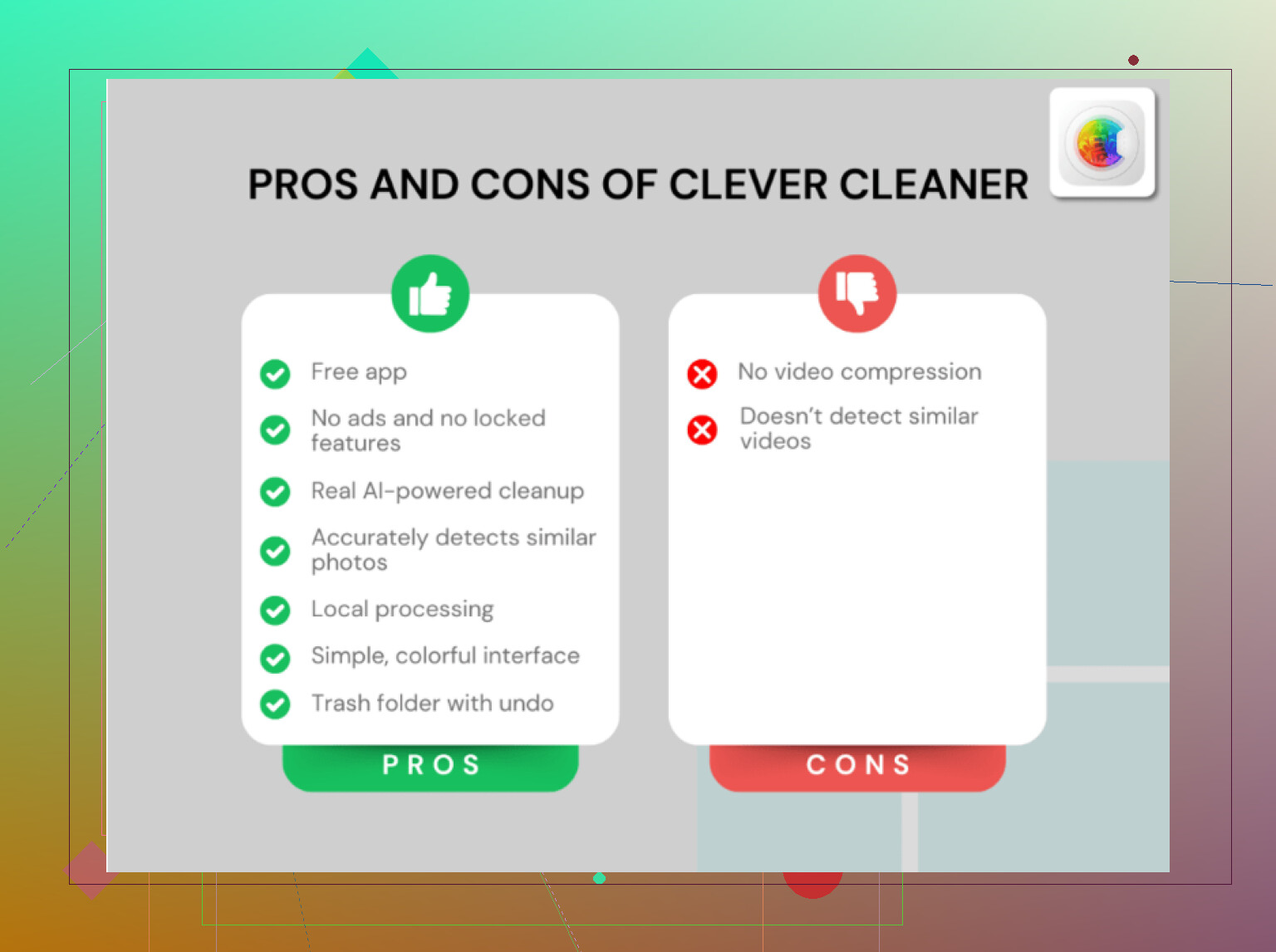
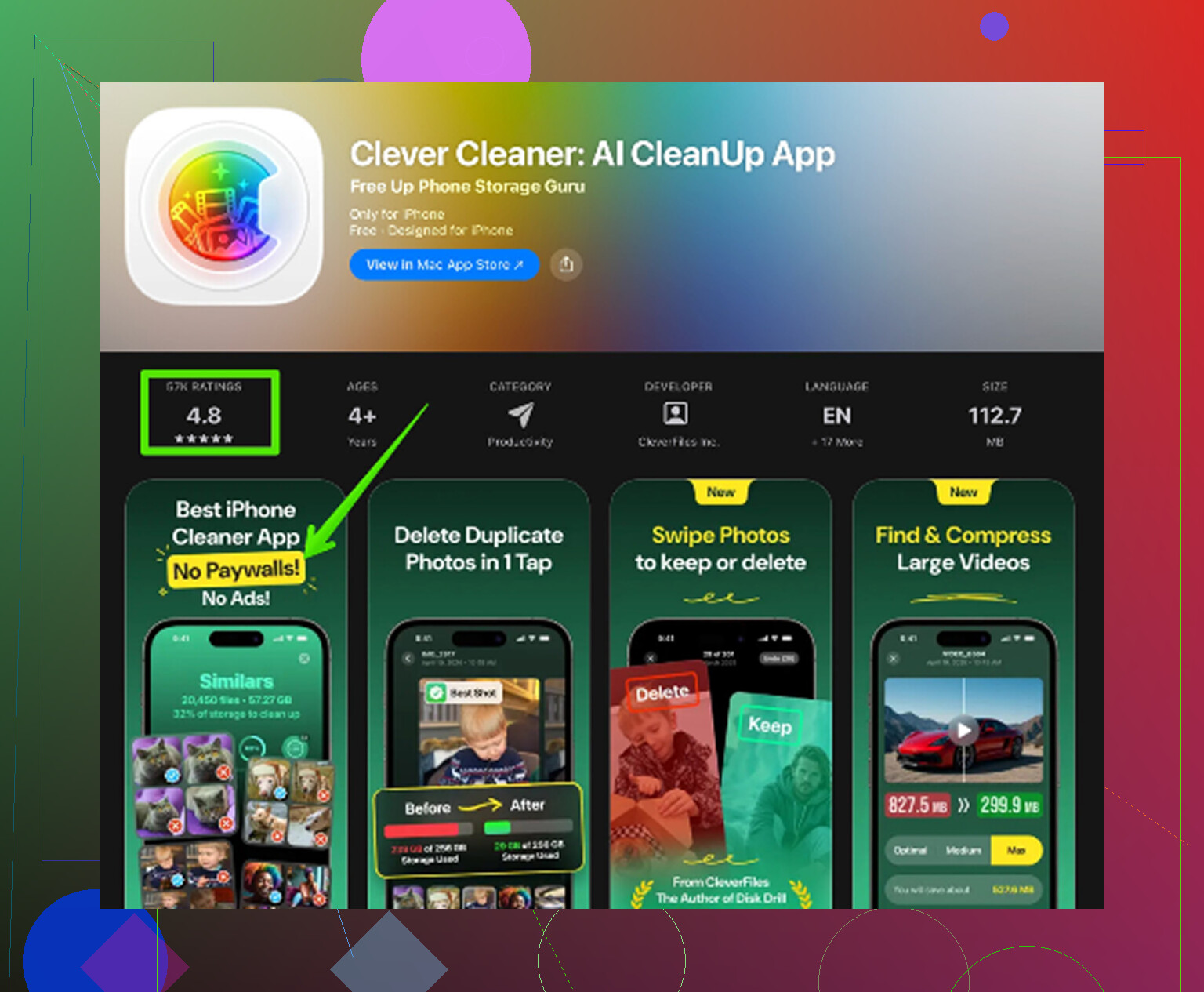
Clever Cleaner was the one I stuck with. No ads. No subscription trap. No “pro” wall popping up after the scan. I noticed that fast because most apps in this category pull the same trick.
The reason it helped more than Settings is simple. It scans the library and shows details Apple hides. This is the part worth doing.
How I used it
- Heavies tab
This was the big one. It lists large videos and files from biggest to smallest, with exact sizes shown. Photos on iPhone does not give you this kind of view. I found a few old screen recordings in 4K I had forgotten about, and each one was taking up a stupid amount of space. Once I saw the numbers, deleting them was easy.
- Similars tab
This grouped nearly identical photos together. Burst shots, five versions of the same angle, tiny variations taken seconds apart. I kept the one I wanted and dumped the rest in one pass. Doing that inside the regular Photos app is slow and annoying.
- Screenshots tab
Screenshots stack up quietly. Receipts, maps, one-time codes, random memes, app errors, all the junk you needed for ten minutes. This section keeps them separate from normal photos and shows file sizes on each item. I liked that because I did not want to touch my real photo library while cleaning.
- On-device processing
This part mattered more than I expected. Nothing got uploaded. No external scan. Everything stayed on the phone. If your library has personal videos, ID photos, banking screenshots, or work docs, that matters.
A couple fast things to check first
Before doing a deeper cleanup, I would look at your streaming apps. Open YouTube, Netflix, Spotify, whatever you use, and check offline downloads. Those are often the biggest storage hogs hiding inside Media.
Also go to Settings > Messages > Keep Messages and switch it to 30 Days or 1 Year. Old message attachments, especially videos, pile up for ages if you leave it on forever.
The part people miss
This is where a lot of cleanup attempts fail. Deleted photos and videos do not disappear right away. They go to Recently Deleted and stay there for up to 30 days. During that time, they still take up storage.
So if you clean out files and the storage bar does not move, check this:
Photos > Albums > Recently Deleted > Delete All
That is the step that frees the space for real. Everything before it is setup. I skipped this once, saw no change, and thought the whole cleanup was broken. It was not. The files were still sitting there.
10 Likes
iOS is bad at per-file size visibility. @mikeappsreviewer is right on the storage page being too vague, but I don’t fully agree that you need to chase every media app first. Start with places where iPhone does show sizes.
Try this:
Files app
Browse > On My iPhone > Downloads
Tap the three dots, switch to List view, then sort by Size.
This is one of the few native spots where you get exact file sizes for downloaded files.
Photos app
For a photo or video, swipe up on it.
You’ll see file size in the info panel on newer iOS versions. Slow for bulk cleanup, but useful.
Settings > General > iPhone Storage
Tap individual apps. Some apps show “Documents & Data” usage pretty clearly, even if they hide file names.
If you want a faster scan across your library, Clever Cleaner is worth a look. I’d use it more for large videos and photo clutter than for app sandbox downloads. Different problem, same storage pain.
Also check:
Safari downloads
Telegram, WhatsApp, Discord media
GarageBand, iMovie exports
Voice Memos
If you want a visual walkthrough, watch how to find and remove large files on your iPhone step by step.
The annoying part is iOS still hides too much stuff. Kinda dumb, tbh.
iOS is weirdly bad at this, but I’d push back a little on @mikeappsreviewer and @chasseurdetoiles on one thing: chasing individual files is only half the battle. A lot of “downloaded media” on iPhone is app sandbox junk, and you will never get a neat Finder-style list for all of it. Apple just does not let you.
What does work is narrowing down the hogs faster:
- Settings > General > iPhone Storage
Wait for the graph to finish loading. Tap the biggest apps first. Look for apps with huge “Documents & Data”. - Settings > Accessibility > Per-App Settings
Kidding. That menu helps with nothing here. Classic iPhone treasure hunt.
Real stuff to check that people miss:
- Settings > Camera > Record Video. If you shoot in 4K/60, every little clip is secretly enormous.
- Settings > Photos > Review Personal Videos if it appears
- Music app downloaded songs
- Apple TV rentals/downloads
- VLC, Infuse, Dropbox, Google Drive offline files
- CapCut / InShot / Lightroom exports and cache
If you want exact sizes for photo/video cleanup, Clever Cleaner is probly the easiest visual option since it surfaces large items better than Apple does. For a broader explainer, this was decent: see how Clever Cleaner helps find large iPhone files and free up storage.
One more underrated move: delete and reinstall bloated apps like Instagram, TikTok, Spotify, Discord. Their cache gets absurd. Annoying, but it works.