I’m trying to free up space by deleting the Twitter/X cache on my iPhone, but I’m not sure what it actually removes. Does clearing the app cache also delete my Twitter search history, recent searches, or saved data, or do I need to clear those separately in the app?
Clearing the Twitter cache can help, but it’s only one part of the storage problem. If your iPhone is still almost full afterward, the bigger issue is usually somewhere else.
Clearing cache won’t remove your search history
Twitter search history is not part of the cache. If you want to delete recent searches, open the Search tab, tap into the search bar, and remove the items one by one with the X beside them. Clearing cache from the Data Usage menu does not clear those entries.
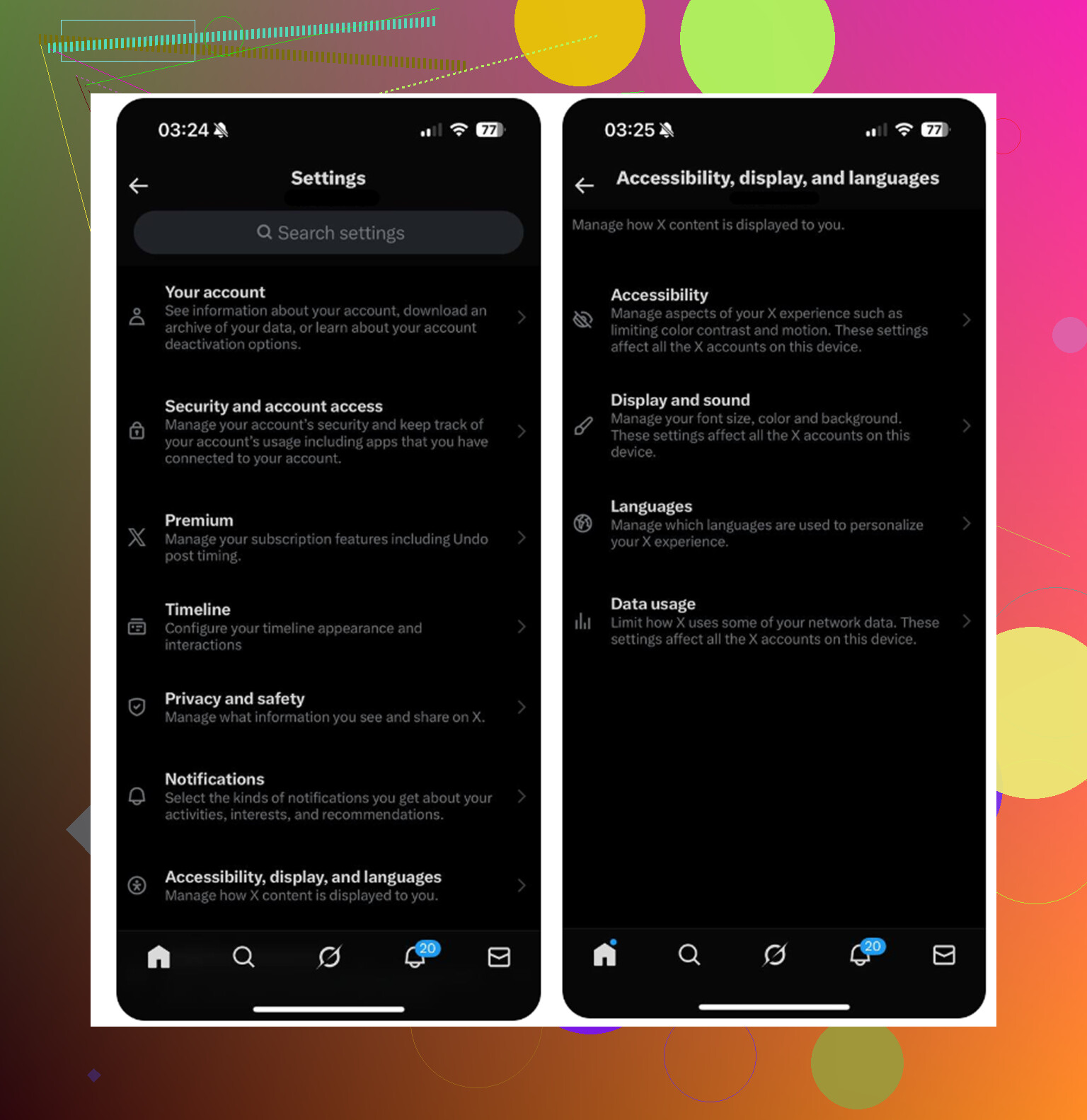
How to clear Twitter cache on iPhone
- Open Twitter and tap your profile icon in the top-left corner
- Go to Settings and Support, then Settings and Privacy
- Open Accessibility, Display and Languages
- Tap Data Usage
- Scroll down to Storage
Media storage is the safe one to clear regularly. That’s where the app keeps cached images, GIF bits, video previews, and thumbnails from your feed. Clearing it should not log you out.
Web storage is a little different. Clearing web page storage removes cached website data and usually leaves your login alone. Clearing all web storage also removes cookies, so it can sign you out. Don’t pick that one unless you know your password.
How often should you clear it?
Every month or so is fine. Something like every four to six weeks is reasonable. Just keep in mind that the cache comes back because that’s how the app keeps scrolling feeling quick. If you want it to grow more slowly, go back to Data Usage and set video autoplay to Wi-Fi only, or turn autoplay off.
If the phone is still slow, Twitter probably wasn’t the main issue
Clearing Twitter cache might free up around 1 to 2GB for a while. That helps, but if the storage warning comes back a few days later, the cache was probably not the real problem.
iOS needs some free space to work properly. When the phone is close to full, everything can start feeling slow, not just Twitter. In most cases, the bigger storage hog is the photo library. Old screenshots, repeated shots from the same moment, burst photos, and large videos tend to pile up quietly and take way more space than app cache.
What helps more long term
Once you’ve cleared the Twitter cache, it’s worth looking at Photos. Clever Cleaner is aimed at that part specifically. It’s free, with no ads and no subscription.
It does not clear Twitter data or app cache, so you still need the manual steps above for that. What it does is help find the stuff in your photo library that is actually eating storage.
The Heavies tab shows your largest files first, with the exact file sizes. Big 4K videos you forgot about are much easier to spot there than by scrolling through years of photos.
The Similars tab groups near-duplicate photos and chooses a Best Shot from each group, so you can clear out multiple versions of the same scene without checking every photo manually.
It also shows file sizes on screenshots before you delete them, which makes it easier to decide what is worth removing.
Everything is processed on the device, so your files are not uploaded to an external server.
The practical order
Clear the Twitter cache first if you want a quick storage win. Then clean up the photo library, because that’s usually where the bigger savings are. After deleting photos or videos, open Photos, go to Recently Deleted, and choose Delete All. Otherwise those files can sit there for 30 days and still count against your storage, which is why cleanup sometimes looks like it did nothing.
11 Likes
Cache is mostly disposable files, not your account history. Your recent searches can still show after clearing it, so delete them from the search bar if privacy is the goal. If X storage still looks bloated, reinstalling the app is the heavier but cleaner reset.
Don’t use iPhone’s Offload App button if you’re trying to wipe Twitter/X leftovers. Offloading keeps the app’s documents and data, so it can leave the bulky stuff behind. Clearing cache inside X is safer for storage, but it won’t erase your recent searches or anything tied to your account. For privacy, clear searches in the search field. For a harder reset, delete the app completely and reinstall it, but make sure you can log back in first.

If you’re signed into the same X account elsewhere, deleting recent searches on your phone won’t fully wipe them, since some of that history is tied to the account server-side, not just local cache. So the search-bar cleanup @sonhadordobosque mentioned handles the device, but log in on a laptop later and you may still see them. Cache clearing never touches any of that anyway.