My iPhone storage is almost full, and I realized screenshots are taking up more space than I expected. I’m trying to find an app or built-in way to see how much storage each screenshot uses so I can delete the biggest ones first. Has anyone found an easy way to manage and remove large screenshots on iPhone?
I ran into this mess on my own phone. Screenshots stack up quietly, then one day you open Photos and there are thousands of them. Login codes, order receipts, maps, random memes, half a conversation you meant to send. One file might be 200 KB. Another might pass 2 MB. On a bigger iPhone, especially a Pro Max, the total gets ugly fast. A few thousand screenshots can eat multiple gigabytes without looking like much in the grid.
The part I found annoying, Photos does not help much. You do not get file size sorting. You do not see how much space each screenshot takes while scrolling. So if your goal is storage, you are deleting blind.
Why I started with Clever Cleaner
If your main problem is space, I would start there. This is the part Photos never gave me. You see the file size right on the screenshot thumbnail, so before deleting anything, you know what you are getting back. There is a video here with the basic idea:
What stood out to me, it is free, no ads, no in-app purchase trap. Apps in this category usually do the opposite.
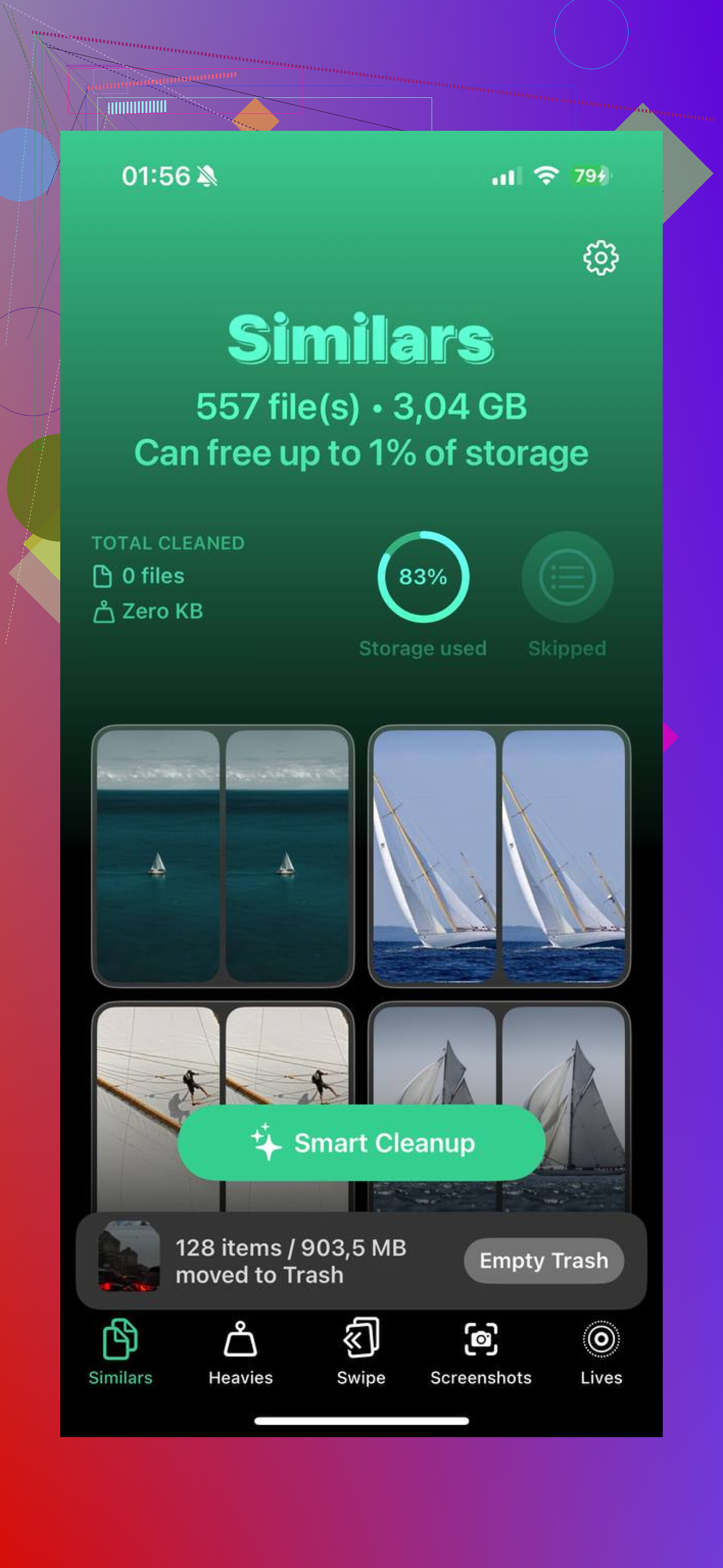
The Screenshots tab lays everything out with the size visible. The Heavies tab is the part I liked more. It ranks your whole library from biggest file down to the smallest, so the worst offenders float to the top first. Full-page captures, oversized screen grabs, HDR images, all the stuff taking more room than it should. I stopped wasting time digging through random old junk.
The Similars section helps too. iOS 18 catches exact duplicates, sure, but it misses the near-duplicates. I had sets of five screenshots where I was trying to crop or frame the same thing and ended up keeping all of them. Clever Cleaner groups those together, lets you keep one, then wipes the extras in one move. Saved me more space than I expected.
If you are staying inside the Photos app
You can still clean this up manually. Open Albums, scroll down to Media Types, then open Screenshots. On iOS 18, I had to swipe across the Media Types row before Screenshots showed up. If you want it easier to reach later, go to the bottom of Albums, hit Customize and Reorder, then move Media Types closer to the top.
From there, tap Select. Tap the first image, then drag across and downward to grab a bunch at once. This part gets flaky if your storage is already low. I saw Photos hang when deleting large batches. If your phone is near full, do not try to wipe 800 in one go. Keep it around 50 to 100 per batch. Slower, yes. Less chance of the app choking, also yes.
The part people forget
Deleting from the main library does not free space right away. Photos sends everything to Recently Deleted for 30 days. So if you need storage back now, go into Recently Deleted under Utilities, tap Select, then Delete All. That is the step where the storage returns.
How I stopped making the same mess again
For temporary screenshots, the best move is Copy and Delete. Take the screenshot, tap the preview, hit Done, then choose Copy and Delete. It copies the image so you can paste it into Messages or Mail, but it never stays in Photos. I use this for one-time codes, shipping confirmations, stuff I need for a minute and never again. It cuts down the buildup a lot.
If you removed the wrong thing
First stop is Recently Deleted. If it is still there, recovery is easy. If you already emptied it, then proper recovery software is the safer route. I trust that more than hoping iCloud happened to catch the exact file before it disappeared.
Once I cleared mine out, the storage drop was obvious and the phone felt less bogged down. Small cleanup, big payoff.
10 Likes
iPhone does not show per-photo file size in the Screenshots album in any useful way. That part is annoyng. You have to open one image, swipe up for info, and even then it is slow for bulk cleanup.
I slightly disagree with @mikeappsreviewer on one thing. I would not chase the biggest screenshots one by one first unless your library is small. Time-wise, bulk cleanup by date or purpose is faster. Old boarding passes, login codes, shopping reciepts, those add up fast even if each file is under 1 MB.
If you want file sizes visible at a glance, Clever Cleaner is one of the few options built for this. It helps sort screenshots by size, which makes deleting easier when storage is tight. If you want a quick read before installing anything, this Clever Cleaner review for iPhone storage cleanup covers what it does in plain English.
Built-in checks I would use first:
Settings > General > iPhone Storage > Photos
This shows total space used by Photos, not each screenshot.
Photos > Search
Type things like “screenshot”, “amazon”, “code”, “receipt”, “map” to find junk faster.
Fastest method for me:
- Open Screenshots album.
- Sort by oldest.
- Delete in chunks from old years first.
- Empty Recently Deleted.
A 500 KB screenshot times 4,000 is about 2 GB. Small files still hurt.
Honestly, iPhone’s built-in tools are kinda bad for this specific job. You can see total Photos storage, but not a nice per-screenshot size list unless you open items one by one, which is tedious as hell.
I’ll slightly disagree with @mikeappsreviewer and @boswandelaar on one point though: going after only the biggest screenshots is not always the best cleanup strategy. Sometimes 3,000 tiny junk screenshots are the real problem, not a handful of huge ones.
If you want size visible while browsing, Clever Cleaner is probly the easiest option. That’s the useful part here, seeing screenshot file sizes without tapping into every single image. I’d use it more as a triage tool than a magic cleaner.
Another built-in trick nobody mentions much:
Files app > Browse > On My iPhone/iCloud Drive
If you saved any screenshots there instead of Photos, switch to list view and sort by size. Different bucket, but worth checking.
Also check Messages. A lot of people save screenshots in chats, then keep the originals in Photos too. So you end up storing the same junk twice. Settings > General > iPhone Storage > Messages can uncover that mess fast.
If you want more opinions before installing anything, this thread on best free iPhone cleaner apps for clearing storage is a decent read.
Short version: no, iOS doesn’t really offer a great built-in per-screenshot size view. For that, Clever Cleaner makes more sense than fighting Photos all afternoon.
I’d split this into two goals: reclaim space fast, and avoid wasting time micromanaging file sizes.
Small disagreement with @boswandelaar, @sterrenkijker, and @mikeappsreviewer on the “size first” angle: screenshots are usually compressed enough that hunting individual giants can be less effective than finding patterns. The real win is often screenshot bursts from the same week or app.
A trick that complements what they said: use a Mac if you have one. In the Photos app on Mac, screenshots are easier to scan rapidly, and with Image Capture or Finder exports you can see actual file sizes much faster than on iPhone. Not elegant, but better than poking one image at a time on a tiny screen.
If you want an iPhone app view, Clever Cleaner is one of the few that makes sense for this.
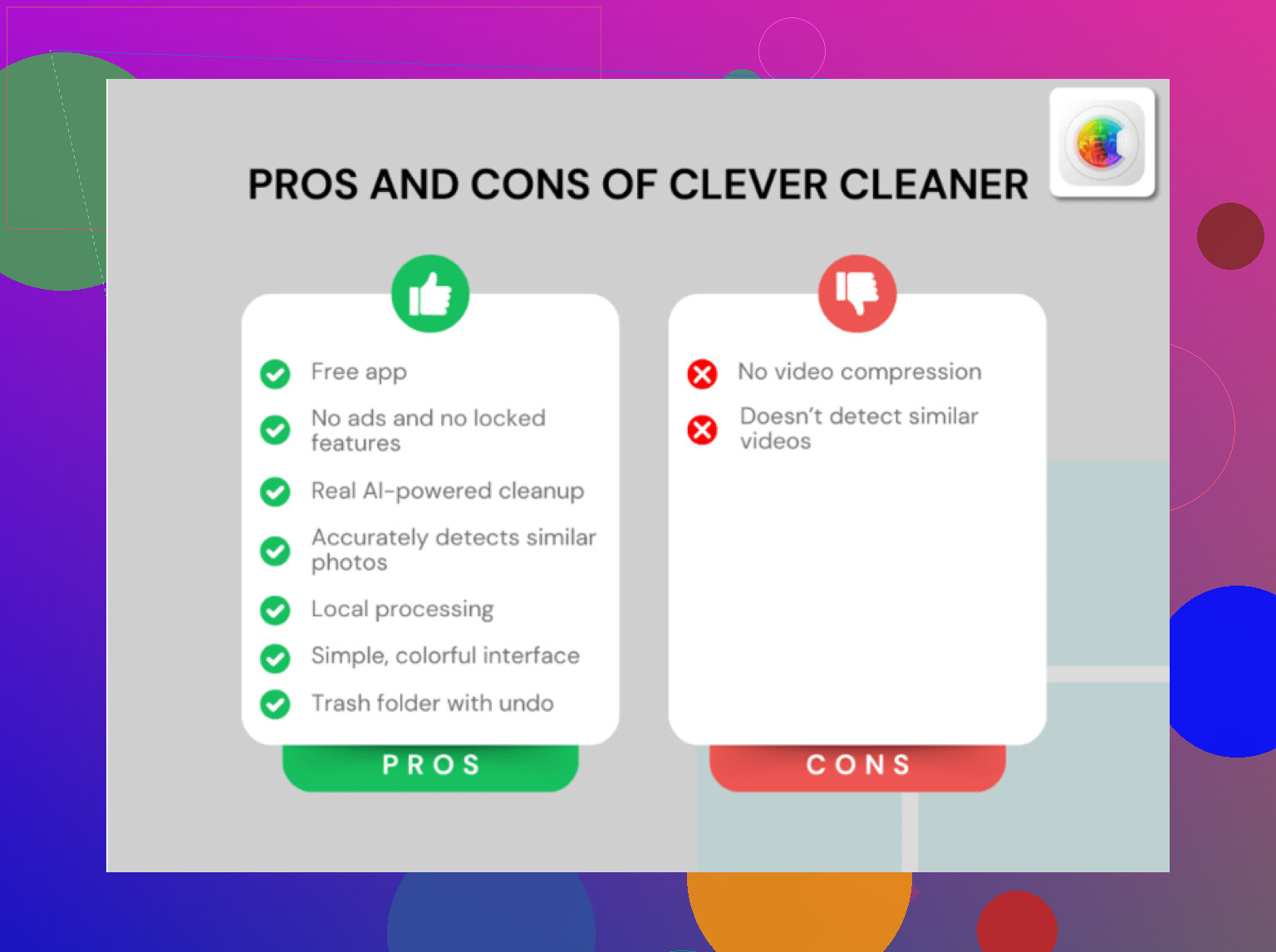
Pros of Clever Cleaner
- shows sizes more clearly than Photos
- faster for triage when storage is critical
- useful if you have thousands of screenshots
- can surface other large items too
Cons of Clever Cleaner
- still another app that needs photo access
- size alone does not tell you what is safe to delete
- may tempt you to over-focus on big files instead of obvious junk categories
My take: use Clever Cleaner to spot the worst storage offenders, then do a sanity pass by context. Delete expired tickets, payment confirmations, verification codes, and duplicate crops. That usually beats trying to optimize every megabyte manually. Also check whether screenshots were backed up into Notes, Files, or messaging apps, because sometimes the same image is living in multiple places.