I’m trying to free up storage on my iPhone by deleting every photo except the ones marked as Favorites. I use iCloud Photos and I’m worried that deleting photos from the iPhone might also remove them from iCloud or affect my Favorites album. How can I safely delete non-favorite photos while keeping my favorite photos backed up in iCloud?
Yeah, this is one of those Photos problems that sounds simple until you actually try it with a huge library. Apple really should have a “delete everything except favorites” option, but they don’t, so you have to work around it.
The main thing to understand first: iCloud Photos is syncing, not a separate backup bucket. If you delete a photo from the phone while iCloud Photos is on, it gets deleted from iCloud too. Your favorites are safe only if you avoid deleting them. So before doing anything big, make sure the heart icon is actually filled on the photos you want to keep.
The cleanest no-extra-app workaround is to temporarily hide your favorites:
- Open the Favorites album.
- Tap Select, then Select All.
- Use the three-dot menu or share button, depending on your iOS version, and choose Hide.
- Go back to Library or Recents. Your favorites should no longer be showing there.
- Tap Select, start from the last photo, then drag/select upward. You can tap near the top of the screen while holding to move faster.
- Trash everything that’s visible.
- Go to the Hidden album under Utilities, select your favorites, and Unhide them.
It’s a weird little workaround, but it does the job because hidden photos are removed from the normal Recents view while you’re doing the big delete.
Another option, if hiding makes you nervous, is to duplicate all your favorites first. Go into Favorites, select everything, then tap Duplicate. The duplicated copies should land at the end of your camera roll, and then you can delete everything before those copies. It’s clunkier, but some people feel better having the keepers sitting together at the end.
The annoying part is that once your iPhone storage is basically maxed out, Photos can get really flaky. If you’re sitting at something like 127.9GB used out of 128GB, even deleting stuff can freeze or crash because iOS needs a little space to process the deletion. The storage graph may also refuse to update right away, which makes it look like nothing worked.
That’s where the built-in Photos app starts to feel pretty useless. It doesn’t show file sizes, so you can’t easily tell whether you’re deleting a tiny image or a massive 4K video.
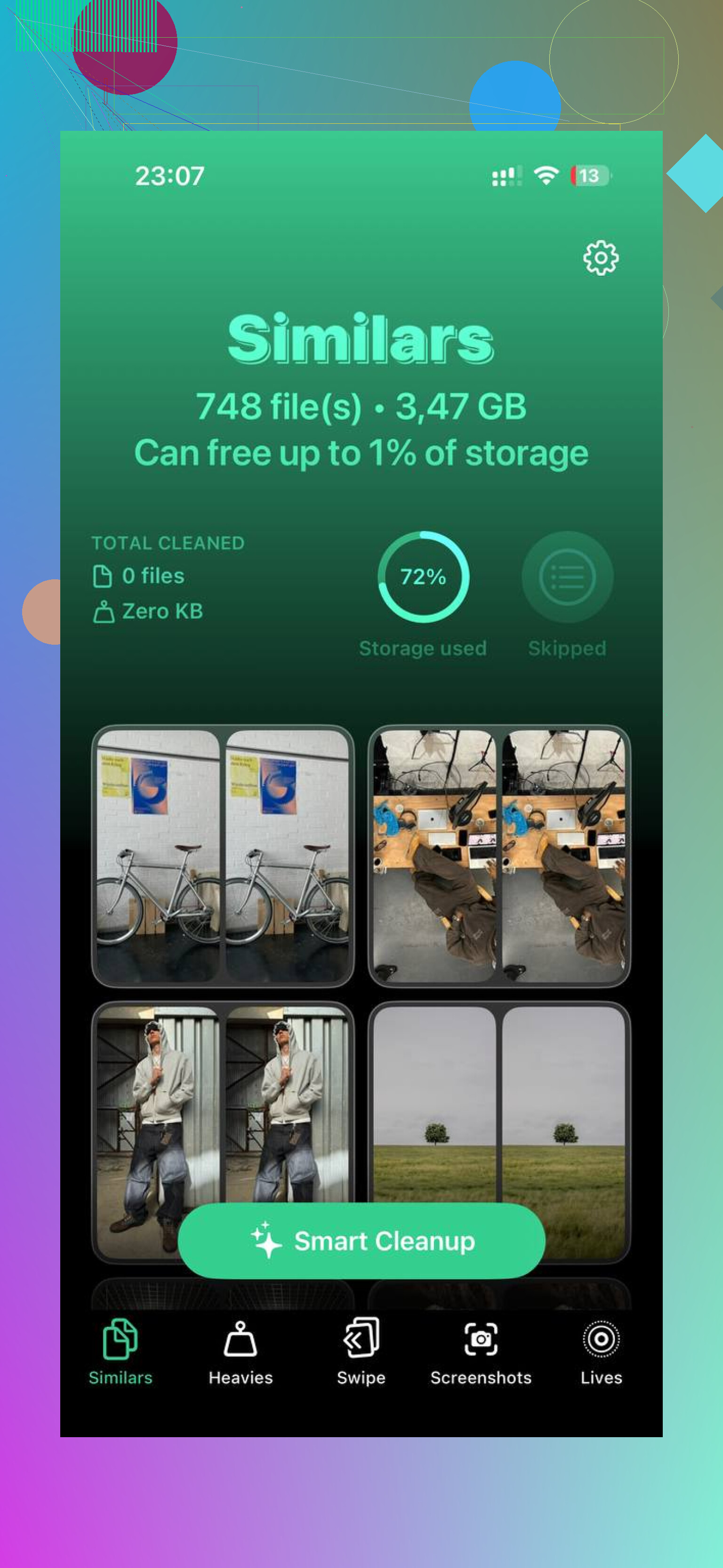
I ended up using Clever Cleaner for this because it made the cleanup way less painful. I’m usually suspicious of cleaner apps too, since a lot of them are ad-heavy or subscription traps, but this one is free and doesn’t throw paywalls in your face.
The useful part was the Heavies section. It sorts your photos and videos by size, so you can remove the stuff that actually matters first. Old screen recordings, exported videos, and random huge clips can eat several gigs without you realizing it. The Similars tab is also handy if you have a bunch of near-duplicate shots from trying to get one decent photo. And the Screenshots area shows file sizes right on the thumbnails, which is a lot better than guessing.
It also processes on-device, so you’re not uploading your library somewhere just to clean it up.
Starting with the biggest files helps a lot. Once you free up even a little space, the phone usually stops choking and the normal delete process gets smoother.
Don’t forget the final step: go to Albums, scroll to Recently Deleted, and hit Delete All. Until you do that, the deleted photos can sit there for 30 days and still take up space. If Settings still shows the old storage number afterward, restart the phone. Sometimes iOS just needs a reboot before it shows the freed-up space correctly.
2 Likes
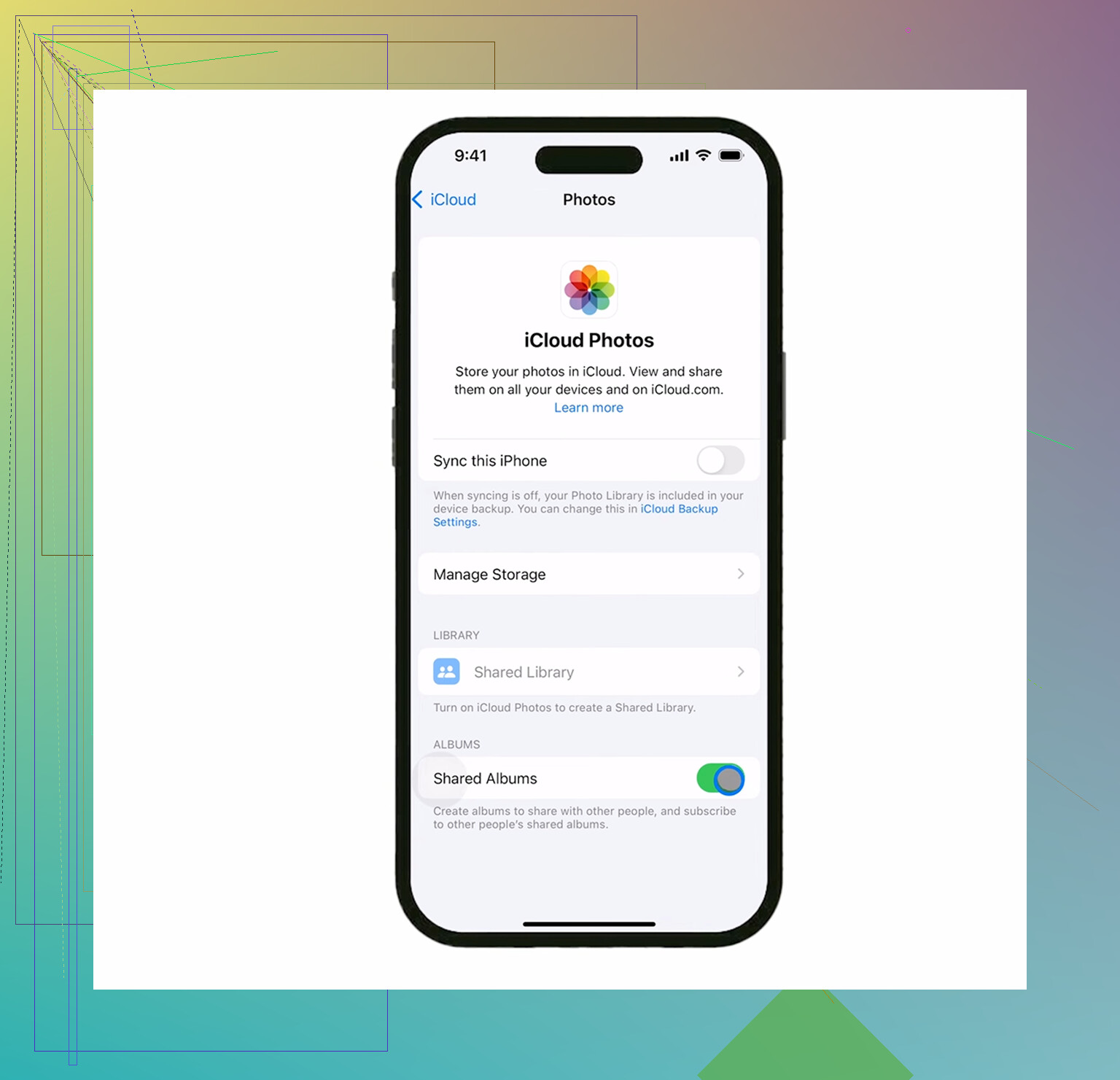
Do not turn iCloud Photos off and start deleting unless you’re clear what copy you’re looking at. If iCloud Photos is on, deleting non-favorites from the Photos app deletes those non-favorites from iCloud too, while the favorites should stay only because you didn’t select them. If your real goal is just to free space on the phone but keep the whole library in iCloud, don’t do this at all, use Optimize iPhone Storage instead. If your goal is to permanently shrink the iCloud library down to favorites only, then the hide-favorites trick is reasonable, but I’d still make a separate backup/export of the favorites first because one bad mass-selection swipe is all it takes.
Don’t treat the Favorites heart like a lock or a backup label. It’s just an album/filter, so if you accidentally include a favorite in a mass delete, iCloud Photos will delete it the same as anything else and it’ll only be recoverable from Recently Deleted for a limited time. @andarilhonoturno is right that Optimize iPhone Storage is the right move if you want to keep the full iCloud library. The catch is that it may not free space instantly, especially if the phone is already jammed full. If you really want iCloud to end up with only favorites, I’d do the delete from iCloud.com or a Mac where selection is easier, not by frantic scrolling on a tiny iPhone screen. Favorites will stay in iCloud only if you do not delete those actual photo items.
Don’t empty Recently Deleted right after the big delete. That folder is your undo button if your finger slips and you accidentally select some favorites with the rest. Once you clear Recently Deleted, iCloud won’t have a secret untouched copy waiting somewhere.
The answer to your actual question is: favorites will stay in iCloud only if the photo items themselves are not deleted. The heart is just metadata on the photo. It does not protect the photo from deletion, and it does not make a separate backup copy. If iCloud Photos is enabled, deleting a photo on the iPhone is basically telling the iCloud library, “delete this photo everywhere.”
The step I would not skip is checking the Favorites album from another place before doing anything permanent. Open Photos on a Mac, iPad, or iCloud.com and make sure the favorites you care about are visible there and fully synced. Then after deleting the non-favorites, wait for sync to finish and check again before touching Recently Deleted. This is slower, but it catches the dumb sync/mis-selection mistakes before they become permanent.
Another small catch: if your goal is only more phone storage, deleting non-favorites is the wrong tool unless you really want them gone from iCloud too. Use Optimize iPhone Storage for that. If your goal is to reduce your whole iCloud Photos library so it contains mostly favorites, then yes, deleting non-favorites is the right idea, but treat it like deleting from the master library, not cleaning a local cache.
I’d personally make a separate export of the favorites first if they matter at all. Even a temporary copy to a computer, external drive, or another cloud service is better than trusting a huge drag-selection operation on a phone screen. The Favorites album makes selection easier, but it does not make the photos safer.